Email & SMS Settings
Configure your email and SMS communication settings in CoolEdge
Email & SMS Settings
Configure how CoolEdge handles your customer communications including email routing, notifications and SMS settings.
1. Accessing Settings
Navigate to Settings in the left sidebar, then:
- Email Settings for email and unified inbox configuration
- SMS Settings for two-way SMS setup and number registration
2. Email Settings Overview
The Email Settings page has three tabs:
- Unified Inbox: Configure how inbound emails are handled
- Outbound Notifications: Control CC copies of sent emails and delivery alerts
- Signatures: Set the signature on outgoing emails. See Email Signatures

These settings apply to the whole business. Your own inbox preferences, like the default send button and undo send, are separate. Find them under Settings → My Profile → Messages on the portal or More → App Settings → Messages in the app. See Team Inbox.
Unified Inbox Tab
What is Unified Inbox?
When enabled, customer replies to your quotes, invoices and other emails are captured directly in CoolEdge. You can view and manage all customer communications in one place.
Enabling Unified Inbox
- Go to Settings → Email Settings
- Select the Unified Inbox tab
- Toggle Enable Unified Inbox to ON
When enabled:
- Outbound emails use a special reply-to address
- Customer replies are automatically routed back to CoolEdge
- Replies appear in your Messages inbox
- Full conversation history is maintained
- You get a unique inbound email address for new enquiries
Your Inbound Email Address
When Unified Inbox is enabled, your business gets a unique inbound email address that routes enquiries directly to your CoolEdge Messages inbox.
Finding your address: Your inbound email address is shown in the Email Settings page when Unified Inbox is enabled.
Where to use it:
- Website contact forms
- Business cards and marketing materials
- Email signatures
- As a forwarding destination from other email accounts
How it works: An email sent to this address from a sender who is not on any customer appears in Open in Messages with an amber Unmatched badge. Owners and admins see these. Team members do not. From there you can reply directly or use Link to customer to match it to an existing customer or create a new one. See Snooze, Archive and Trash.
Important: If you change your custom subdomain in Branding settings, your inbound email address will also change.
Inbound Reply Notifications
Configure email alerts when customers reply:
Email Reply Notifications
- Toggle Notify me when customers reply to emails
- Receive an alert when customers respond to quotes, invoices, etc.
SMS Reply Notifications
- Toggle Notify me when customers reply via SMS
- Requires two-way SMS setup
Custom Notification Email
- By default, notifications go to your business email
- Enter a different email address if needed
Outbound Notifications Tab
Control whether you receive copies of outgoing customer emails:
Quote Email Notifications
- Toggle CC Quote Emails to Business Email
- When enabled, you receive a copy of every quote email sent
- Useful for tracking what customers receive
Invoice Email Notifications
- Toggle CC Invoice Emails to Business Email
- When enabled, you receive a copy of every invoice email sent
- Note: Not available in ServiceM8 mode
Purchase Order Email Notifications
- Toggle CC me on purchase order emails
- When enabled, you receive a copy of every purchase order email sent to suppliers
Delivery Alerts
- Toggle Email me when a customer email bounces
- You get an alert when a quote or other email cannot be delivered or is marked as spam, so you can fix the address and resend
- Send alerts to sets where the alert goes. Leave it blank to use your business email
3. SMS Settings
Access SMS settings via Settings → SMS Settings.
For Trial and Starter Plans
SMS features are available on paid plans:
- Trial users: Upgrade to send SMS messages
- Starter plan: 50 SMS credits/month for outbound SMS
For Growth and Scale Plans
Full two-way SMS is available:
- Dedicated business number: Customers can reply
- 300+ SMS credits/month: More sending capacity
- Business verification required: Australian regulations
See Registering Your SMS Number → for setup instructions.
Your Dedicated Number Takes Calls Too
Your dedicated business number is no longer for messages only. An owner or admin turns call answering on under Settings → Phone Numbers. New accounts start with it on already. Once it is on, you decide what happens when someone rings it: forward the call to up to five mobiles or landlines that all ring at once, forward only during business hours or send every caller to voicemail with an AI summary and a transcript in Messages. Set it up in Settings → Phone Numbers (Call Forwarding and Voicemail), see every call in Reports → Call History (Call History) and check what forwarding costs on the Voice Minutes & Usage card in Account & Billing (Voice Minutes and Billing). Voice and SMS have separate overage switches, so turning one off leaves the other exactly as it was.
SMS Credits
How Credits Work
- 1 credit: Messages up to 160 characters
- 2 credits: Messages of 161 to 306 characters
- 3 credits: Longer messages, up to the 425 character limit
Monthly Allowance by Plan
| Plan | SMS Credits/Month |
|---|---|
| Starter | 50 |
| Growth | 300 |
| Scale | 600 |
Overage Settings
If you need more credits than your plan includes:
- By default, overage is allowed at $0.10 per credit
- To disable overage, the account owner can switch off Allow SMS overage in Settings → Account & Billing
- When disabled, SMS sending stops when credits are exhausted
When Are Overage Charges Billed?
Overage is billed automatically:
- Monthly plans: Charged at month-end, or at $25 increments if you exceed that threshold
- Yearly plans: Billed monthly on a separate invoice, or sooner once your overage reaches $25. If that payment fails, SMS stops at your included credits until it is paid. See Subscriptions & Billing.
This keeps charges predictable and avoids large surprise bills.
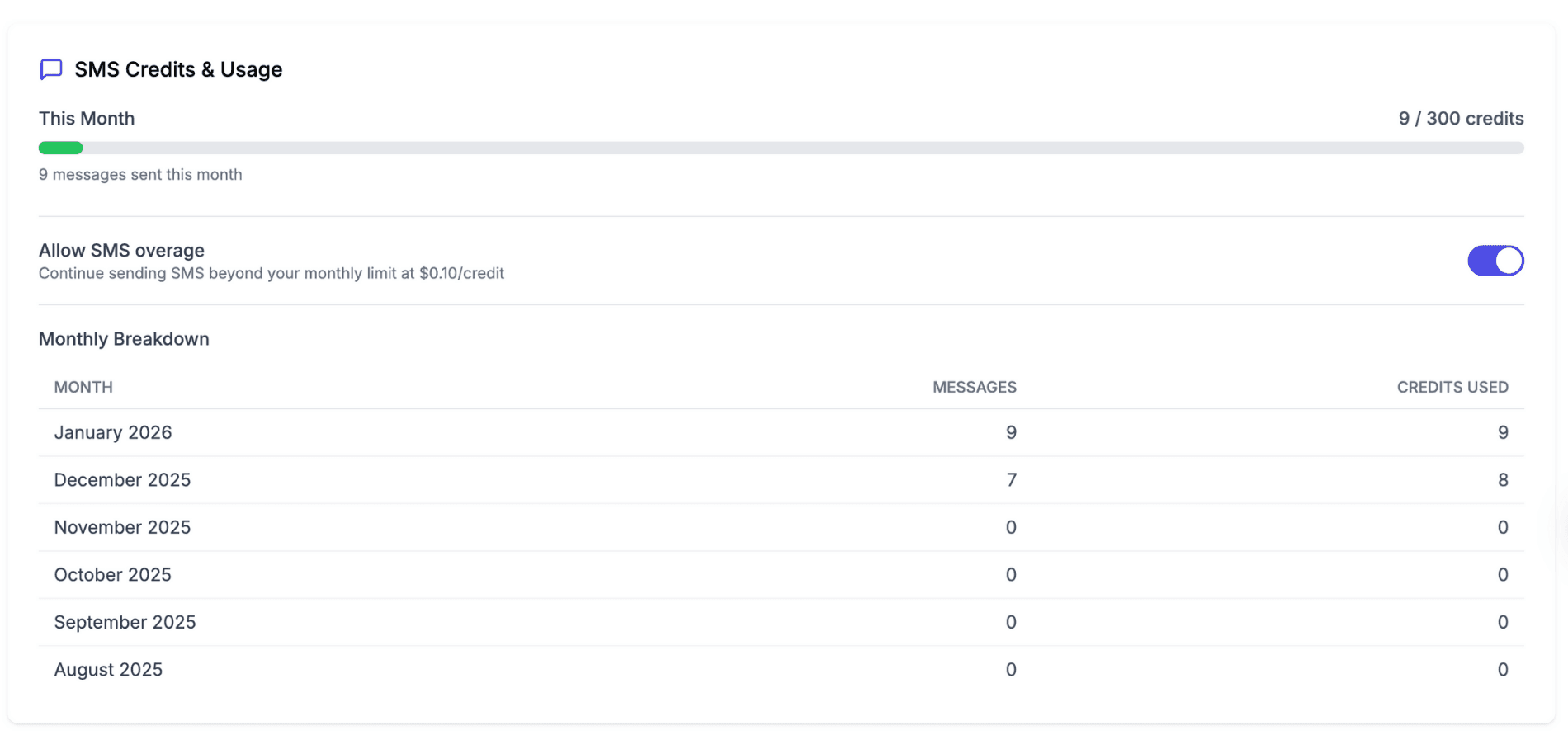
Checking Usage
View your usage in Settings → Account & Billing, on the SMS Credits & Usage card:
- Credits used this month out of your plan's allowance, with a progress bar
- The number of messages sent this month
- A month by month breakdown
The card appears once you are on a paid plan.
4. Message Templates Settings
Manage reusable templates for emails and SMS:
- Go to Settings → Templates
- Switch between Email Templates and SMS Templates tabs
- Create, edit or delete custom templates
Creating a Template
- Click New Template
- Enter template name and description
- For emails, add a subject line
- Write your message body
- Insert variables using the {} Insert Variable button
- Preview how it will look
- Click Save Template
Available Variables
Templates support dynamic variables:
Business
{business.name}- Your business name{business.email}- Business email{business.phone}- Business phone
Customer
{customer.name}- Customer's full name{customer.first_name}- First name only{customer.email}- Customer email{customer.phone}- Customer phone
Quote
{quote.number}- Quote number{quote.total}- Quote total amount{quote.link}- Link to online quote
Job
{job.number}- Job number{job.address}- Job site address
Invoice
{invoice.number}- Invoice number{invoice.total}- Invoice total{invoice.link}- Link to pay invoice
Learn more in Message Templates →
5. Push Notifications (Mobile App)
Configure mobile push notifications in the Cooledge app:
- Open the Cooledge app
- Go to More → Notification Preferences
- Switch each notification on or off
These toggles are saved on your phone and apply while the app is open. When the app is closed, notifications still arrive. To stop them altogether, turn notifications off for Cooledge in your phone's own settings.
Available notifications:
- Messages: New Messages. On Growth and Scale plans you also get Mentions, Assigned to you and Comments
- Leads: Marketplace Lead Alerts and Inbound Lead Alerts
- Quotes and invoices: Quote Viewed, Quote Accepted, Quote Paid and Invoice Paid
- Schedule: Schedule Changes
Note: Push notification settings are managed in the mobile app, not the portal.
6. Troubleshooting
Emails Not Being Captured
If customer replies aren't appearing in your inbox:
- Verify Unified Inbox is enabled
- Check that emails are going to your CoolEdge email, not personal
- Replies to very old emails may not be captured
Not Receiving Notifications
If you're not getting email notifications:
- Check notification settings are enabled
- Verify the notification email address is correct
- Check your spam/junk folder
- Whitelist emails from CoolEdge
SMS Not Sending
If SMS messages fail:
- Verify you have available credits
- Check the phone number is valid (Australian mobile)
- For 2-way SMS, ensure your number is active
- See Two-Way Text Messaging troubleshooting →
Next Steps: Set up Two-Way Text Messaging → or learn about Message Templates →
Need help? Email us at support@cooledge.com.au
Was this article helpful?
Let us know if you found this information useful.
Still need help? Contact support
In this article
Use your browser's search (Ctrl+F) to quickly find specific topics within this article.
Browse all help articles →Related Articles
Booking Reminders
Automated SMS and email reminders that fire before every scheduled visit. Filter by staff, category, or visit type, with quiet hours and custom templates.
Call Forwarding and Voicemail
Forward calls from your business number to a mobile or landline, set business hours and record your voicemail greeting
Call History
See every call to your business number, who called, what happened and any voicemail they left