Call Forwarding and Voicemail
Forward calls from your business number to a mobile or landline, set business hours and record your voicemail greeting
Call Forwarding and Voicemail
Your CoolEdge business number can now answer calls, not just texts.
- Forward every call to up to five mobiles or landlines, forward only during business hours or send every call to voicemail
- Answer confirmation stops the forwarded phone's own voicemail stealing the message
- Type a greeting or upload your own recording
- Voicemails land in Messages with an AI summary and a full transcript
- Text a caller back automatically when you miss them and turn missed calls into leads
Your dedicated CoolEdge number used to be for SMS only. Once call answering is on, you decide what happens when someone rings it. Set it up in Settings → Phone Numbers.
What You Need
- A Growth or Scale plan. The dedicated business number comes with those plans. Starter sends SMS from the shared CoolEdge number, so it has no number to route calls on.
- Your dedicated business number already set up. If you do not have one yet, see Registering Your SMS Number. If you have never set one up, the Phone Numbers page shows you what to do next instead of the routing cards. On Growth and Scale you get Set up your business number, which takes you to SMS setup. On Starter or a trial you get View plans, because the number comes with the Growth and Scale plans. Either way there is a How registration works link beside the button. If you had numbers and released them all, the page says so on Growth or Scale and Add Number gets you a new one. On any other plan you see the View plans card instead.
- Owner or admin access. Team members do not see the page.
- Call answering turned on. The first time you open Settings → Phone Numbers you see Turn on call answering. Until you click it, callers hear a message saying the number is for SMS only. New accounts start with it on.
1. The Phone Numbers Page
Go to Settings → Phone Numbers, under CLIENT COMMUNICATION in the settings menu.
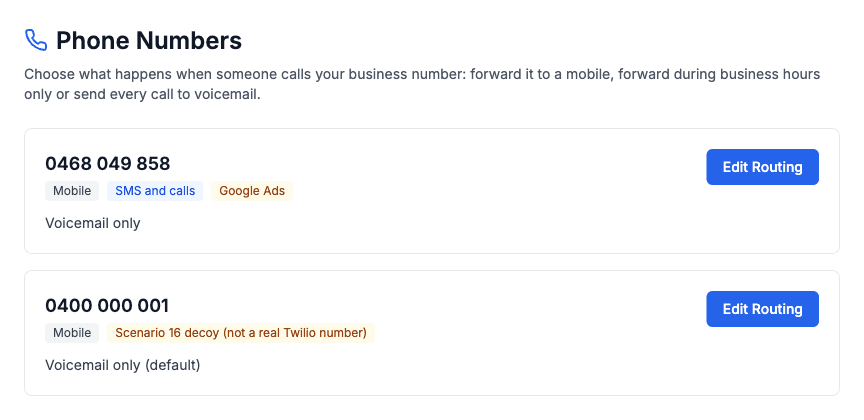
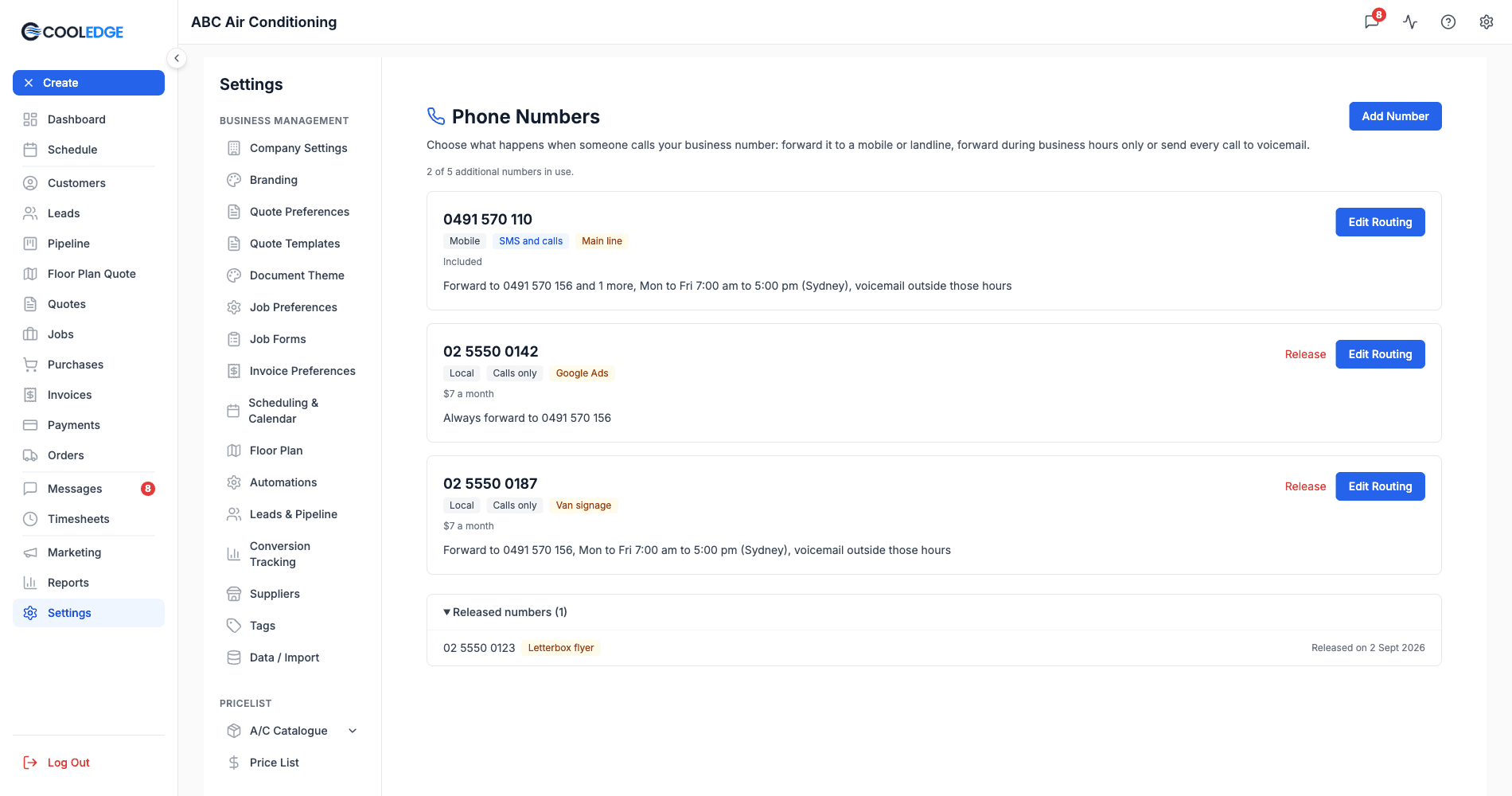
You get one card per active number showing:
- The number itself, formatted the way you would dial it
- What kind of number it is (Mobile or Local)
- An SMS and calls chip when the number handles both
- Your label for the number, if you have set one
- A plain-English summary of what happens when it rings, for example Voicemail only or Forward to 0412 345 678, Mon to Fri 8:00 am to 5:00 pm (Sydney), voicemail outside those hours
Click Edit Routing to change any of it. The editor opens as Routing for your number and it only shows the sections that apply: the forwarding fields appear once you pick a forwarding mode and the business hours fields appear only for Forward during business hours.
Note: Your first number is provisioned for you as part of SMS setup. Owners and admins can add up to five more with Add Number, top right. See Adding Another Number below.
Turning call answering off
At the bottom of the page is a quiet Turn off call answering link. A confirmation tells you what it does before anything changes: callers go back to hearing a message saying the number is for SMS only and the call ends, while your routing settings are kept. Extra numbers and the voice add-on keep billing until you release them or turn the add-on off, so sort those out separately if you are switching off to stop a charge.
2. Labelling the Number
The first field in the routing editor is Where is this number used?
Give the number a short label such as Google Ads, Website or Van signage, up to 40 characters. The label shows on Call History and on any lead created from a missed call, so you can see which number brings the work in.
Leave it blank if you only have one number.
Lead channel
Under the label is Lead channel. Pick the channel this number belongs to and every lead created from a missed call to it is saved with that channel, so the calls show up beside your other channels in your lead reports instead of all landing in Direct.
The list is the same one you use when you add a lead by hand. Change it under Settings → Leads.
Leave it on No channel if you are not sure. A number with no channel shows as Direct in lead reports.
Leads you already have keep the channel they were saved with. Setting or changing a channel here only affects leads created from that point on.
3. Adding Another Number
You can add up to five extra numbers alongside your main business number. Two reasons people do it: a cheap local number for each place you advertise, so Call History shows which one rings, or a second line for another tradie, department or region that rings different phones.
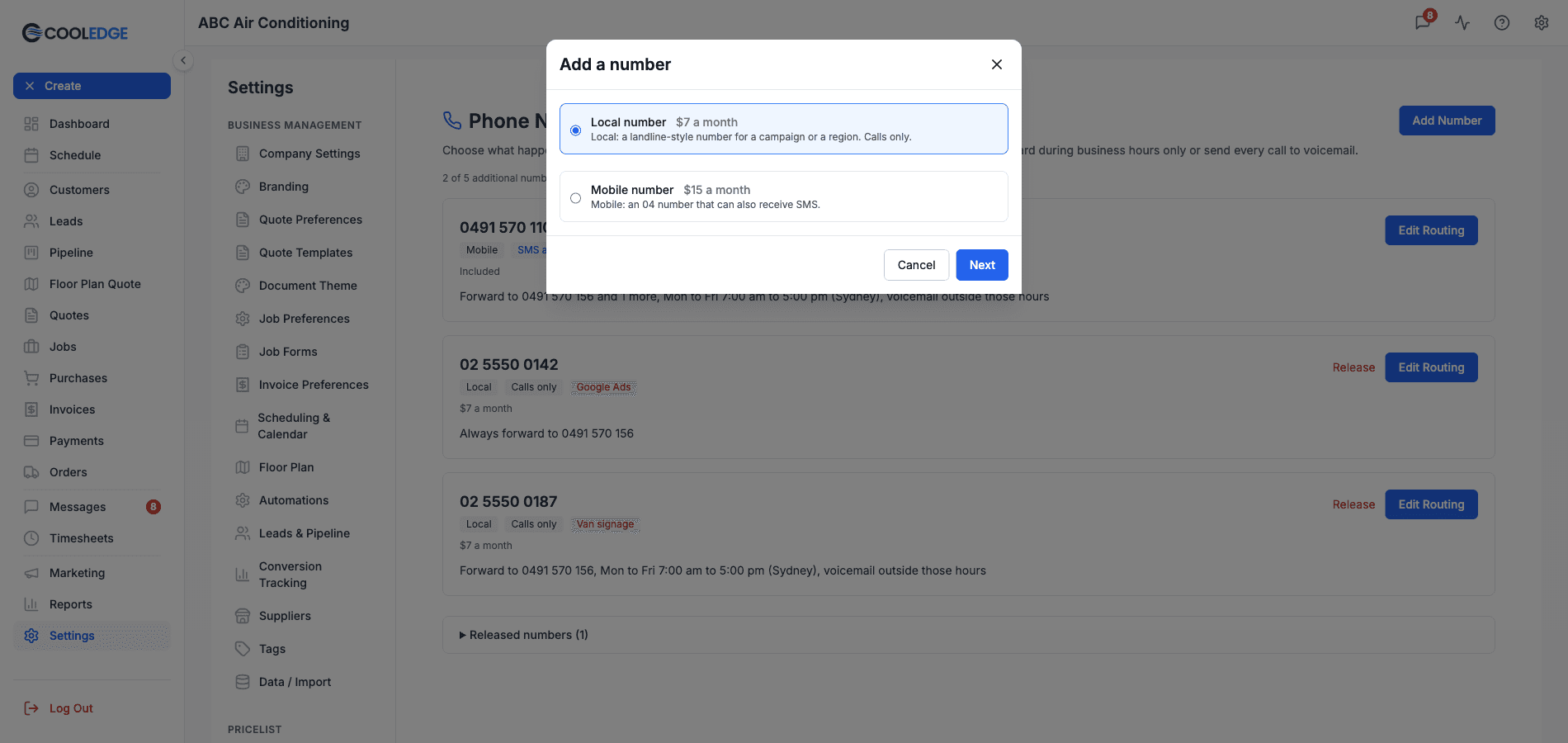
- Open Settings → Phone Numbers and click Add Number.
- Pick the type and click Next. A local number ($7 a month) is a landline-style number that takes calls only. It can be from any part of Australia. A mobile number ($15 a month) is an 04 number that can also receive SMS. Outgoing texts always send from your main business number.
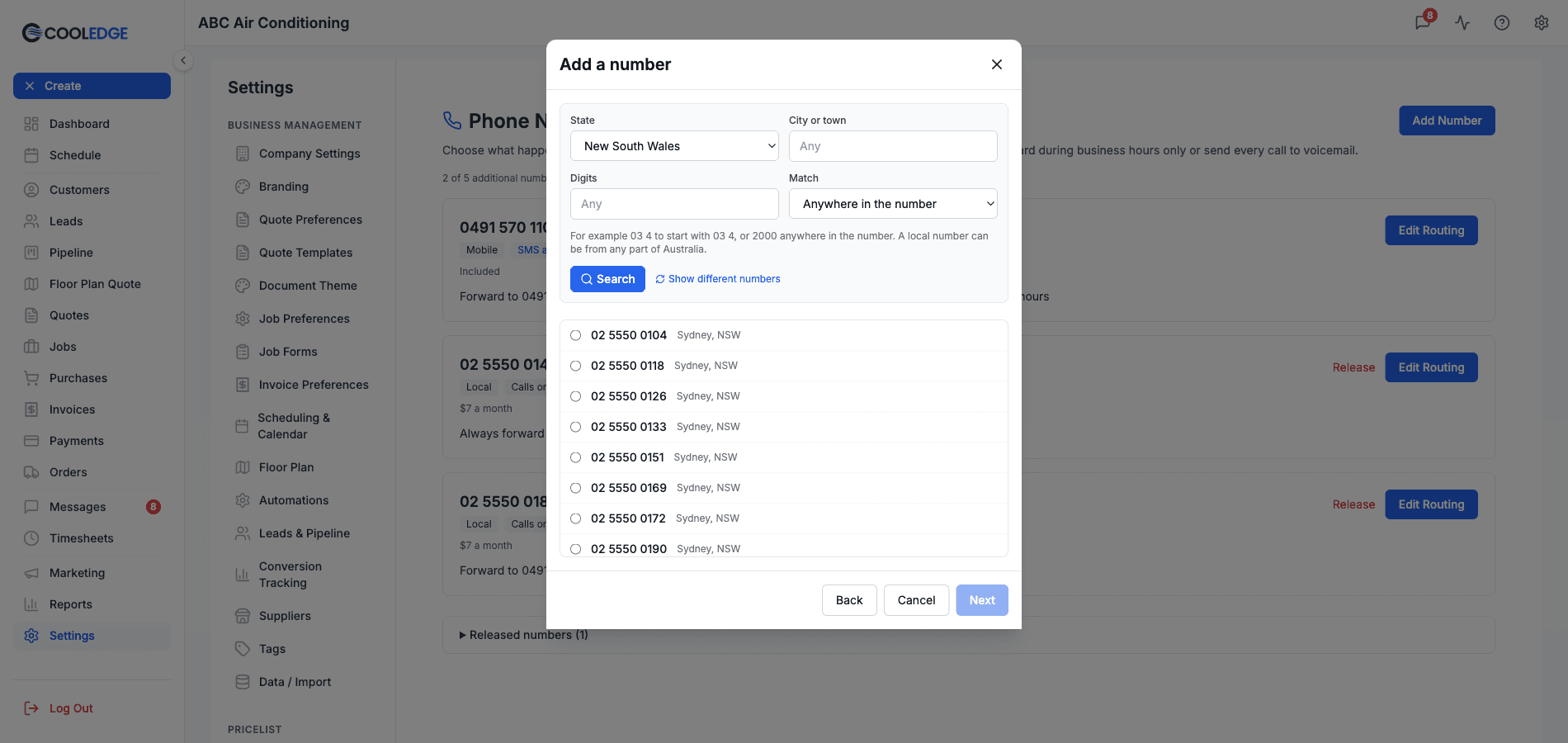
- Search for a number. For a local number you can narrow the list by State and by City or town. For either type, type some Digits and set Match to Starts with (for example
03 4) or Anywhere in the number (for example2000). Click Search, then Show different numbers if none suits. - Pick a number and click Next, then give it a label such as
Google AdsorVan signage. Call History groups calls by this label. - Click Buy number. The charge is added to your subscription straight away and prorated for the rest of your billing period. Release it within 30 days and that first charge is not refunded.
The new number starts on voicemail only. Click Edit Routing on its card to forward it wherever you like, exactly as for your main number.
Only owners and admins can add numbers. Only the owner can release one. Five extra numbers is the most a business can hold, so release one to add another once you reach it. You can also try to add at most 10 numbers in any 30 days, counting ones you released again or that did not go through. You need an active monthly plan and a dedicated SMS number set up first, because the extra numbers use the address and business details from that setup.
Releasing a number
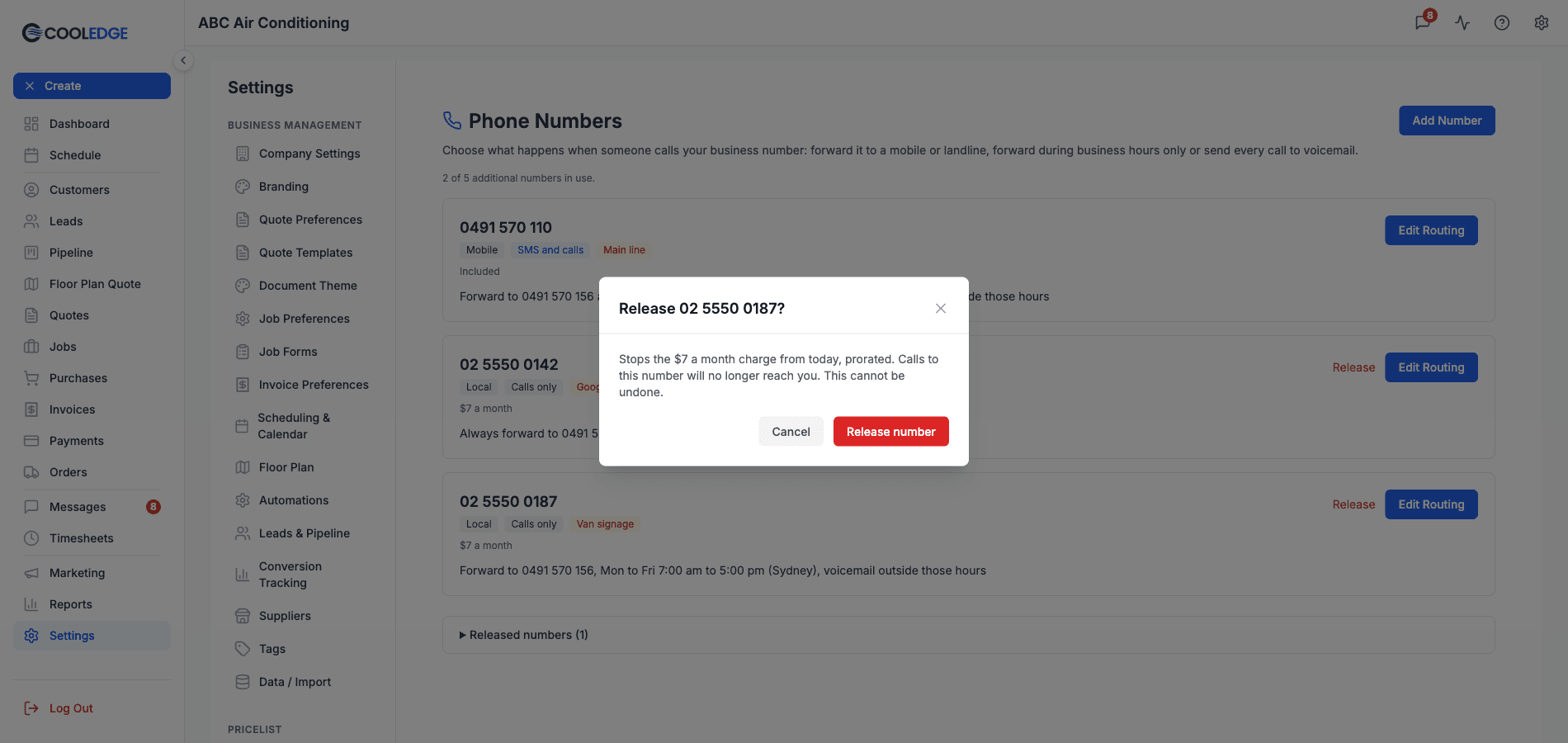
Click Release on the number's card. The monthly charge stops from today, prorated. If you bought the number less than 30 days ago, the charge for this month is not refunded. Calls to that number will no longer reach you. This cannot be undone, so update anywhere you have published the number first. Moving down to the Starter plan or cancelling your subscription releases your main number and every extra number with it. Release shows on extra numbers only, so your main business number is never released here. Released numbers stay on the page under a collapsed Released numbers heading at the bottom, which you click to expand. Each one shows the date it was released. Their calls stay in Call History.
4. Choosing What Happens When Someone Calls
Three modes, one at a time:
| Mode | What callers get |
|---|---|
| Voicemail only | Every call goes straight to your voicemail greeting. |
| Always forward | Your numbers ring every time, with voicemail as the fallback. |
| Forward during business hours | Your numbers ring in the hours you set, voicemail outside them. |
Pick either forwarding mode and CoolEdge shows you the cost of forwarding right there, based on your current plan and add-on settings. See Voice Minutes and Billing for the full picture.
Forward calls to
Enter up to five numbers to ring. Each must be an Australian mobile or landline. When a call comes in, every number rings at the same time and the first to answer takes the call. Use Add another number to add a row and the cross beside a row to remove it.
Ring for
How many seconds to ring your numbers before the caller is sent to voicemail. Anything from 5 to 60 seconds. Twenty seconds suits most businesses.
Answer confirmation
Leave this on. It is on by default and it exists to solve one specific problem.
When a call is forwarded, the forwarded phone rings. If you do not pick up, that phone's own carrier voicemail eventually answers. As far as the phone network is concerned, that counts as answered, so the caller ends up leaving a message on your personal voicemail. You never see it in CoolEdge and the minutes are still billed.
With answer confirmation on, whoever answers presses any key to take the call. A carrier voicemail cannot press a key, so that call comes back to your CoolEdge business voicemail instead and you get the message, the summary and the transcript like any other.
If you do switch it off, keep Ring for short. The editor warns you when the ring time is over 20 seconds with answer confirmation off, because a long ring is exactly what gives the forwarded phone's voicemail time to answer first.
5. Business Hours
These fields apply when the mode is Forward during business hours.
- Start and end time. Prefilled from your business hours and the editor says so. Change them here and they apply to this number only, not to the rest of CoolEdge.
- Days. Tick the days calls should be forwarded. Monday to Friday by default.
- Timezone. Sydney, Melbourne, Hobart and Canberra share one option. Brisbane, Adelaide, Darwin and Perth have their own.
Outside those hours and days, callers hear your voicemail greeting.
Hours cannot cross midnight and the end time has to be after the start time.
6. Your Voicemail Greeting
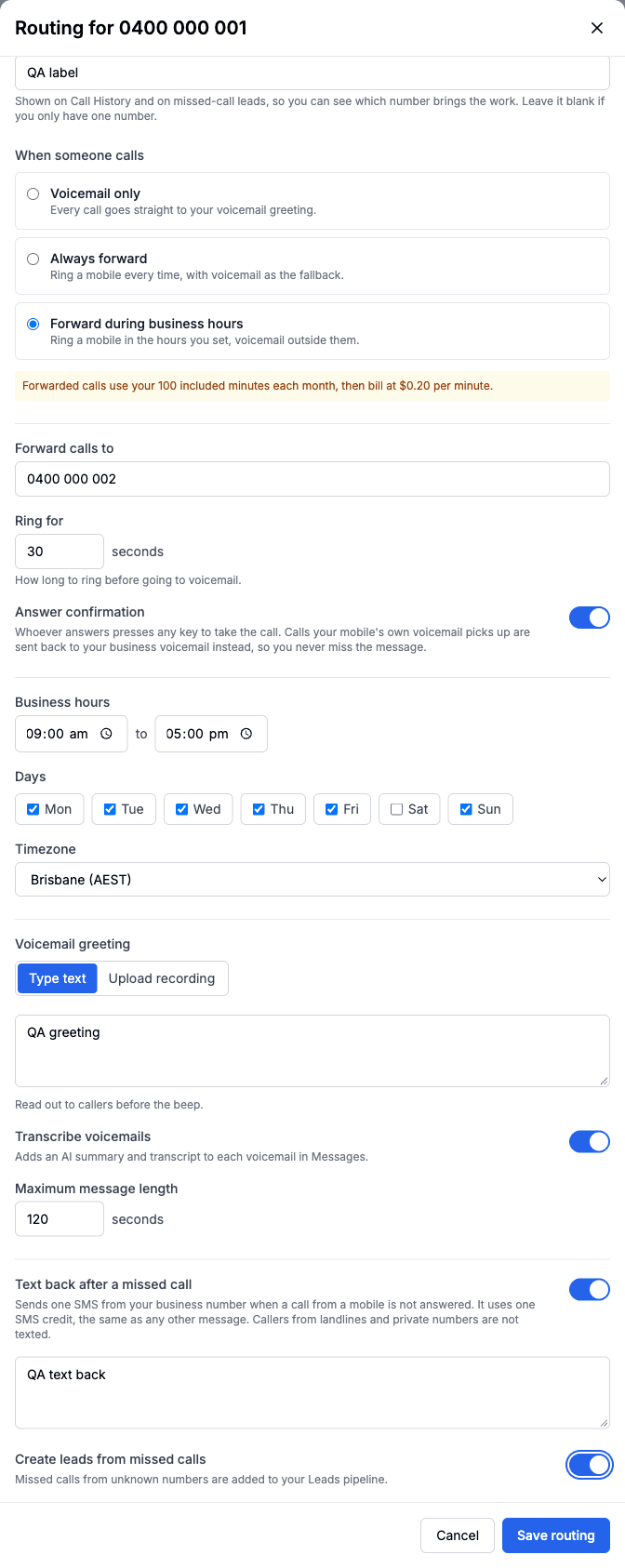
Two ways to do it. Choose Type text or Upload recording.
Type text
Write up to 500 characters. Callers hear it read out before the beep. Keep it short and say what you want them to leave, for example the job address and the best number to call back on.
Upload recording
Upload your own mp3 or wav, up to 5 MB. Once it uploads you get a player right there so you can check it before you save. That preview plays exactly what callers will hear.
Keep the typed greeting filled in even when you upload a recording. It is what callers hear whenever no recording is set. It does not take over on its own if a recording stops playing, so if that happens switch the greeting back to Type text in the editor.
Transcribe voicemails
On by default. Every voicemail gets an AI summary and a full transcript in Messages, so you can read a message in a couple of seconds instead of playing it. Switch it off if you would rather only have the recording.
Maximum message length
How long a caller can talk for, from 30 to 300 seconds. Two minutes is the default.
7. Missed Calls
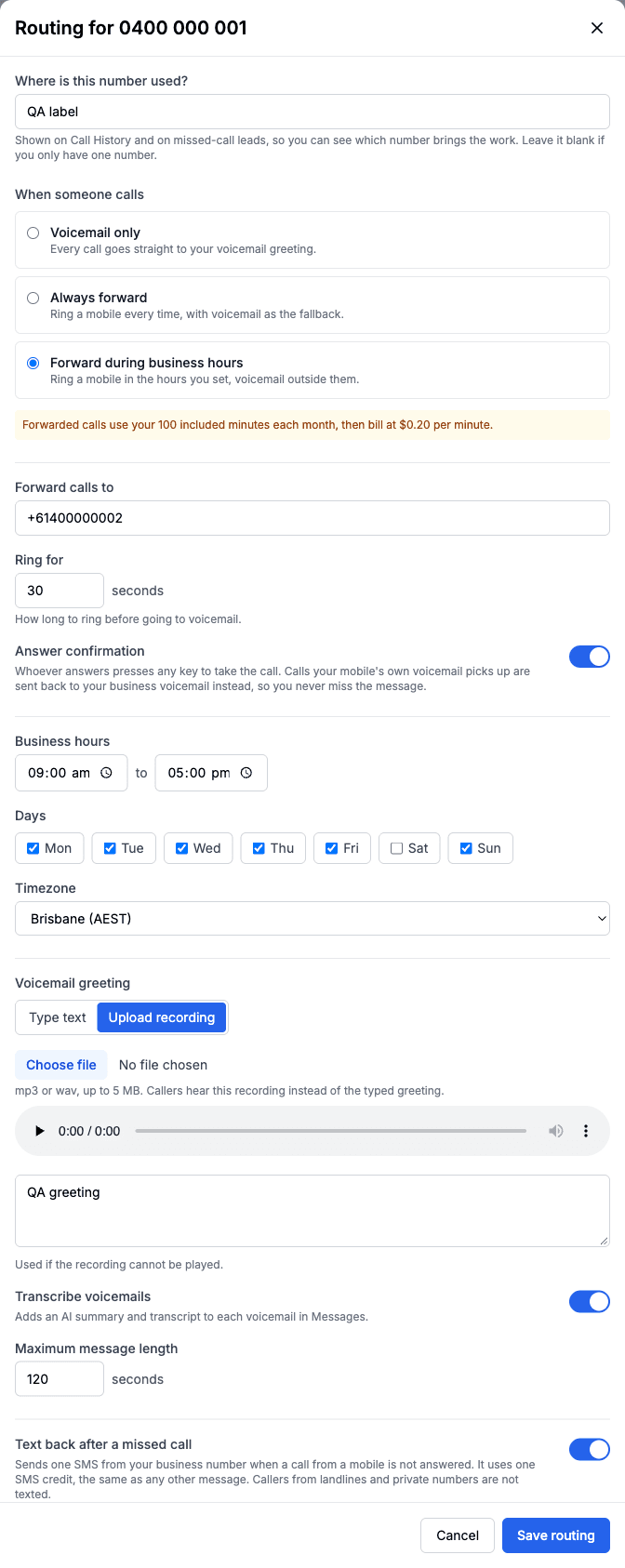
Text back after a missed call
Switch this on and CoolEdge sends one SMS from your business number when a call is not answered. You write the message.
Things worth knowing:
- SMS credits depend on the length of the message, the same as any other message you send. The editor shows a live estimate under the template as you type.
- It only goes to mobiles. Callers from landlines and private numbers are not texted.
- It is one message per missed call, not a conversation starter that keeps going.
- The message is the same whether or not the caller left a voicemail, so write it to work either way. Something like Thanks for calling, sorry we could not pick up. Reply here and we will get back to you shortly. Do not promise the caller you have listened to their message.
If your SMS credits run out, whether this text still sends depends on your SMS overage setting, not your voice settings. The two are separate. See Voice Minutes and Billing.
Create leads from missed calls
Switch this on and a missed call from a number you do not have on file is added to your Leads pipeline automatically, tagged with the number's label. A repeat caller is linked to the lead they already have rather than creating a second one. When you turn the lead into a customer, the caller's calls, voicemails and texts move onto that customer in Messages. Linking the caller to a customer in Messages links their lead too.
8. Where Calls Turn Up
Every call, answered or missed, appears in the customer's thread in Messages, on the portal and in the app. A voicemail sits inside its call:
- In the portal, in your Messages inbox, with the recording, the AI summary and the transcript
- In the CoolEdge app, in Messages, with a Play button, the summary and the transcript
- In Call History, where you can expand the row and listen without leaving the report. See Call History.
A missed call makes the conversation unread and reopens it, the same as a message from the customer. An answered call is a record. It does not make the conversation unread or reopen it. See Team Inbox.
Push notifications for voicemails go to owner and admin phones. A team member also gets the push when the caller's conversation is assigned to them. There is no separate missed-call notification. New leads still send theirs. A call from a number that is not on any customer shows in Open in Messages with an Unmatched badge, which only owners and admins see.
9. Saving Your Changes
Click Save routing in the editor. If you are uploading a recording, wait for the upload to finish first. Save routing stays disabled until it does, so the correct file is the one that gets saved.
Common messages when a save is refused:
| Message | What to do |
|---|---|
| Forwarding numbers must be Australian numbers | Only Australian mobiles and landlines can be forwarded to. |
| Add a number to forward calls to | A forwarding mode needs at least one number. |
| Set the hours calls should be forwarded | Business hours mode needs a start and an end time. |
| Business hours must end after they start and cannot cross midnight | Split an overnight window or use Always forward. |
| Pick at least one day | Business hours mode needs at least one day ticked. |
| Enter a greeting | The typed greeting cannot be empty, even when you upload a recording. |
| Upload a recording or switch the greeting back to text | You chose Upload recording but no file has been uploaded yet. |
| Keep the label to 40 characters | Shorten the label. |
10. Troubleshooting
Calls are going to voicemail when they should be forwarding
Check three things in order:
- The mode. Voicemail only does exactly what it says.
- The hours. In business hours mode, a call outside the window or on an unticked day goes to voicemail by design.
- Your billing. If the voice add-on is off and voice overage is off, calls are never forwarded. See Voice Minutes and Billing.
The caller left a message on my personal voicemail
Answer confirmation is off. Switch it back on in the routing editor and shorten Ring for while you are there.
My uploaded greeting does not play
Play it in the preview player in the editor. If it does not play there it will not play for callers either. Switch the greeting back to Type text while you sort it out, so callers hear your typed greeting rather than a recording that will not play. Then re-export it as a standard mp3 or wav under 5 MB and upload it again.
No transcript on a voicemail
A transcript takes a moment to arrive, so a brand-new voicemail can show Transcription pending. If it says Transcription unavailable, the audio could not be transcribed, usually because it is very short or very noisy. The recording itself is always there.
The number is not listed on the Phone Numbers page
Active numbers each get a card. Numbers you have released sit under the collapsed Released numbers heading at the bottom of the page, which you click to expand. If you have not finished SMS registration yet, complete that first: Registering Your SMS Number.
Next Steps: See every call in Call History or check what forwarding costs in Voice Minutes and Billing
Need help? Email us at support@cooledge.com.au
Was this article helpful?
Let us know if you found this information useful.
Still need help? Contact support
In this article
Use your browser's search (Ctrl+F) to quickly find specific topics within this article.
Browse all help articles →Related Articles
Booking Reminders
Automated SMS and email reminders that fire before every scheduled visit. Filter by staff, category, or visit type, with quiet hours and custom templates.
Call History
See every call to your business number, who called, what happened and any voicemail they left
Email Signatures
Set up the signature on the emails you and your team send, plus a separate one for automated emails like booking reminders