Message Templates
Create reusable email and SMS templates with dynamic variables for faster customer communication
Message Templates
Message templates help you communicate faster and more consistently with customers. Create reusable templates for common messages, and use dynamic variables to personalize each communication automatically.
1. Overview
What Are Templates?
Templates are pre-written messages you can use when communicating with customers:
- Email templates: Full emails with subject lines and rich formatting
- SMS templates: Short text messages optimized for mobile
Benefits of Templates
- Save time: No need to type the same messages repeatedly
- Consistency: Ensure all customers receive professional communications
- Personalization: Variables automatically insert customer-specific details
- Reduce errors: Pre-written messages mean fewer typos
2. Accessing Templates
In Settings
To manage your templates:
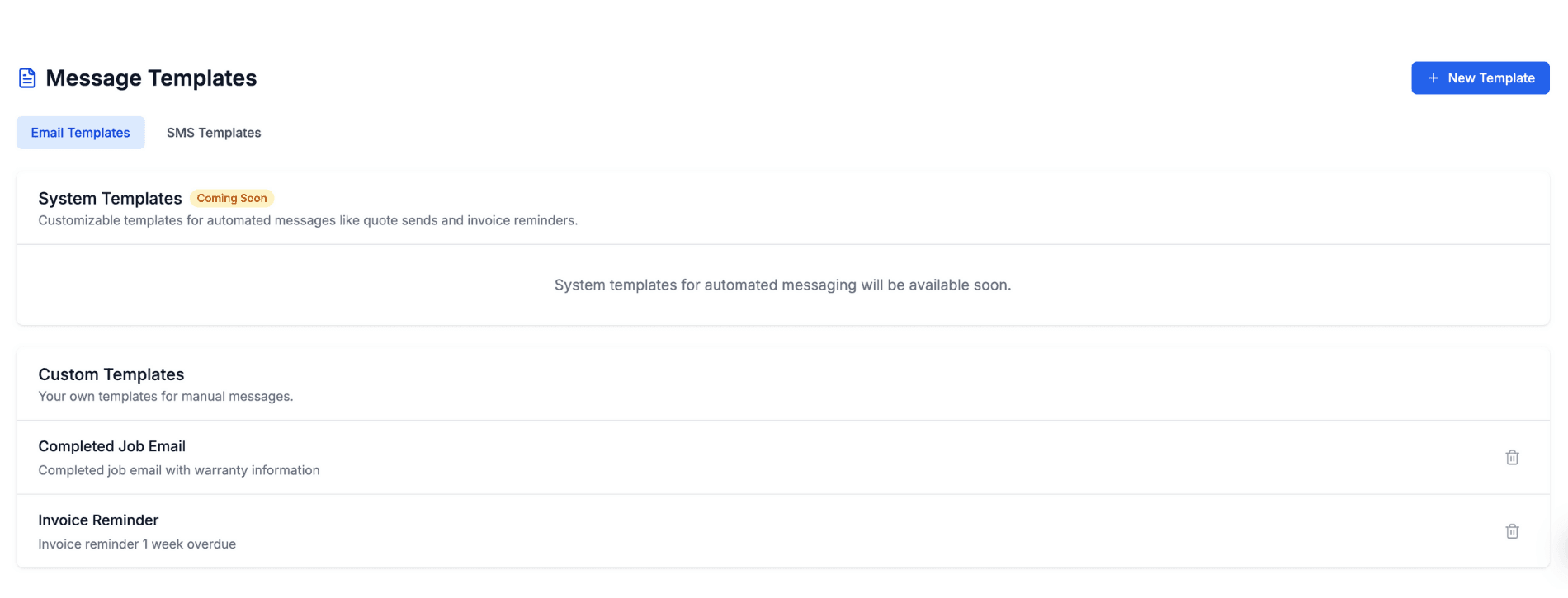
- Go to Settings → Templates
- Switch between Email Templates and SMS Templates tabs
- View, create, edit or delete templates
When Composing Messages
To use a template while writing:
- Open the message composer in Messages. From a customer's page, click Open Conversation on the Communication tab to get there
- Click the template icon (or Templates button)
- Select a template from the list
- The template content fills the composer
- Edit as needed before sending
3. Creating Templates
Creating a New Template
- Go to Settings → Templates
- Click New Template
- Fill in the template details:
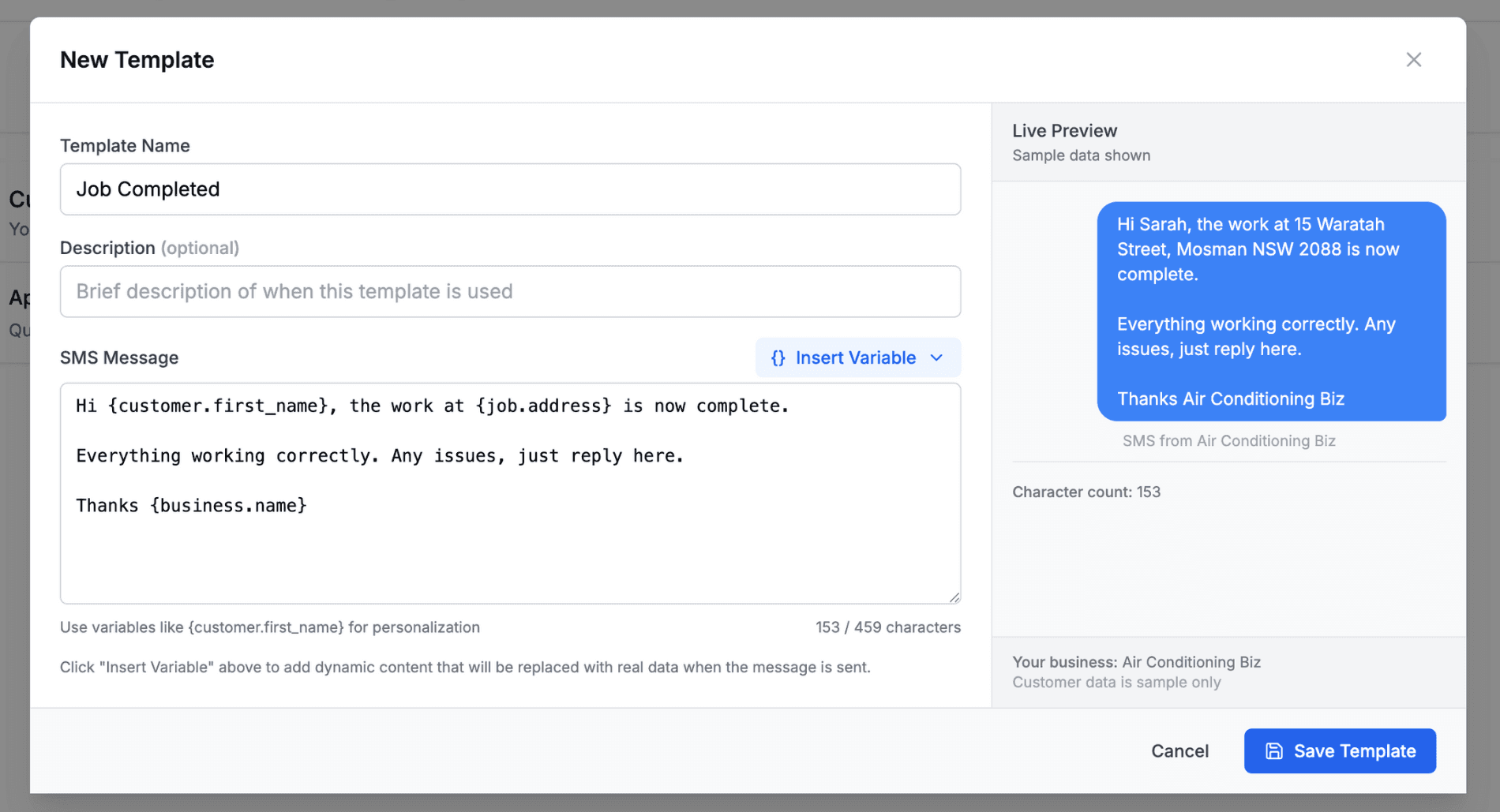
- Template Name: Internal name for easy identification
- Description: Brief note about when to use it (optional)
- Subject Line (email only): Email subject with optional variables
- Message Body: Your template content
Using the Editor
For Email Templates
- Rich text editor with formatting options
- Bold, italic, underline text
- Bullet and numbered lists
- Insert variables with the {} Insert Variable button
For SMS Templates
- Plain text editor
- Character counter showing length and credits
- Maximum 425 characters limit
- Insert variables with the {} Insert Variable button
Live Preview
The right side shows a live preview:
- See how your template will look
- Variables display with sample data
- Preview updates as you type
4. Template Variables
What Are Variables?
Variables are placeholders that automatically fill with real data when you select the template and send:
- Write:
Hi {customer.first_name}... - Sends as:
Hi Sarah...
Available Variables
Business Variables
| Variable | Description | Example |
|---|---|---|
{business.name} | Your business name | Air Con Biz Pty Ltd |
{business.email} | Business email | info@airconbiz.com.au |
{business.phone} | Business phone | (02) 1234 5678 |
{business.address} | Business address | 123 Main St, Sydney |
{business.website} | Your website | www.airconbiz.com.au |
{business.abn} | Your ABN | 12 345 678 901 |
Customer Variables
| Variable | Description | Example |
|---|---|---|
{customer.name} | Full name | Sarah Mitchell |
{customer.first_name} | First name only | Sarah |
{customer.last_name} | Last name only | Mitchell |
{customer.email} | Customer email | sarah@email.com |
{customer.phone} | Customer phone | 0400 000 000 |
{customer.address} | Customer address | 15 Waratah St |
Quote Variables
| Variable | Description | Example |
|---|---|---|
{quote.number} | Quote number | 1847 |
{quote.total} | Quote total | $6,450.00 |
{quote.status} | Quote status | Pending |
{quote.expiry_date} | Expiry date | 15/02/2026 |
{quote.link} | Link to online quote | https://... |
Job Variables
| Variable | Description | Example |
|---|---|---|
{job.number} | Job number | 2156 |
{job.description} | Job description | Split system install |
{job.status} | Job status | Work Order |
{job.address} | Job site address | 15 Waratah St |
Invoice Variables
| Variable | Description | Example |
|---|---|---|
{invoice.number} | Invoice number | 3892 |
{invoice.total} | Invoice total | $6,450.00 |
{invoice.due_date} | Due date | 28/02/2026 |
{invoice.status} | Invoice status | Unpaid |
{invoice.link} | Link to pay | https://... |
Staff Variables
| Variable | Description | Example |
|---|---|---|
{staff.name} | Your name | John Smith |
{staff.first_name} | Your first name (derived from name) | John |
{staff.phone} | Your phone | 0400 123 456 |
Inserting Variables
- Place your cursor where you want the variable
- Click {} Insert Variable
- Expand a category (Customer, Quote, etc.)
- Click the variable to insert
5. Example Templates
Booking Confirmation (SMS)
Hi {customer.first_name}, this is {staff.name} from {business.name}. Just confirming your appointment for {job.address}. Reply YES to confirm or call us to reschedule. Thanks!
Quote Follow-Up (Email)
Subject: Following up on your quote - {business.name}
Hi {customer.first_name},

I wanted to check in regarding the quote we sent for your {quote.system_type}.

If you have any questions about the quote or would like to discuss options, please don't hesitate to reach out.

You can view your quote here: {quote.link}

Best regards,
{staff.name}
{business.name}
{business.phone}
Job Complete (SMS)
Hi {customer.first_name}, the work at {job.address} is now complete. Please check everything is working correctly. Any issues, just reply to this message. Thanks for choosing {business.name}!
Payment Reminder (Email)
Subject: Invoice #{invoice.number} - Payment Reminder
Hi {customer.name},

This is a friendly reminder that invoice #{invoice.number} for {invoice.total} is due on {invoice.due_date}.

You can pay securely online here: {invoice.link}

If you've already paid, please disregard this message.

Thank you,
{business.name}
6. Managing Templates
Editing Templates
- Go to Settings → Templates
- Click on a template to open it
- Make your changes
- Click Save Template
Deleting Templates
- Find the template in the list
- Click the trash icon on the right
- Confirm deletion
Note: Deleted templates cannot be recovered. Consider editing instead if you might need it later.
Template Organization
Keep templates organized:
- Use clear, descriptive names
- Add descriptions explaining when to use each template
- Regularly review and update templates
- Delete templates you no longer use
7. System Templates
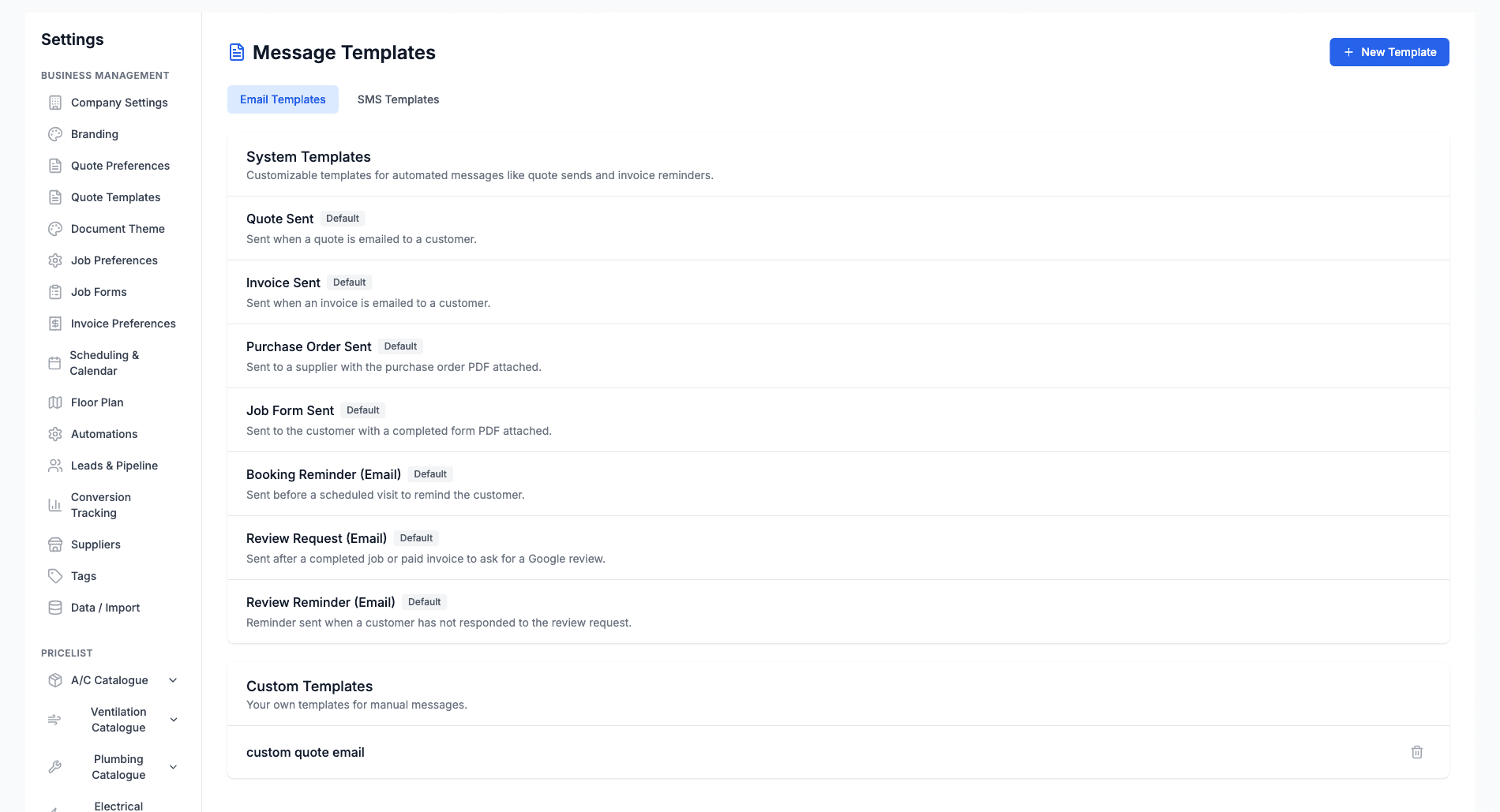
System templates are the wording Cooledge uses for the messages it sends on your behalf. They come with a sensible default, and you can rewrite any of them. Find them at the top of Settings → Templates, above your own templates, marked Default until you edit them.
| Template | Channel | Sent when |
|---|---|---|
| Quote Sent | Email and SMS | A quote is sent to a customer |
| Invoice Sent | Email and SMS | An invoice is sent to a customer |
| Purchase Order Sent | A purchase order goes to a supplier | |
| Job Form Sent | A completed form PDF goes to the customer | |
| Booking Reminder | Email and SMS | Before a scheduled visit |
| On The Way | SMS | You tap On my way from the job screen |
| Review Request (Email) | After a completed job or paid invoice, asking for a Google review | |
| Review Request (SMS) | SMS | The same request as a text |
| Review Reminder (Email) | The customer has not responded to the review request | |
| Review Reminder (SMS) | SMS | The same reminder as a text |
Required Placeholders
Some system templates will not save without a particular placeholder, because the message is useless without it:
| Template | Must contain |
|---|---|
| Quote Sent | {quote.link} |
| Invoice Sent | {invoice.link} |
| Booking Reminder | {booking.starts_at_friendly} |
| On The Way | {arrival.time_till} |
| Review Request and Review Reminder, both channels | {review.link} |
{review.link} is the customer's own review link. It sends them to your review landing page and on to the right Google location, so keep it in all four review templates. For email you can put it in the body or the subject line.
Editing a System Template
- Go to Settings → Templates
- Pick the Email Templates or SMS Templates tab
- Click the template under System Templates
- Edit the subject and body, then save
Your version replaces the default from the next send onwards. The Default badge disappears once you have your own wording.
8. Best Practices
For All Templates
- Keep messages clear and professional
- Test templates before using in production
- Include your business name for identification
- Review templates periodically for accuracy
For Email Templates
- Write compelling subject lines
- Use formatting sparingly for readability
- Include a clear call to action
- Add contact information at the end
For SMS Templates
- Keep messages to 160 characters or fewer when possible (1 credit)
- Get to the point quickly
- Include your business name
- Provide a way to respond or take action
Variable Usage
- Always preview to verify variables work correctly
- Don't overuse variables, keep messages natural
- Test with real customer data
Next Steps: Learn about the Unified Inbox → or set up Two-Way Text Messaging →
Need help? Email us at support@cooledge.com.au
Was this article helpful?
Let us know if you found this information useful.
Still need help? Contact support
In this article
Use your browser's search (Ctrl+F) to quickly find specific topics within this article.
Browse all help articles →Related Articles
Booking Reminders
Automated SMS and email reminders that fire before every scheduled visit. Filter by staff, category, or visit type, with quiet hours and custom templates.
Call Forwarding and Voicemail
Forward calls from your business number to a mobile or landline, set business hours and record your voicemail greeting
Call History
See every call to your business number, who called, what happened and any voicemail they left