Two-Way Text Messaging
Send and receive SMS messages with customers using your dedicated business number
Two-Way Text Messaging
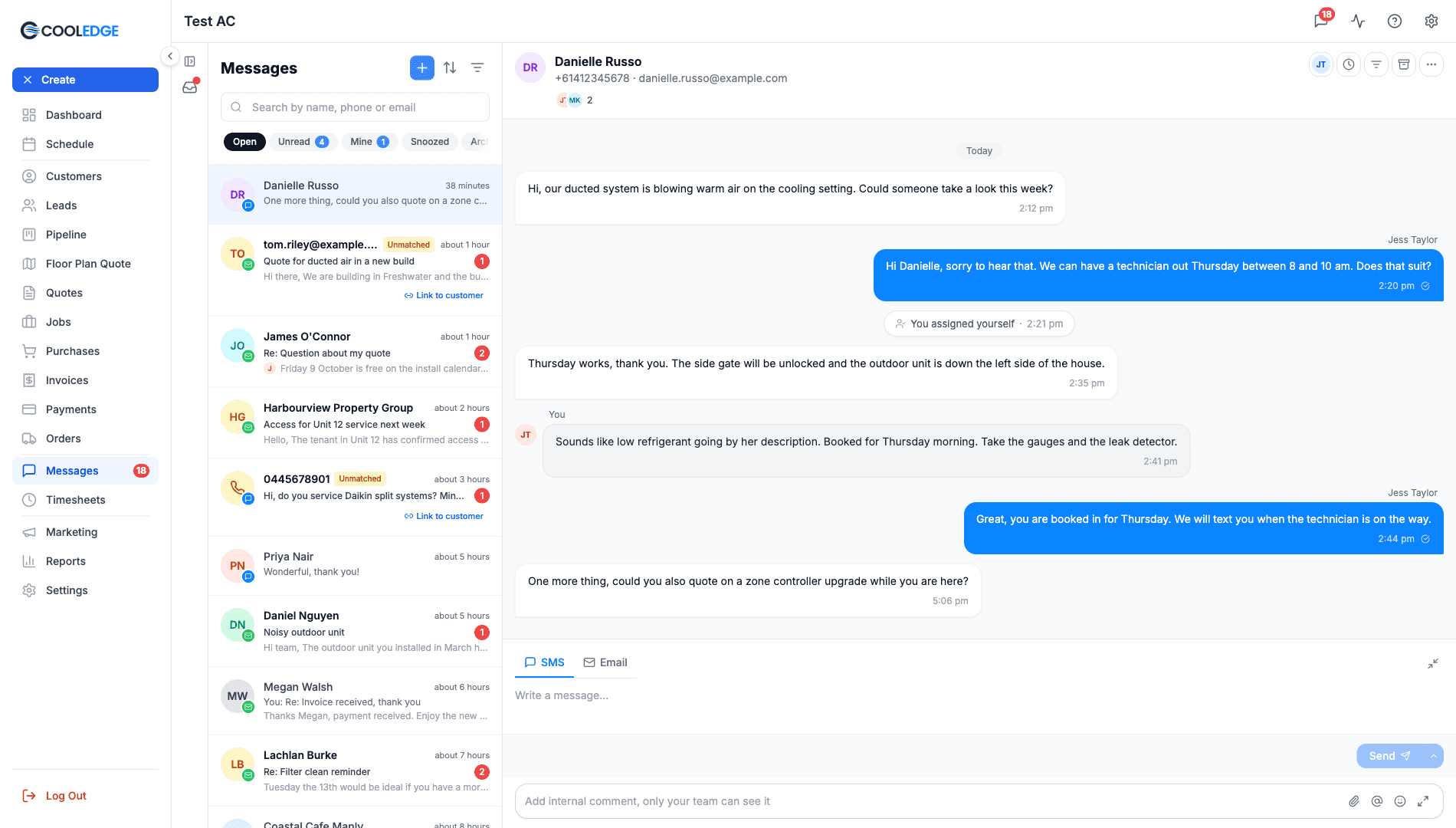
Text your customers from your own business number and get their replies in Messages.
- Send texts from Messages on the portal or in the mobile app
- On Growth and Scale, customers reply to your dedicated Australian mobile number
- Replies land in the customer's conversation, next to their emails
- Up to 425 characters a text, using 1 to 3 credits
- Undo a text within 6 seconds or schedule it to send later
Two-way SMS lets you send text messages to customers and receive their replies directly in Cooledge. With your own dedicated Australian mobile number, customers can text you back and their replies appear in Messages.
1. Overview
What is Two-Way SMS?
- Send SMS to customers from the Cooledge portal or mobile app
- Receive replies from customers in Messages
- Dedicated number: your own Australian mobile number
- Full history: all conversations tracked per customer
Plan Availability
| Feature | Starter | Growth | Scale |
|---|---|---|---|
| Outbound SMS | ✓ | ✓ | ✓ |
| SMS Credits/month | 50 | 300 | 600 |
| Dedicated Number | No | ✓ | ✓ |
| Two-Way Replies | No | ✓ | ✓ |
Note: Starter plan users can send outbound SMS, but customers cannot reply (one-way only). Upgrade to Growth or Scale for two-way messaging.
2. Getting Started
For Outbound SMS (All Paid Plans)
Outbound SMS is available immediately on any paid plan:
- Open Messages
- Compose an SMS message
- Click the send button
For Two-Way SMS (Growth & Scale)
To enable two-way messaging with a dedicated number:
- Complete business verification (required by AU regulations)
- Receive your dedicated number
- Start sending and receiving
See Registering Your SMS Number → for the full setup process.
3. Sending SMS Messages
From the Messages Inbox
- Open Messages from the sidebar
- Select a customer conversation, or click New message to start one
- Toggle the composer to SMS
- Type your message. Pressing Enter adds a new line. It does not send
- Click the send button
The send button has a menu with Send, Send and archive, Send and snooze… and Send later…. When you press it, your text is held for 6 seconds with an Undo before it goes. See Send Later and Undo Send.
If the customer has contact people saved, the To: line in the composer becomes a menu. Click it to pick a contact. For a text it lists the contacts with a phone number and for an email the contacts with an email address. Leave it alone and the message goes to the customer's default details.
4. SMS Character Limits and Credits
Character limits
- Maximum: 425 characters per message
- The first text to a new number has a short opt-out line added at the end when it sends. That line counts towards the length
Credit usage
SMS credits are used based on message length:
| Characters | Credits used |
|---|---|
| Up to 160 | 1 credit |
| 161 to 306 | 2 credits |
| 307 and over | 3 credits |
Credits are counted on the text as it is sent, including the opt-out line on a first text. A message close to a threshold can tip into the next credit because of it.
The character counter
Once you start typing a text in Messages, a counter appears under the box, for example 120/425. It updates as you type.
The counter shows characters only. Messages does not show the credit cost before you send, so use the table above. With undo send on, which is the default, the confirmation after sending does not show the credits either. Check Settings → Account & Billing for what you have used.
Credit tips
- Keep messages short to use fewer credits
- Use email for longer messages
5. Receiving Customer Replies
A text from any of a customer's contact phone numbers threads into that customer's conversation, not just their default number, so replies from a site manager or accounts person land in the right place.
A reply also reopens the conversation. If it was archived, snoozed or in Trash, it comes back into Open.
On the portal
- The conversation appears in your Unread view and the count on that view goes up. Unread is per person, so it stays unread for you until you open it yourself
- Click the conversation to read the reply
- Reply from the same thread
In the mobile app
- A push notification arrives on your phone
- Tap it to open the conversation
- Read and reply to the customer
Push notifications for a customer's reply go to owners and admins. A team member also gets one when the conversation is assigned to them.
By email
If it is switched on in Settings → Email Settings → Unified Inbox:
- You receive an email alert
- The email shows the customer name and a preview of the message
- Click through to view it in Cooledge
Replies from a number you do not have on file
A text from a number that is not on any customer shows in Open with an amber Unmatched badge. Only owners and admins see it. Use Link to customer to match it to a customer. See Snooze, Archive and Trash.
6. Managing SMS Conversations
Conversation history
Every text is kept in two places:
- Messages: the customer's conversation, alongside their emails
- The customer's page: in the Communication tab
Archiving
When a conversation is dealt with:
- Open the conversation
- Click the Archive icon in the thread header
- Find it later in the Archived view
Archive is team wide, so the conversation leaves Open for everyone. It reopens by itself when the customer replies. To bring it back yourself, open it from the Archived view and click Move to Open. See Snooze, Archive and Trash.
Search
Find a conversation by:
- Customer name
- Phone number
- Email address
Search does not look inside messages, so you cannot search for a word in a text.
Working as a team
On Growth and Scale you can assign a conversation to a teammate and leave internal comments the customer never sees. See Team Inbox.
7. SMS Credits and Usage
Checking your balance
View your usage in Settings → Account & Billing, on the SMS Credits & Usage card:
- Credits used this month out of your plan's allowance, with a progress bar
- The number of messages sent this month
- A month by month breakdown
The card appears once you are on a paid plan.
Running low on credits
Messages does not warn you when credits are running low, so check Account & Billing if you send a lot of texts. If you run short:
- Consider upgrading your plan for more credits
- Or leave overage on and pay $0.10 for each extra credit
Overage handling
By default, overage is enabled:
- Additional SMS send at $0.10 per credit
- To stop sending when your credits run out, the account owner can switch off Allow SMS overage in Settings → Account & Billing
When are overage charges billed?
Overage is billed automatically:
- Monthly plans: charged at month end, or at $25 increments if you exceed that threshold
- Yearly plans: billed monthly on a separate invoice, or sooner once your overage reaches $25. If that payment fails, SMS stops at your included credits until it is paid. See Subscriptions & Billing.
This keeps charges predictable and avoids large surprise bills.
8. Compliance and Opt-Outs
How Opt-Outs Work
With Two-Way SMS (Growth/Scale) If a customer texts STOP to your dedicated number:
- They are automatically opted out
- You cannot send them further SMS
- They can text START to opt back in
With Outbound-Only SMS (Starter) Since customers can't reply, first-contact messages include an opt-out link. When clicked, the customer is opted out automatically.
Best Practices
- Only SMS customers who have a business relationship
- Identify your business in messages
- Respect opt-out requests immediately
- Keep messages professional and relevant
9. Troubleshooting
SMS Not Sending
Check your credit balance
- Go to Settings → Account & Billing
- Verify you have available credits
Verify the phone number
- Must be a valid Australian mobile number
- Format: 04XX XXX XXX or +614XXXXXXXX
- Landlines cannot receive SMS
Check delivery status
- View the message in the conversation
- The status shows Queued, Sent, Delivered or Failed
- Click the status icon to open Delivery details, which shows what happened to the text and the reason for a failure when one was recorded
Not Receiving Replies
Verify two-way setup
- Confirm you're on Growth or Scale plan
- Check Settings → SMS Settings shows your number is active
Check the inbox
- Replies may be in a different conversation
- Search for the customer by phone number
- Check your Unread view
- A reply from a number that is not on any customer shows in Open with an Unmatched badge, for owners and admins only
Wrong Number Showing
If your SMS shows from a different number:
- Ensure two-way setup is complete
- Your dedicated number should appear in SMS Settings
- Contact support if issues persist
Customer Didn't Receive SMS
- Verify the phone number is correct
- Check the delivery status in Cooledge
- The customer's phone may have SMS blocking enabled
- Try sending a test to your own phone
Next Steps: Complete Registering Your SMS Number → or set up Message Templates →
Need help? Email us at support@cooledge.com.au
Was this article helpful?
Let us know if you found this information useful.
Still need help? Contact support
In this article
Use your browser's search (Ctrl+F) to quickly find specific topics within this article.
Browse all help articles →Related Articles
Booking Reminders
Automated SMS and email reminders that fire before every scheduled visit. Filter by staff, category, or visit type, with quiet hours and custom templates.
Call Forwarding and Voicemail
Forward calls from your business number to a mobile or landline, set business hours and record your voicemail greeting
Call History
See every call to your business number, who called, what happened and any voicemail they left