Snooze, Archive and Trash
Keep Messages clear: snooze a conversation until later, archive it when you are done, trash the junk and link unknown senders to a customer
Snooze, Archive and Trash
Keep Open for the conversations that still need you.
- Snooze hides a conversation until a time you pick, then brings it back
- Archive takes it out of Open for the whole team once it is dealt with
- Trash is for junk. Nothing is ever deleted and you can restore it
- A new message from the customer reopens the conversation, whichever state it was in
- Messages from unknown senders sit in Open, marked Unmatched, until you link them to a customer
Every conversation in Messages is in one of four places: Open, Snoozed, Archived or Trash. The idea is that Open only holds what still needs someone. This page covers how to move a conversation between them and how to get it back.
The Three States at a Glance
| Snooze | Archive | Trash | |
|---|---|---|---|
| What it does | Hides the conversation until a time you pick | Takes it out of Open because it is dealt with | Takes it out of Open because you do not want it |
| Who it affects | The whole team | The whole team | The whole team |
| Where it goes | The Snoozed view | The Archived view | The Trash view |
| What brings it back | The snooze time arriving, a new customer message or Unsnooze | A new customer message or Move to Open | A new customer message or Restore |
| Is anything deleted? | No | No | No |
| Plans | Growth and Scale | Every plan | Every plan |
A new message from the customer always reopens the conversation. You cannot miss a reply because someone tidied it away.
Snooze
Snooze is for "not now". The customer said they will confirm on Friday. You are waiting on a part. Snooze the conversation and it leaves Open until then.
On the portal
- Open the conversation
- Click the Snooze icon in the thread header
- Pick a time
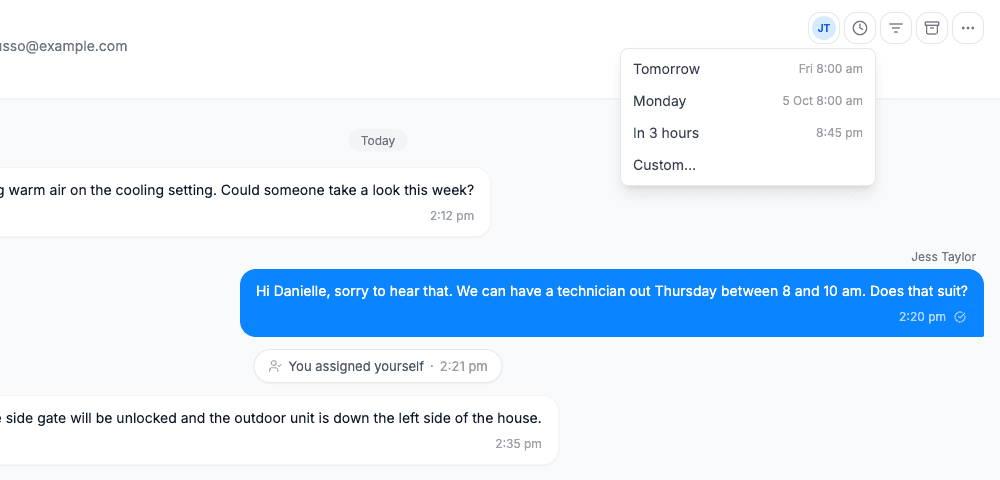
| Option | When it comes back |
|---|---|
| Later today | 5:00 pm today. Only offered when 5:00 pm is at least an hour away |
| Tomorrow | 8:00 am tomorrow |
| Monday | 8:00 am next Monday. Hidden when tomorrow is Monday |
| In 3 hours | Three hours from now |
| Custom… | Any date and time you choose |
Times are in your device's local time. You see Snoozed until and the time, with an Undo. In the list the conversation carries a Snoozed until badge when you look at the Snoozed view.
To bring one back early, open it from the Snoozed view and click Unsnooze.
When a snooze ends
A snooze ends in one of two ways:
- At its time. The conversation returns to Open and a small marker in the thread reads Snooze ended
- When the customer writes. It returns to Open straight away and the marker reads Reopened by a new message
A snooze can come back a few minutes late. Cooledge checks for finished snoozes every 5 minutes, so a conversation snoozed until 8:00 am may reappear at a few minutes past. Do not rely on it for anything timed to the minute.
A snoozed conversation is out of everyone's Mine until it comes back.
You can also snooze as you reply. See Send and snooze… in Send Later and Undo Send.
Archive
Archive is for "done". The job is booked, the question is answered.
Click the Archive icon in the thread header. You see Archived with an Undo.
Archive is team wide. It takes the conversation out of Open for everyone, not just for you. That is the point: once one person has dealt with it, nobody else needs to open it again.
Two things soften that on Growth and Scale:
- If a teammate was following the conversation, it stays in their Mine with an Archived badge until they clear it themselves with Archive for me. They can change that in their personal settings
- A comment on an archived conversation brings it back into the Mine of the people following it, but does not reopen it for the team
See Team Inbox for Mine, Archive for me and Archive read.
Most replies can archive themselves. With Send and archive as your send button, replying files the conversation in one click. See Send Later and Undo Send.
"Move to Open" and "Restore"
These two buttons do similar jobs in different views. It is easy to look for the wrong one.
| You are in | The button is | What it does |
|---|---|---|
| Archived | Move to Open | Reopens the conversation for the team |
| Trash | Restore | Moves the conversation out of Trash |
| Snoozed | Unsnooze | Moves it back to Open now |
There is no Restore button on an archived conversation. Use Move to Open.
One exception on Growth and Scale. When a teammate archived the conversation and it is still in your Mine, the header button reads Archive for me. In that case Move to Open is under More actions.
Trash
Trash is for junk: spam, wrong numbers, a supplier newsletter that found your inbound address.
On the portal, click More actions in the thread header and choose Trash. You see Moved to Trash with an Undo.
Trash never deletes anything. Trashed conversations stay in the Trash view. Cooledge never empties it automatically and there is no "empty trash" button. Open the conversation there and click Restore to bring it back.
If the sender writes again, the conversation comes out of Trash and back into Open by itself. Trash does not block a sender.
Undo
Archive, Snooze, Trash and Archive for me each show a short confirmation with an Undo button. Undo after Archive, Snooze or Trash moves the conversation to Open. It does not restore an earlier archive or snooze, so undoing a Trash on an archived conversation reopens it for the team. Undo after Archive for me puts the conversation back in your Mine. If you miss the Undo, use Move to Open, Unsnooze or Restore as above.
Mark as Unread
Read something you cannot deal with yet? On the portal, click More actions and choose Mark as Unread. It marks the conversation unread for you. It does not reopen or move it, so a snoozed or trashed conversation will not appear in your Unread view.
Unread is per person. Marking a conversation unread does it for you only. A teammate reading a conversation does not mark it read for you.
Unmatched Senders
When an email or text arrives from an address or number that is not on any customer, Cooledge cannot tell who it is from. The conversation sits in Open with an amber Unmatched badge.
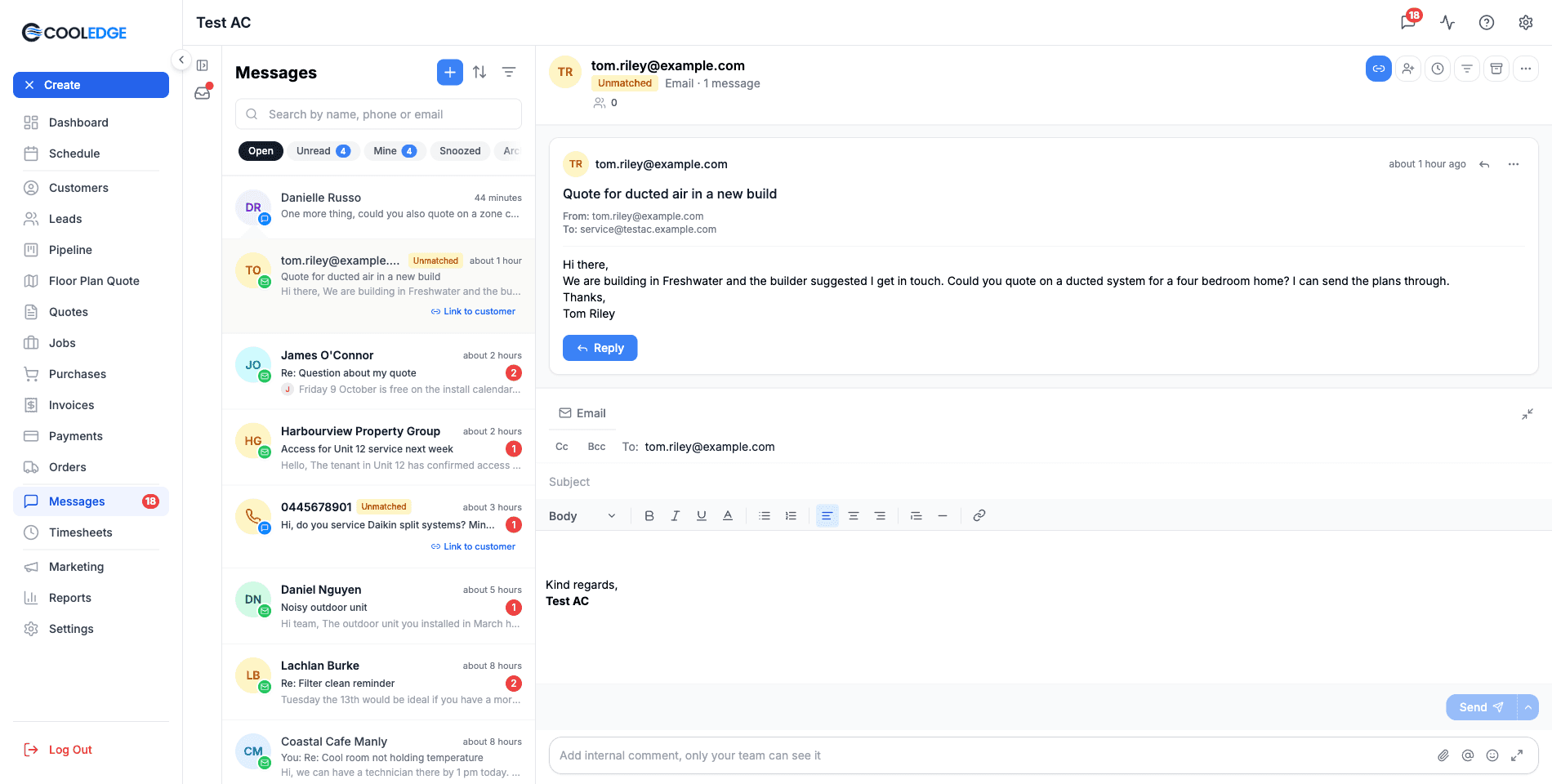
Only owners and admins see unmatched conversations. Team members never do, because the sender has not been confirmed as a customer yet.
To see only these, click the filter icon on the portal and choose Unmatched under Show. In the app, use the Unmatched chip on the search page.
Link to customer
- Click Link to customer on the row or in the thread header
- A window titled Assign to Customer opens, showing the sender's address or number
- Search for an existing customer and select them, or choose Create New Customer and enter a name
- Click Assign
The picture below shows the create step, after choosing Create New Customer.
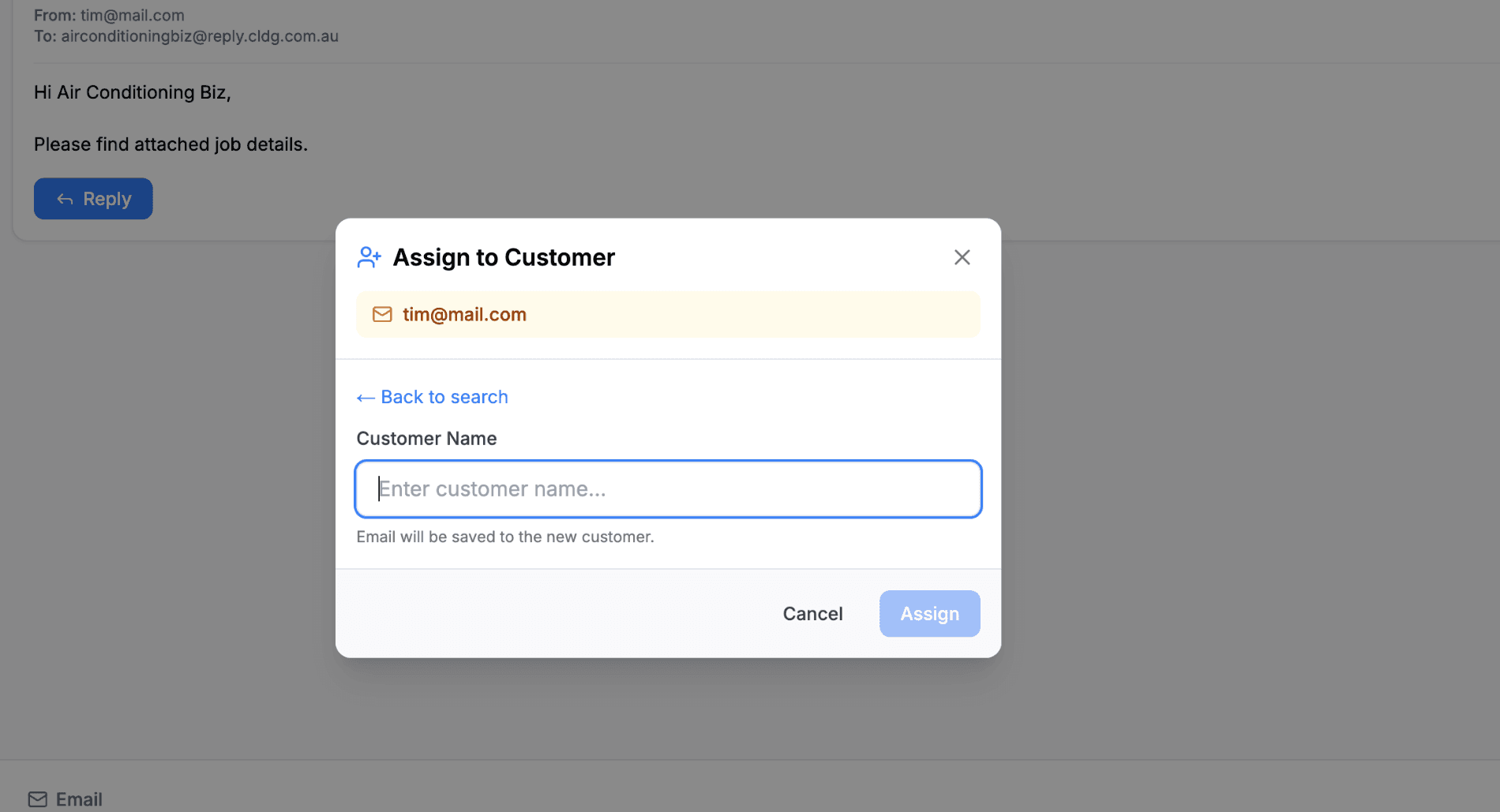
The conversation now belongs to that customer, loses the Unmatched badge and becomes visible to team members. A text from any of a customer's contact phone numbers is matched automatically, so it never shows as Unmatched.
If you used the old Unassigned tab
Earlier versions of Messages had an Unassigned tab and a Dismiss button. Both are gone.
- Unknown senders now sit in Open with the Unmatched badge, as above
- There is no Dismiss. For spam, use Trash. Nothing is deleted, so a real enquiry trashed by mistake can be restored
- The word Unassigned now means something different. It is an Assignee filter option meaning no teammate has been assigned to the conversation
In the Mobile App
Everything above is in one sheet. Open a conversation, tap … in the header and the Conversation sheet opens.
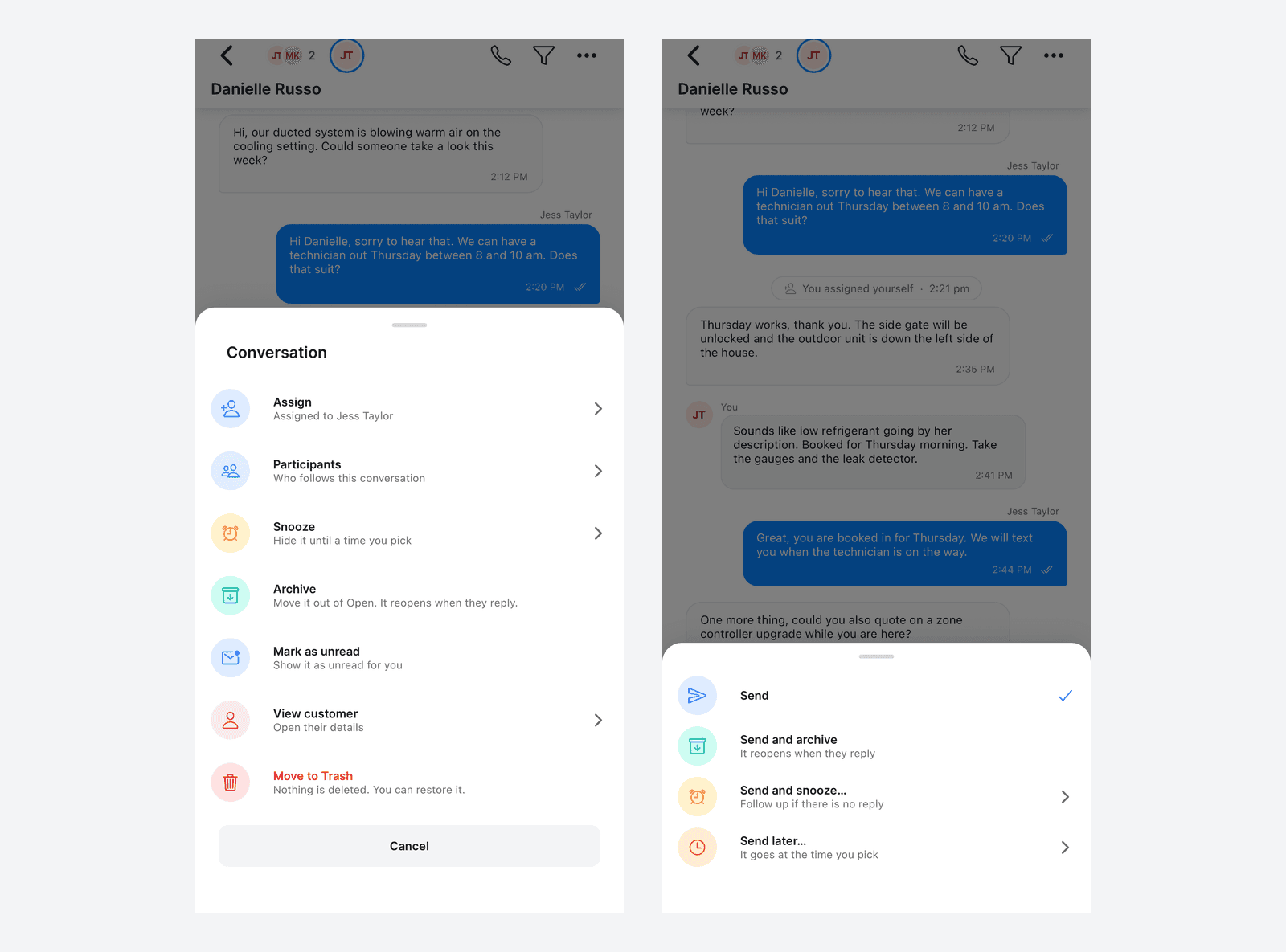
| Sheet option | Same as on the portal |
|---|---|
| Snooze or Unsnooze | The Snooze icon, with the same preset times |
| Archive | The Archive icon |
| Archive for me | Archive for me |
| Move to Open | Move to Open |
| Restore | Restore |
| Mark as unread | Mark as Unread |
| Link to customer | Link to customer, for owners and admins on an unmatched conversation |
| Move to Trash | Trash. The sheet adds Nothing is deleted. You can restore it. |
The sheet only lists what applies to the conversation in front of you, so you will not see Restore on an open conversation. An Undo bar appears after archive, snooze and trash, the same as on the portal.
FAQ
I archived a conversation by mistake. Click Undo on the confirmation. If it has gone, open the Archived view, open the conversation and click Move to Open. If the header shows Archive for me, look for Move to Open under More actions.
Will I miss a reply if a conversation is snoozed, archived or trashed? No. A new message from the customer reopens it in Open every time.
My snoozed conversation did not come back on the minute. Snoozes are checked every 5 minutes, so it can be a few minutes late.
I can't find Snooze. Snooze and the Snoozed view are on Growth and Scale plans.
Can I archive a conversation just for me? Only when a teammate has already archived it for the team. Then Archive for me clears it from your Mine. A normal Archive is always team wide.
How do I permanently delete a conversation? You cannot from Messages. Trash hides it and keeps it.
Where did the Unassigned tab go? Unknown senders now appear in Open with an Unmatched badge, for owners and admins. See Unmatched Senders above.
A team member says they cannot see an enquiry I can see. It is probably Unmatched. Link it to a customer and they will see it.
Related: Team Inbox · Send Later and Undo Send · Unified Inbox
Need a hand? Email us at support@cooledge.com.au
Was this article helpful?
Let us know if you found this information useful.
Still need help? Contact support
In this article
Use your browser's search (Ctrl+F) to quickly find specific topics within this article.
Browse all help articles →Related Articles
Booking Reminders
Automated SMS and email reminders that fire before every scheduled visit. Filter by staff, category, or visit type, with quiet hours and custom templates.
Call Forwarding and Voicemail
Forward calls from your business number to a mobile or landline, set business hours and record your voicemail greeting
Call History
See every call to your business number, who called, what happened and any voicemail they left