Managing Customer Sites and Contacts
Manage a customer's site addresses and contact people, set a primary contact and control who receives quotes, invoices, reminders and messages
Managing Customer Sites and Contacts
One customer record, all the people and places attached to it.
- Keep every site address for a customer in one place
- Add as many contact people as a customer needs (a site manager, an accounts person, a tenant)
- Mark one contact as the primary so new quotes reach the right person by default
- Send quotes, invoices, reminders and messages to a specific contact without changing the customer's default details
A customer in Cooledge is more than a name and an email. Behind each one you can store the addresses where work happens and the people you deal with. This guide covers both, so the right person hears from you and your team always knows where they're headed.
You'll manage all of this from the customer's detail page. Open Customers, click a customer and you land on the Details tab where sites and contacts live. Everything here is also available in the Cooledge mobile app.
If you're setting a customer up for the first time, start with Creating Customers →. This guide picks up once the customer already exists.
Customer Sites
Sites are the physical addresses where you do work. Most customers have a single site, their home or business, but landlords, property managers and multi-branch businesses often have several. Cooledge keeps every site on the customer, marks one as the main address and lets you pick the right one on each quote, job and invoice.
The customer's main address
Every customer with an address has a main address. It shows at the top of the customer detail page with a link straight to Google Maps, and it is the address preselected on new quotes, jobs and invoices.
To change the main address itself:
- Open the customer's detail page
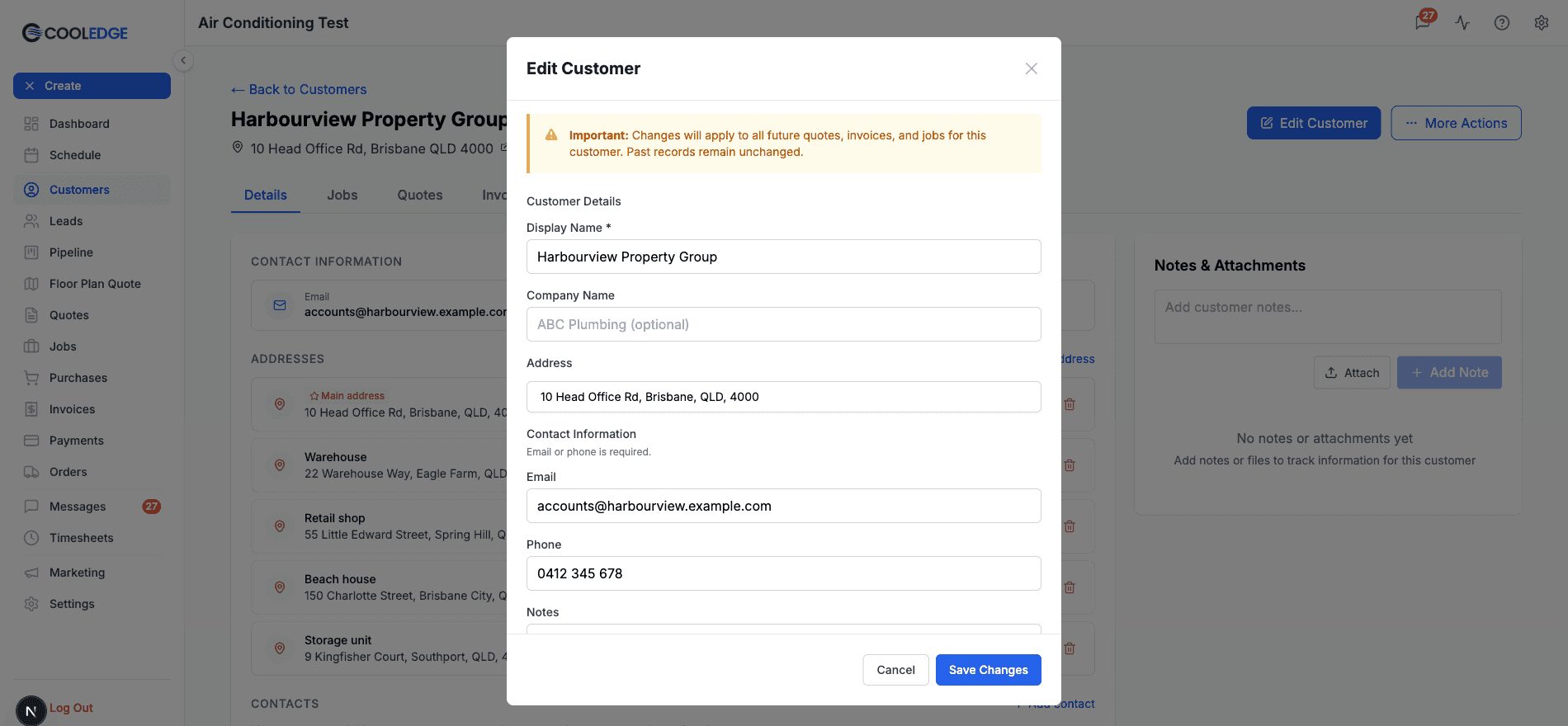
- Click Edit Customer (top right)
- In the Address field, start typing and pick the match from the dropdown
- Click Save Changes
The address field validates as you type, so wait for the suggestion to appear and select it rather than typing the whole thing free-hand. That keeps the map link and routing accurate.
Adding more addresses
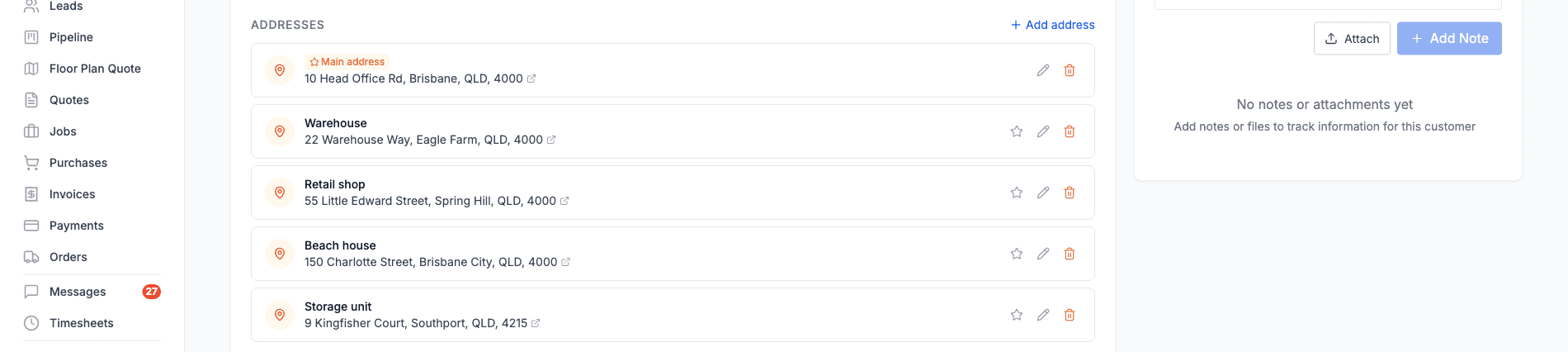
On the customer's Details tab, the Addresses section lists every site. Click Add address, give it an optional label (for example "Warehouse" or "Unit 3"), pick the address from the dropdown and save. The first address you add is always the main one. After that, a new address is not the main one unless you tick Make this the main address.
To make a different site the main address later, click the star on that row. There is always exactly one main address while the customer has any sites.
Picking a site on quotes, jobs and invoices
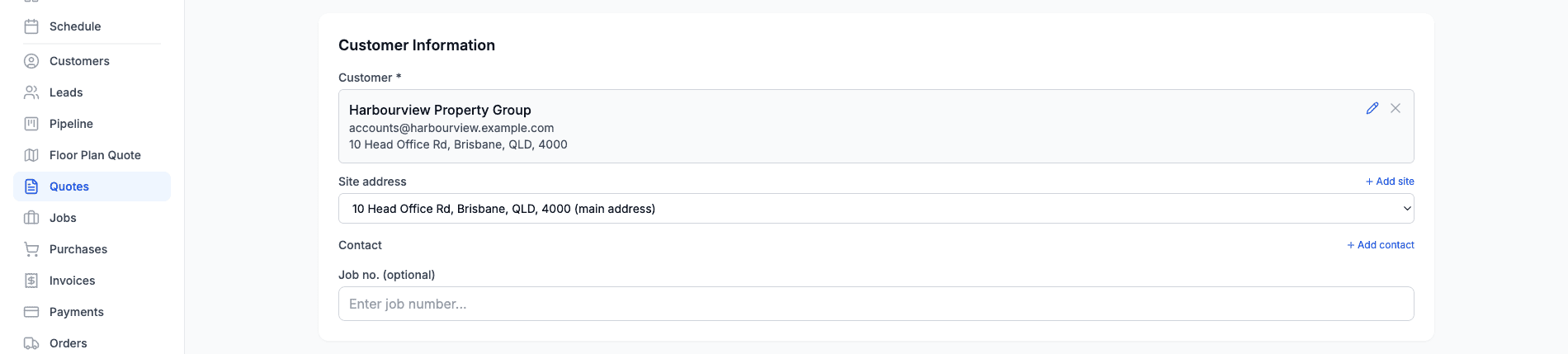
When a customer has more than one address, a Site address dropdown appears under the customer on new quotes, jobs and standalone invoices, preset to the main address. Pick the one the work is for and the quote PDF, the quote email, the job and its invoices all use that address. Customers with a single address never see the dropdown.
You can add a site without leaving the quote or job: use the Add site link under the customer. It is there for every customer, not only those with several addresses.
Changing a job's site
Open the job and click Change next to the address in the job details card (or + Add Site if it has none yet). The job's address updates, and so do any draft invoices for that job. Invoices that have already been issued keep the address they were sent with.
A job keeps the address it was created with until you change it here, so older jobs still show where the work was done even if the customer's main address has moved since.
The job's site also decides what its Customer history panel shows: photos from the customer's earlier jobs at the same site. Putting each job on the right site keeps that history accurate. See Job Notes and Attachments →.
Deleting an address
You can delete an address that nothing uses. If quotes, jobs, invoices or leads still point at it, Cooledge tells you how many and keeps the address. Change those records to another site first, or leave the address in place.
On the mobile app
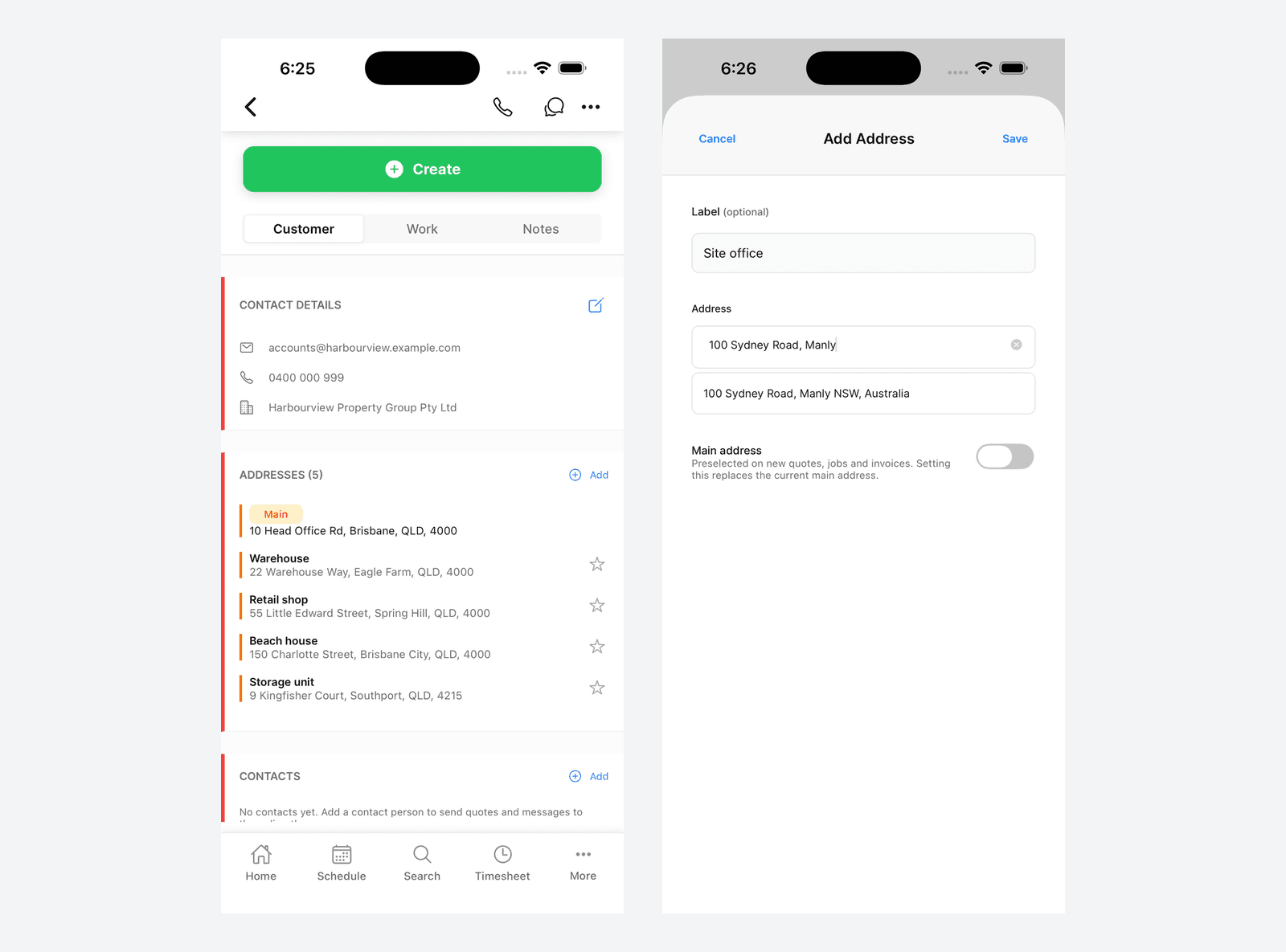
The customer screen in the Cooledge mobile app shows the same Addresses section with add, edit, set as main and delete, and the same site picker appears on quotes, jobs and standalone invoices when a customer has more than one address.
Tap Add on the Addresses header to add one from the phone. The form is the same two fields as the portal: an optional label and the address itself, picked from the dropdown, plus a Main address switch. Tap a star to promote an existing address to main.
Contact People
Contacts are the individual people tied to a customer. A commercial customer might have a site manager you call about access, an accounts person who handles invoices and an owner who signs off quotes. Instead of cramming all of that into one email field, you add each person as a contact and send to whoever the job needs.
Contacts are separate from the customer's Default Email and Default Phone. Those defaults still exist and remain the fallback for everything Cooledge sends. Contacts sit alongside them and let you be more specific when it matters.
Adding a contact
- Open the customer's detail page
- In the Contacts section, click Add contact
- Fill in the details (see the fields below)
- Click Save

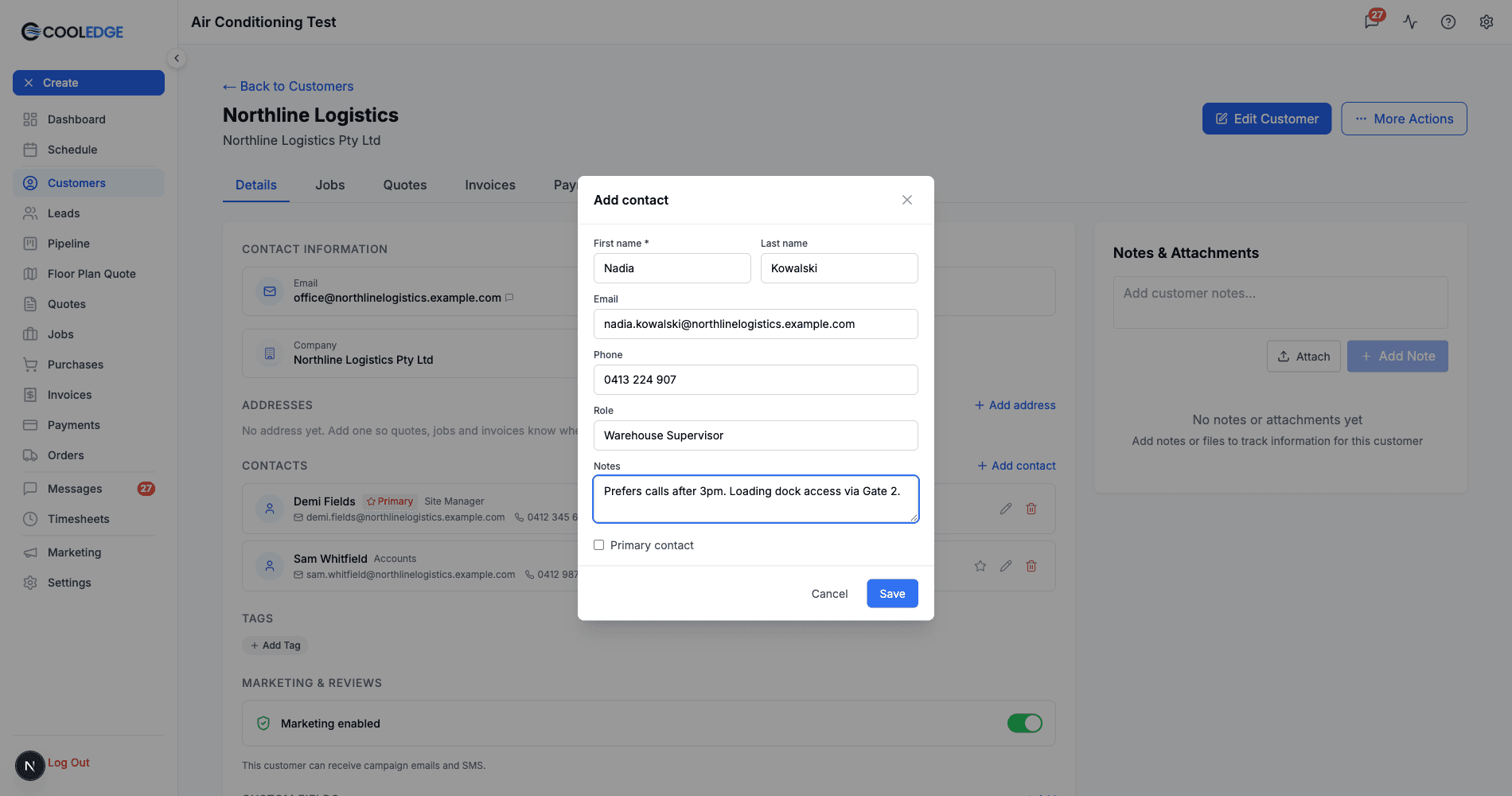
A contact has these fields:
- First name is the only required field, because it's what greetings and messages use.
- Last name rounds out who the person is.
- Email is where quotes and messages go when this contact is selected.
- Phone is used for SMS and reminders when this contact is selected.
- Role is a free-text label like "Site Manager" or "Accounts" so your team knows why this person is on the record.
- Notes hold anything worth remembering, such as "prefers calls after 3pm".
The primary contact
One contact per customer can be the primary contact, marked with a star. The primary is your default person: new quotes for this customer start with the primary contact already selected, so most of the time you don't have to think about it.
To set a primary, tick Primary contact when you add or edit a contact, or click the star icon next to any contact in the list. Only one contact can be primary at a time, so setting a new one clears the star from the previous.
Editing and deleting contacts
Each contact row has a pencil to edit and a bin to delete, as in the Contacts screenshot above. Editing opens the same form you used to add them. The star sits next to those two on every contact that isn't already the primary.
Deleting a contact asks you to confirm first. Anything already sent to that person stays sent, but the link is removed from the customer and from any quotes or jobs that pointed at them, which then fall back to the customer's default details for future sends.
On the mobile app
The mobile app has the same Contacts section on the customer screen. Tap Add to create a contact, tap a contact to edit it and use the Primary contact switch in the form to set your default. To delete a contact on mobile, open it and use Delete contact at the bottom of the form. Everything you add on the phone shows up in the portal and the other way around.
Where Contacts Are Used
Adding contacts is only half the story. Here's what changes across Cooledge once a customer has them.
Quotes
When the selected customer has contacts, a Contact picker appears on the customer step of a new quote. It starts on the primary contact and you can switch to another person or choose No specific contact. An Add contact link right there lets you create one without leaving the quote.
When you send that quote, the email goes to the linked contact's email address and greets them by first name. If there's no linked contact, or the contact has no email, Cooledge falls back to the customer's default email. Automated Quote Follow-Ups → use the customer's default email.
Jobs
Creating a job works the same way. Once you pick a customer with contacts, the Contact Person field lets you choose who the job is for. This is different from the job's Site Contact, which is covered below.
Emailing a completed Job Form → PDF from the job sends it to that contact person first, falling back to the customer's default email.
Invoices
Invoices raised from a job follow the job's linked contact first. If the job has no linked contact, or that contact has no email, the invoice email goes to the customer's default email. Either way the invoice itself shows the customer details captured for that job, so records stay consistent. See Sending Invoices and Getting Paid →.
Booking reminders
When a job has a linked contact person, Booking Reminders → greet that person by first name. If the job's saved customer details are missing a phone or email, the reminder uses the contact's phone or email instead, so a reminder can still go out.
On The Way SMS
The job's linked contact person also shows up as a recipient for On The Way SMS → in the mobile app, offered first when they have a phone number.
Search
Contacts make customers easier to find. Customer search → matches contact names, emails and phone numbers, so searching for the person you deal with surfaces their company.
Messaging
In the Unified Inbox →, the message composer has a Contact selector. Pick a person and the message goes to their email or phone number when they have one, falling back to the customer's defaults, with the message logged against that contact and template variables filled in from your pick. Inbound texts help too: an SMS from any of a customer's contact phone numbers threads straight into that customer's conversation rather than landing as an unknown enquiry.
ServiceM8
If you use the ServiceM8 Integration →, loading a ServiceM8 job into Cooledge also captures that job's contact person onto the customer automatically, so you don't have to retype it.
Site Contacts Are Not Customer Contacts
It's worth being clear on two similar-sounding things, because they do different jobs.
- Customer contact people live on the customer and travel with them. They're the people you deal with across every job: the accounts person, the primary contact, the owner. That's what this guide is about.
- A job's Site Contact lives on a single job. It's the person who'll physically be at the property for that visit, like a tenant or a caretaker, along with their name, phone and relationship to the property. It applies to that job only.
You can use both together. A rental job might have the landlord as the customer contact who receives the invoice and the tenant as the site contact your tech calls on arrival. For more on the job-level version, see Creating and Managing Jobs →.
Common Questions
What's the difference between the default email and a contact's email? The default email is the customer's primary address and the fallback for everything Cooledge sends. A contact's email is used only when that contact is selected on a quote, job or message. If no contact is linked, or the linked contact has no email, Cooledge uses the default.
Do I have to pick a contact on every quote or job? No. The picker only appears once the customer has contacts, new quotes start on the primary contact and "No specific contact" is always an option. Choose a contact when you want that person to receive it, otherwise leave it as is and the customer's default details are used.
What happens to old quotes and jobs if I delete a contact? Nothing already sent changes. The deleted contact is unlinked from any quotes and jobs that referenced them, so future sends for those records fall back to the customer's default details.
Can I set more than one primary contact? No. Only one contact is primary at a time. Setting a new primary clears the star from the previous one.
Are contacts shared between customers? No. Contact people belong to the one customer you added them to. If the same person deals with you across two separate customer records, add them to each.
Related Articles
- Creating Customers → - Add a new customer with their details and first address
- Finding and Searching Customers → - Search effectively and avoid duplicates
- Creating and Managing Jobs → - Pick a site and site contact for a job
- Quoting Basics → - Send quotes to the right contact
- Sending Invoices and Getting Paid → - Who receives the invoice email
- Unified Inbox → - Message a specific contact person
Was this article helpful?
Let us know if you found this information useful.
Still need help? Contact support
In this article
Use your browser's search (Ctrl+F) to quickly find specific topics within this article.
Browse all help articles →