Finding and Searching Customers
Learn how to search for customers and avoid creating duplicates
Finding and Searching Customers
Why Customer Search Matters
Before creating a new customer, always search first. This prevents duplicates - situations where the same customer exists twice in your system with different spellings or details.
Duplicates cause problems:
- Can't see all their quotes and jobs in one place
- Confusing when searching
- Makes reports inaccurate
- Waste time managing two records
The search system helps you find existing customers even if you don't type the exact name.
How to Search
Where You'll Search
Customer search appears when:
- Creating a new quote
- Creating a new job
- Creating a standalone invoice
- Looking up a customer on the Customers page
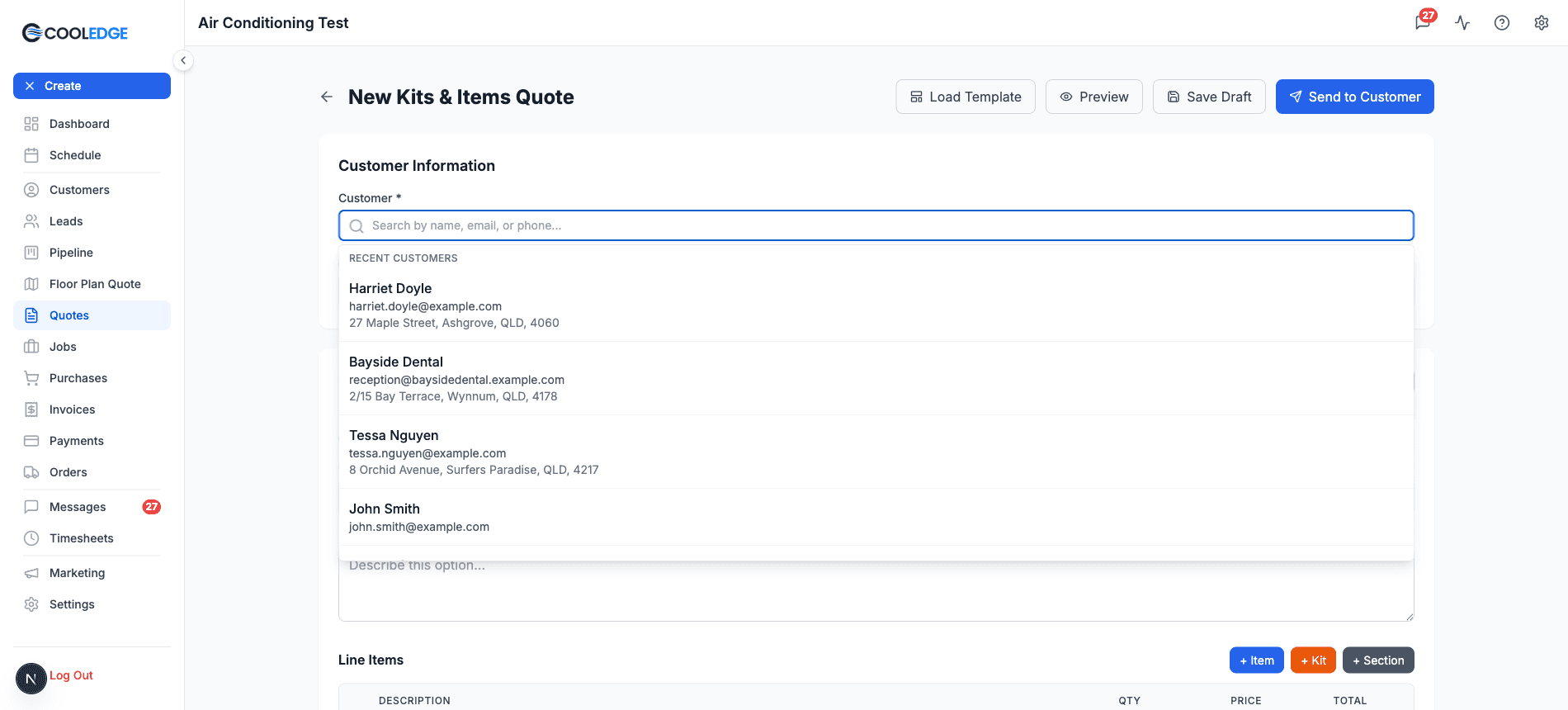
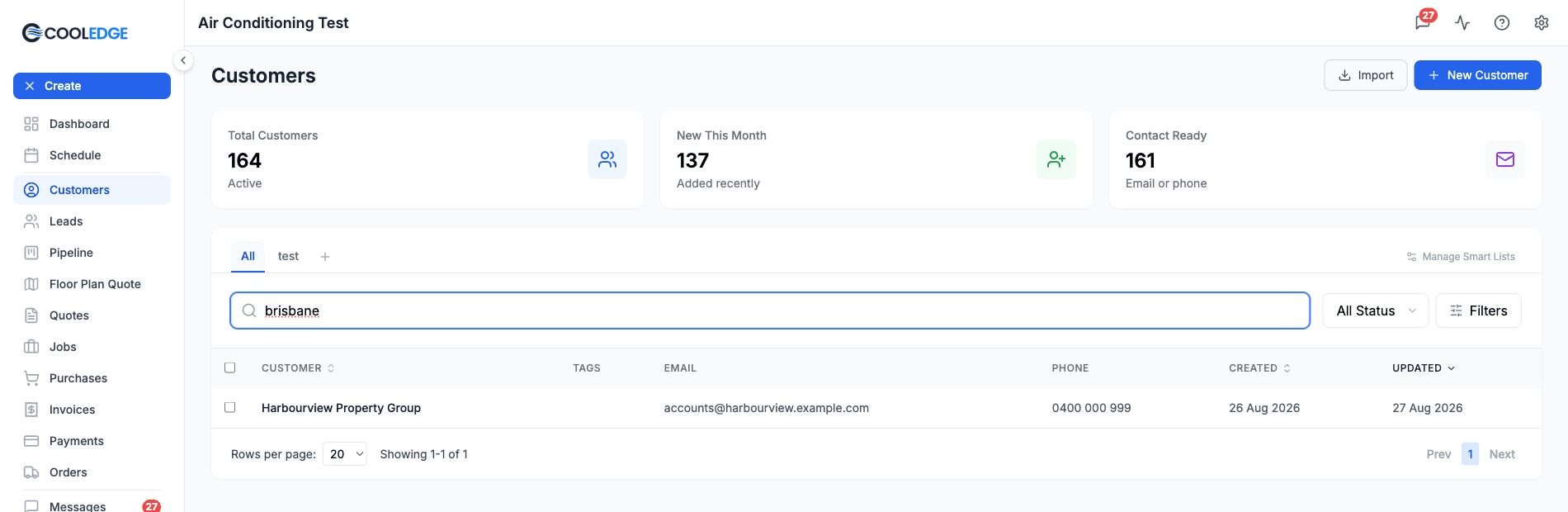
On a quote, job or invoice the field reads "Search by name, email, or phone..." and results drop down under it as you type. On the Customers page the field reads "Search by name, email, phone, or address..." and filters the table instead. Both search the same things, including addresses, despite the shorter label on the first one.
Click into the field on a quote, job or invoice before you type anything and your five most recently touched customers drop down under a Recent customers heading, so a repeat customer is one click away. The mobile app's Select Customer sheet opens with the same list.
What You Can Search By
Search looks across several fields at once. You can search by name (display name or company name, so "John Smith" or just "Smith"), by phone, by email (full or partial) or by address including street, suburb, state or postcode. Address search covers every address a customer has, not only their main one, so a landlord turns up when you search the tenant's street.
Search also matches a customer's contact people. Type a contact's name, email or phone and their company appears in the results, so you can find a business by searching for the person you actually deal with.
Matches appear as you type, from two characters onwards. It's a "contains" match, so any run of characters from the middle of a field will find it: "edward" finds "55 Little Edward Street".
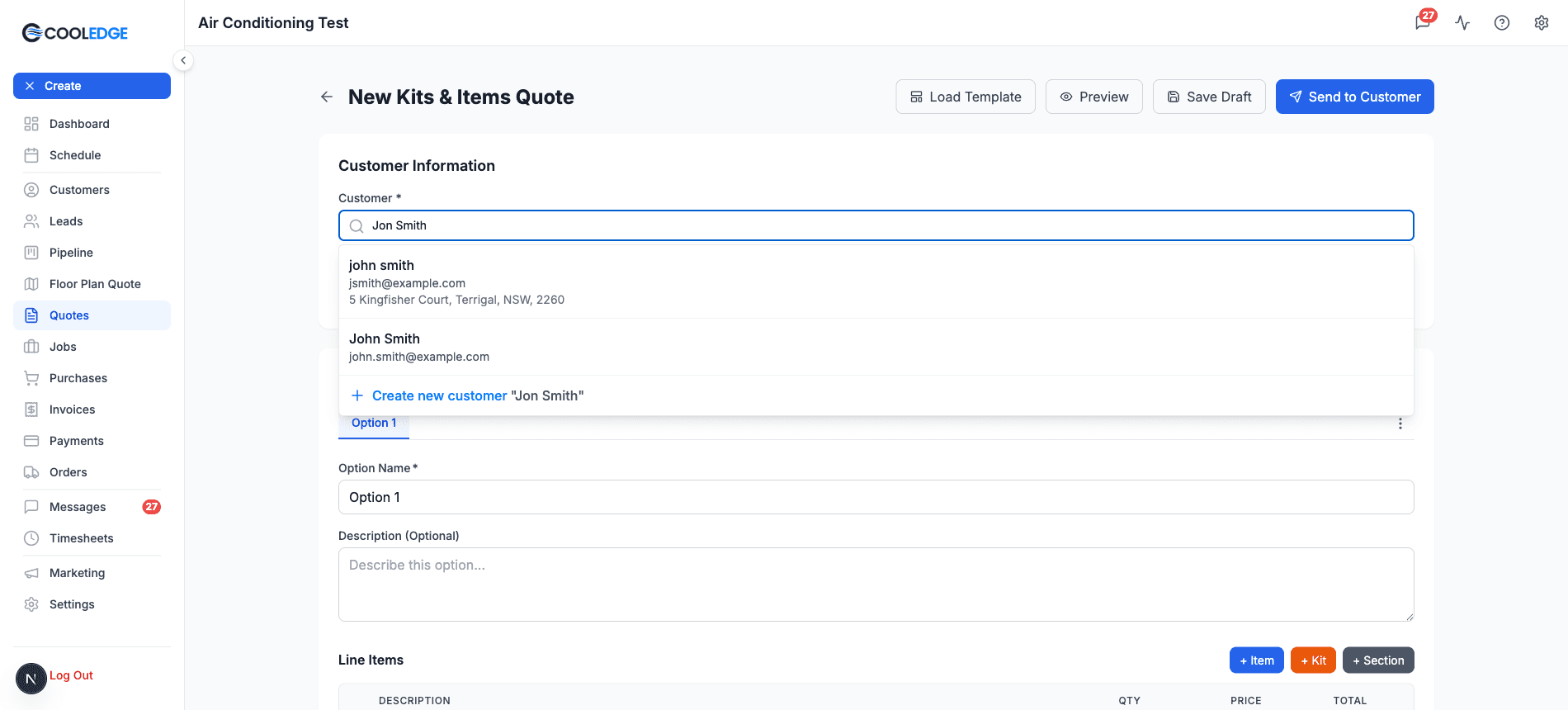
Names also allow for a near-miss in spelling. "Jon Smith" finds "John Smith", "Sara Johnson" finds "Sarah Johnson" and "ABC Plumming" finds "ABC Plumbing Services". It needs most of the name to work with, so a lone "Jon" won't find "John Smith": the less you type, the closer it has to be. This forgiveness applies to the customer's name and company name only. Emails and addresses need to be typed the way they're stored. Phone numbers are the exception: a number matches however you space it, so "0412 345 678" finds a customer saved as "0412345678".
Understanding Search Results
What a Result Shows
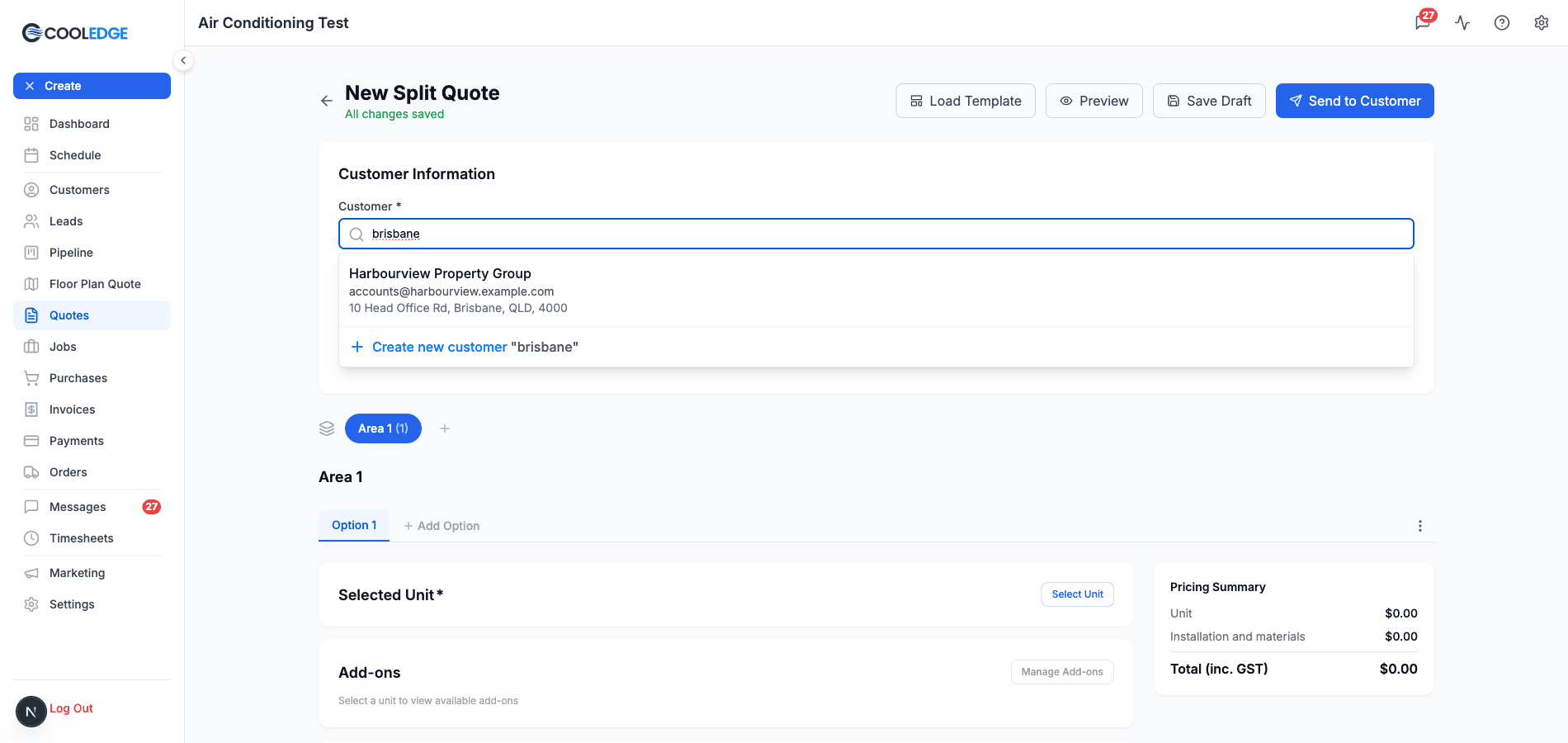
Every match comes back as a card with three lines:
- Customer name, in bold
- Email, if they have one
- Main address, if they have one
That's deliberately spare. It's enough to tell two John Smiths apart at a glance without making you open either of them.
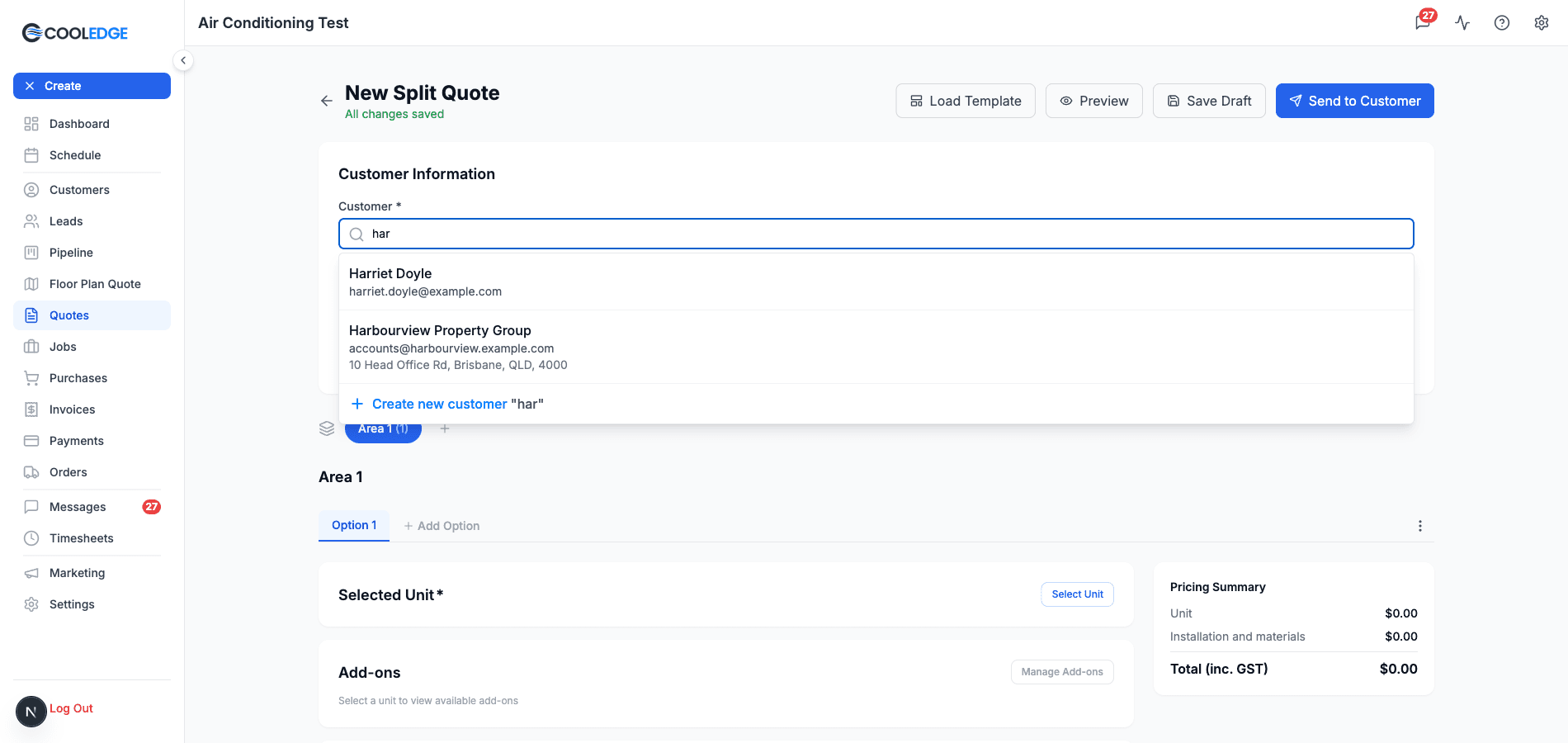
Results are capped at ten and the best matches come first: an exact name, email or phone match, then names that start with what you typed, then anything that merely contains it. Address and contact-person matches follow, with spelling near-misses last. Two equally good matches are ordered by which record was touched most recently. With a common surname, add something else to narrow it rather than scanning the list.
Searching by Address
Because the search covers every address a customer has, a street or suburb is often the fastest way in when you can't remember a name. Search "Brisbane" and you get everyone with an address there, main or otherwise.
Checking Before Selecting
What to Check
Before clicking a search result, look at:
Customer name - Right person or business?
Email - Do you recognise it?
Address - Right location?
If the card doesn't settle it, open the Customers page in another tab and look them up there. Their detail page has the full history: quotes, jobs, invoices, payments and messages, each on its own tab.
When to Select Existing Customer
Select from search results when:
- The email or phone matches
- You recognise the name and address
- It's someone you've worked with before
- It's the same customer needing more work
Even if details are slightly off (old address, different phone), it's better to select them and update their details than create a duplicate.
After You Pick a Customer
On a new quote or a new job, a Link this quote or Link this job panel can appear underneath the customer you just selected. It offers the customer's open lead to link to, and on a quote a quote visit as well. Something is preselected already, so most of the time you can glance at it and carry on. The panel only appears when there is actually something to link, so you won't see it on every quote or job. It works the same way in the portal and in the mobile app. See Linking Leads to Quotes and Jobs.
When to Create New Customer
Create a new customer when:
- The search finds nothing
- The results are clearly different people
- It's a brand new customer you've never worked with
How to create new:
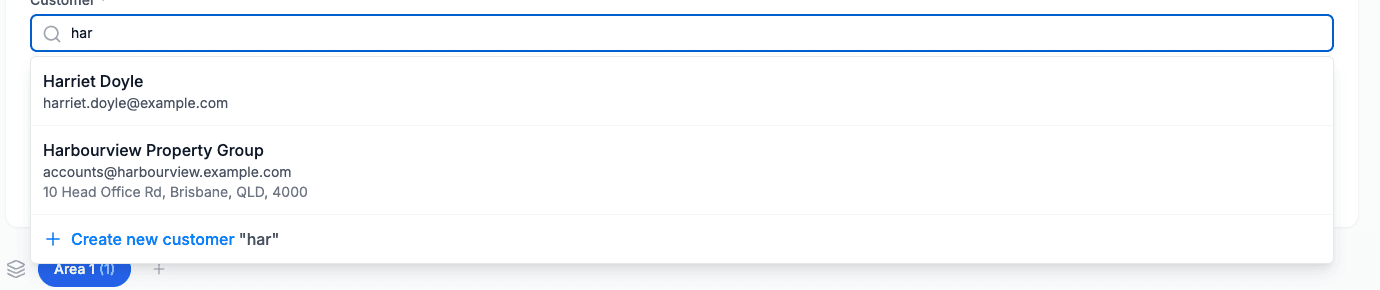
- Click Create new customer at the bottom of the results
- Fill in their details, whatever you typed is already in the name field
- Save
On mobile it's a Create New Customer button on the Select Customer sheet, in the same place.
Tip: If you're 90% sure they're new, they probably are. If you're 50/50, take ten seconds to check the search results carefully.
Avoiding Duplicates
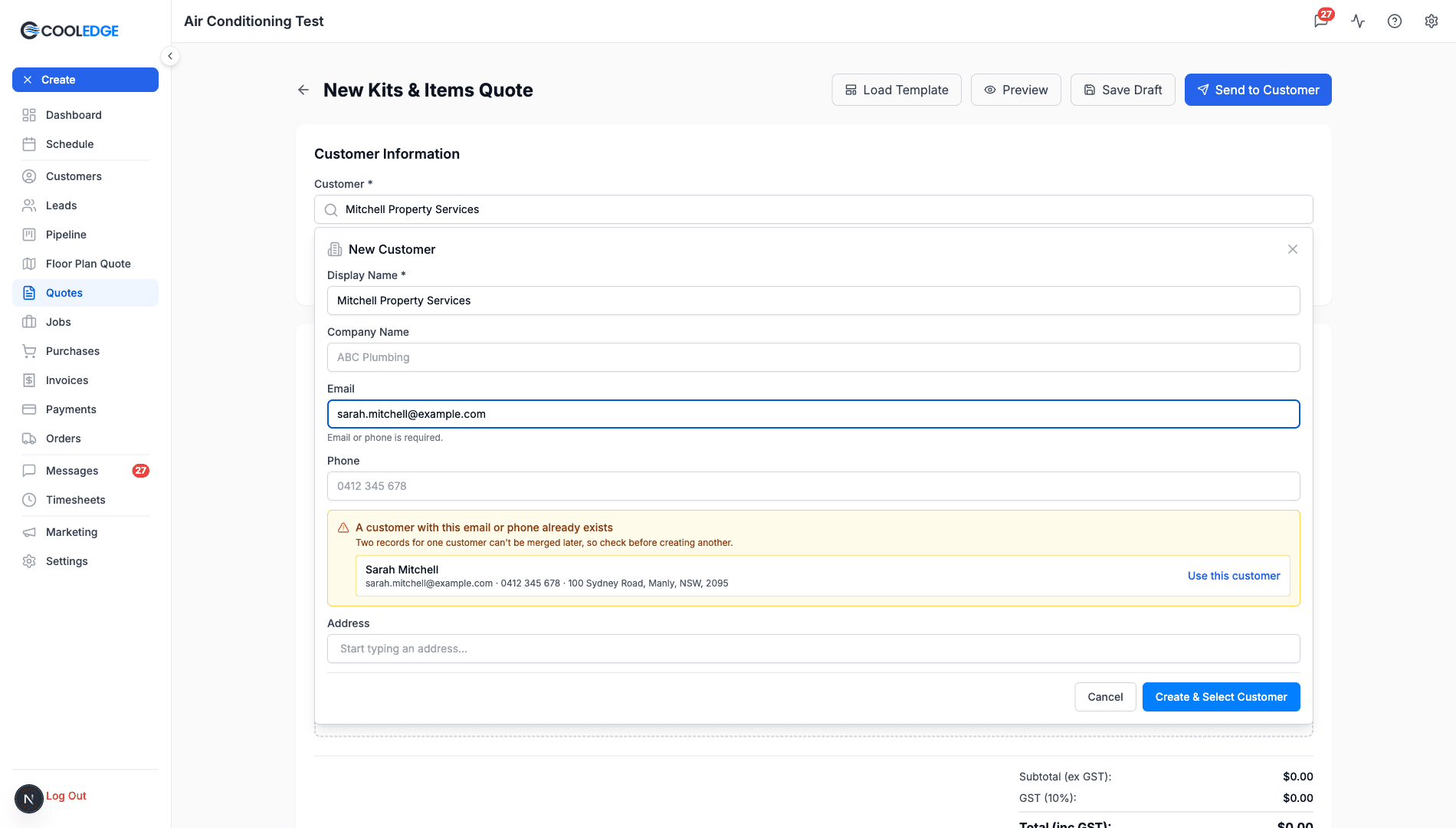
Cooledge also checks at the moment you create a customer, in the portal and in the mobile app. Once the email or phone you type into a new customer form belongs to a record you already have, a warning appears naming that customer, with a link that picks the existing record instead of creating another. It matches on email and phone, not on name, so the habits below still matter. See Creating Customers for how the warning works.
Best Practices
Always search first:
- Even if you "know" they're new
- Takes 5 seconds to check
- Saves hours of cleanup later
Search multiple ways:
- Try phone number if name doesn't work
- Try suburb if name is common
- Try business name vs personal name
Search the address as well:
- Street, suburb or postcode
- Catches customers whose name you've spelled differently
- Works across every address they have
Use phone over name:
- Phone numbers are unique
- Names get spelled different ways
- "John Smith" and "Jon Smith" can be the same person
If You Create a Duplicate by Mistake
There's no merge button, so the fix is manual and it's worth doing early:
- Decide which record to keep, usually the one with the most history on it
- Move any new work onto that one
- Copy across anything worth keeping from the other, such as an address or a contact person
- Open the leftover record and use More Actions → Archive Customer
Archiving takes it out of the way without touching the quotes and invoices already attached to it. This is why searching first is worth the five seconds.
Search Tips
For Common Names
If searching "John Smith" returns 10 results:
Add more detail:
- "John Smith Bondi"
- "John Smith 0412"
- "John Smith Main St"
Or read the results:
- Look at the addresses, which suburb is it?
- Open the Customers page and search there, it shows phone numbers in the table
For Businesses vs Individuals
Businesses might be listed under:
- Business name ("ABC Plumbing")
- Owner name ("John Smith")
- Trading name ("John's Plumbing Services")
Try all variations:
- Search by business name first
- If nothing, try owner name
- Check phone number (most reliable)
For Repeat Customers
If you know you've worked with them before:
- Search by phone, it's the most accurate
- Check the address on the result still looks right
- Select that customer
If it's been a while since you last worked with them, open their record and check the address and phone before you quote. People move and change numbers.
Common Questions
Why did a customer come up when their name doesn't match what I typed? Because search covers more than the name. Their address, their email, their phone or one of their contact people probably matched instead.
Can I search by job number or quote number? No - this search is for customers only. To find jobs or quotes, use the Jobs or Quotes pages.
Search isn't finding a customer I know exists. Why? Try the phone number, the email or the street instead of the name. Names allow for a near-miss, but only when you type most of the name: "Jon Smith" finds "John Smith" where a lone "Jon" does not. They may also be archived. Contact support if you're sure they should be there.
What if I select the wrong customer by accident? If you're creating a quote, just click the customer name again and search for the right one. If the quote is already created, you'll need to delete it and start over.
Can I update customer details after creating them? Yes! Go to the Customers page, find them, click to open and edit any field. Updates apply to future quotes/jobs (doesn't change old quotes retroactively).
Does search allow for spelling mistakes? Yes, for names, in both the portal and the mobile app. "Smyth" finds "Smith" and "Jon Smith" finds "John Smith", provided you type most of the name. A mistyped street or email won't match, so if you're unsure of the spelling, search a different field. Phone numbers match in any spacing.
What's Next?
- Creating Customers - How to add new customers with sites and contacts
- Customer Sites and Contacts - Managing addresses and contact details
Need more help? Use the help cart (? icon in the header) or email support@cooledge.com.au
Was this article helpful?
Let us know if you found this information useful.
Still need help? Contact support
In this article
Use your browser's search (Ctrl+F) to quickly find specific topics within this article.
Browse all help articles →