Linking Leads to Quotes and Jobs
Keep the enquiry connected to the quote and the job it turned into, then fix the link later when it goes wrong
Linking Leads to Quotes and Jobs
Every quote and job can carry the enquiry it came from, so the money lands back on the lead that earned it.
- When you pick a customer on a new quote or job, Cooledge offers the lead and the quote visit to link to
- Something is already ticked when the panel appears, so doing nothing still gets you a link
- Nothing to link and no panel appears. Turn on the setting and Cooledge will offer to create a lead instead
- Linking a lead to a quote or a job moves that lead forward into Opportunity
- Unlinking is safe. The lead keeps its stage and nothing that already happened is undone
- Corrections after the fact are a portal job. The mobile app links at creation only
What Linking Does
A lead is the enquiry. A quote is the price and a job is the work. Linking ties them together so the lead's card shows what the deal is worth, the pipeline moves on its own and your reporting can say which enquiries actually turned into money.
There are two kinds of link, and a quote can carry both at once:
| Link | What it means | Where it is offered |
|---|---|---|
| Lead | The enquiry this quote or job came out of | Quotes and jobs |
| Quote visit | The job you attended to price the work | Quotes only |
Creating a job never offers a quote visit. A quote visit is a job itself, so the offer only makes sense on the quote that comes out of it.
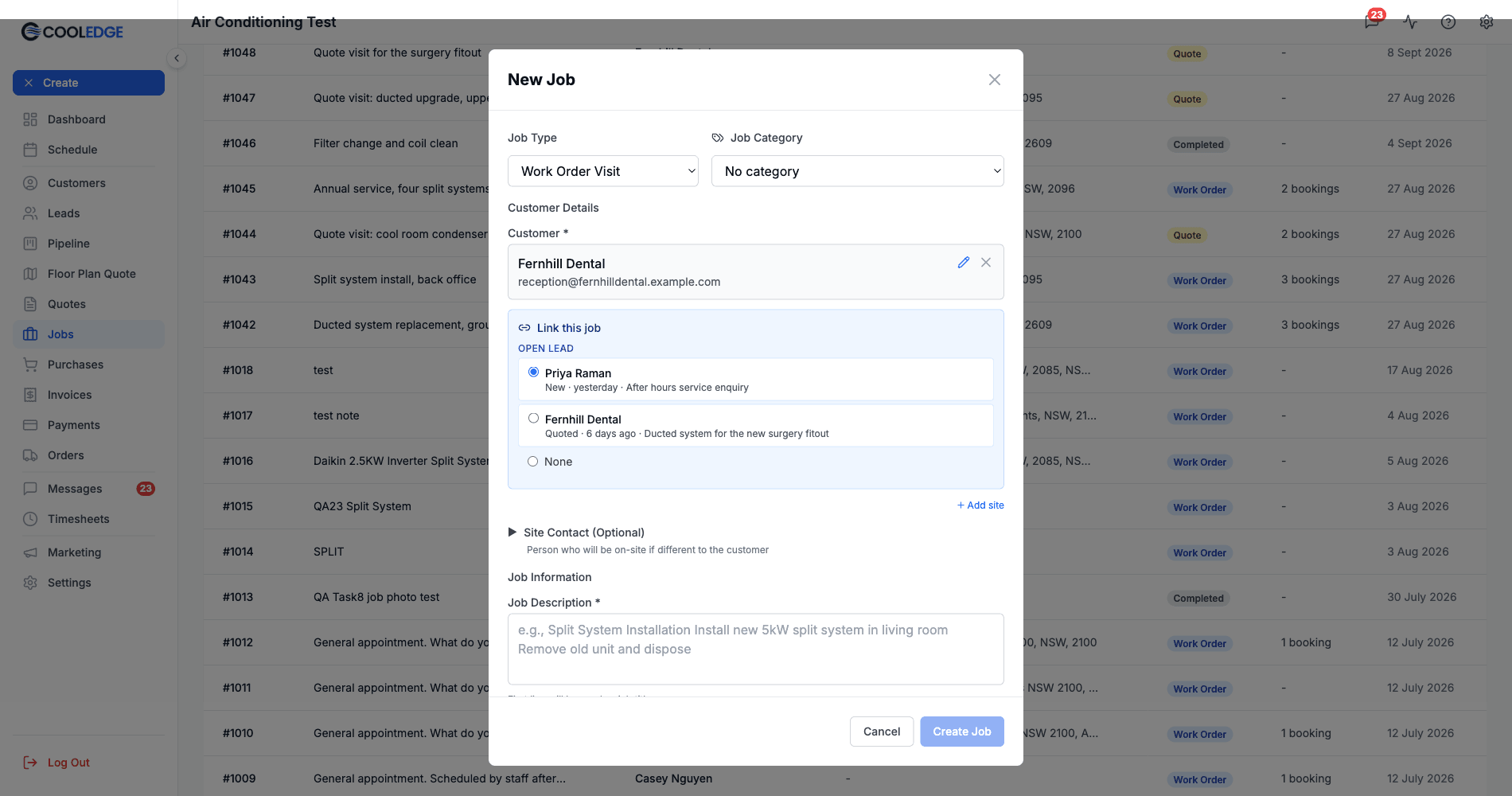
The New Job modal above shows it: the panel is headed Link this job, there is an Open lead section and there is no Quote visit section at all.
Linking While You Create a Quote or Job
Pick the customer on a new quote or a new job and a blue panel appears underneath them. It is headed Link this quote on a quote and Link this job on a job, with the options grouped under Open lead and Quote visit.
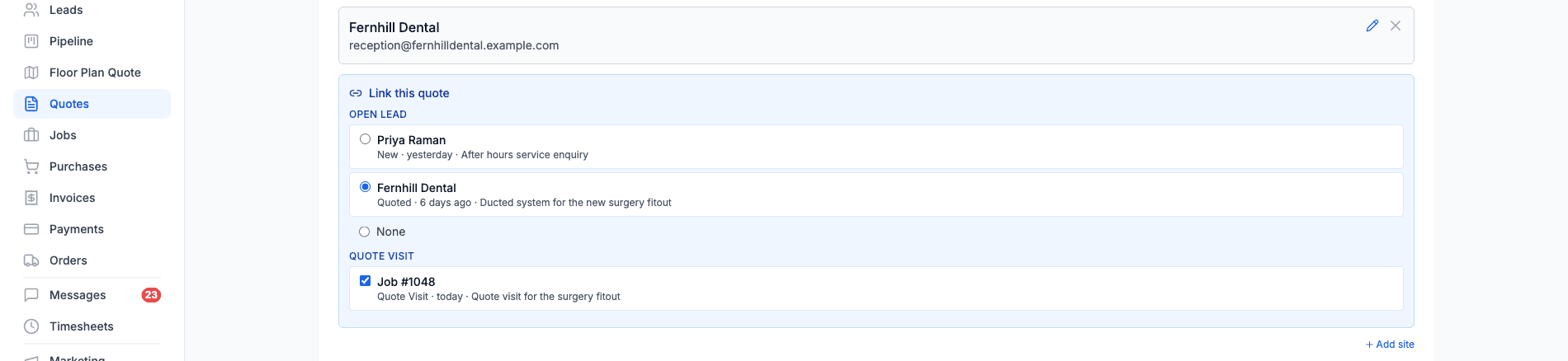
Each lead row shows the lead's name, then its stage, how long ago it came in and its description, like "Quoted · 6 days ago · Ducted system for the new surgery fitout". Recent dates read as "today", "yesterday" or "6 days ago". Anything past a month shows the date itself. A quote visit row shows Job #1048 with "Quote Visit", the same relative date and the job's description.
Something is Already Ticked
The panel is not an empty list waiting for you. Cooledge picks the most likely answer before you touch it:
- The newest quote visit for that customer is ticked
- If that job carries a lead, that lead wins over the customer's newest lead
- Otherwise the customer's newest open lead is selected
Save without changing anything and you still get a sensible link. Read the panel before you save, because the default is a real choice being made on your behalf.
None Versus the Tick Box
The None option only appears when there is more than one row to choose from. With two or more leads you get radio buttons plus None, so you can pick one or opt out. With exactly one lead, or one quote visit, the control is a simple tick box and you untick it to skip the link. The screenshot above shows both: two leads with None, one quote visit as a tick box.
Matched by Email or Phone
Some leads are not attached to a customer record yet. When Cooledge finds one by matching the email address or the phone number, an amber line reads "Matched by email" or "Matched by phone".
Note: Ticking a matched row attaches that lead to the customer straight away, before you save the quote or job. That is the point, it is how a loose enquiry becomes part of the customer's history.
When the Panel Does Not Appear
The panel is quiet by design:
- Nothing to link. If the customer has no open lead and no quote visit, the panel is not shown at all. There is no empty state on the creation screens
- Already decided. A job started from a lead, or a quote started from a quote visit, already knows its link, so there is nothing to ask
- Lookup failed. If the check does not come back, the panel is simply absent. It never blocks you from saving
Change the customer and the panel comes back for the new one.
When There is No Lead Yet
If the customer has nothing to link and you have switched the setting on, Cooledge offers to create the lead for you instead.
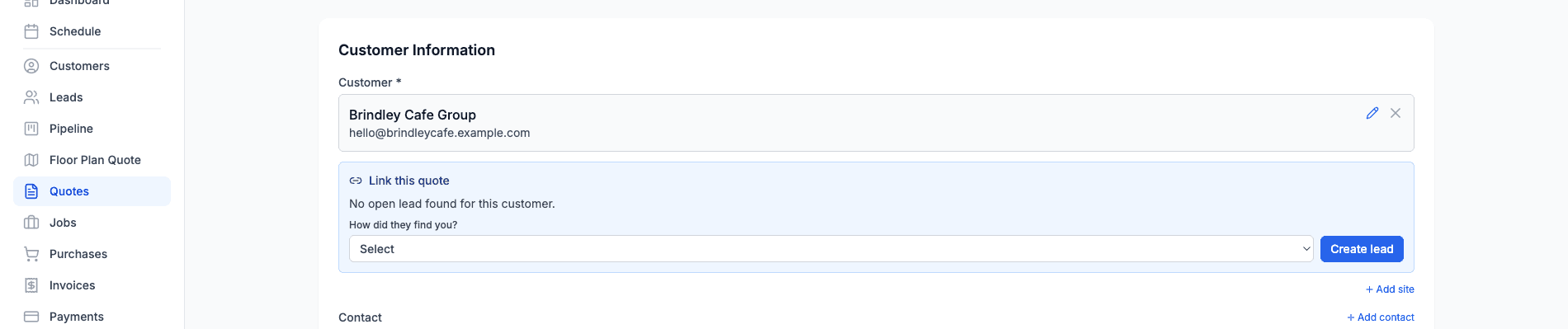
- The panel reads "No open lead found for this customer."
- Choose from How did they find you?, which lists your own channels
- Click Create lead
Picking a channel is required. Leave it on "Select" and you get "Pick how they found you". That is deliberate, because a lead with no source is a lead you cannot report on later.
This offer only shows when both things are true: the customer has no lead to link and the business has turned the setting on. It is off out of the box.
Setting it Up
Go to Settings, then Leads & Pipeline. The Linking section sits on the Pipeline stages tab, which is the tab that opens first.
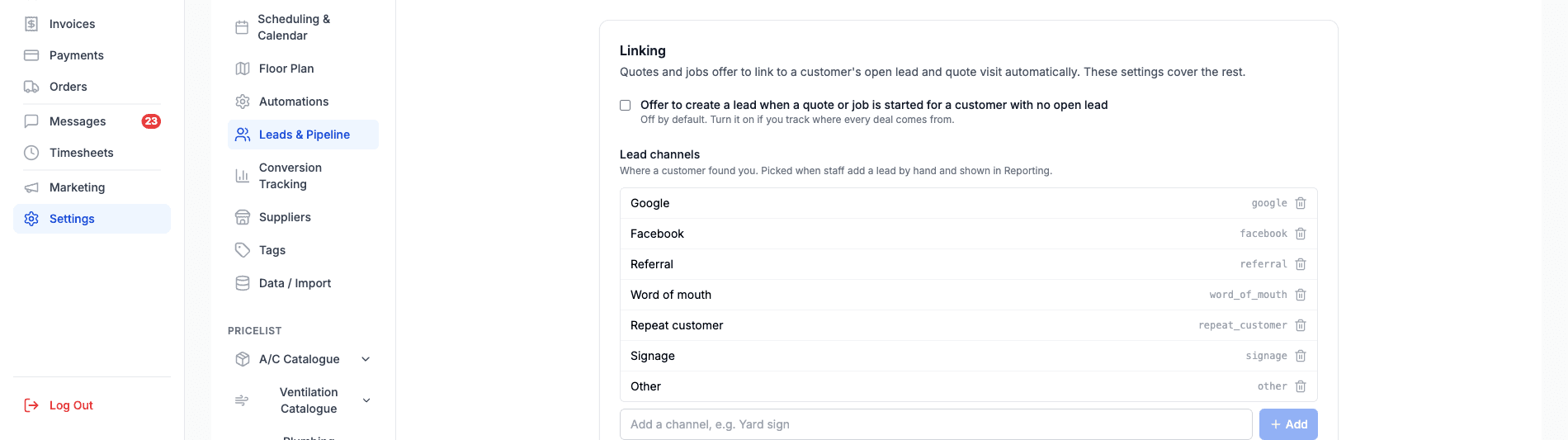
The Offer Toggle
The toggle reads "Offer to create a lead when a quote or job is started for a customer with no open lead", with the helper line "Off by default. Turn it on if you track where every deal comes from."
Turn it on if you want every deal traceable back to a source. Leave it off if your team quotes plenty of walk-up work and the extra step would just get clicked past. It saves the moment you change it, there is no Save button.
Lead Channels
Underneath is Lead channels, "Where a customer found you. Picked when staff add a lead by hand and shown in Reporting."
Every business starts with seven:
Google, Facebook, Referral, Word of mouth, Repeat customer, Signage and Other.
Add your own in the "Add a channel, e.g. Yard sign" field. You can have up to 30, each up to 40 characters.
Removing one is safe for your history. The confirmation says "Leads already tagged with this channel keep it. Reporting will show the key until you add it again." The button reads Remove. Add the channel back with the same name and reporting reads properly again.
Changing Links Afterwards
Quote and job detail pages carry a Linked to line in the header. This is portal only.

- With something linked it reads Linked to followed by the lead's name and its stage badge, and on a quote it can add Job #1048 with a yellow Quote Visit badge. Both names click through to the records
- With nothing linked it reads "Not linked to a lead or quote visit" on a quote, or "Not linked to a lead" on a job
- The action link at the end is Change when something is linked and Link when nothing is

The Edit Modal
Change opens the same options you saw at creation, headed Link this quote or Link this job, with the current links already ticked.
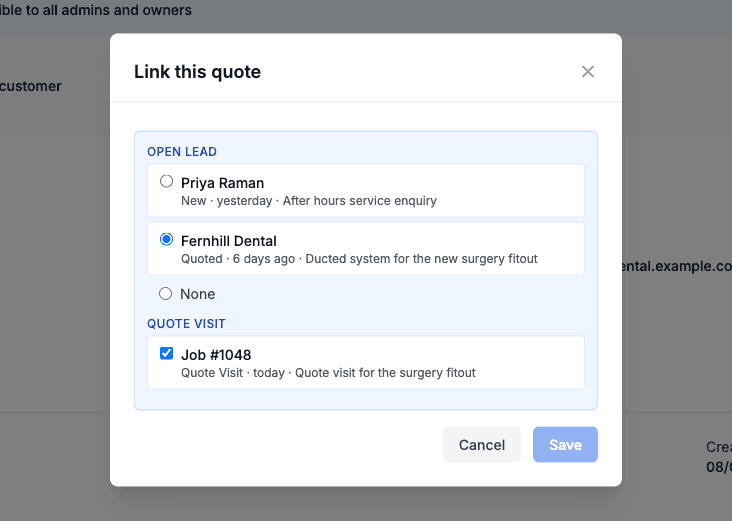
Tick or untick, then Save. Save stays greyed out until something actually changes, so you cannot save a no-op by accident. If the customer has nothing to offer, the modal says "No open lead or quote visit found for this customer." The modal does show that message, unlike the creation panel which just hides itself.
The Confirmation
Removing or repointing a link asks first.
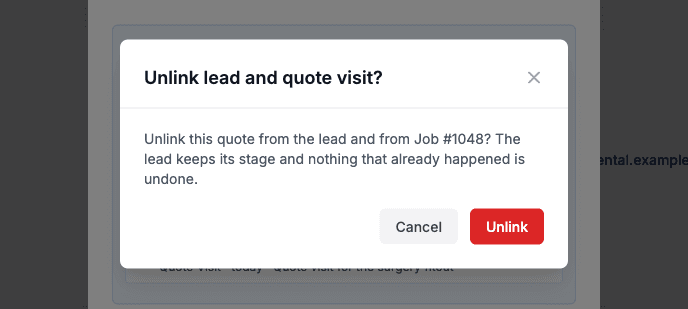
The dialog is titled "Unlink lead and quote visit?" and reads "Unlink this quote from the lead and from Job #1048? The lead keeps its stage and nothing that already happened is undone."
Unlinking from the Lead
Open the lead and the Quotes, jobs and invoices card lists everything it produced, grouped into Quotes, Jobs and Invoices.
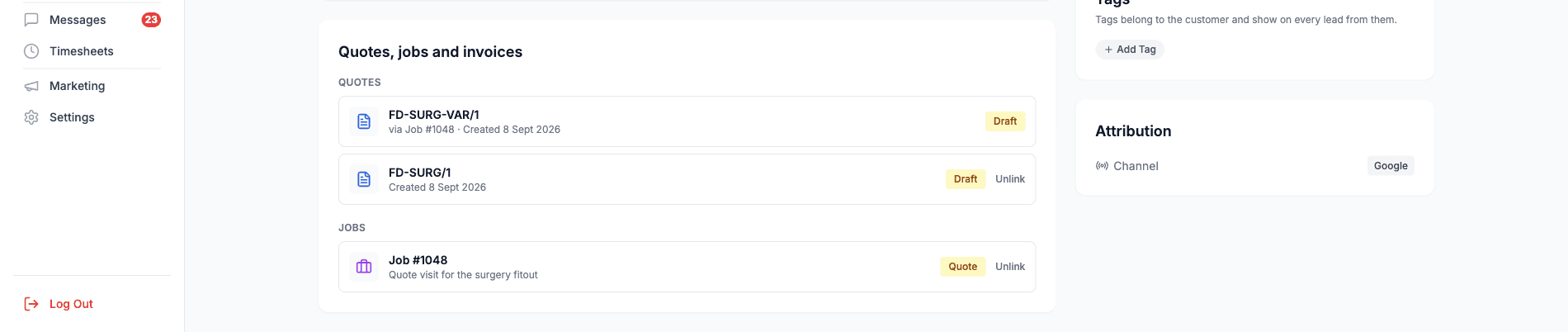
- Every job row has an Unlink button on the right
- A quote the lead links to directly has one too
- Invoice rows never do. Invoices follow their quote or job, so unlink the parent
- A quote that only reaches the lead through a linked job has no Unlink of its own. Its subtitle reads "via Job #1048 · Created 8 Sept 2026" instead. Unlink the job to detach it
Unlinking a job warns you that the quotes and invoices reaching the lead through that job stop showing as well. Every confirmation repeats that the lead keeps its stage.
What Unlinking Does and Does Not Do
This is the part worth reading twice.
Unlinking is inert. It removes the connection and nothing else. The lead keeps whatever stage it is in, its history stands and nothing is rewound or re-fired. If a lead moved to Opportunity because of a quote you have now unlinked, it stays in Opportunity until you move it. That is deliberate, and the confirmation dialog says so.
Linking is not inert. The mirror image does not hold. Attaching a lead to a quote or a job does move that lead forward into the Opportunity group. Unlink is a tidy-up, link is an action.
Note: Link the lead before the quote is accepted or paid. Attaching a lead to a quote that is already Accepted or already Paid moves the lead to Opportunity but does not mark it Won, so you have to mark it won by hand. Link early and the pipeline keeps itself tidy.
Channels and Reporting
Adding a Lead by Hand
Use the New Lead button on the Leads page. The channel field is How did they find you? and its first option is Not sure, followed by your own channel list. The mobile app offers the same list.

Leads by Channel
Reporting lives at Leads, then Reporting, on the Lead Reporting page. The Leads by channel card is a bar list with a count and a share for each channel.

The period selector offers 7 days, 30 days, 90 days and All time, starting on 30 days.
Note: A lead with no channel is counted as Direct, not left out. A business that has never set channels sees one big Direct bar, which is not the same as having no data. If Direct dominates, that usually means channels are not being filled in rather than that everyone found you directly.
The card is counts and shares only. There is no revenue or won rate broken down by channel.
The Channel Filter
The Channel filter on the Leads page is built from the channels your own leads actually carry, sorted alphabetically. It shows your custom channels, and web-derived ones such as "Google Ads", "Facebook Ads" and "Paid (other)" appear only when you have leads carrying them. It is not a fixed menu, so it grows and shrinks with your data.
Portal and Mobile
| Portal | Mobile app | |
|---|---|---|
| Link panel on a new quote or job | Yes | Yes |
| Create lead offer | Yes | Yes, with a tap-to-open channel picker |
| Linked to line with Change | Yes | No |
| Edit the links afterwards | Yes | No |
| Unlink from the lead | Yes | No, the lead shows read-only with a tap-through |
Mobile links at the moment of creation and that is it. Every correction is made in the portal.
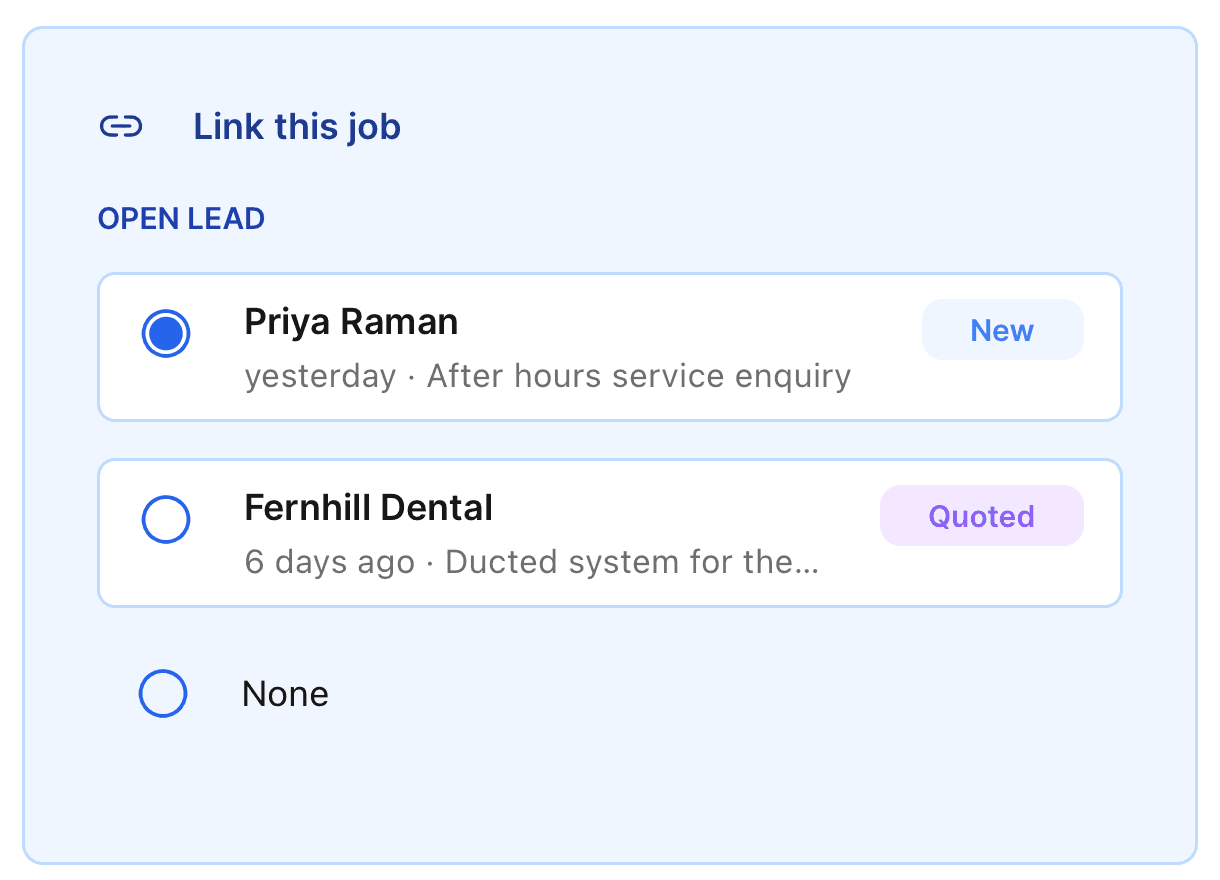
The mobile panel offers the same choices as the portal and reads slightly differently: the lead's stage sits in a badge on the right rather than at the front of the subtitle, and the channel field in the create-lead offer opens as a picker you tap rather than a dropdown.
Note: When you save a new job on mobile, Cooledge waits a moment for the suggestions and then saves regardless. On a poor connection that means a job can be created with no lead attached. Fix it from the portal afterwards with the Link action on the job header.
Related Articles
- Sales Pipeline
- Lead Capture
- Quote Visits
- Linking Quotes to Jobs
- Quoting Basics
- Creating and Managing Jobs
- Creating Customers
Need help linking leads to quotes and jobs? Email us at support@cooledge.com.au
Was this article helpful?
Let us know if you found this information useful.
Still need help? Contact support
In this article
Use your browser's search (Ctrl+F) to quickly find specific topics within this article.
Browse all help articles →Related Articles
Lead Capture: Forms, Landing Pages & Chat Widget
Build forms, create landing pages and add chat widgets to capture leads directly from your website and campaigns
Online Bookings
Let customers book jobs straight from your website. Turn any lead form into a self-service booking page that creates a confirmed job on your calendar with staff assigned.
Sales Pipeline
Work your leads on a drag and drop board with custom stages, deal values and a 30 day view of what you won and lost