Online Bookings
Let customers book jobs straight from your website. Turn any lead form into a self-service booking page that creates a confirmed job on your calendar with staff assigned.
Online Bookings
Let customers book you while you are on the tools.
- Turn any lead form into a self-service booking page
- Customers pick a real available time and the job is confirmed instantly
- Every booking creates a lead, a customer and a job on your calendar with staff assigned
- Confirmation email, calendar invite and reminders are all automatic
- Set your services, availability and the area you cover
- Share a hosted page, embed a widget or add it to a landing page
Online Bookings is built into the same forms you already use for Lead Capture. Switch booking on for a form, add your services with real durations and the form gains a schedule step where visitors pick a live time slot. Submitting the form auto-confirms: Cooledge creates the lead, customer and job, assigns a staff member and drops a booking on your schedule calendar, so reminders, the calendar, the mobile app and lead reporting all work from day one.
Online Bookings is available on Growth and Scale plans. Multi-step forms and file uploads are available wherever you have Lead Capture today.
1. Turning On Booking for a Form
- Go to Leads → Lead Capture → Online Bookings
- Click + New Booking Form (or open an existing form and switch Booking on)
- Give the form a name and, if you like, a page slug for its hosted address
Once booking is on, the form gains three extra tabs: Services, Availability and a booking-aware Schedule step. Everything else about the form (your questions, style and share options) works exactly like a standard lead form.
2. Services
Services are what the customer chooses to book. Each service has a duration and an outcome that decides what kind of job is created.
For each service, set:
- Name that the customer sees, for example "AC service and tune-up" or "Quote for a new system"
- Duration in minutes, used to size the booking and to work out which time slots can fit
- Outcome, one of:
- Work Order for booked work
- Quote Visit for an on-site quote
- Enquiry for a request with no job created yet
- Price shown (optional), a display price the customer sees next to the service
- Staff (optional), a pool for this service only. Leave it empty to use the form's staff pool. Use it to send quote visits to your estimators or licensed work to specific team members.
If a form has only one service, the schedule step skips the service picker and takes the customer straight to choosing a time.
3. Availability
Availability controls which time slots Cooledge offers. Slots are worked out live against your real calendar, so a time is only offered if a staff member is genuinely free.
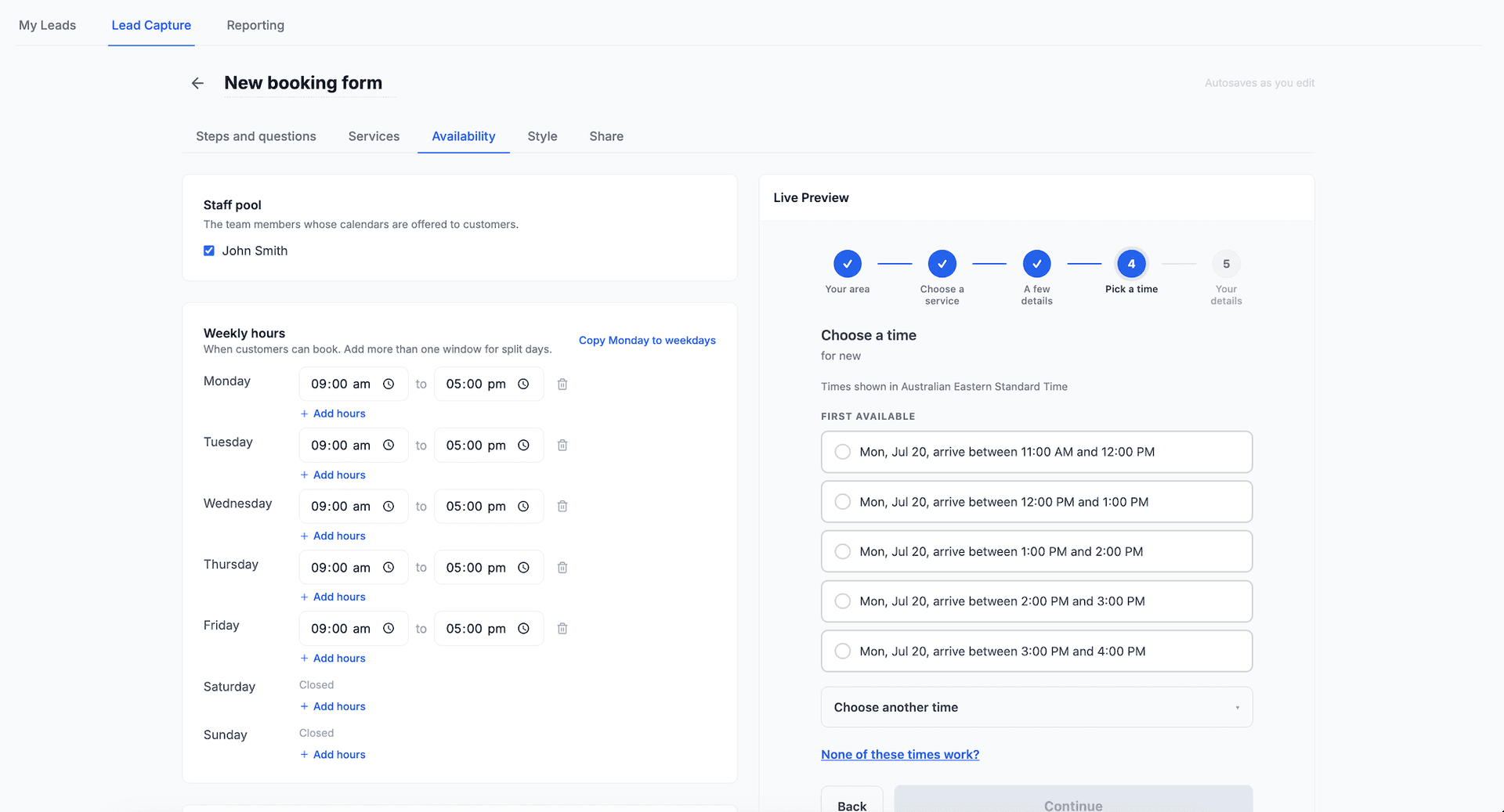
Set up under the Availability tab:
- Staff pool, the team members who can take these bookings. Cooledge assigns the least-busy free staff member at the moment of booking.
- Per-day windows, the hours you take bookings for each day of the week. Leave a day closed to take no bookings that day.
- Minimum notice, how far in advance a customer must book, so nobody books you for ten minutes from now.
- Booking horizon, how far into the future customers can book.
- Buffer, padding added around each booking for travel or setup.
- Max per day, a cap on how many online bookings you take in a single day.
- Blocked dates, specific days you are unavailable, such as public holidays or leave.
Slots are always calculated in your business timezone, so a customer in a different timezone still sees your real local hours.
4. Service Area
Set the area you cover so you never get booked for a job you cannot reach.
- Postcodes, an explicit list of the postcodes you serve
- Radius, a distance from your base address
A visitor enters their postcode or address first. If they are outside your area, they are routed to an enquiry instead of a booking, so you still capture the lead and can decide whether to take it. The lead arrives with the customer already created and linked, ready to quote or book if you decide to take the job.
5. Multi-Step Questions and File Uploads
Booking forms use the same multi-step builder as every lead form, so you can qualify a job across a few tidy screens instead of one long page.
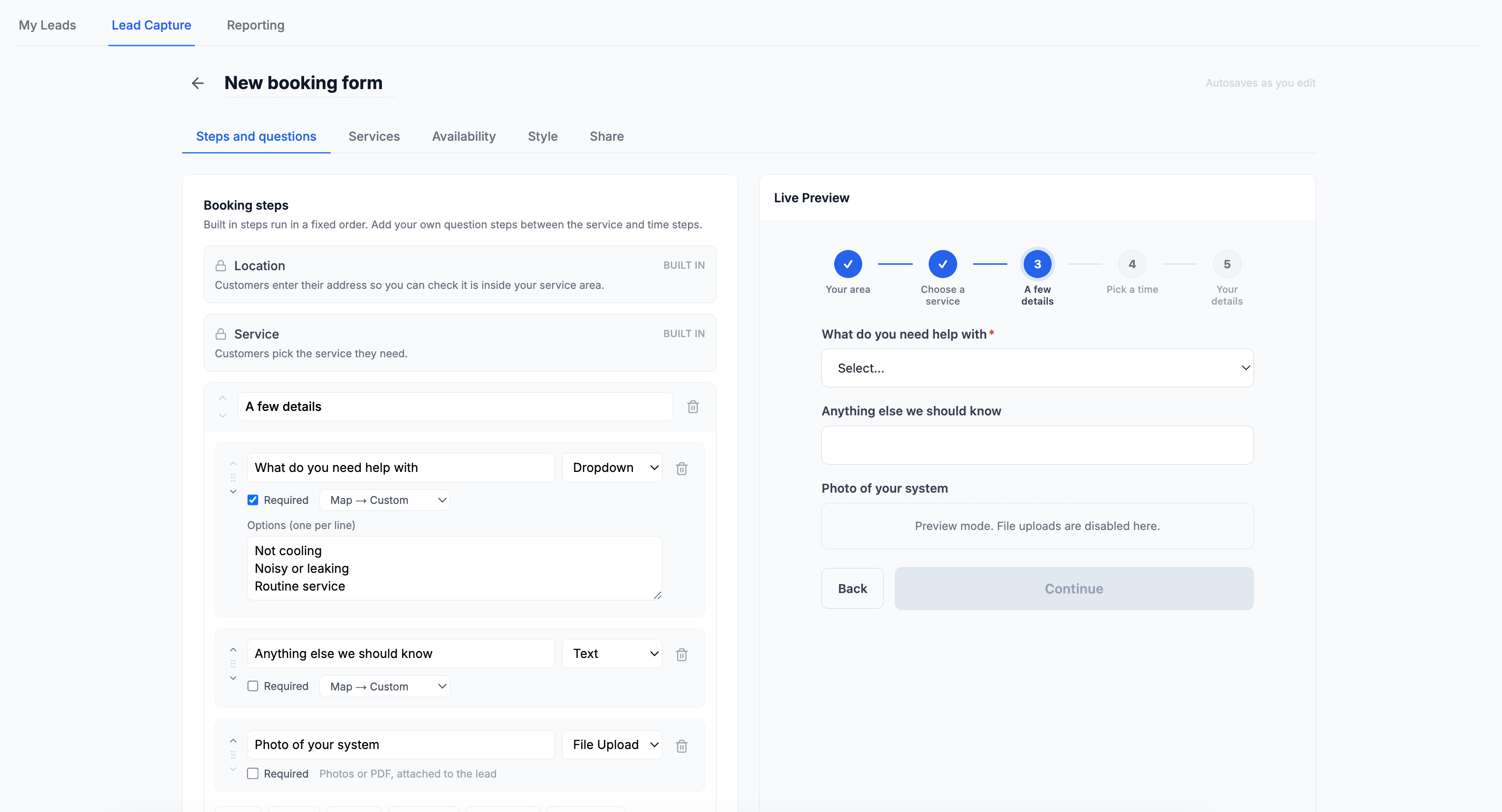
- Question steps let you group your questions, for example "About your property" then "About the job".
- File Upload fields let a customer attach a photo or document before you arrive, such as a photo of the switchboard or the unit's model plate. Uploads accept images and PDFs, up to 4 files per question.
Multi-step forms and file uploads work on plain lead forms too, with or without booking.
6. Arrival Windows
You can show customers an arrival window instead of an exact start time, which sets a realistic expectation and reduces "where are you?" calls. Set the display mode per booking form:
- Exact, the customer sees the exact start time
- Window, the customer sees a range such as "between 9:00am and 11:00am". The width is configurable and defaults to 2 hours.
- Half-day, the customer sees Morning or Afternoon
Behind the scenes the booking still reserves a real staff block, so your calendar stays precise. The customer-facing confirmation, calendar invite and reminders all show the window. Arrival windows are also available business-wide for every booking reminder under Settings → Scheduling, see Booking Reminders.
7. Sharing Your Booking Form
Take bookings from anywhere:
- Hosted booking page, a ready-to-use page at your own address that needs no website
- Embedded widget, a snippet you paste into your site so the booking form appears inline
- Landing page section, add a booking section to any landing page
- Short links with tracking, share links pre-tagged for Facebook, Instagram, Google Ads, Email, SMS or flyers, and generate a QR code for print
8. What Happens When a Customer Books
Submitting a booking form does everything for you:
- Creates the lead, then finds or creates the customer and their site
- Creates the job and books it on your schedule calendar with a staff member assigned
- Sends the customer a confirmation email with a calendar invite attached
- Queues the reminders you have set up, so the customer is nudged before the visit
- Notifies your team that a new booking has come in
Because a real job is created, everything downstream just works: the booking appears on the calendar and in the mobile app, reminders fire, and the lead flows through your reporting and any connected automations.
9. When No Times Suit
If nothing fits, or none of the offered times suit the customer, the schedule step never dead-ends. The customer can leave:
- Their preferred days and morning or afternoon
- How urgent the job is, including "contact me if an earlier time opens up"
- A short note
This comes through as an enquiry lead flagged as a no-times request, with the service and preferences captured, so you can call and find a time rather than losing the lead to a full calendar. The customer is created and linked automatically, ready for when you agree on a time.
Other enquiry leads, such as enquiry-only services, are not linked to a customer automatically. Open the lead in the portal and use the Create Customer button to link one in a single click.
10. Managing Your Bookings
Online bookings appear alongside everything else, with a few extras:
- On the calendar, an online booking carries a Booked online badge so you can tell self-service bookings apart at a glance.
- On the lead, an Attribution card shows where the lead came from (channel, campaign and UTM tags) and a Booking card shows the scheduled time and service.
- In Leads → Reporting, breakdowns by channel and campaign plus a bookings tile show how your booking forms are performing. Because every booking captures the channel, campaign and exact ad that produced it (with Google and Facebook click IDs) and becomes a real job you win and invoice, you can trace booked work back to the ad that made it.
Send it to your ad platforms. Conversion Tracking fires a conversion in Google Analytics, Google Ads and Meta the moment a booking or lead is captured, with server-side events that keep counting even when a browser blocks the pixel. It is the fastest way to optimise your ad spend against real bookings.
11. Plans and Limits
- Growth, one booking-enabled form. The "Powered by Cooledge" badge shows on your public booking pages.
- Scale, unlimited booking-enabled forms, plus the option to hide the "Powered by Cooledge" badge.
- Starter, multi-step forms and file uploads are available, but self-service booking is not.
Related Articles:
- Lead Capture → — Forms, landing pages and the chat widget
- Conversion Tracking → — Send bookings and leads to Google Analytics, Google Ads and Meta
- Booking Reminders → — Automated SMS and email reminders, plus arrival windows
- Using the Calendar → — Manage your scheduled visits
- Handling Booking Conflicts → — Resolve double-booking situations
- Creating Bookings → — How bookings are created and scheduled
Need help with Online Bookings? Email us at support@cooledge.com.au
Was this article helpful?
Let us know if you found this information useful.
Still need help? Contact support
In this article
Use your browser's search (Ctrl+F) to quickly find specific topics within this article.
Browse all help articles →Related Articles
Lead Capture: Forms, Landing Pages & Chat Widget
Build forms, create landing pages and add chat widgets to capture leads directly from your website and campaigns
Linking Leads to Quotes and Jobs
Keep the enquiry connected to the quote and the job it turned into, then fix the link later when it goes wrong
Sales Pipeline
Work your leads on a drag and drop board with custom stages, deal values and a 30 day view of what you won and lost