Using the Calendar
Master the calendar views and navigation, and understand your schedule at a glance
Using the Calendar
What is the Calendar?
The Calendar is where you see all your scheduled work in one place. It shows bookings for your team, both customer jobs and internal tasks, across different views so you can plan your day, week or month.
Three things worth knowing before you start
- The Staff dropdown is in every view, not just Month, and it remembers a separate choice for Month and for Grid/Timeline
- The jobs sidebar has its own staff filter, which is a different control doing a different job
- A single click on a booking only raises it above its neighbours. Double click opens it
Switching Calendar Views
You have 5 different ways to view your schedule, and each one suits different situations.
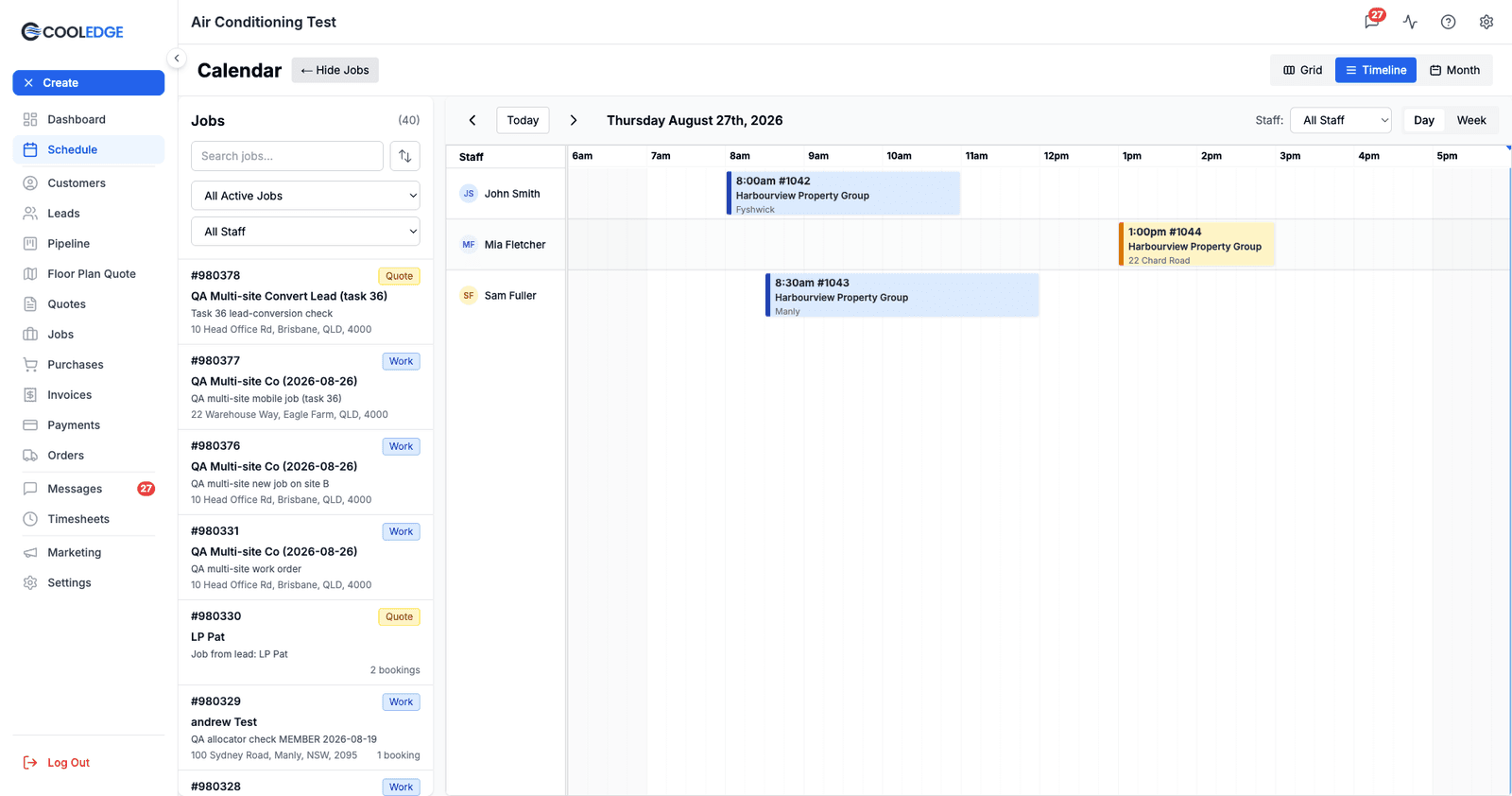
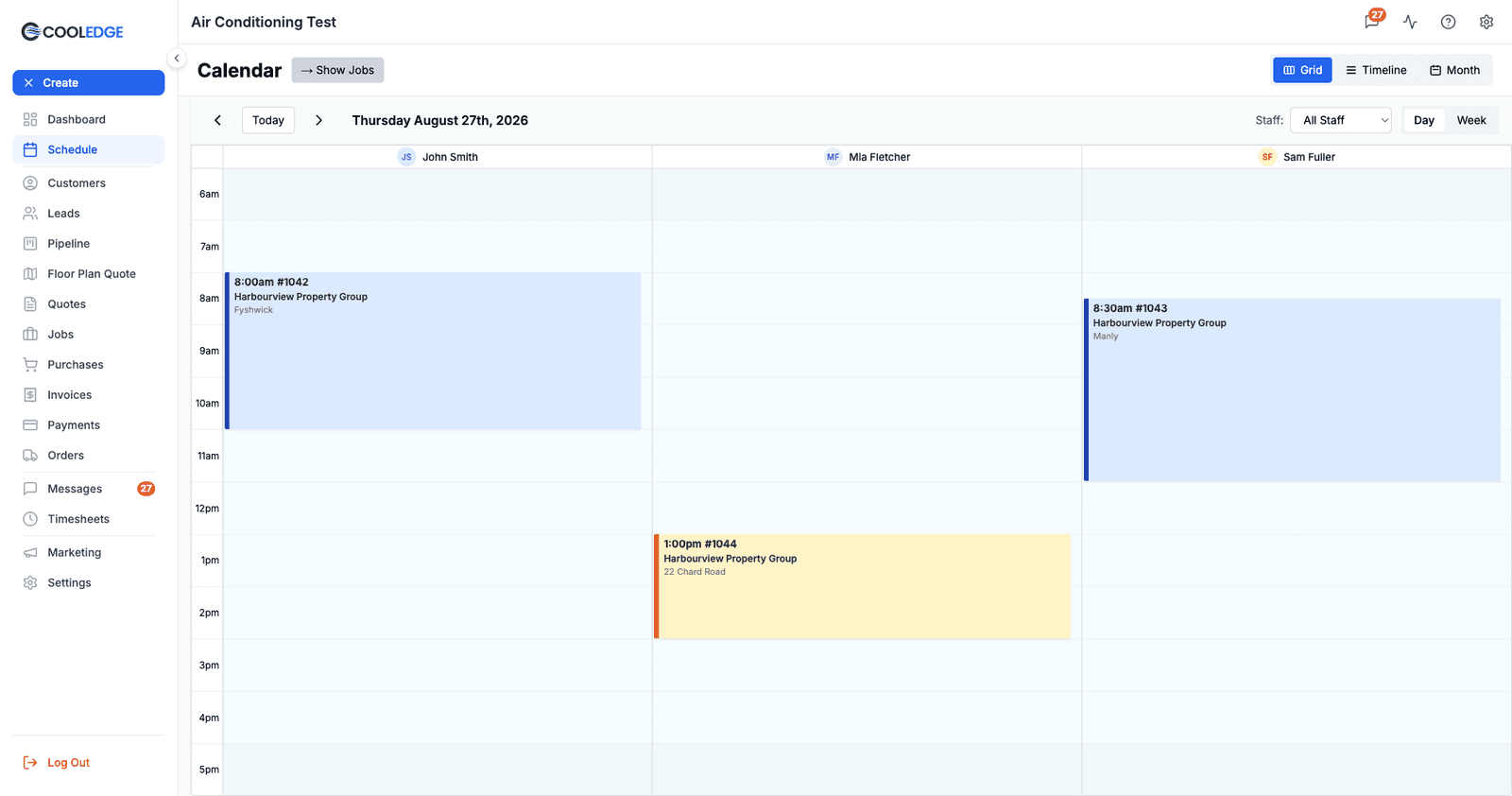
The two Day Views show you a single day in detail. Timeline Day is the default, laying out staff members as horizontal rows so you can see everyone's day at a glance. You can drag bookings left or right to reassign staff, or up and down to change times. Grid Day shows the same information but arranges staff as vertical columns, giving you that traditional daily planner feel.
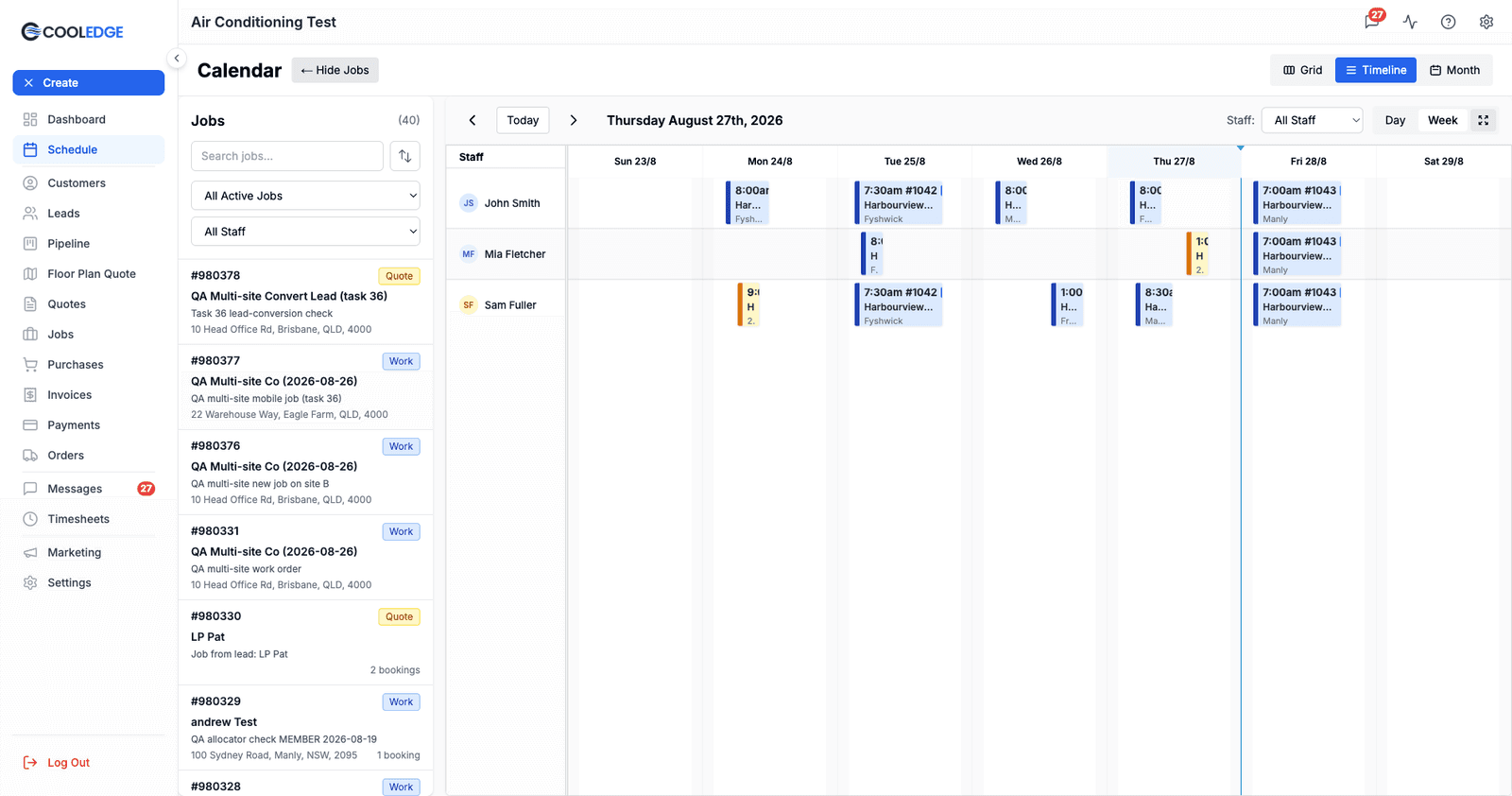
For weekly planning, Timeline Week shows a full week with staff as rows. This works great when you have many team members and need to spot patterns across the week. Just scroll horizontally to see more staff. Grid Week displays staff as columns instead, showing multiple days for each person in a traditional weekly planner layout. This view works best for smaller teams of 3-5 people.
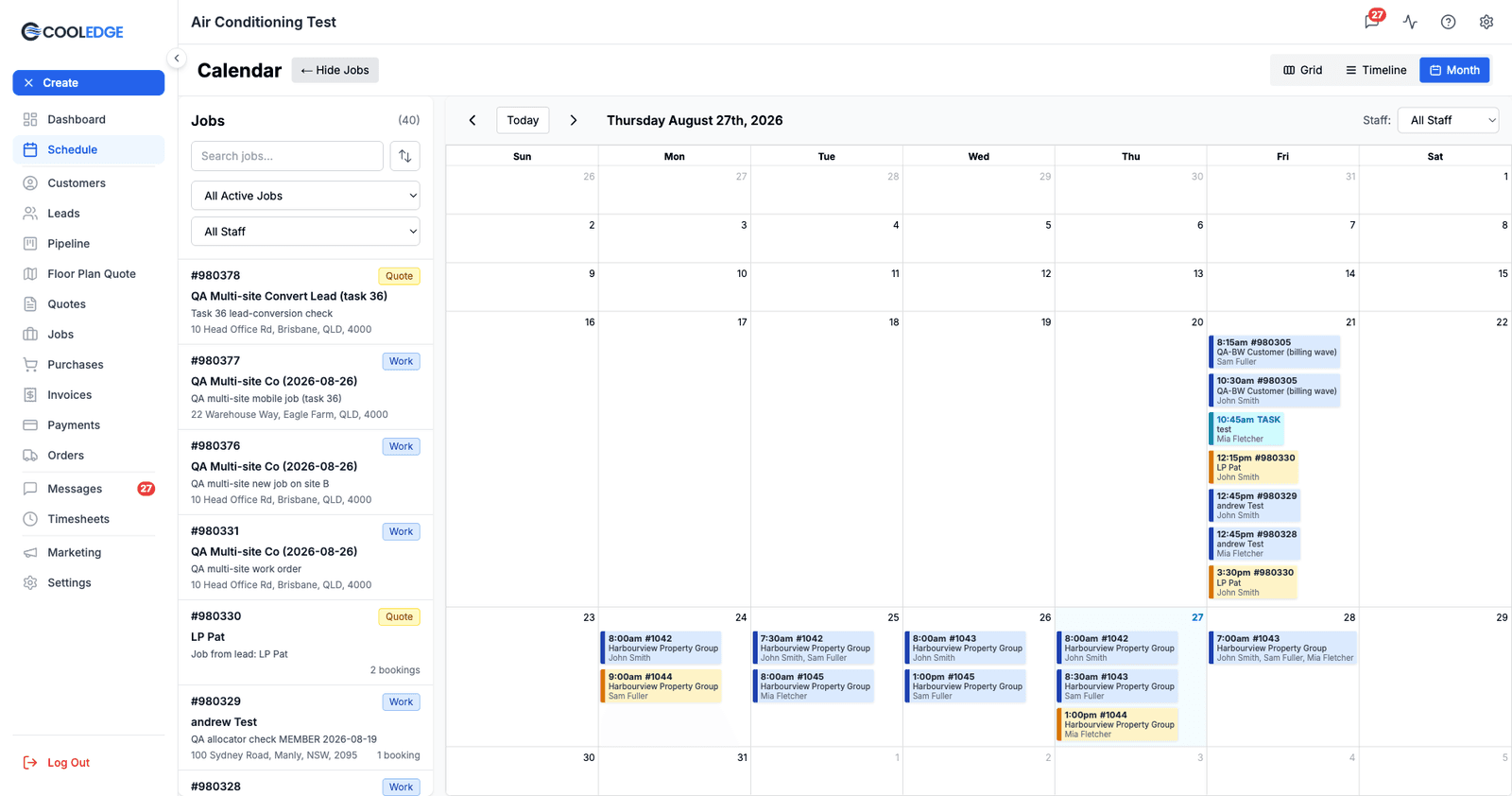
Finally, Month View gives you the big picture with a full month in a calendar grid. It's perfect for long-term planning and spotting free days, but doesn't show staff columns to avoid clutter. Instead, you can filter by individual staff members to see one person's month.
Switch views with the Grid, Timeline and Month buttons at the top right, then Day or Week beside the Staff dropdown. The calendar remembers your last choice and opens on it next time. Out of the box it opens on Timeline Day.
Moving Between Dates
The navigation controls at the top of the calendar make it easy to jump around. The Today button brings you back to today's date instantly. Use the left and right arrows to move backward or forward by day, week or month depending on which view you're in. The date button in the middle opens a date picker when you click it.
The date picker shows a mini calendar where you can click any date to jump straight there. It's faster than clicking arrows repeatedly when you need to check something weeks ahead.
Understanding What You're Looking At
The calendar covers your business hours plus an hour either side, and shades that extra hour grey so you can see where the working day starts and stops. With the default hours of 6am to 6pm the calendar runs 5am to 7pm. Change your hours in Settings and the calendar follows. Each row or column is one staff member, empty space is free time and coloured blocks are bookings.
Each booking displays the job number (like "1000") or "TASK" for internal work, the customer name, a brief description or location and the time range from start to end. Everything you need to know at a glance.
Color Coding
The background color tells you the job status:
- Amber/Yellow: Quote (job not started yet)
- Blue: Work Order (approved job, ready to go)
- Green: Completed job
- Red: Cancelled job
- Purple: On Hold
- Cyan: Task (not a customer job)
The thick left border shows booking progress:
- Dark Blue: Scheduled (not started)
- Orange: In Progress (currently working)
- Green: Done (finished)
The Staff Filters
There are two staff filters on this page and they are not the same control.
The Calendar's Staff Dropdown
Top right, next to the Day and Week buttons, labelled Staff:. It is there in every view, including Grid and Timeline, and it defaults to All Staff.
What it does depends on which view you are in:
- In Grid and Timeline views it hides everyone else's column or row, so you get one person's day or week on its own. Useful when the team is too wide to read
- In Month view it filters which bookings appear, because Month has no staff columns to hide
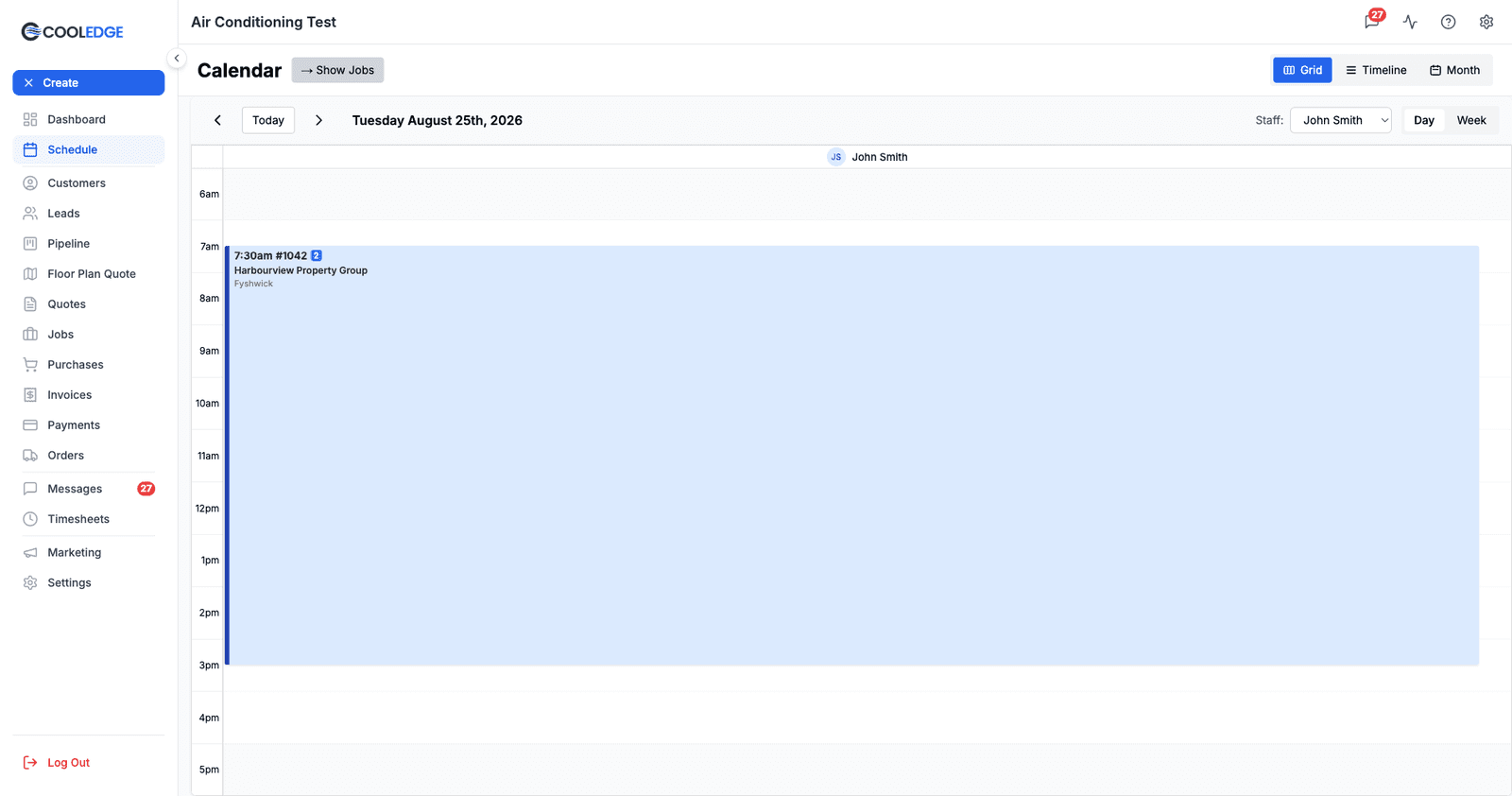
It remembers two separate choices. The selection you make in Month view and the one you make in Grid or Timeline are stored independently, so setting it to one person in Month view does not carry over when you switch to Grid, and the other way round. If a booking seems to be missing, check the dropdown in the view you are actually looking at.
The Jobs Sidebar's Staff Filter
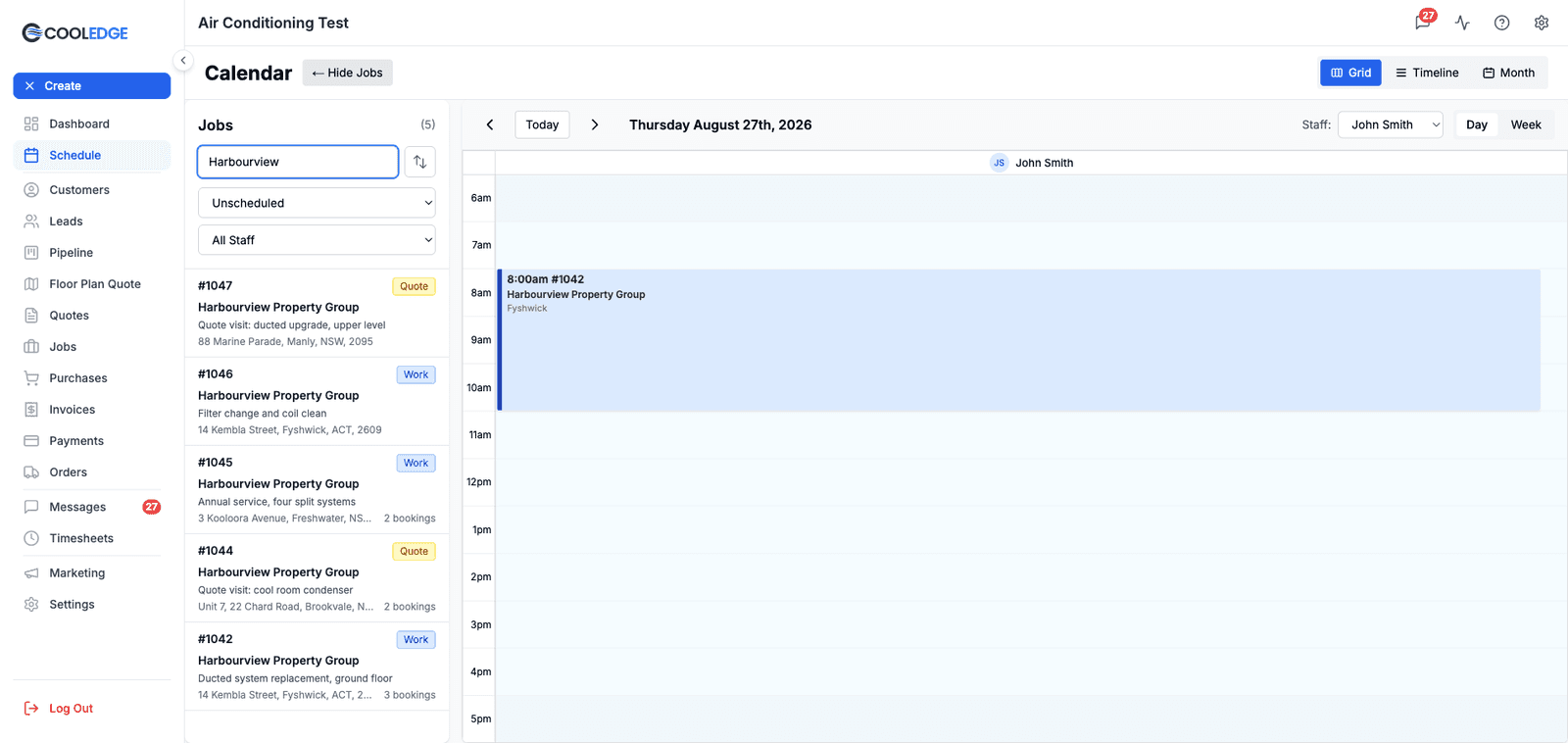
Inside the jobs sidebar on the left there is a second Staff filter. That one narrows the list of unscheduled jobs waiting to be booked, not the calendar. Changing it does not add or remove anything from the calendar itself.
See Unscheduled Bookings for the sidebar's filters.
The Sidebar (Unscheduled Bookings)
On the left, behind the Show Jobs button, is a list of jobs that still need scheduling:
- These are jobs with no booking on the calendar yet
- You can search the list, filter it by status and by staff, then sort it
- Drag any job onto the calendar to book it. The staff member whose row or column you drop it on gets the booking
Tip: keep this list short by scheduling as soon as you can. Collapse the sidebar with the arrow button when it is in the way.
Common Calendar Actions
Creating a Booking
- Click and drag across an empty time slot
- The Create Booking modal opens with the start and end already set from your drag
- Choose the type and pick the job
- Click Create
The staff member comes from the row or column you dragged on, and is shown in the modal as plain text. There is no staff picker here. See Creating Bookings.
Viewing Booking Details
- Single click raises the card above any bookings overlapping it. It does not open anything
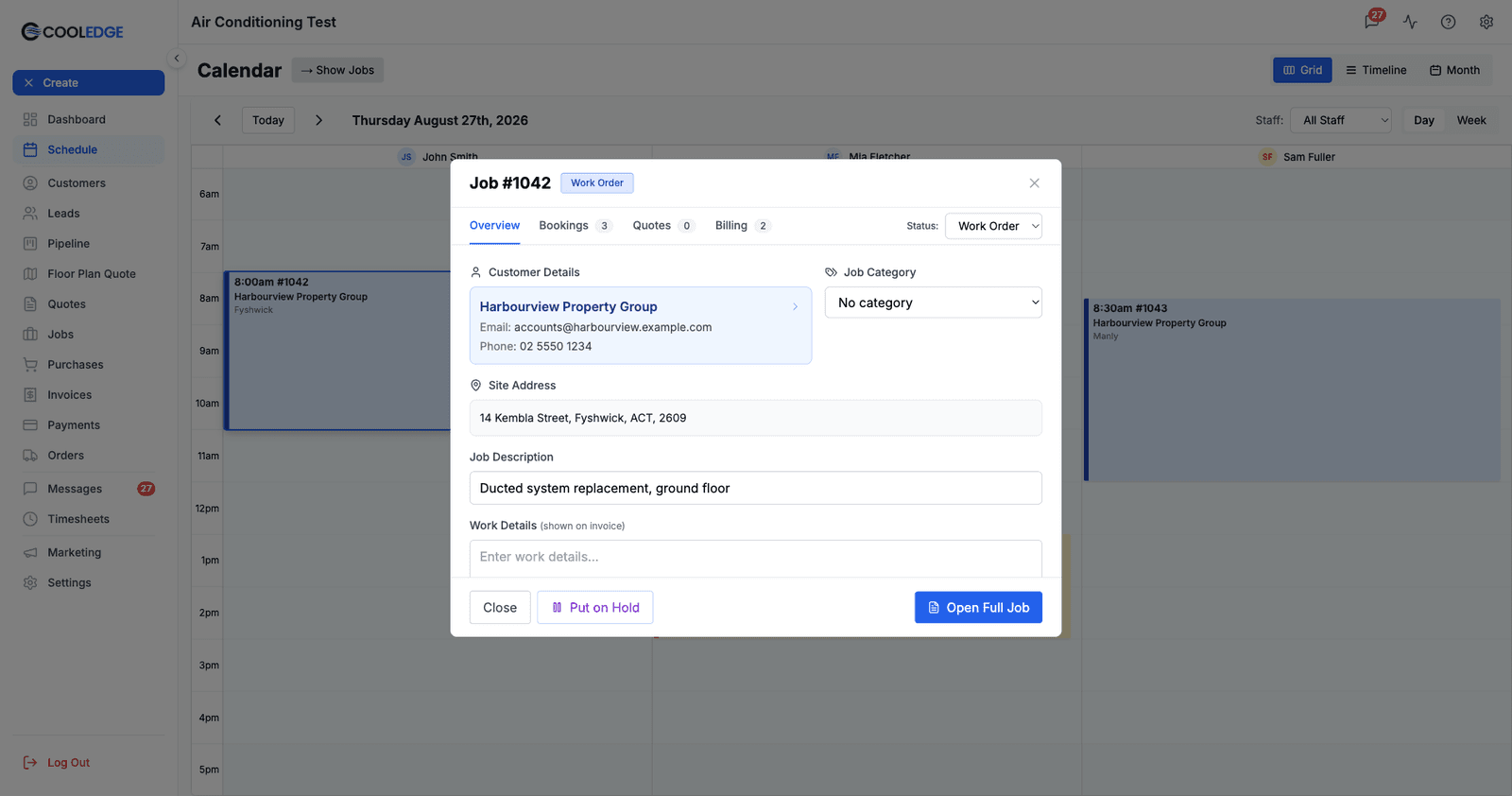
- Double click opens the job in a modal, or for a task, the edit booking modal
Moving a Booking
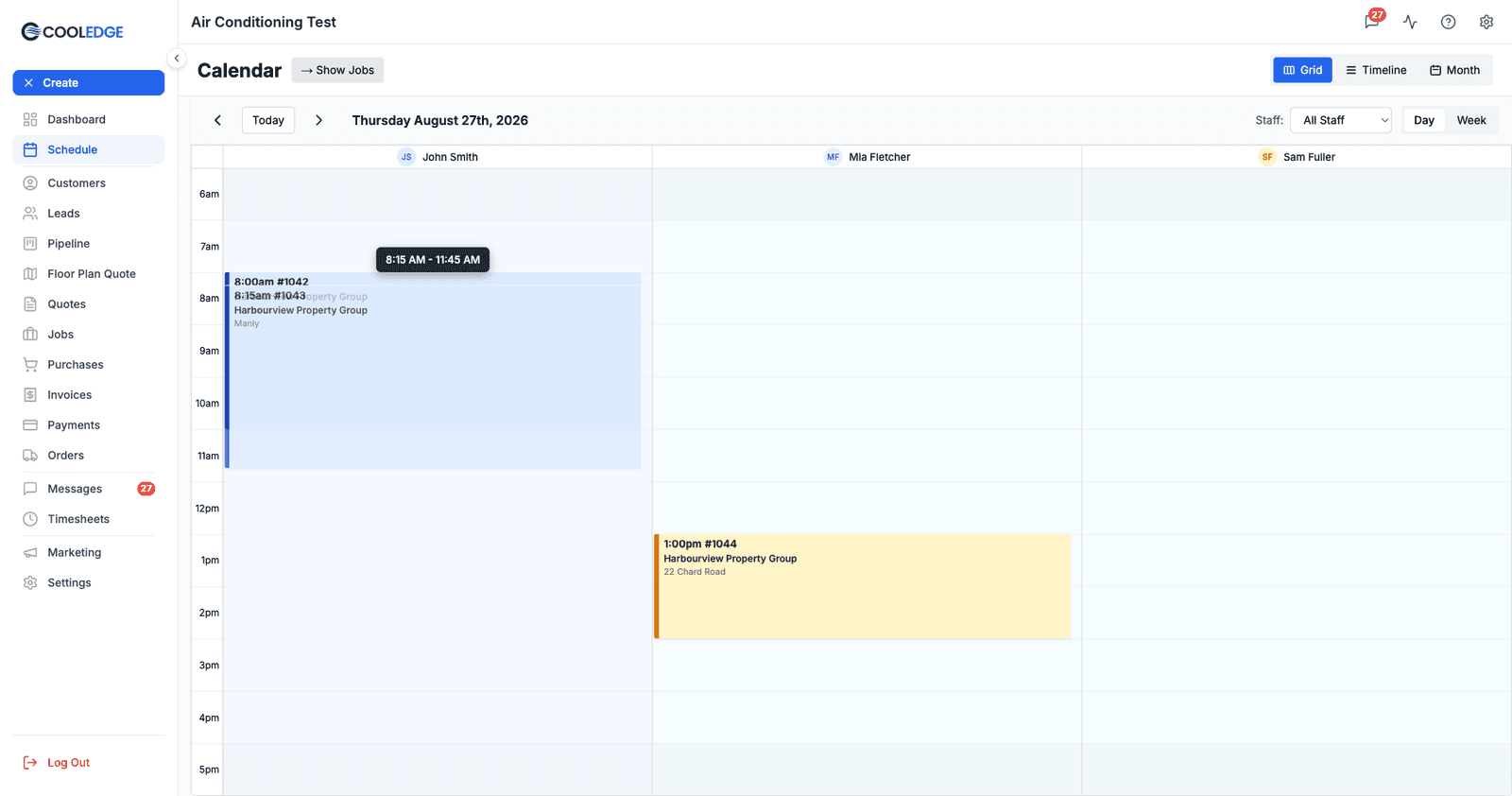
Drag it to a new time, or to a different staff row or column to reassign it. You are warned if that double-books someone.
Changing Booking Length
Hover over the top or bottom edge until the resize handle appears, then drag.
Tips for Using the Calendar
Use the right view for the task:
- Planning tomorrow? Use Day view
- Scheduling the week? Use Week view
- Checking availability next month? Use Month view
Keep unscheduled bookings under control:
- Check the sidebar daily
- Schedule urgent work first
- Drag unscheduled bookings onto the calendar
Watch for conflicts:
- The system warns you if staff are double-booked
- Orange border means overlapping times
- You can override if needed (emergency jobs)
Use colors to prioritize:
- Blue bookings (Work Orders) are confirmed
- Amber bookings (Quotes) might still change
- Focus on blue bookings first
Common Questions
Why don't I see my booking? Check the date, then check the Staff dropdown in the view you are actually in. It keeps a separate selection for Month and for Grid/Timeline, so it can be filtered in one and not the other. Set it back to All Staff. If it still isn't there, the job may never have been booked, in which case it is in the jobs sidebar.
Calendar seems crowded in Week view? Try Timeline Week instead of Grid Week - it handles larger teams better. You can also navigate day by day in Day view, or filter Month view to show one person at a time.
Can I see multiple staff in Month view? Yes. Month view defaults to All Staff and shows everyone's bookings together. What it does not do is give each person their own column, which is why the Staff dropdown is there when you want one person on their own.
Do bookings automatically move staff if I drag them? Yes! Dragging between columns or rows changes the assigned staff. The system will warn you if this creates a conflict.
Related Articles
- Creating Bookings - Learn how to add new work to the calendar
- Moving and Editing Bookings - Master drag-and-drop and resizing
- Booking Colors and Status - Full guide to what each color means
- Unscheduled Bookings - Managing the sidebar
Was this article helpful?
Let us know if you found this information useful.
Still need help? Contact support
In this article
Use your browser's search (Ctrl+F) to quickly find specific topics within this article.
Browse all help articles →Related Articles
Understanding Booking Colors and Status
Learn what each color on your calendar means and how to quickly scan your schedule
Creating Bookings
Schedule work for jobs or add tasks to your calendar with drag-and-drop or the create button
Handling Booking Conflicts
Understand when staff are double-booked and how to resolve or override scheduling conflicts