Tasks
Give your team to-dos with a person, a due date and a reminder, link them to the job, quote, lead or customer they belong to and tick them off from anywhere in Cooledge
Tasks
A to-do list for the whole business, attached to the work it belongs to.
- Give each task a person, a due date and a reminder
- Link it to a job, quote, lead or customer and add files
- Repeat it on a schedule or a set time after it is done
- Tick it off from the Tasks page, the header, a record or the pipeline
- Drag it onto the calendar when it needs time blocked out
A task is something someone needs to do: call a customer back, order a part, chase a permit, check the van stock. It has a title, a person, an optional due date and an optional reminder. When it is done, you tick it.
A task is not a calendar booking. If you need to block out time that is not a job, such as a toolbox meeting or a supplier visit, create an Event on the calendar instead. Events show in cyan. See Creating Bookings. A task only takes up time on the calendar if you drag it there (see Tasks on the Calendar).
Who Can Do What
By plan
Tasks are included on the Starter, Growth and Scale plans. The Designer plan does not include Tasks and shows no Tasks screens.
By role
The portal is for owners and admins. Team members and restricted team members work with tasks in the Cooledge mobile app. See Tasks in the Mobile App.
| Owner and admin | Member | Restricted member | |
|---|---|---|---|
| See tasks | Every task in the business | Tasks assigned to them, tasks they created and tasks linked to a job they are booked on | Only tasks assigned to them |
| Create tasks | Yes, for anyone | Yes, for themselves, a teammate or unassigned | No |
| Edit a task | Yes | Tasks assigned to them or created by them | No |
| Tick off or reopen | Yes | Any task they can see | Tasks assigned to them |
| Delete a task | Yes | Only tasks they created | No |
| Add files | Yes | Tasks assigned to them or created by them | No |
| Change a repeat | Yes | No. They see the repeat but cannot change it | No |
| Team and Unassigned views | Yes | No | No |
A task never gives access to its linked record. If a team member can see a task but not the job, quote, lead or customer it is linked to, the link shows as Private job, Private quote, Private lead or Private customer.
The Tasks Page
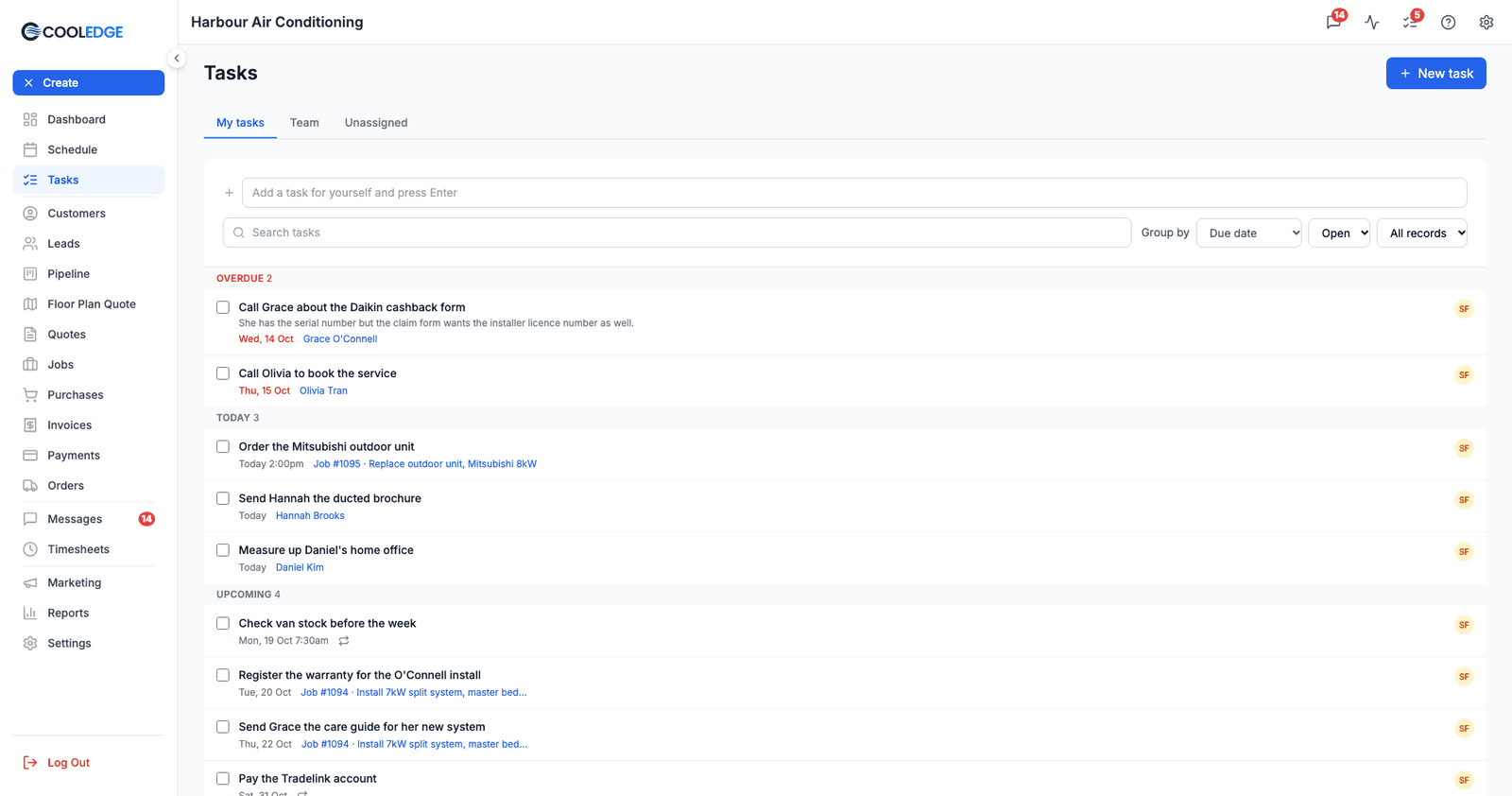
Open Tasks in the sidebar, just below Schedule.
Tabs
| Tab | What is in it |
|---|---|
| My tasks | Tasks assigned to you |
| Team | Every task in the business. Use the Everyone filter to narrow it to one person |
| Unassigned | Tasks with nobody assigned yet |
Filters
- Search tasks finds tasks by their title
- Group by sorts the list into groups by Due date, Person or Linked record
- The status filter shows Open, Done or All tasks
- The record filter shows All records or only tasks linked to Jobs, Quotes, Leads or Customers
Grouped by due date, open tasks fall under Overdue, Today, Upcoming and No date. Overdue dates show in red. Finished and cancelled tasks collect at the bottom under Closed when the status filter is set to All.
Adding a task quickly
Type in Add a task for yourself and press Enter at the top of the page. The task is assigned to you with no due date. Open it to add the rest. For a full task, use New task at the top right.
Ticking a task off
Tick the box beside a task. Task done shows with an Undo button for 6 seconds, in case you ticked the wrong one.
The header button
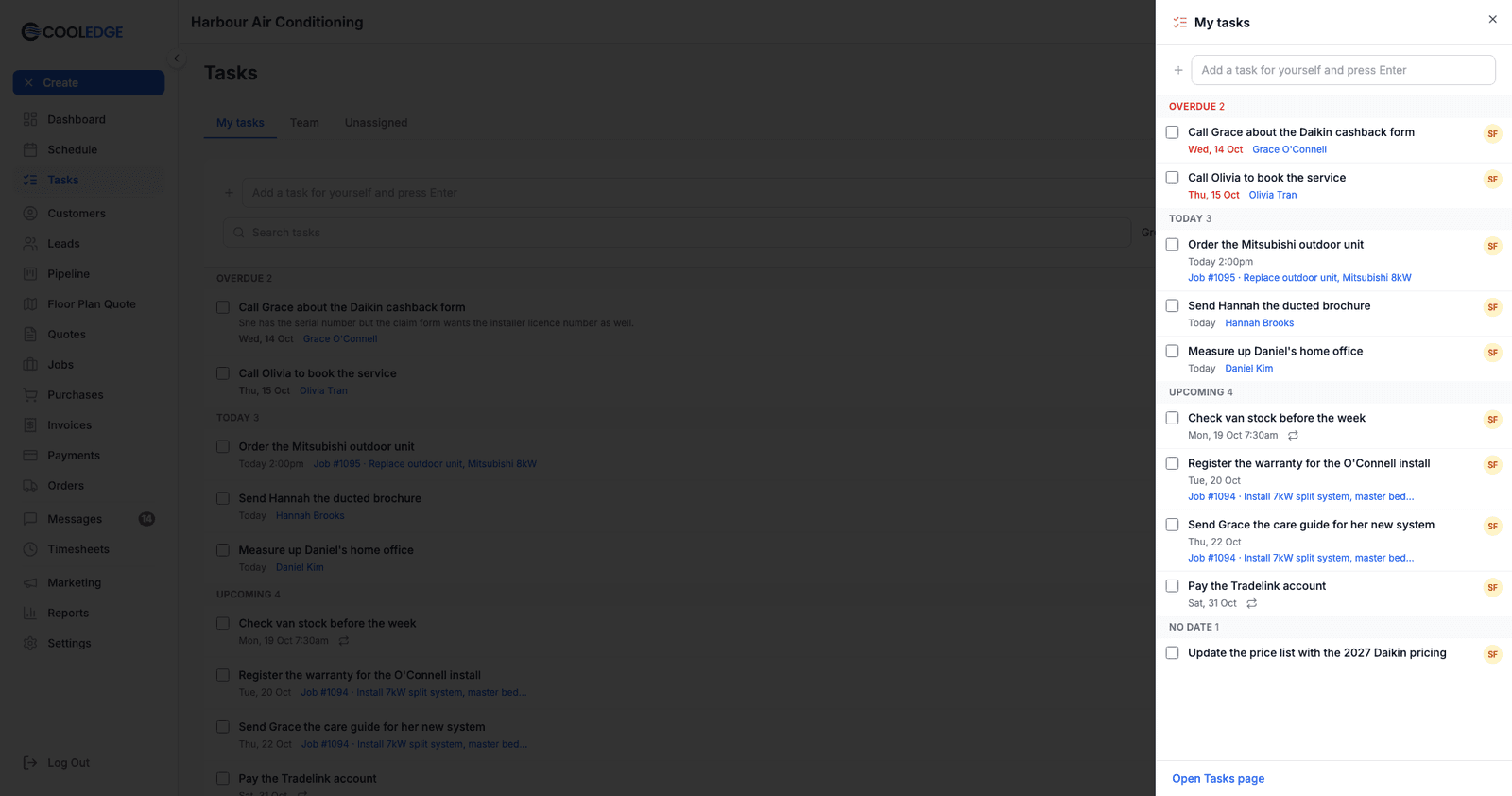
The checklist icon in the header, between Activity and Help, shows a red count of your overdue tasks plus the tasks due today. Click it to open the My tasks panel from any page. It has the same quick add box and your tasks grouped by Overdue, Today, Upcoming and No date. Open Tasks page at the bottom takes you to the full page.
The Today strip on the Dashboard also shows a line such as Tasks: 2 due today, 1 overdue, which links to the Tasks page.
Adding and Editing a Task
Click New task on the Tasks page, or click any task to open it. A new task opens as New task. An existing one opens as Task.
| Field | What it does |
|---|---|
| Title | What needs doing |
| Description | Any detail that helps |
| Assignee | Me, Unassigned or anyone on your team |
| Due | No date, Date or Date and time. A new date and time starts at 9:00am |
| Reminder | When to remind the assignee. See Reminders and Emails |
| Linked record | Pick Job, Quote, Lead or Customer, then search for it. Remove link clears it |
| Repeat | See Repeating Tasks |
| Files | Photos and PDFs for the task |
Click Add task to create it, or Save on an existing task.
Files
Click Add files to attach images or PDFs. A task can hold up to 10 files of up to 20 MB each. Images are compressed before they upload. On a brand new task you will see You can add files once the task is saved. Save it first, then open it again to add files.
Finishing, cancelling and deleting
- Mark as done at the top of the task ticks it off
- Cancel task closes it without marking it done. Use it when the task is no longer needed
- Delete removes the task and its files for good. You are asked Delete this task? first, and it cannot be undone
Repeating Tasks
Use Repeat for work that comes round again, such as checking van stock every Monday or paying a supplier account at the end of each month. A repeating task needs a due date.
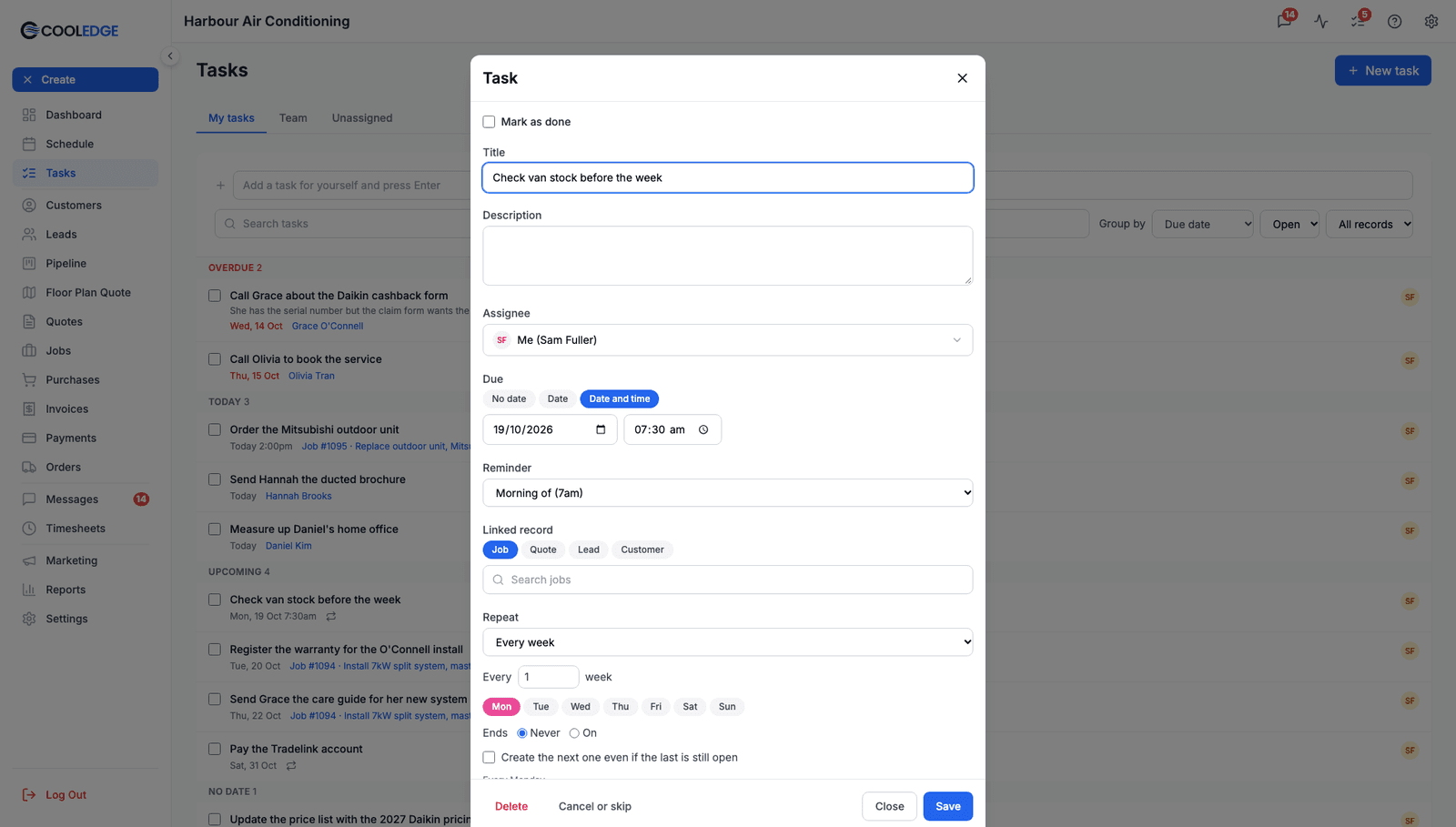
Repeat options
The options are worded from the task's due date. For a task due on Tuesday 20 October you would see:
| Option | What happens |
|---|---|
| Does not repeat | A one-off task |
| Every day | Repeats daily |
| Every week | Repeats on the days you pick, Mon to Sun |
| Every month on the 20th | Repeats on the same date each month |
| Every month on the last day | Only offered when the task is due on the last day of a month |
| Every month on the third Tuesday | Repeats on the same weekday of the month |
| Every year on 20 October | Repeats once a year |
| After it's done | The next one is due a set number of days, weeks or months after it is done |
Every sets the gap, from 1 to 52. For example, every 2 weeks.
Ends is Never or On a date you choose.
One at a time
Only one task in the series is open at a time. The next one is created when you finish or skip the current one, so tasks do not pile up if you fall behind.
If you want the next one created on schedule even when the last is still open, tick Create the next one even if the last is still open. This is not available for After it's done.
Changing a repeating task
When you save a change to a repeating task you will see This task repeats. Apply the changes to:
- This one changes only the task you have open
- This and future changes this task and every one after it
Skipping or stopping
On a repeating task, Cancel task becomes Cancel or skip:
- Skip this one closes this task and creates the next one
- Stop repeating cancels this task and no more are created
A stopped task shows Stopped. This task no longer repeats. A stopped repeat cannot be started again. Create a new repeating task instead.
Tasks on Jobs, Quotes, Leads and Customers
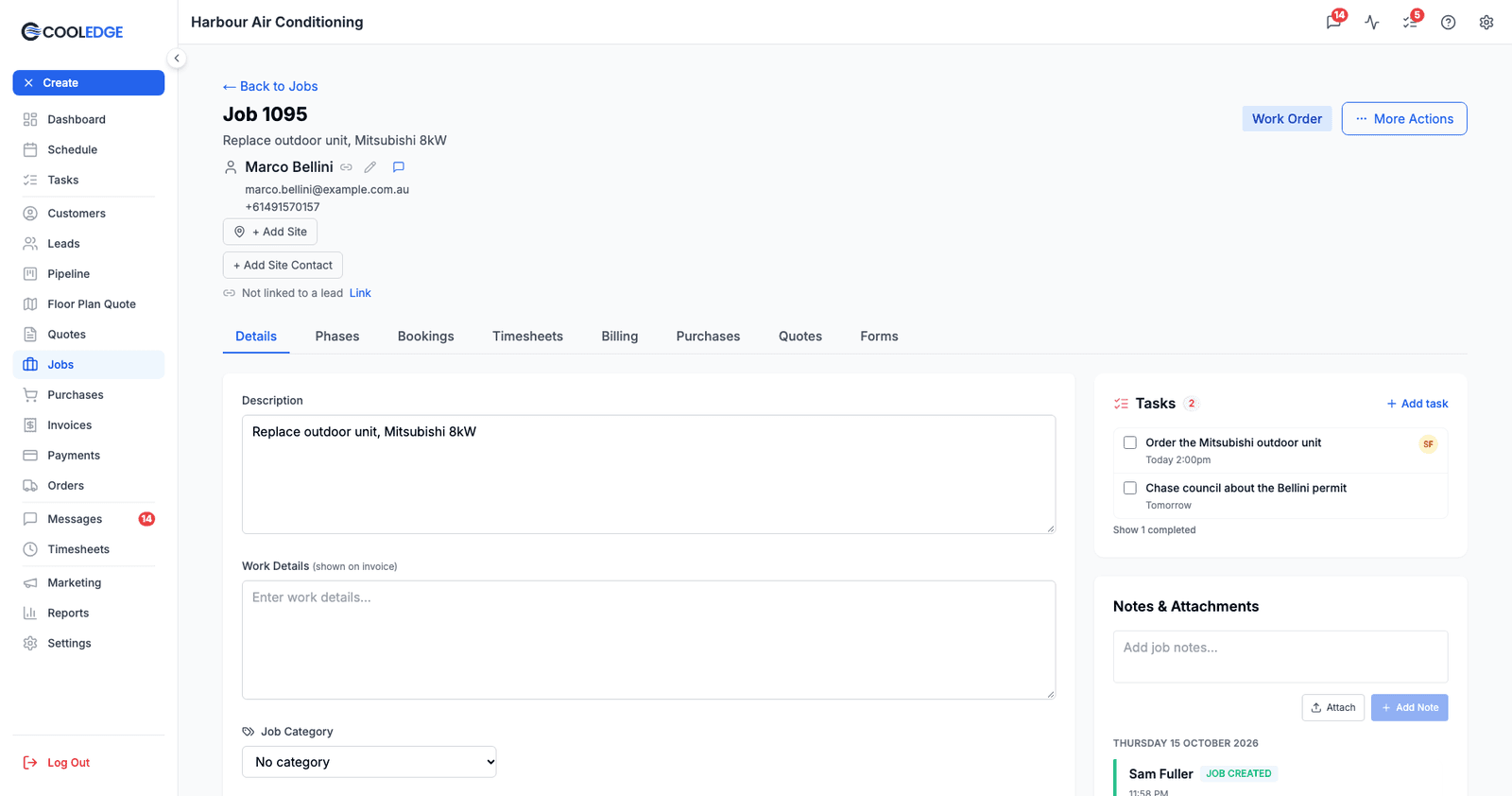
Every job, quote, lead and customer page has a Tasks card with a count of open tasks and Add task. A task added from the card is linked to that record, and the link cannot be changed in the editor. Finished tasks are tucked away under Show 1 completed (or however many there are).
| Page | Where the card is |
|---|---|
| Job | Right column, above Notes & Attachments. On a phone browser it is the Tasks tab |
| Quote | After the linked jobs, before the quick actions |
| Lead | Main column, after Quotes, jobs and invoices. Only on your own leads, not on marketplace leads you have not claimed |
| Customer | Right column, above the notes |
Tasks from earlier records
A task is linked to one record, but it follows the work forward. When a lead becomes a quote and then a job, the job's card shows the tasks from its quote and lead too. When a record has tasks from earlier records as well as its own, the card splits them into groups:
| Page | Groups |
|---|---|
| Job | This job, From the quote (or From the quotes), From the lead |
| Quote | This quote, From the lead |
| Customer | This customer, On this customer's jobs, quotes and leads |
When the record is closed
If a task's record has been closed, the task shows a small chip saying so: Lead lost, Lead archived, Quote archived, Quote expired, Job cancelled, Job completed or Customer archived. The task stays open until someone finishes or cancels it.
Tasks on the Pipeline
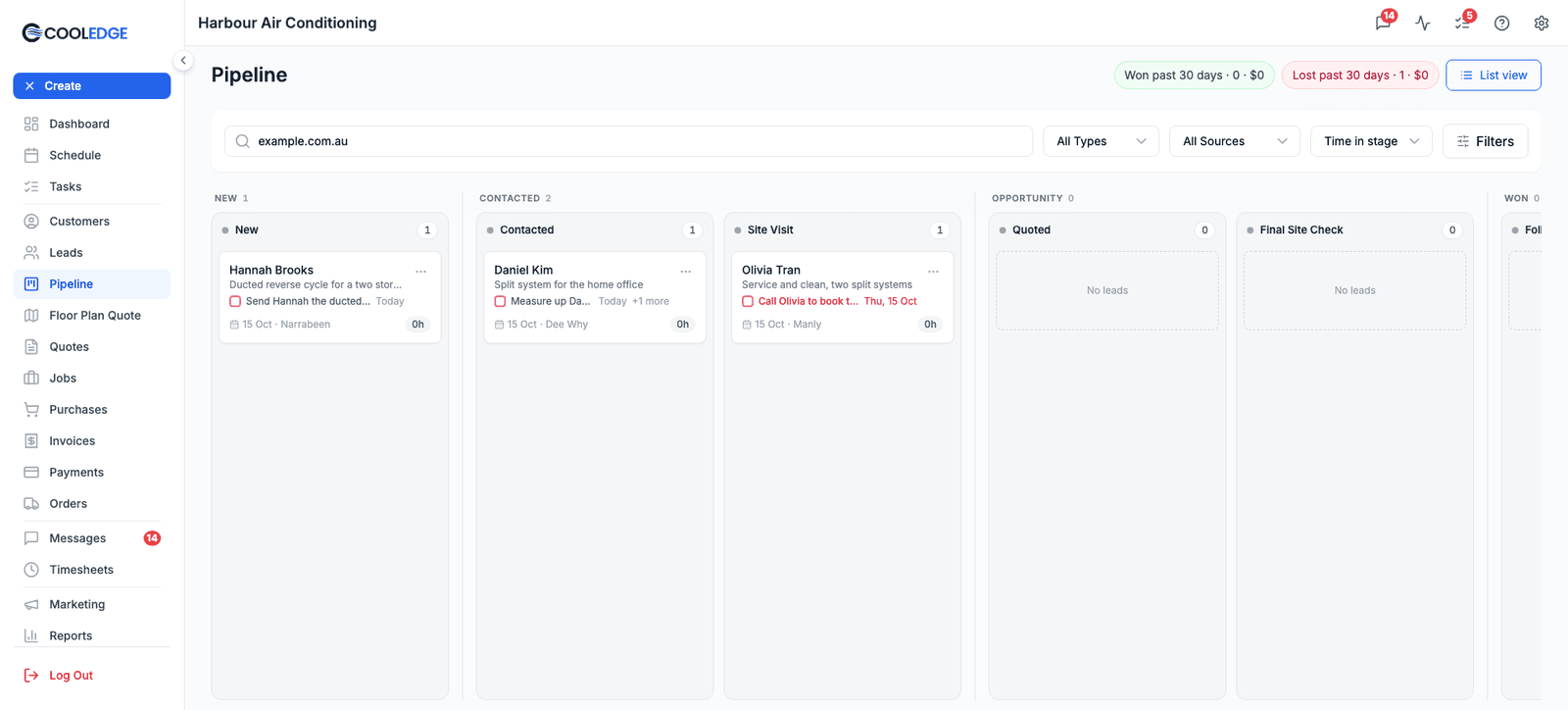
Each lead card on the pipeline shows its next task: a pink tick box, the title and when it is due. The due date turns red when it is overdue. +1 more (or however many) means the lead has other open tasks.
Tick the box to finish the task right there. It does not open the lead.
To add a task to a lead from the pipeline, open the card's menu and choose Add task.
Creating a Task From a Message
When a customer's message needs following up, turn it into a task from the conversation in Messages:
- Optionally, select the part of the message you want to keep
- Open the More actions menu (⋯) in the thread header
- Choose Create task
The task is linked to the conversation's customer. The text you selected, or the customer's newest message if you did not select anything, is quoted in the description. A message from an unknown sender has no customer, so that task has no link. Add one in the editor if you need it.
Closing a Record With Open Tasks
When you close a record that still has open tasks, Cooledge asks whether to close them too. You will see it when you:
- Mark a lead as lost or archive it on the lead page
- Mark a lead as lost from its pipeline card
- Archive a quote, from the quote page or the quotes list
- Cancel a job, or mark it Quote Unsuccessful, on the job page
- Set a job to Cancelled in the calendar's job window
- Archive a customer
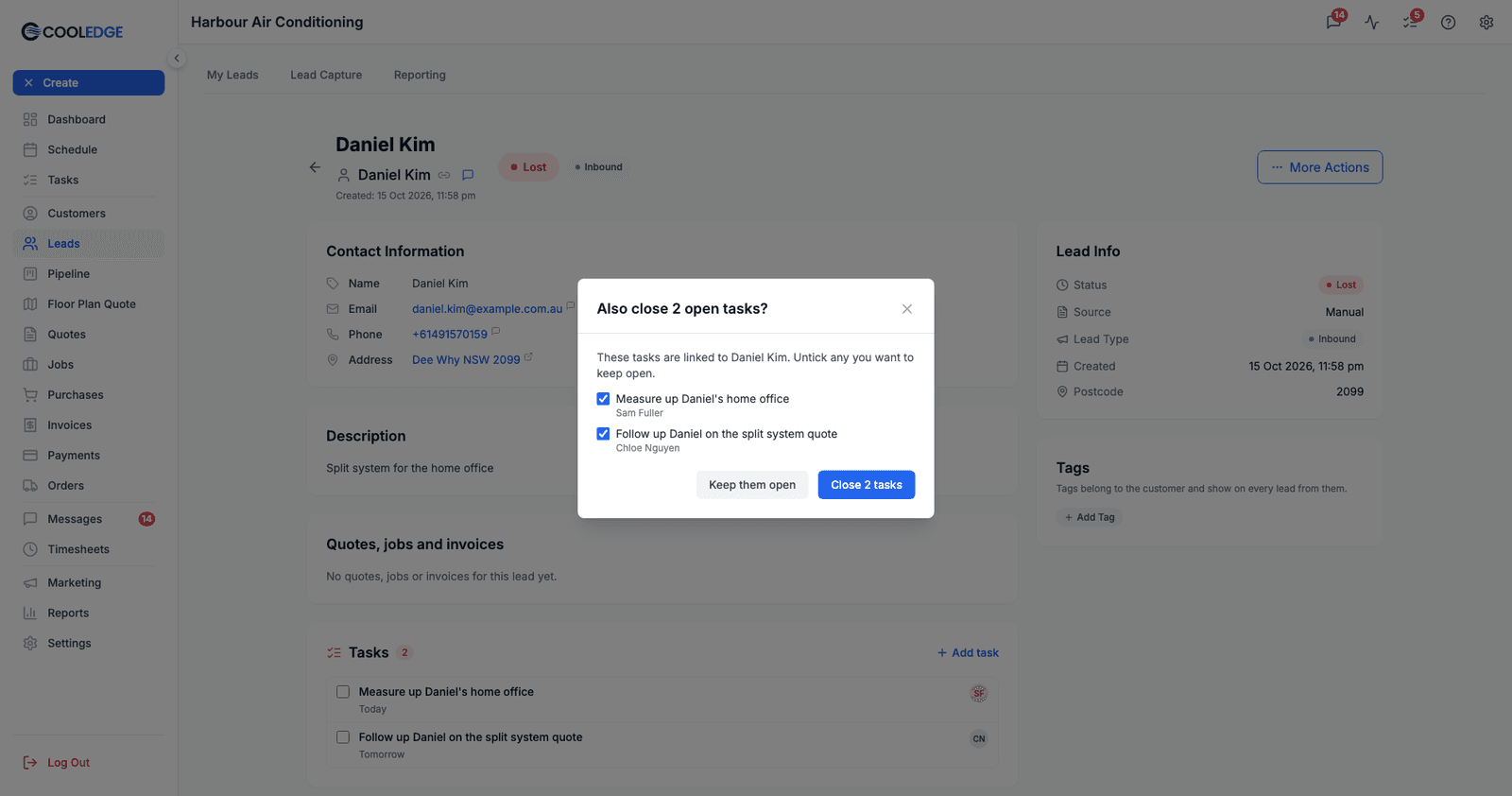
The window reads Also close 2 open tasks? and lists them, all ticked. Untick any you want to keep open, then click Close 2 tasks. Keep them open leaves them all as they are.
Only tasks linked directly to that record are listed. Tasks on related records are not.
If any of the tasks repeat, you are asked Stop repeating?:
- Stop repeating closes them and no more are created
- Keep repeating closes them and creates the next one in each series. Closing the window does the same
The mobile app closes records without asking. The tasks stay open and show the record's chip, such as Lead lost.
Tasks on the Calendar
When a task needs real time set aside, put it on the calendar.
- Open the calendar and switch the sidebar from Jobs to Tasks
- Find the task. Use Search tasks..., the sort button and the person filter (Everyone, Unassigned or one person) to narrow the list
- Drag the task onto the calendar
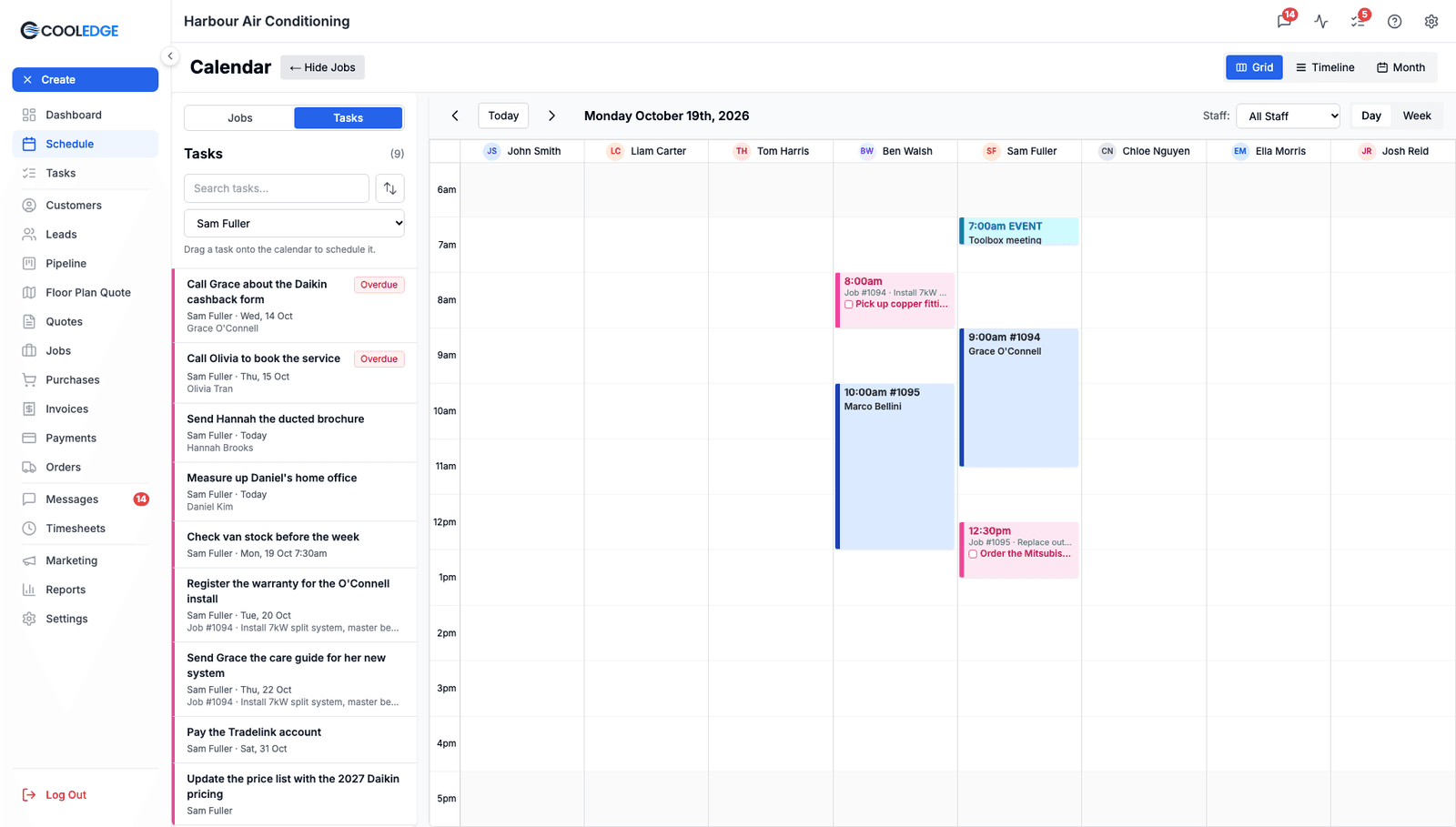
The sidebar lists open tasks that do not already have a current or upcoming block on the calendar. A dropped task becomes a one-hour block. Dropped in an all-day slot, it starts at your opening time.
Dropping in someone else's column assigns the task to them. You will see Reassigned to and their name. Otherwise you see Task scheduled. If the task has no assignee and you drop it where there is no person's column, Cooledge asks Who is this for?
If the person is already booked, you will see Booking Conflict Detected and can choose Create Anyway.
What a scheduled task looks like
A scheduled task shows in pink with its start time, linked record, a tick box and its title. Ticking it greys the block and strikes the title through. Double-click the block to open the task.
- Finishing a task leaves its block on the calendar
- Cancelling or deleting a task removes its future blocks
- To take a task off the calendar but keep it on your list, open it from the block and click Remove from calendar
A scheduled task always blocks that person's time. It counts for booking conflicts and online booking availability. Someone who cannot see the task sees a block titled Scheduled task with no details.
Tasks can only be scheduled by dragging them on the portal calendar. The mobile app shows scheduled tasks but cannot put a task on the calendar.
Reminders and Emails
Each task can have one reminder. Reminder times use your business's time zone.
| Reminder | When it goes off | What it needs |
|---|---|---|
| None | No reminder | Nothing |
| Morning of (7am) | 7am on the due date. If the task is due before 7am, at the due time | A due date |
| 1 hour before | One hour before the due time | A due date and time |
| 1 day before | The same time the day before. For a task with only a date, 7am the day before | A due date |
| Custom | The date and time you choose | Not available on repeating tasks |
If you pick a quick reminder whose time has already passed, it is dropped and you will see Reminder time has already passed. A Custom time in the past cannot be saved. You will see Reminder time has passed, so pick a later time.
The reminder goes to the assignee. If nobody is assigned, it goes to the person who created the task.
What people are told
| When | Who | How |
|---|---|---|
| A reminder is due | The assignee | Push notification and email |
| A task is assigned to someone | The new assignee (not when you assign a task to yourself) | Push notification and email |
| Someone else finishes a task | The person who created it | Push notification |
Reminder emails have the subject Reminder: followed by the task title. Assignment emails read like Sam Fuller assigned you a task: Order the Mitsubishi outdoor unit. For owners and admins, Open the task opens it on the Tasks page. Team members get Open in the Cooledge app.
Task emails only go to staff who have signed in to Cooledge at least once with a confirmed email address.
Turning task emails off
Each person controls their own task emails. On the portal, open Settings and then My Profile. Untick Email me about my tasks in the Task emails card. It only affects you.

In the mobile app, go to More, then Notification Preferences. The Tasks switch hides task banners while the app is open on that phone. The Task emails switch turns off task emails wherever you sign in.
FAQ
What is the difference between an Event and a task? An Event is a block of time on the calendar for something that is not a job, such as a meeting or a supplier visit. A task is a to-do with a person and a due date. A task only takes up calendar time if you drag it onto the calendar.
Can a task be linked to two records? No. A task links to one job, quote, lead or customer. Later records still show it, though. A job shows its quote's and lead's tasks under From the quote and From the lead. A customer shows the tasks on all their jobs, quotes and leads.
Where do cancelled tasks go? Set the status filter on the Tasks page to All. Done and cancelled tasks are listed under Closed at the bottom.
Can customers see tasks? No. Tasks are only for your team.
Why can't my team member see a task? Team members only see tasks assigned to them, tasks they created and tasks linked to a job they are booked on. Restricted team members only see tasks assigned to them. Assign the task to them, or link it to a job they are booked on. See Who Can Do What.
Can I schedule a task from my phone? No. Drag the task onto the calendar on the portal. Once it is scheduled, it shows on the mobile app's schedule, where it can be ticked off.
Do tasks show in the mobile app? Yes. See Tasks in the Mobile App.
Was this article helpful?
Let us know if you found this information useful.
Still need help? Contact support
In this article
Use your browser's search (Ctrl+F) to quickly find specific topics within this article.
Browse all help articles →