Moving and Editing Bookings
Learn how to drag bookings to new times, resize them, reassign staff and edit details
Moving and Editing Bookings
Overview
Once a booking is on your calendar, you can change it without deleting and recreating it:
- Move it to a different time (drag up and down)
- Assign it to different staff (drag across staff columns or rows)
- Make it longer (drag the bottom edge)
- Open the job or the booking (double-click)
The calendar has three views, and which direction you drag depends on which one you're in:
| View | Staff appear as | Drag to change staff |
|---|---|---|
| Grid | Columns | Left and right |
| Timeline | Rows | Up and down |
| Month | Not shown per staff | Not available. Open the booking instead |
Moving Bookings to Different Times
Drag to Move
Moving a booking is simple: click and hold on it, drag to a new time slot and release. The start and end times update, the duration stays the same and the staff assignment doesn't change.
As you drag, a tooltip follows the cursor showing the times the booking would land on, so you can read the exact slot before you let go.
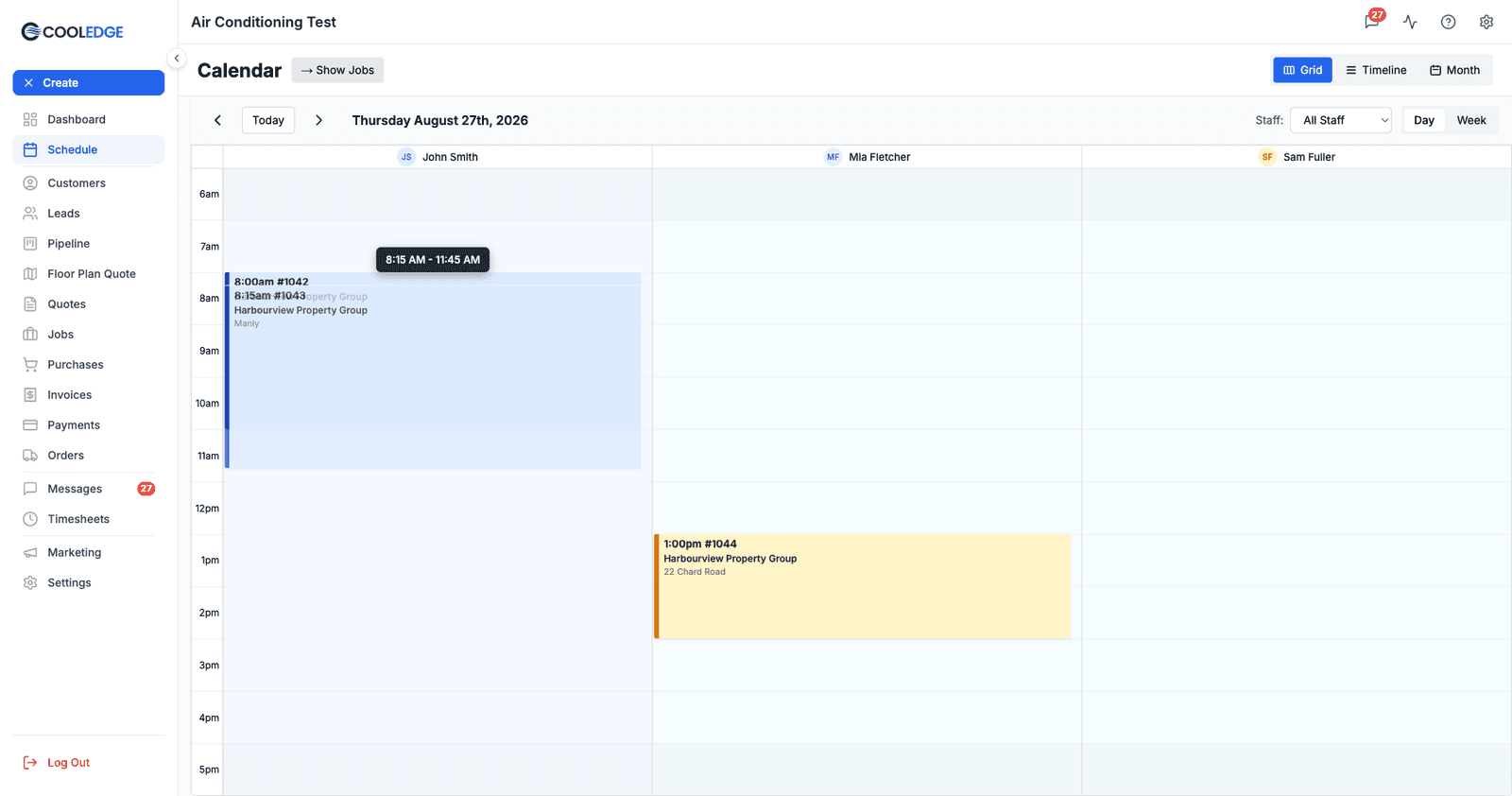
If the new slot clashes with something that staff member already has, you'll get a warning when you drop it.
Conflict Warnings
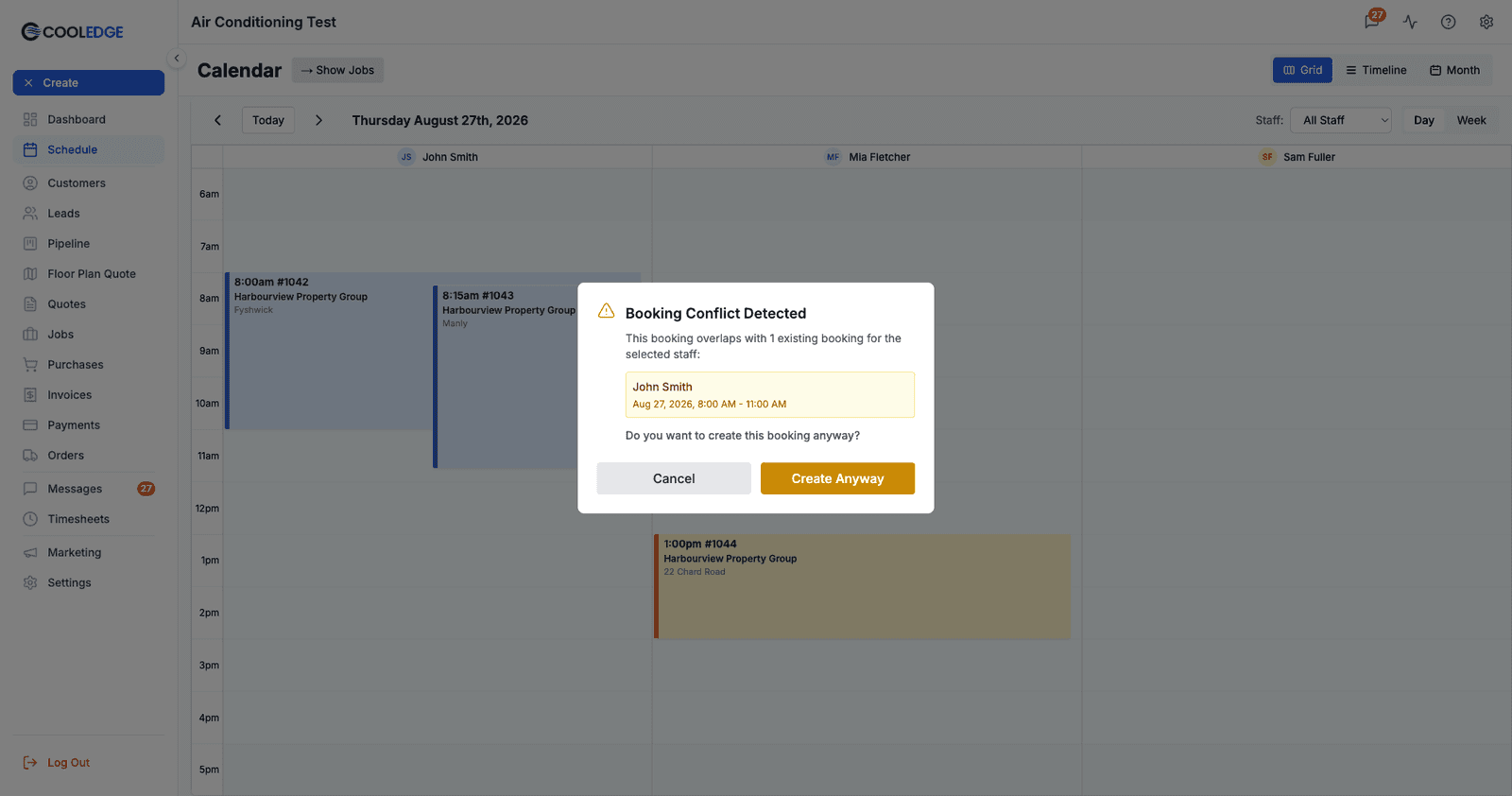
If you move a booking to a time when that staff member is already booked:
You'll see a Booking Conflict Detected modal:
- It names the staff member who is double-booked and the times they're already committed to
- It gives you two buttons: Cancel and Create Anyway
To reschedule:
- Click Cancel. The booking snaps back to where it was
- Drag it to a different time, or assign different staff
To override:
- Click Create Anyway
- The booking moves despite the overlap
Note the modal tells you who and when, but not which job the clashing booking belongs to. If you need that, cancel and look at the other card on the calendar first.
Moving Across Days
In Grid or Timeline Week view:
- Each staff member gets their own block of day columns, so you can drag a booking across days within that person's block
- Works the same as moving up and down
In Month view:
- Drag a booking from one day square to another to change its date
- Month view can't change the duration, only the day
Reassigning Bookings to Different Staff
Drag Between Columns (Grid View)
How to do it:
- Switch to Grid view (the Day toggle makes this easiest, giving each staff member one wide column)
- Click and hold the booking
- Drag left or right across staff columns
- Drop on the new staff member's column
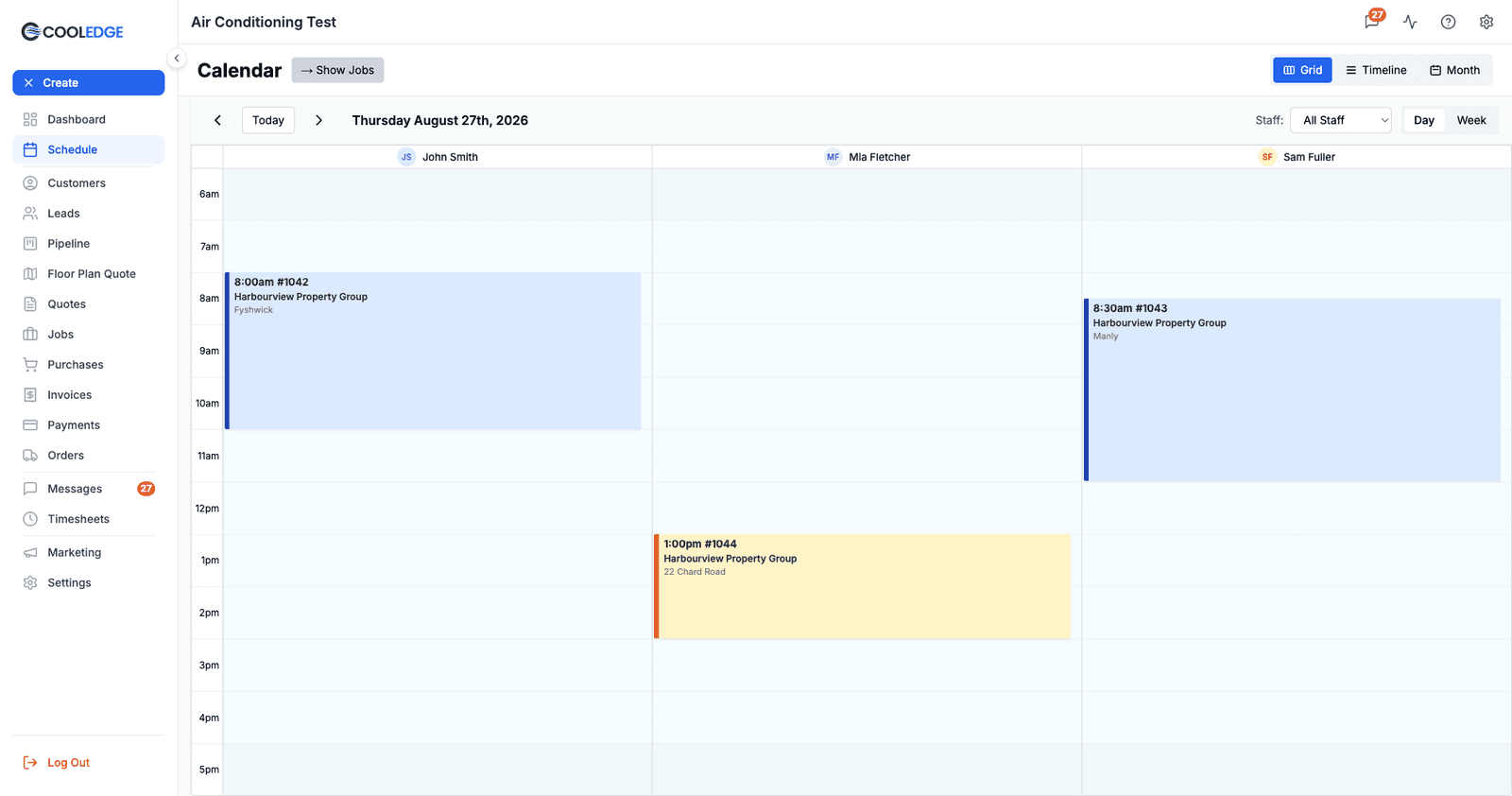
What changes:
- Staff assignment (new person assigned)
- Booking appears on their calendar
- Removed from old staff member's calendar
- Times stay the same
Drag Between Rows (Timeline View)
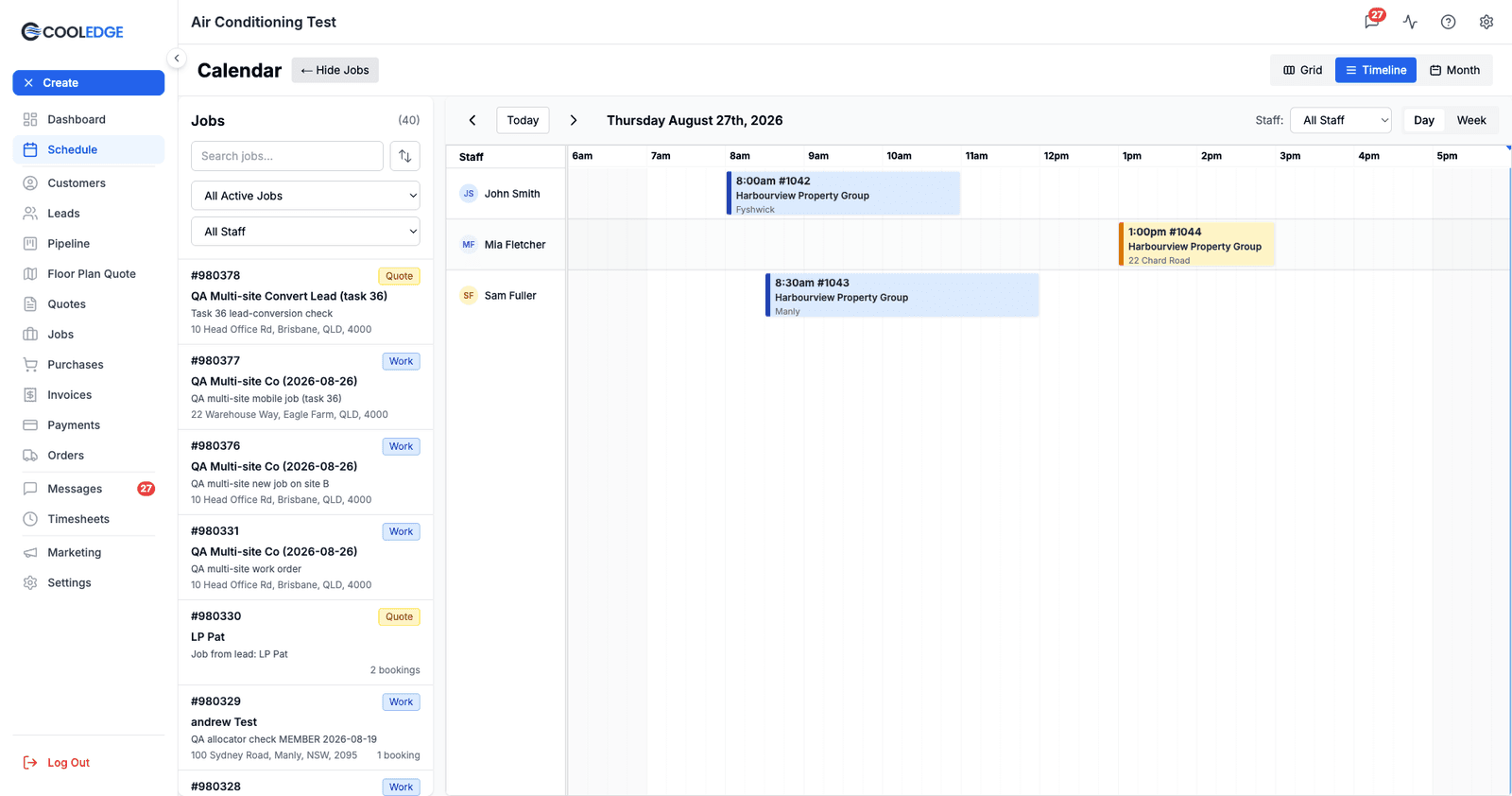
Same idea, rotated. Timeline view puts staff down the left and time across the top:
- Click and hold the booking
- Drag up or down across staff rows
- Drop on the new staff member's row
Multi-Staff Bookings
If a booking has multiple staff assigned, dragging changes it for everyone on it:
- Drag to a new time = all assigned staff move to that time
- Drag to a new staff column or row = the whole crew is replaced by that one person
Multi-staff bookings carry a small number badge next to the job number on the card, so you can spot them before you drag.
A warning appears only sometimes. Cooledge shows the "Multi-Staff Booking" confirmation when you're in Month view, or when the Staff filter is set to one person. In the default all-staff Grid or Timeline view, dragging a multi-staff booking moves it for the whole crew with no prompt at all. Worth knowing before you nudge a card.
To change one staff member: open the booking and edit its Assigned Staff rather than dragging. See Multi-Staff Bookings.
Resizing Bookings (Changing Duration)
Make Bookings Longer or Shorter
How to do it:
- Hover over the bottom edge of a booking
- The cursor changes to a resize handle
- Click and drag down to extend, or up to shorten
- Release when you reach the duration you want
What changes:
- The end time moves. The start time and the staff assignment stay put
- Resizing is checked for conflicts the same way a move is
You can only resize from the bottom. The top edge is not draggable, so to bring a start time forward you move the whole booking instead, then extend the bottom edge if you also want it to run longer.
Resizing is off in Month view. Month squares have no time axis, so drag a booking there and you change its day, not its length.
Common uses:
- Job running over: drag the bottom edge down to add time
- Job finished early: drag the bottom edge up to shorten it
Editing Booking Details
Single Click: Bring a Card to the Front
Clicking a booking once does not open anything. It raises that card above any others overlapping it and puts a highlight ring around it, which is what you want on a busy double-booked slot. There is no hover or click popup: everything the card can tell you (time, job number, customer, site suburb) is already printed on it.
Double Click: Open It
Double-click a booking and what opens depends on what kind it is:
| Booking type | Double-click opens |
|---|---|
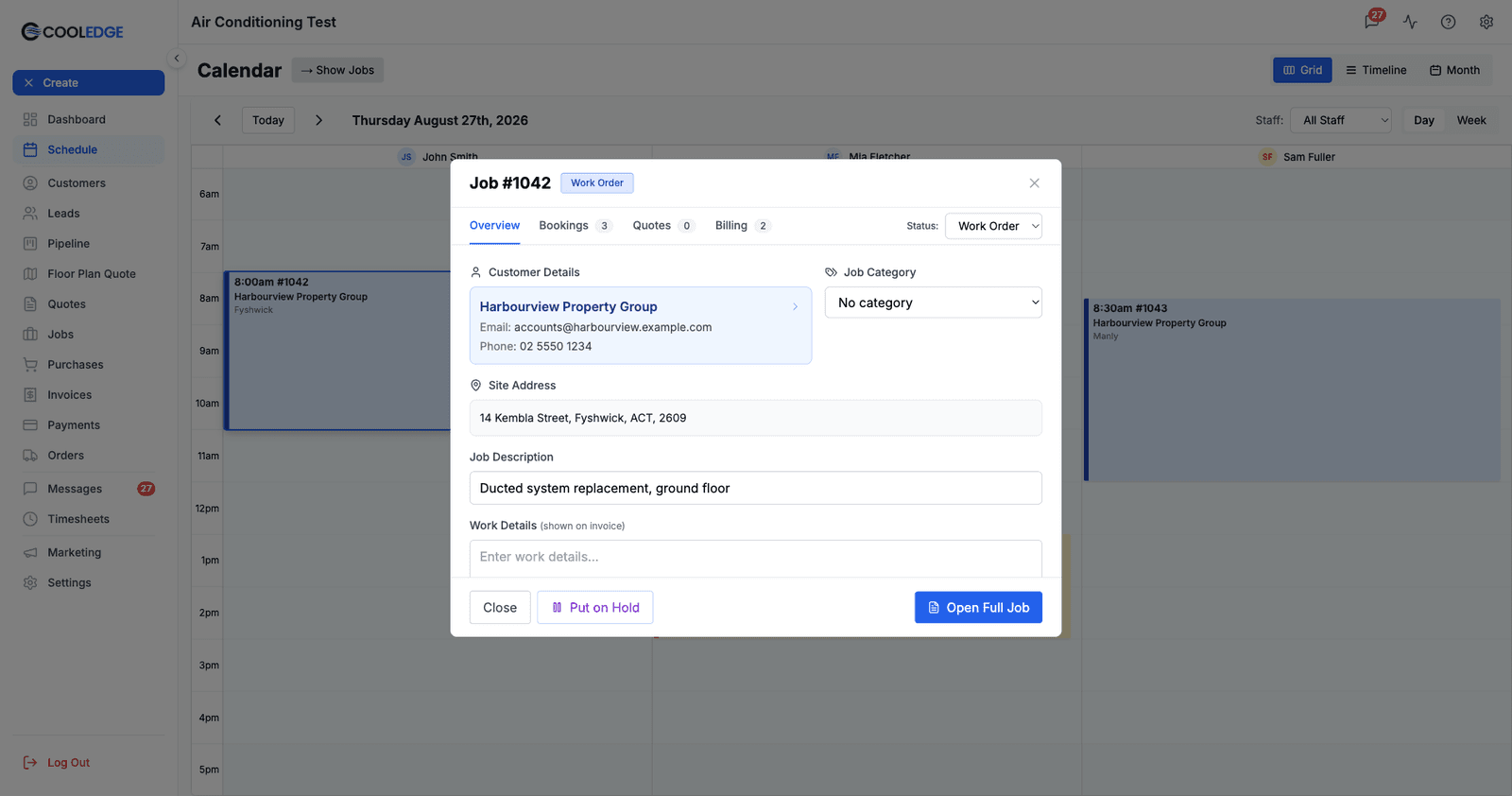
| A job booking | The job preview, with Overview, Bookings, Quotes and Billing tabs |
| A task booking (not attached to a job) | The Booking Details modal, where you can edit it directly |
For a job booking, the preview is a fast way to check the job without losing your place on the calendar.
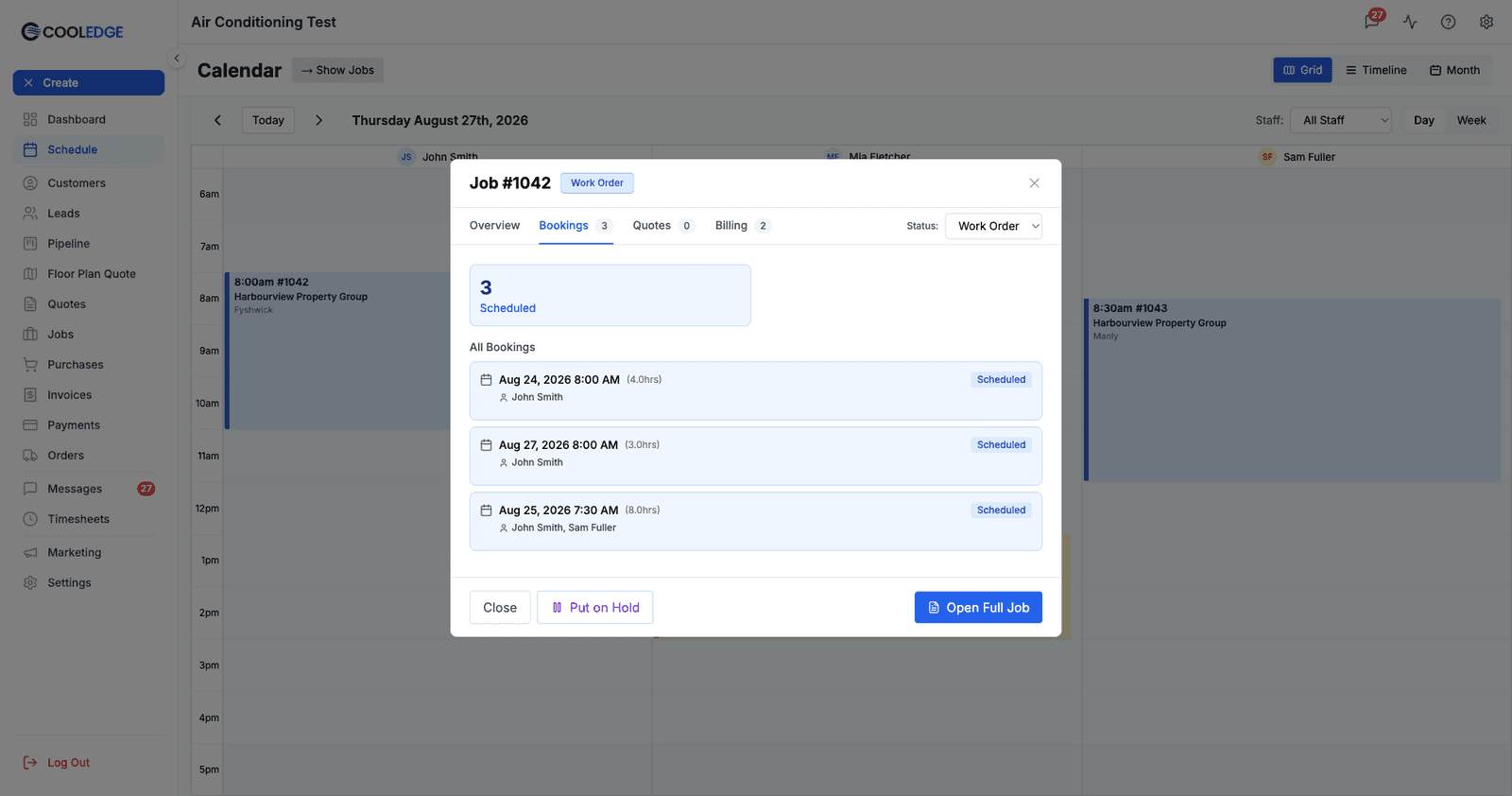
Its Bookings tab lists every booking on that job, grouped by status, and clicking a row opens that booking for editing.
Editing from Job Page
For more control, work from the job itself:
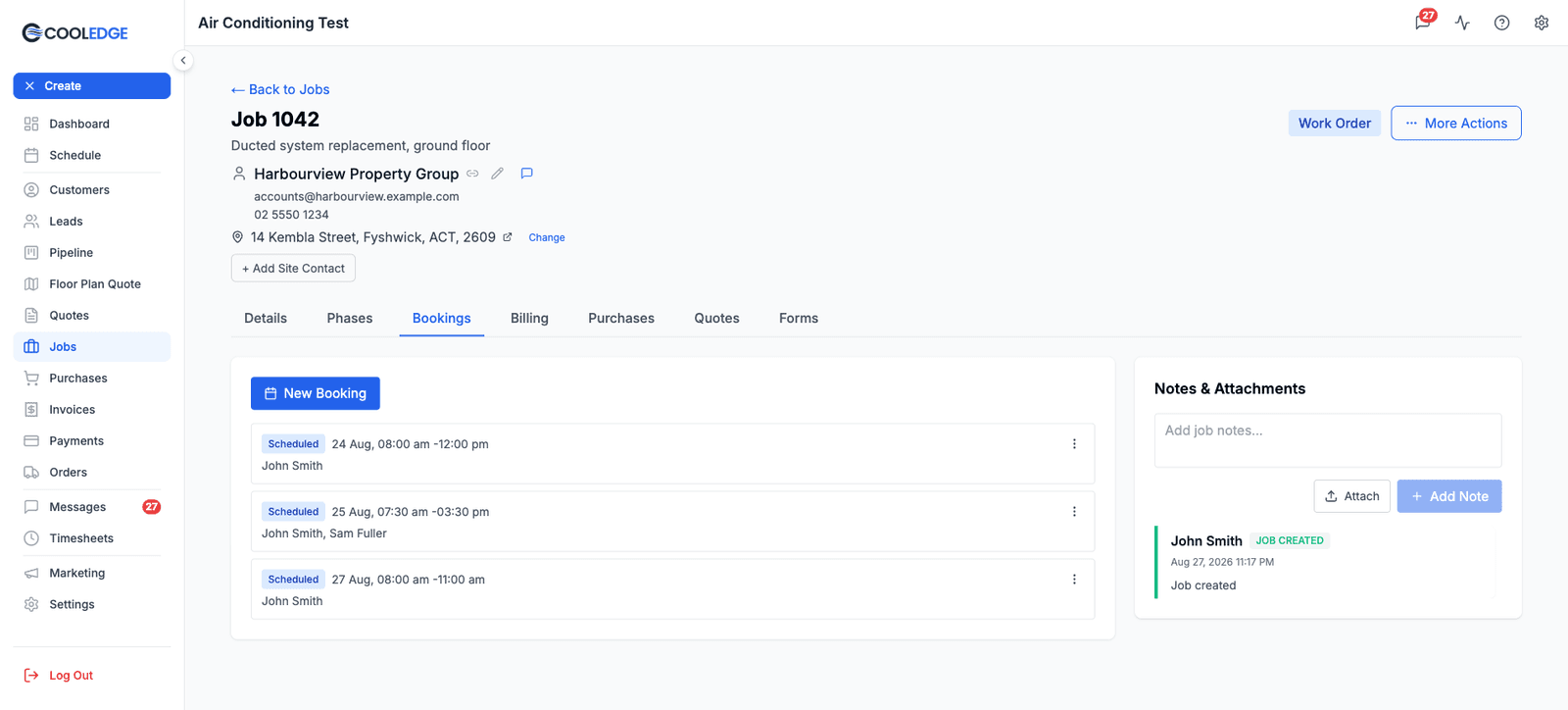
- Open the job and go to its Bookings tab
- Every booking on the job is listed with its status badge, date, time and assigned staff
- Click a booking, or use the ⋮ menu on its row, to edit it
- New Booking adds another
This method lets you:
- Change booking notes
- Update the booking status (Scheduled → In Progress → Done)
- See all bookings for the job together
- Assign several staff to one booking
Deleting Bookings
There is no right-click menu on the calendar, so deleting is done from the booking itself:
From the job page:
- Go to the job's Bookings tab
- Use the ⋮ menu on the booking's row, or open the booking
- Delete it from there
From the calendar:
- Double-click a task booking to open Booking Details and delete it there
- For a job booking, double-click through to the job and use its Bookings tab
Warning: Deleting a booking can't be undone! If you just need to reschedule, move it instead.
When to delete:
- Job cancelled
- Booking created by mistake
- Work no longer needed
When NOT to delete:
- Just need different time (move it instead)
- Need different staff (reassign instead)
- Work is postponed (move to future date)
On the Mobile App
There is no calendar to drag on. The mobile Schedule tab has a Day view, a List view and an unbuilt Map view, and you reschedule by opening the booking and changing its details.
Opening a booking is not obvious, because a tap does something different in each view:
| View | Tap a booking | Double tap |
|---|---|---|
| Day | Opens Edit Booking | Opens the job |
| List | Opens the job | Opens the job |
So Edit Booking can only be reached from Day view. From List view a tap takes you to the job, and there is no route to the booking itself.
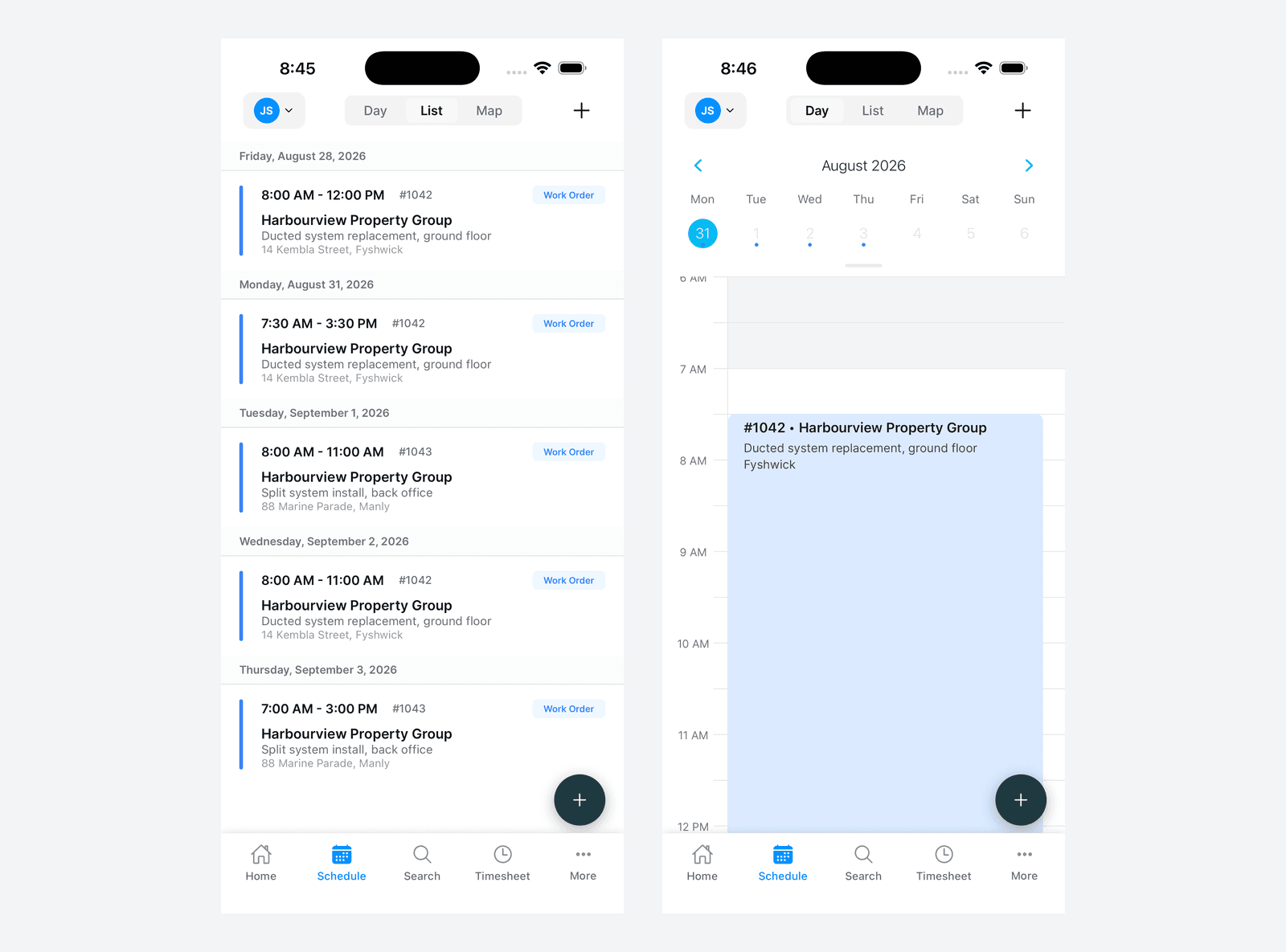
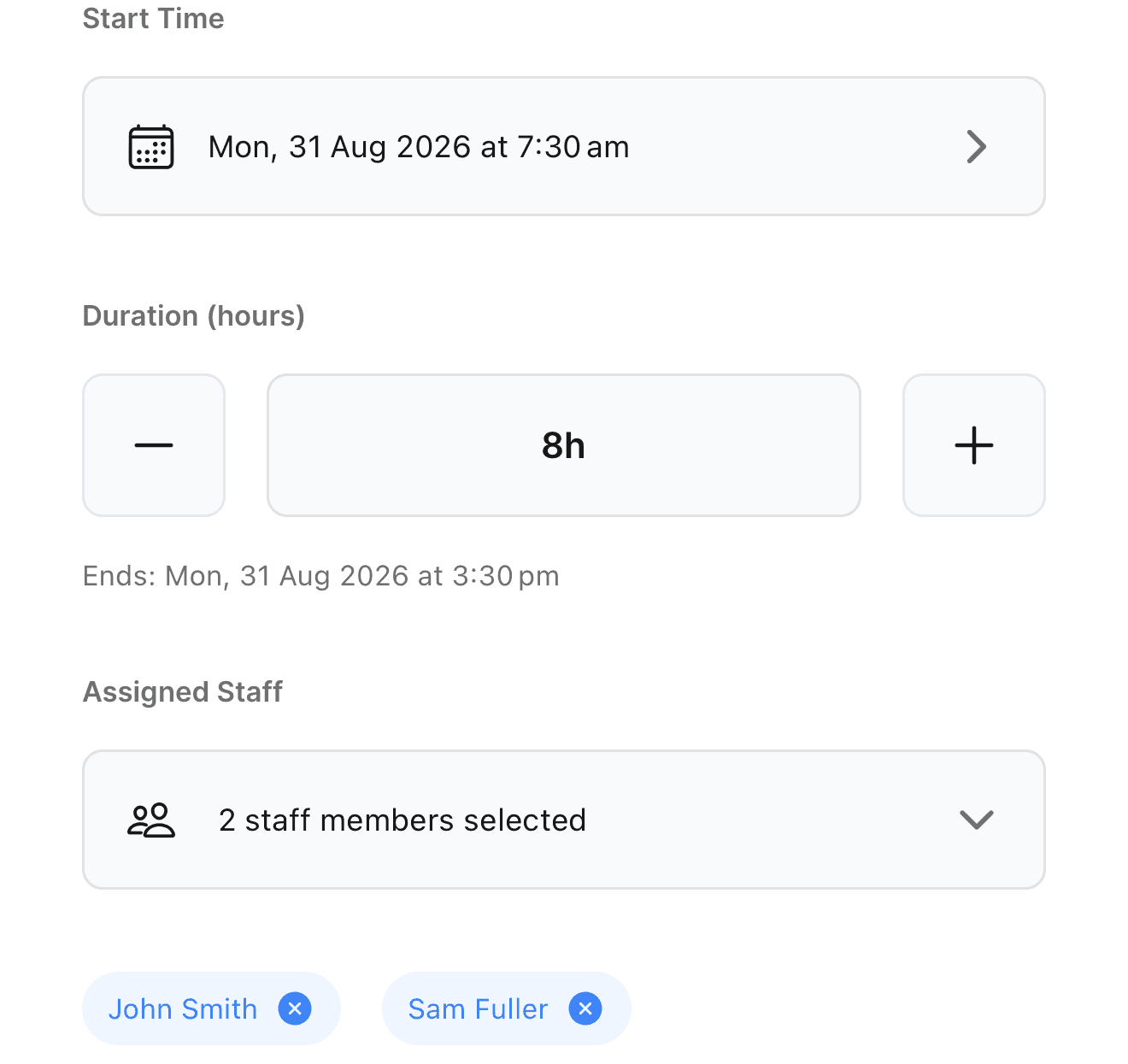
What Edit Booking gives you. A Start Time row that opens a date and time picker, a Duration (hours) stepper that moves in half hours with the finish time worked out underneath, the Assigned Staff picker, a Notes box and Cancel Booking at the bottom. Save is in the top right.
That covers moving a booking and changing how long it runs, which is what dragging and resizing do on the portal.
Two things to watch:
- "Cancel Booking" deletes it. The button is red at the foot of the sheet, and the confirmation it raises is headed Delete Booking and asks whether you want to delete. There is no cancelled state for a booking, so the row is removed for good. Treat that button as Delete, because that is what it does
- Booking status cannot be changed on mobile. Nothing in the app moves a booking from Scheduled to In Progress to Done. The mobile app only ever writes a booking's times, its notes and who is on it, so status changes have to be made on the portal
Batch Operations
Moving Multiple Bookings at Once
Not supported. Bookings move one at a time.
Working through a lot of them:
- Use Week view so you can see the whole run at once
- Start with the earliest booking and work forward
Tip: if weather forces you to reschedule a whole week, go chronologically (Monday first, then Tuesday). Moving the earliest booking first keeps the later ones from landing on slots you're about to vacate.
Common Scenarios
Reschedule to Tomorrow
Fast method:
- In Week view, drag the booking into the next day's column
- Adjust the time if needed
- Done
Careful method:
- Open the job's Bookings tab
- Open the booking
- Change the date and time and save
Staff Called In Sick
To reassign their bookings:
- Look at their column/row on calendar
- For each booking, drag to available staff member
- System warns about conflicts
- Override if urgent, or reschedule
Tip: Do this early in the morning so everyone knows their updated schedule.
Job Taking Longer Than Expected
To extend booking:
- Hover over bottom edge of booking
- Drag down to add more time
- Check next booking (might create conflict)
- Adjust as needed
Or:
- Leave original booking as-is (shows when you expected to finish)
- Create second booking for the extra time
- Better for tracking how long jobs really take
Emergency Requires Immediate Scheduling
Fast schedule:
- Find the next free slot in the right staff member's column
- Drag across it to select the time. The Create Booking modal opens with that staff member, start and end already filled in
- Choose the job and click Create
- Override the conflict if you have to
- Tell the staff member. They'll get a push notification only if the booking is for today
Dragging out the slot is the fastest route, because it fills in the staff member and both times for you.
Tips for Efficient Editing
Use drag and drop when possible:
- Faster than opening modals
- Visual - you see where it's going
- Great for simple changes (time/staff)
Use modals for complex changes:
- Changing multiple details at once
- Updating notes or status
- Need to think about it
Check for conflicts before moving:
- Glance at destination time slot
- Empty = safe to move
- Already has booking = you'll get a warning
Resize instead of recreate:
- Job running over? Resize it
- Don't delete and create new one
- Preserves booking history and status
Keep staff informed:
- Moving a booking affects someone's day
- Staff get a push notification when a booking is created, changed or deleted on the portal, and only for bookings happening today
- A change made in the mobile app notifies nobody, today's work included. The mobile app writes the booking straight to the database and does not go through the portal, which is where that notification is sent from
- Either way, for anything further out, tell them yourself
Common Questions
Can I move bookings from past dates? Yes, but it's usually better to leave them where they were for accurate record-keeping. Only move them if it was genuinely scheduled wrong.
What if I drag to the wrong place? Just drag it again! You can move bookings as many times as needed.
Can I copy a booking instead of moving it? Not directly. To duplicate a booking, note the details and create a new one manually with the same information.
Does moving a booking notify the staff member? Only if you move it on the portal, and only for today's work. The portal sends assigned staff a push notification when a booking is created, updated or deleted, but it checks the booking date first and stays quiet unless the booking is today in your business timezone. Move next Tuesday's job and nobody is told.
Moving a booking in the mobile app sends no notification at all, even for a booking happening today. The app saves bookings directly rather than through the portal, and the notification is only sent on the portal's side. Reschedule something from your phone and you have to tell the person yourself.
Can managers move bookings created by other people? Yes - as long as you have manager/admin permissions. Restricted users might not be able to edit bookings.
What if I move a booking and then the customer cancels? Delete the booking, or set the job status to Cancelled, which turns its cards red on the calendar. Note that bookings themselves have no cancelled status: the four are Unscheduled, Scheduled, In Progress and Done.
What's Next?
- Creating Bookings - How to add new bookings
- Handling Booking Conflicts - Understanding overlap warnings
- Multi-Staff Bookings - Working with team assignments
- Using the Calendar - Master calendar navigation
Need more help? Use the help cart (? icon in the header) or email support@cooledge.com.au
Was this article helpful?
Let us know if you found this information useful.
Still need help? Contact support
In this article
Use your browser's search (Ctrl+F) to quickly find specific topics within this article.
Browse all help articles →Related Articles
Understanding Booking Colors and Status
Learn what each color on your calendar means and how to quickly scan your schedule
Creating Bookings
Schedule work for jobs or add tasks to your calendar with drag-and-drop or the create button
Handling Booking Conflicts
Understand when staff are double-booked and how to resolve or override scheduling conflicts