Multi-Staff Bookings
Assign multiple team members to a single booking when you need a crew or helpers
Multi-Staff Bookings
What is a Multi-Staff Booking?
A multi-staff booking is when you assign multiple people to work on the same job at the same time. Instead of creating separate bookings for each person, you create one booking and assign everyone to it.
Common examples:
- Two technicians installing a ducted system
- Installer and apprentice working together
- Team of three doing a large commercial job
Everyone sees the same booking on their calendar.
When to Use Multi-Staff Bookings
Use one booking with multiple staff when people are actually working together on the same job at the same location and time - it's a genuine team effort where they need each other.
Create separate bookings when different people are working on different parts of the job, working at different times or when one person starts and another finishes later. The key is whether they're truly working together or just working on the same overall job.
Creating a Multi-Staff Booking
Method 1: Assign Multiple Staff at Creation
Do this from the job, not the calendar:
- Open the job and go to its Bookings tab
- Click New Booking
- Set the Start Date & Time and the Duration in hours. The modal shows the end time it works out
- Click Assigned Staff and tick everyone who is going. It's a multi-select list of your team
- Click Create Booking
The booking appears on every selected staff member's calendar.
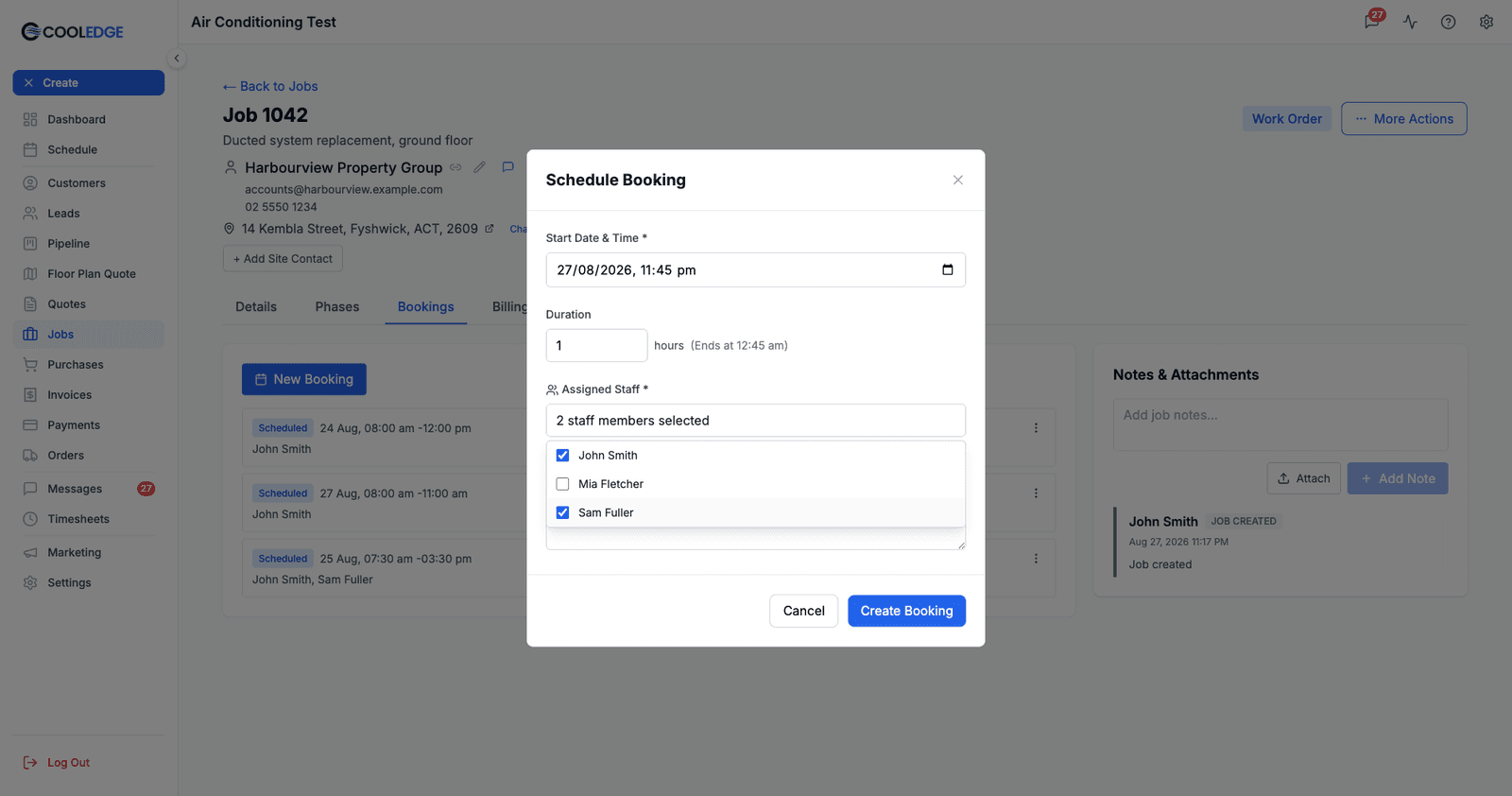
You can't do this from the calendar. Drag out a slot on the calendar and the Create Booking modal that opens has no staff picker at all: Staff is fixed to whichever column or row you dragged in, and you only choose the type and the job. That's fine for one-person work, but a crew booking has to start from the job, or be created single-staff and have people added afterwards.
That limit is the portal calendar's, not the product's. The mobile app's Create Booking sheet does have an Assigned Staff picker, so you can tick a whole crew onto a booking made straight from the phone. See On the mobile app below.
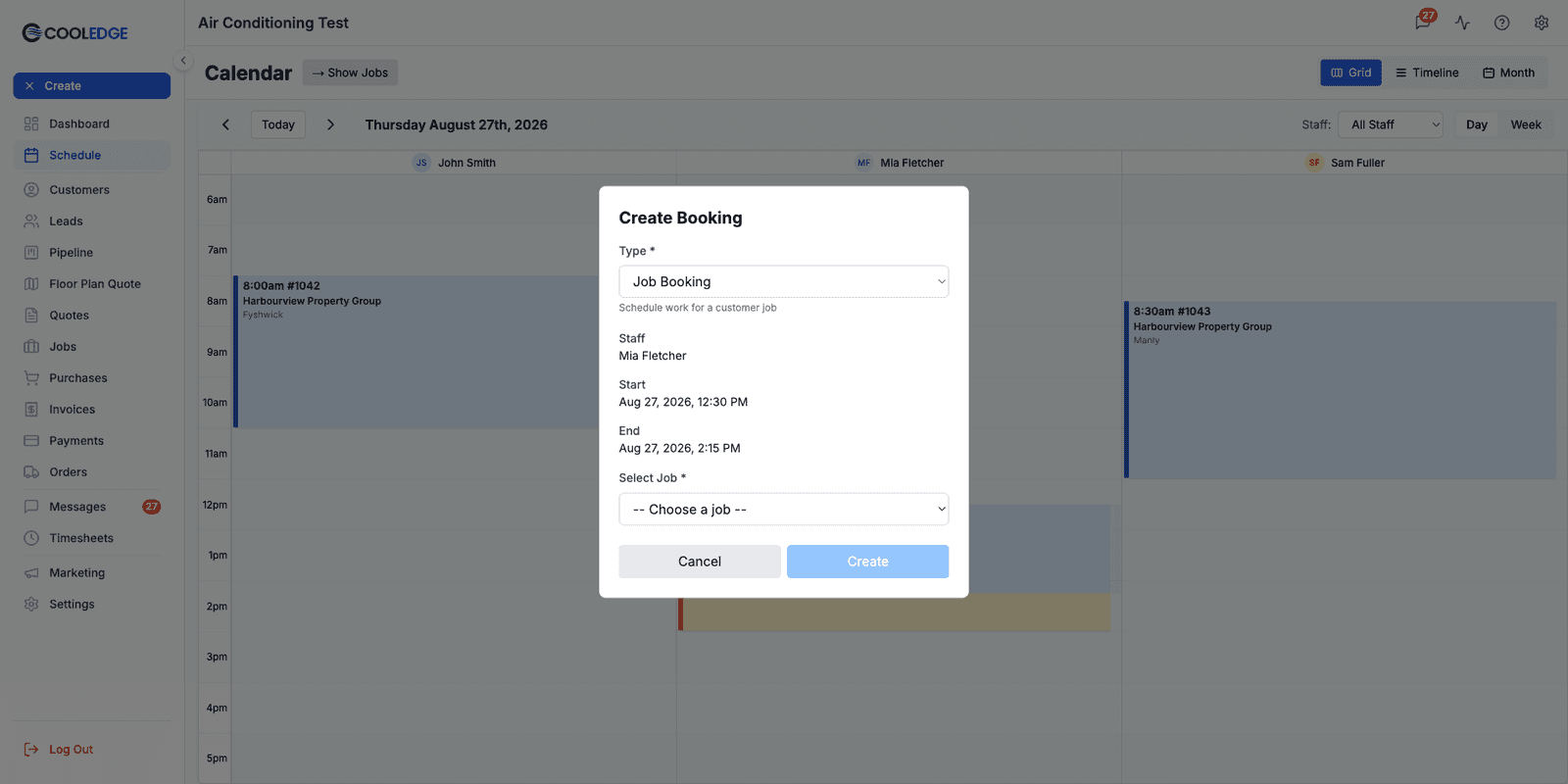
Method 2: Add Staff to Existing Booking
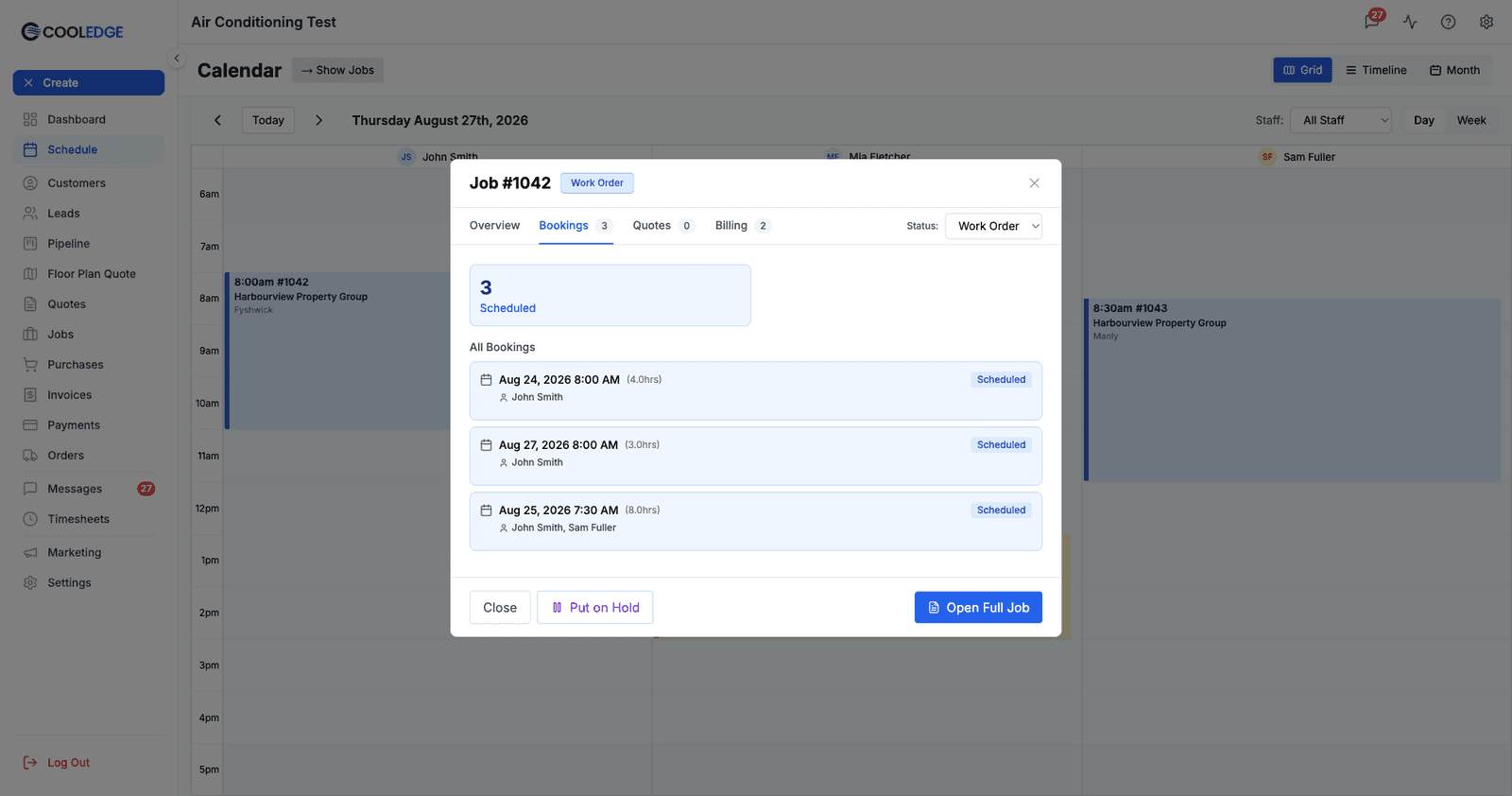
- Double-click the booking on the calendar. A job booking opens the job preview; a task booking opens Booking Details directly
- From the job preview, go to the Bookings tab and click the booking you want
- Edit the booking and open Assigned Staff
- Tick the extra people you want on the job
- Save
Adding staff runs the same conflict check as moving a booking, so if one of the people you tick is already busy at that time you'll get the Booking Conflict Detected modal before it saves.
How Multi-Staff Bookings Appear
On the Calendar
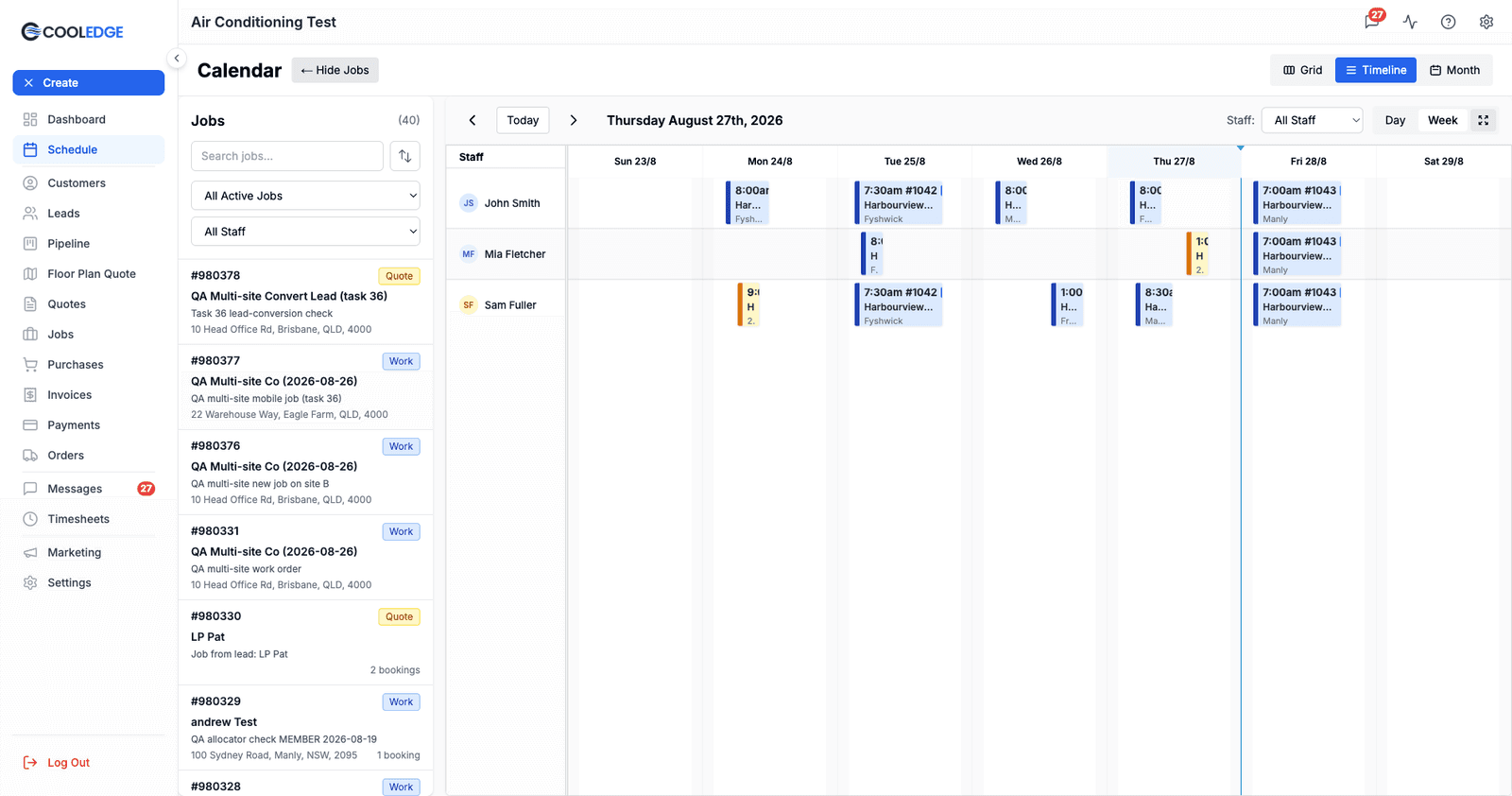
Timeline Day/Week View (staff as rows):
- The booking appears in multiple rows, one per assigned staff member
- Same colour and title in each row
- It's one booking shown several times, not several bookings
Grid Day/Week View (staff as columns):
- The booking appears in multiple columns, one per staff member
- Same time slot, different columns
- Easy to see who's working together
Month View:
- Shows once per day, not once per staff member
Visual Indicators
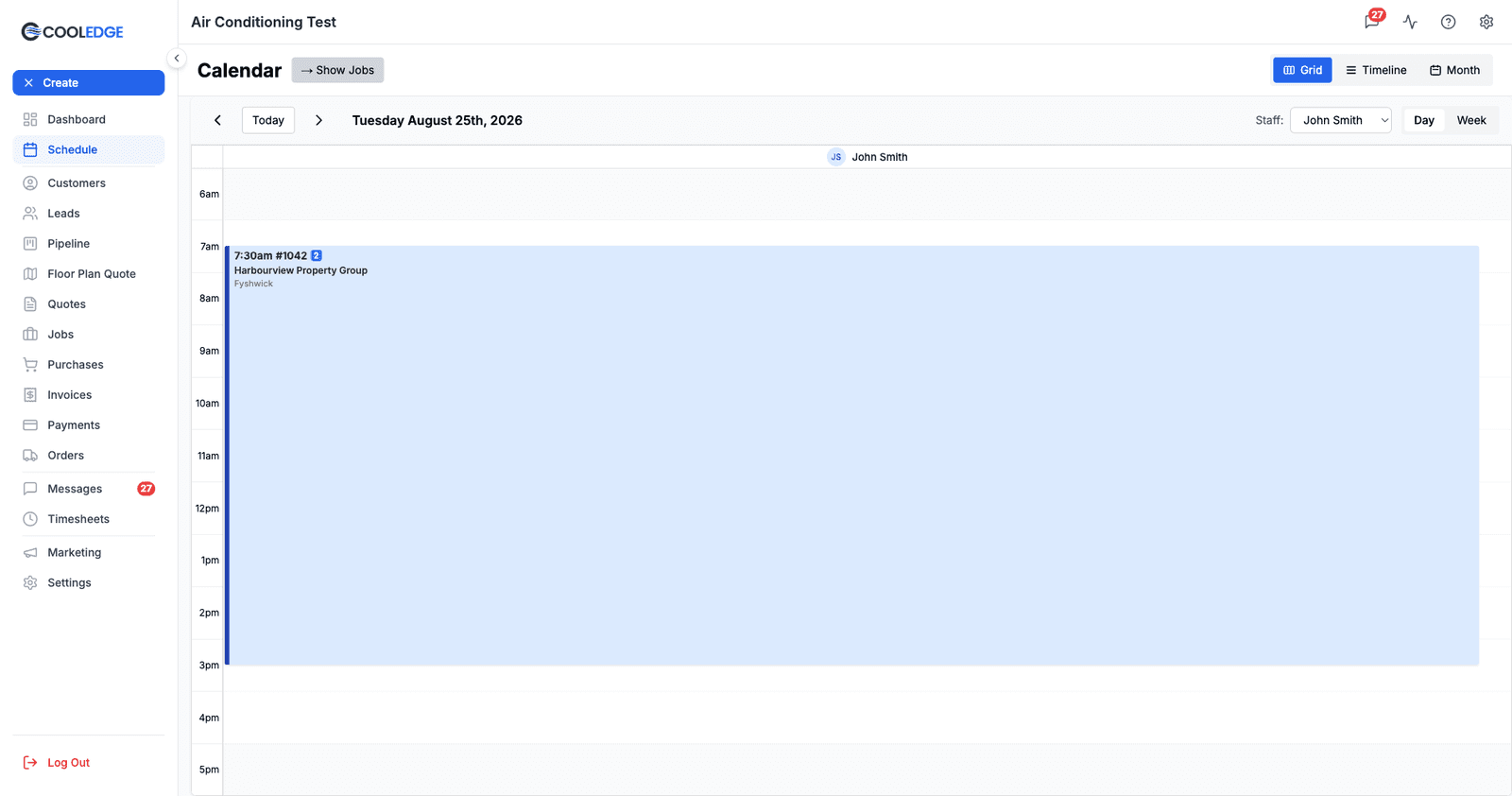
Multi-staff bookings carry a small number badge next to the job number on the card, showing how many people are assigned. A booking with a "2" on it is a two-person job. Open the booking and every assigned name is listed in full.
Moving Multi-Staff Bookings
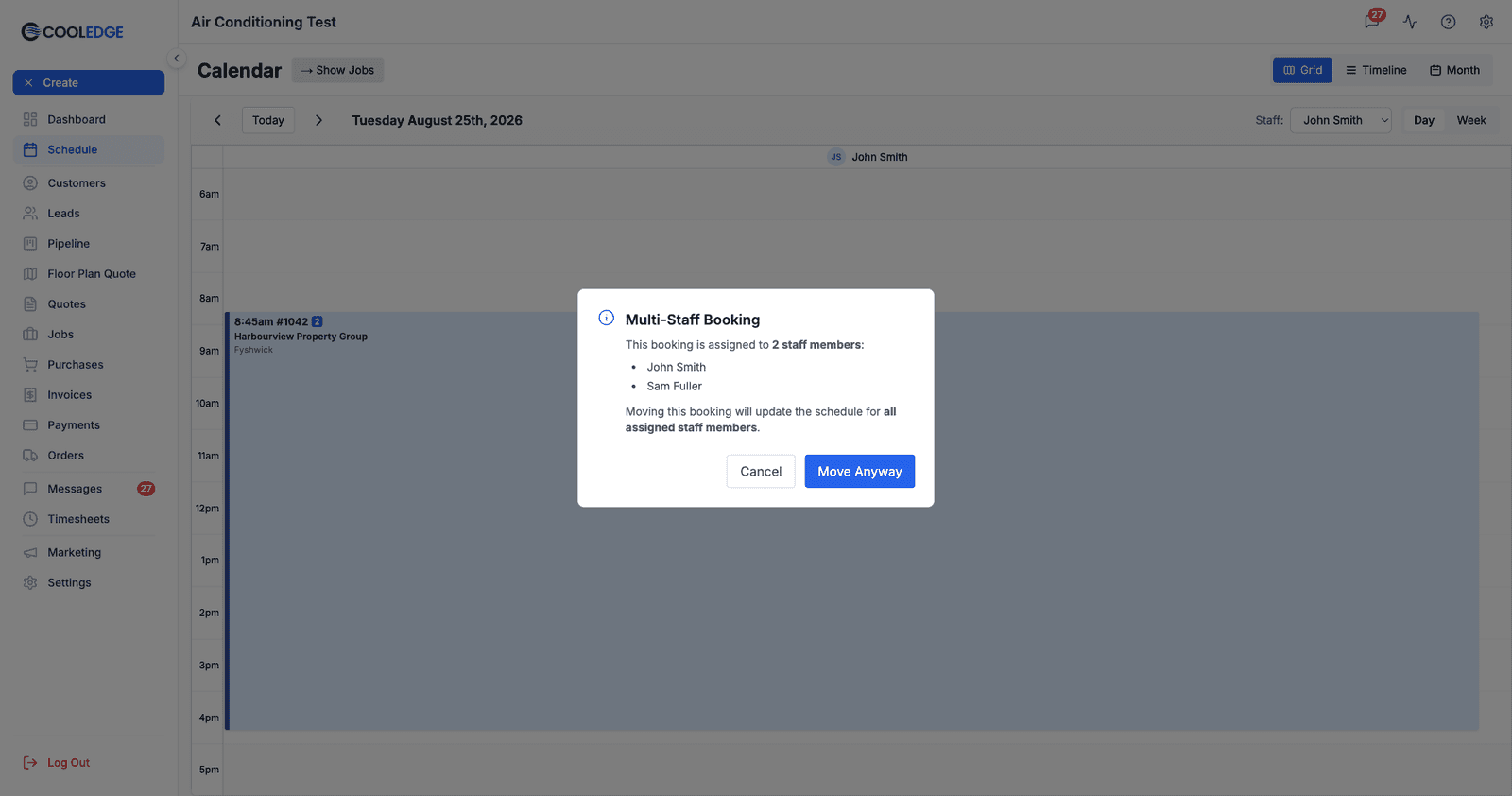
Dragging a multi-staff booking moves it for everyone assigned to it. Sometimes Cooledge warns you first, and sometimes it doesn't. It's worth knowing which is which.
When the Warning Appears
The Multi-Staff Booking modal is shown only when the booking has more than one staff member and one of these is true:
- You're in Month view, or
- The Staff filter at the top of the calendar is set to one person
In the default all-staff Grid or Timeline view, dragging a multi-staff booking moves the whole crew with no prompt at all. The reasoning is that in those views you can see every affected row or column already, whereas a filtered or month view hides the people you'd be moving.
The Warning Modal
What it says: "This booking is assigned to 2 staff members:
- John Smith
- Sam Fuller
Moving this booking will update the schedule for all assigned staff members."
Your options:
- Move Anyway - move the booking for everyone
- Cancel - leave it where it was
What Happens When You Confirm
When you move a multi-staff booking:
- The booking time changes for all assigned staff
- Everyone's calendar updates at once
- If a conflict is detected for any staff member, you'll see a conflict warning
- You can override conflicts or cancel the move
Removing Staff from a Booking
Sometimes you need to remove someone from a multi-staff booking:
How to remove:
- Open the booking, either from the job's Bookings tab or by double-clicking it on the calendar
- Open Assigned Staff
- Untick the person you're removing
- Save
What happens:
- The booking disappears from that person's calendar
- Everyone else stays assigned
- The booking itself continues unchanged
At least one person must stay assigned. Untick everyone and the booking won't save.
Changing Staff on a Multi-Staff Booking
Replacing One Team Member
If someone is sick or unavailable:
- Open the booking
- Uncheck the unavailable person
- Check the replacement person
- Save
Calendar updates immediately for both people.
Splitting to Separate Bookings
If you realize staff need separate bookings (different times, etc.):
- Open the original booking
- Remove one staff member (uncheck them)
- Create a new booking with different time/details
- Assign the removed staff member to the new booking
Now you have two independent bookings.
Conflict Detection with Multi-Staff
When creating or moving a multi-staff booking, conflict checking applies to each staff member independently:
Scenario:
- You assign John and Sarah to a booking 9 AM - 12 PM
- John is available
- Sarah already has a booking 10 AM - 11 AM
- Conflict detected for Sarah only
What happens:
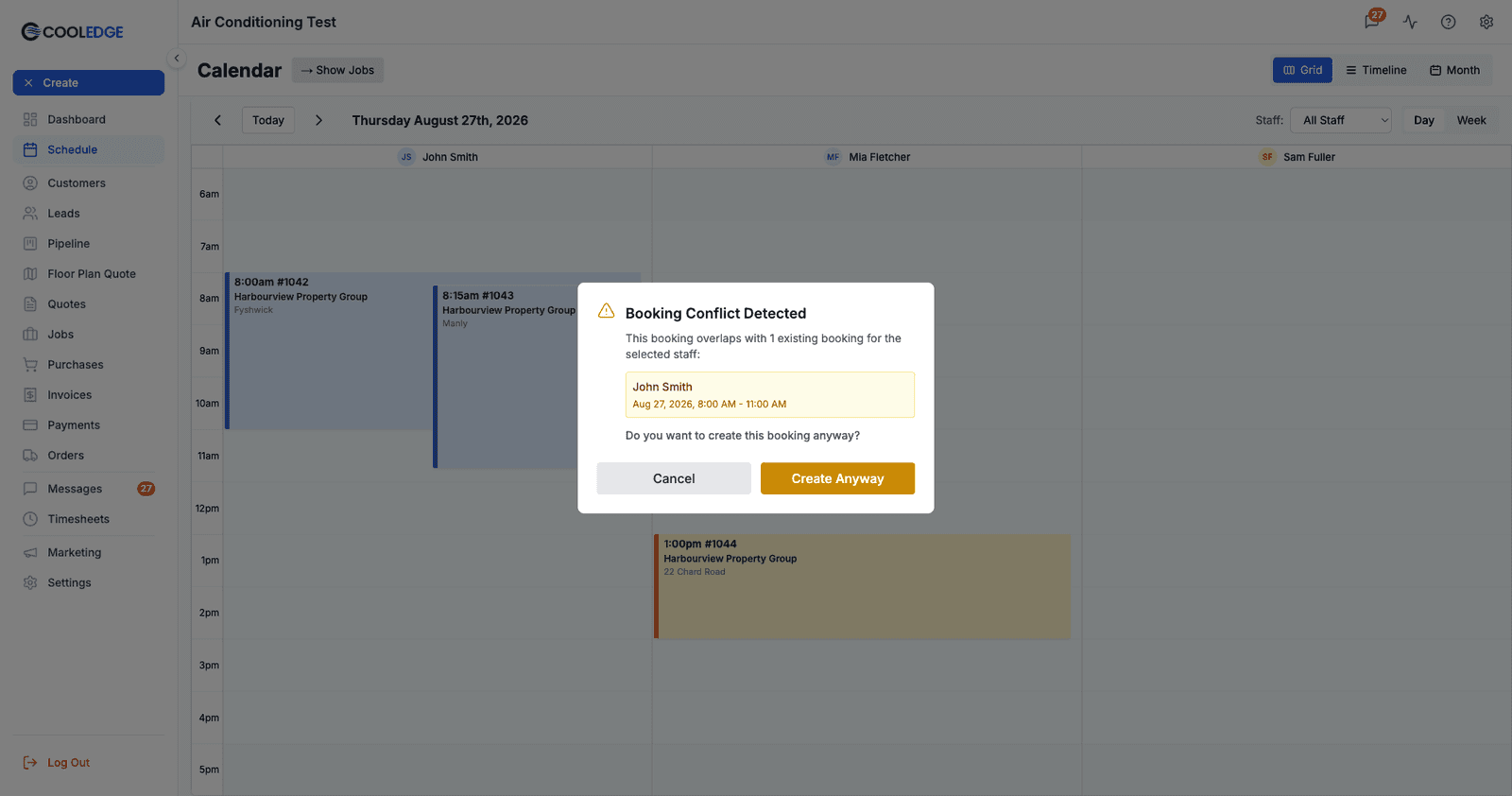
- The Booking Conflict Detected modal appears, naming Sarah and the booking she already has
- Nothing is saved until you decide
- You can Cancel and untick Sarah, Cancel and pick a different time, or Create Anyway and double-book her deliberately
Viewing Multi-Staff Workload
Seeing Who's Working Together
Day and Week Views:
- Multi-staff bookings appear side-by-side in columns or stacked in rows
- Easy to see who's teaming up
- Same color and title help identify the match
Job Detail Page:
- Open a job
- Go to Bookings tab
- Each booking lists all assigned staff
- Shows entire crew at a glance
Filtering by Staff
In calendar views:
- Use the Staff dropdown at the top right of the calendar
- Select a staff member
- The calendar shows only their bookings, multi-staff ones included
Useful for checking one person's schedule without everyone else's in the way. Remember this filter is also what arms the multi-staff move warning.
On the Mobile App
Crew bookings work on the phone, and in one respect the app is ahead of the portal.
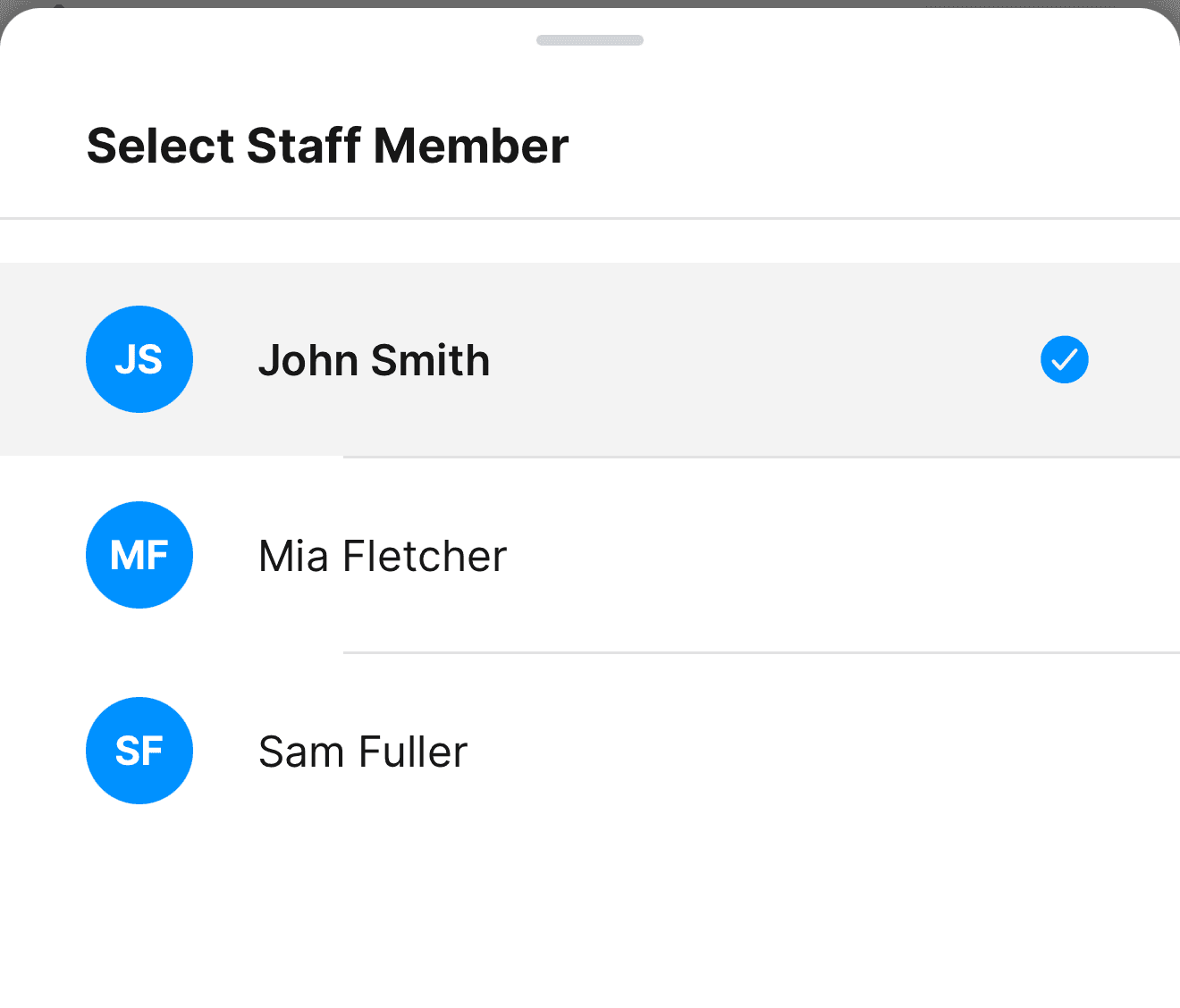
Assigning a crew. Both the Create Booking sheet and the Edit Booking sheet carry an Assigned Staff row. Tap it and you get a tick list of your team. The row then reads how many are on ("2 staff members selected") and the names appear underneath as chips, each with an ⊗ to take that person off again.
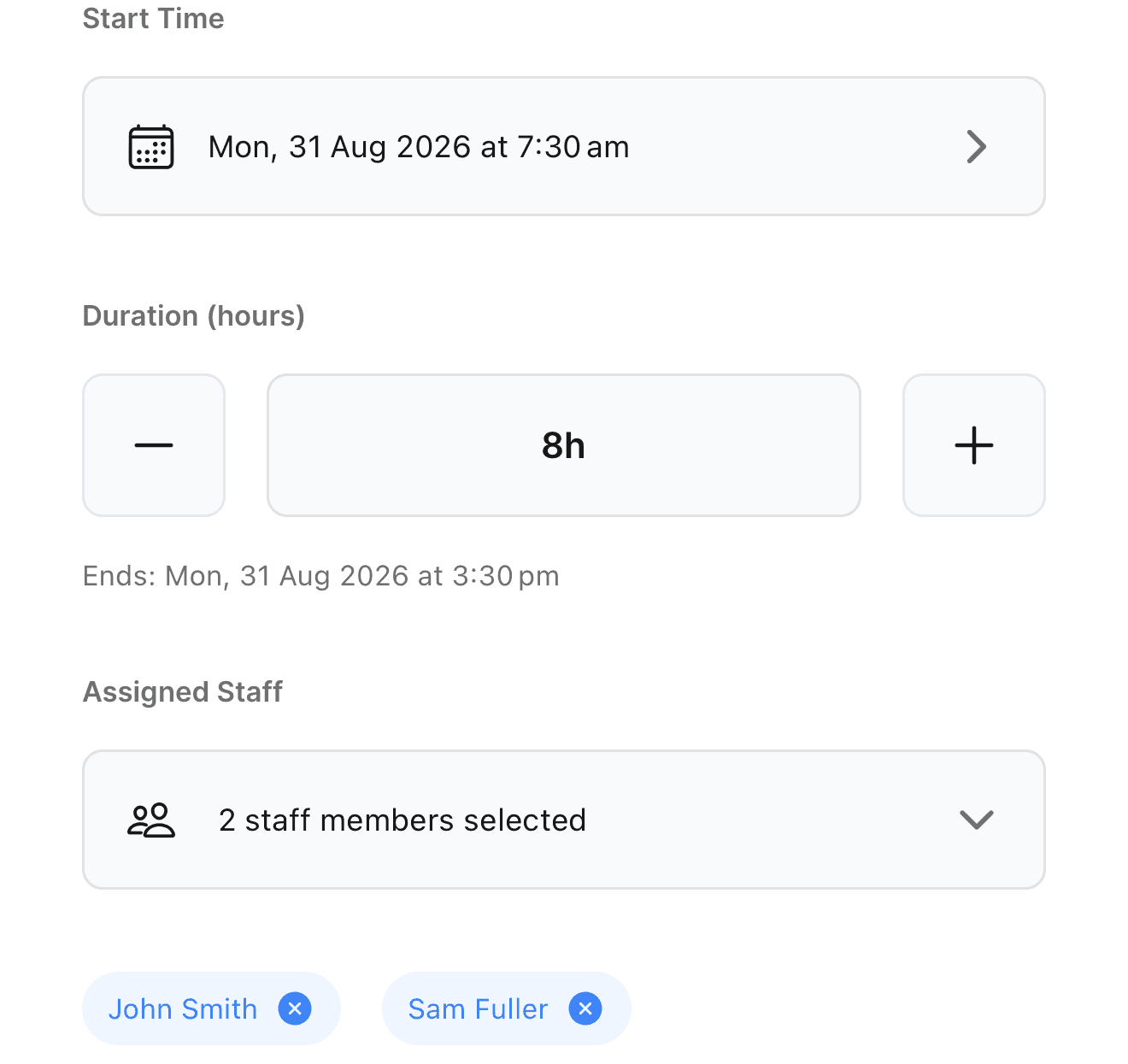
The difference is only about where you start. The portal reaches a crew booking two ways, both covered above: New Booking on the job's Bookings tab and adding people to a booking that already exists. The one portal route that can't is dragging out a slot on the calendar, because that modal has no staff picker. On mobile the equivalent shortcut does have one, so you can build a crew booking straight from the Schedule tab without going via the job.
Conflicts are checked per person here too. Save a booking with two people on it and each one is checked separately against their own work, exactly as described in Handling Booking Conflicts. The warning names whoever clashes.
Who appears in the picker comes from Settings > Scheduling & Calendar > Calendar Staff on the portal, in the order set there. Anyone marked Hidden is left out of the mobile picker as well.
One person at a time on the schedule itself. The mobile Schedule tab shows a single staff member's bookings, chosen from the avatar at the top left, and it starts on you. There is no all-staff view, so a crew booking shows up once on each member's schedule and you switch person to check the others.
Best Practices
Plan multi-staff jobs in advance Don't wait until the day of. Schedule multi-staff bookings early so everyone knows they're working together.
Communicate with the team When assigning multiple people, make sure they know who else is on the job. Add notes if needed.
Use clear booking descriptions Write descriptions like "Install ducted system (2-person team)" so it's obvious it's a crew job.
Check everyone's availability first Before creating a crew booking, look at Grid Day view, where each person has their own column, and confirm the whole crew is free for that block.
Don't overuse multi-staff If people are truly working independently, create separate bookings. Multi-staff should be for actual teamwork.
Common Scenarios
Scenario 1: Installer and Apprentice
Setup:
- Create booking for ducted install 8 AM - 4 PM
- Assign Senior Installer (John) and Apprentice (Mike)
- Both see the booking on their calendars
- They arrive together and work as a team
Scenario 2: Large Commercial Job
Setup:
- Create booking for commercial building 7 AM - 5 PM
- Assign 3 installers (John, Sarah, Dave)
- Add notes: "Commercial Building - 5 units - Team of 3"
- Everyone knows it's a big job requiring the whole crew
Scenario 3: Someone Calls in Sick
Problem: John is sick, but Sarah and Dave can still do the job
Solution:
- Open the booking
- Remove John from staff list
- Optionally add another person as replacement
- Adjust time estimates if needed with smaller crew
Common Questions
Can I assign different tasks to each staff member? No. Multi-staff bookings are for shared work. If people are doing different tasks, create separate bookings with clear descriptions.
How many staff can I assign to one booking? There's no hard limit, but practically you'll usually have 2-4 people max. For very large crews, consider whether everyone needs to be scheduled or if you can assign team leads.
Do all staff get notifications? Only when the booking is created, updated or deleted on the portal, and only if it is for today. The portal checks the booking date in your business timezone and stays quiet for anything further out, so a crew booked for next week won't hear about it: tell them yourself.
Crew changes made in the mobile app notify nobody, today's work included. The app writes bookings directly rather than through the portal, and the notification is sent on the portal's side. Add someone to a booking from your phone and you have to tell them.
Can I assign staff from different teams or departments? Yes, as long as they're all in your staff list. Multi-staff bookings work across any staff members in your business.
What if I drag a multi-staff booking in Month view? You'll see the Multi-Staff Booking warning, because Month view is one of the two places it fires. Month view doesn't break bookings out per staff member, but the booking is still assigned to everyone and moving it affects all of them.
Can customers see who's assigned? No. Customers can't see staff assignments. This is internal scheduling only.
Related Articles
- Creating Bookings - How to create bookings
- Moving and Editing Bookings - Change times and details
- Handling Booking Conflicts - Resolve double-booking
- Using the Calendar - Navigate calendar views
Was this article helpful?
Let us know if you found this information useful.
Still need help? Contact support
In this article
Use your browser's search (Ctrl+F) to quickly find specific topics within this article.
Browse all help articles →Related Articles
Understanding Booking Colors and Status
Learn what each color on your calendar means and how to quickly scan your schedule
Creating Bookings
Schedule work for jobs or add tasks to your calendar with drag-and-drop or the create button
Handling Booking Conflicts
Understand when staff are double-booked and how to resolve or override scheduling conflicts