Technician Workload
Compare the hours you booked for each person with the hours they logged on timesheets, by technician, day or week. Export to CSV or PDF.
Technician Workload
See where the hours went: what you booked against what your team logged.
- Booked, Worked and Difference for each person
- An Unassigned row for bookings with nobody on them
- Group by Technician or Period, by day or by week
- The owner can download it as a CSV or a PDF
- Owners and admins only
This report sits under Team on the Reports page, next to Call History. It's on every plan: Starter, Growth and Scale. It isn't available in ServiceM8 mode.
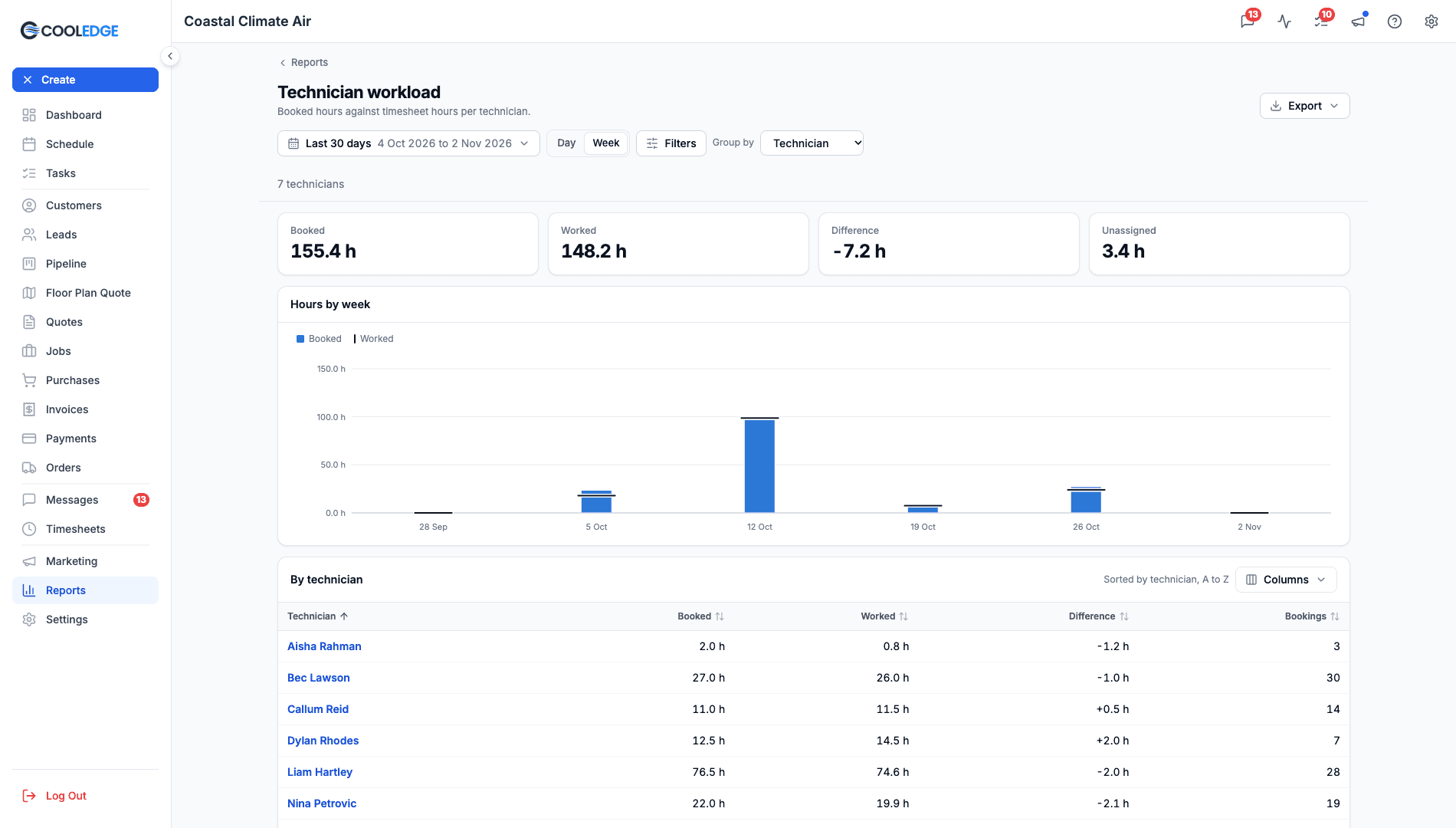
What the Figures Mean
| Figure | What it counts |
|---|---|
| Booked | Hours on job bookings that start in the range. |
| Worked | Hours on finished timesheet entries that start in the range. |
| Difference | Worked minus Booked, in plain hours. Only bookings up to today count. |
| Unassigned | Booked hours on job bookings with nobody assigned. |
| Bookings | How many bookings each person is on. |
How Booked is counted
- Each person gets the full length. A 4 hour booking with two people on it counts as 4 hours each and 8 hours in the total. That also means one booking with three people adds 3 to the Bookings total.
- It lands on the day it starts. A booking that runs overnight or over several days counts in full on its first day. If bookings in the range run longer than 24 hours, a note says how many.
- Which bookings count. Job bookings count, including those on jobs that are On Hold or Completed. Bookings on Cancelled jobs don't. Neither does a booking with no end time.
Each day's Booked hours match Booked hours on your Dashboard. A week's total can differ by a little, because the Dashboard rounds each day and this report rounds once at the end.
How Worked is counted
- Finished entries only. A timer that's still running isn't counted until it stops. If any are running, a note says how many.
- It lands on the day it starts. The same rule as bookings.
- Everyone's hours count. That includes people set to Paid by the job, who record hours but no labour cost. It also includes time logged on jobs that were later cancelled.
- Overlapping entries are added up, the same as on the Timesheets page.
Reading the Difference
Difference isn't marked good or bad. A positive number can be a job that ran over, a booking that was added late or a timer left on. A negative number can be a job that finished early or hours nobody logged. It's a place to start asking questions.
If your range reaches past today, a note says Difference counts booked hours up to today, so next week's bookings don't read as a shortfall.
The long-booking and running-timer notes count the whole business, so they're left out when you filter to one technician.
Who Appears
Anyone with booked or worked hours in the range appears, even if they're hidden from the calendar. Someone who has been deactivated shows with (inactive) after their name. Unassigned shows when there are hours on bookings with nobody on them.
Choosing What You See
Date range
Click the range button at the top left. By default you are looking at the last 30 days, in your business's timezone. This report adds This week and Last week above the usual ranges. Weeks start on Monday. A custom range can be up to 400 days.
Group by
- Technician (the default). One row per person, then Unassigned, then a Total.
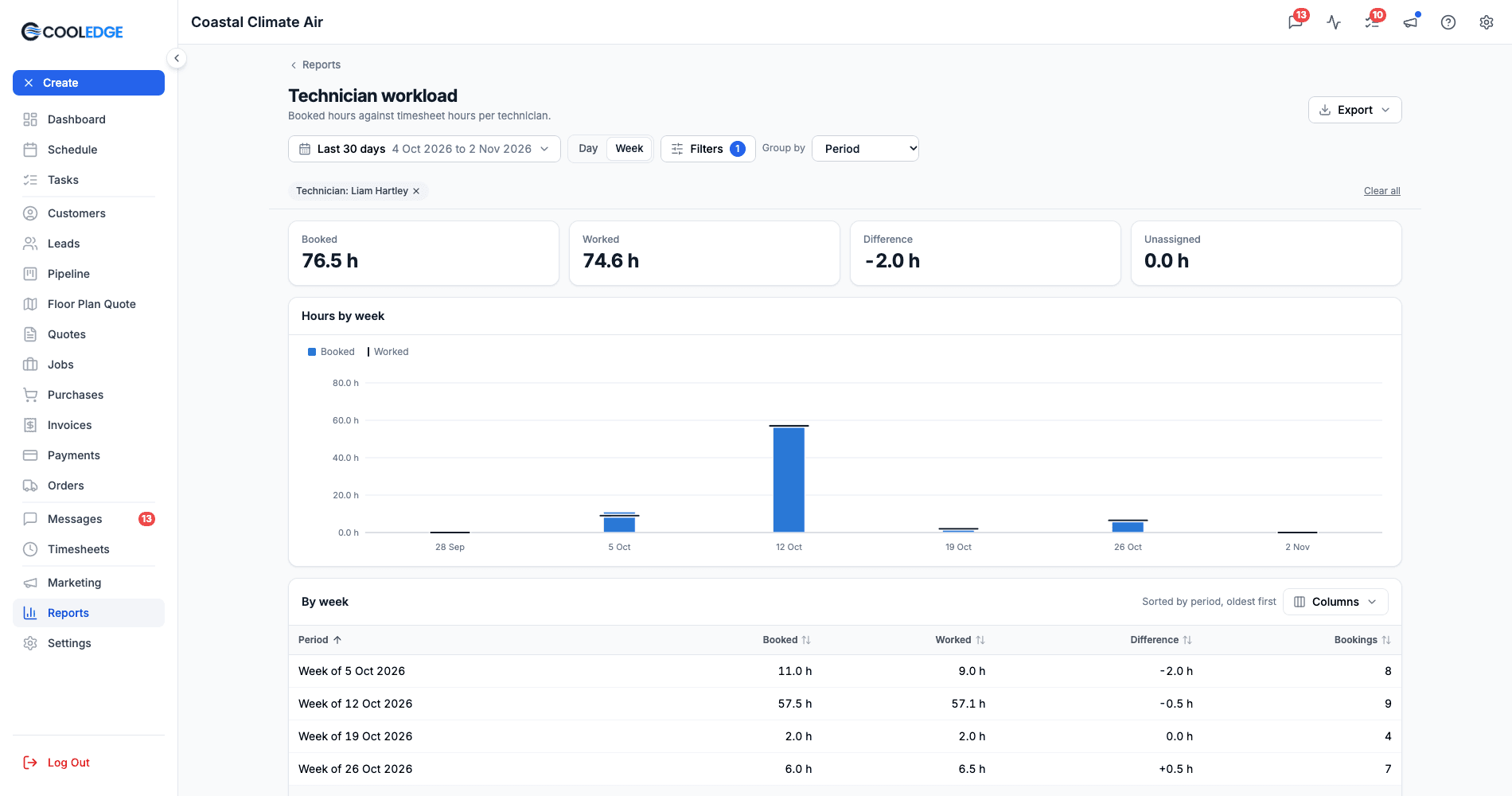
- Period. One row per week or per day. Use the Day and Week switch next to the range.
The chart shows Booked as bars with Worked as a line across each bar. It runs by day, week or month, depending on your range and the switch. On the Technician view, the switch hides for ranges over 31 days, because it can't change anything there.
See one person
Click a name to see that person's weeks or days in the same range. Unassigned has no link. To filter by hand, click Filters and choose a Technician or Unassigned. The filter shows as a chip. Click its x to remove it.
Columns and sorting
Click a column heading with arrows to sort by it. Click Columns to show or hide columns. Your choice is remembered on that browser.
Export to CSV or PDF
The account owner sees an Export button at the top right. Admins can see the report but can't export it.
- Download CSV downloads the report with the columns you're showing. Tick CSV: include all columns to get every column. Hours have two decimals here and one on screen.
- Download PDF makes a PDF with your business logo and name, the range and filters, the headline figures, the chart and the table. It holds up to 1,000 rows. For more, download the CSV.
Common Questions
Why doesn't Worked include the timer I'm running? A running timer isn't finished, so it isn't counted yet. Stop it and it appears.
Why don't the hours match my Timesheets page? Check the dates first. This report uses your business's timezone and puts an entry on the day it starts.
Can I see labour cost here? No, this report is about hours. For labour cost by technician, group the Job Profitability Report by Technician.
Does it show how busy someone could have been? No. Cooledge doesn't hold working hours for each person, so there's no utilisation percentage.
What does "Too much data for one report" mean? Choose a shorter range.
Related
- Mobile App Timesheets: How your team logs hours
- Multi-Staff Bookings: Putting more than one person on a booking
- Job Profitability Report: Revenue, costs and margin for every job
- Call History: The other Team report
Need help? Email us at support@cooledge.com.au
Was this article helpful?
Let us know if you found this information useful.
Still need help? Contact support
In this article
Use your browser's search (Ctrl+F) to quickly find specific topics within this article.
Browse all help articles →Related Articles
Understanding Booking Colors and Status
Learn what each color on your calendar means and how to quickly scan your schedule
Creating Bookings
Schedule work for jobs or add Events to your calendar with drag-and-drop or the create button
Handling Booking Conflicts
Understand when staff are double-booked and how to resolve or override scheduling conflicts