Job Profitability Report
Revenue, costs and margin for every job over any date range. Find the jobs that lost money and why, group by month, job category, system type or technician and export to CSV or PDF.
Job Profitability Report
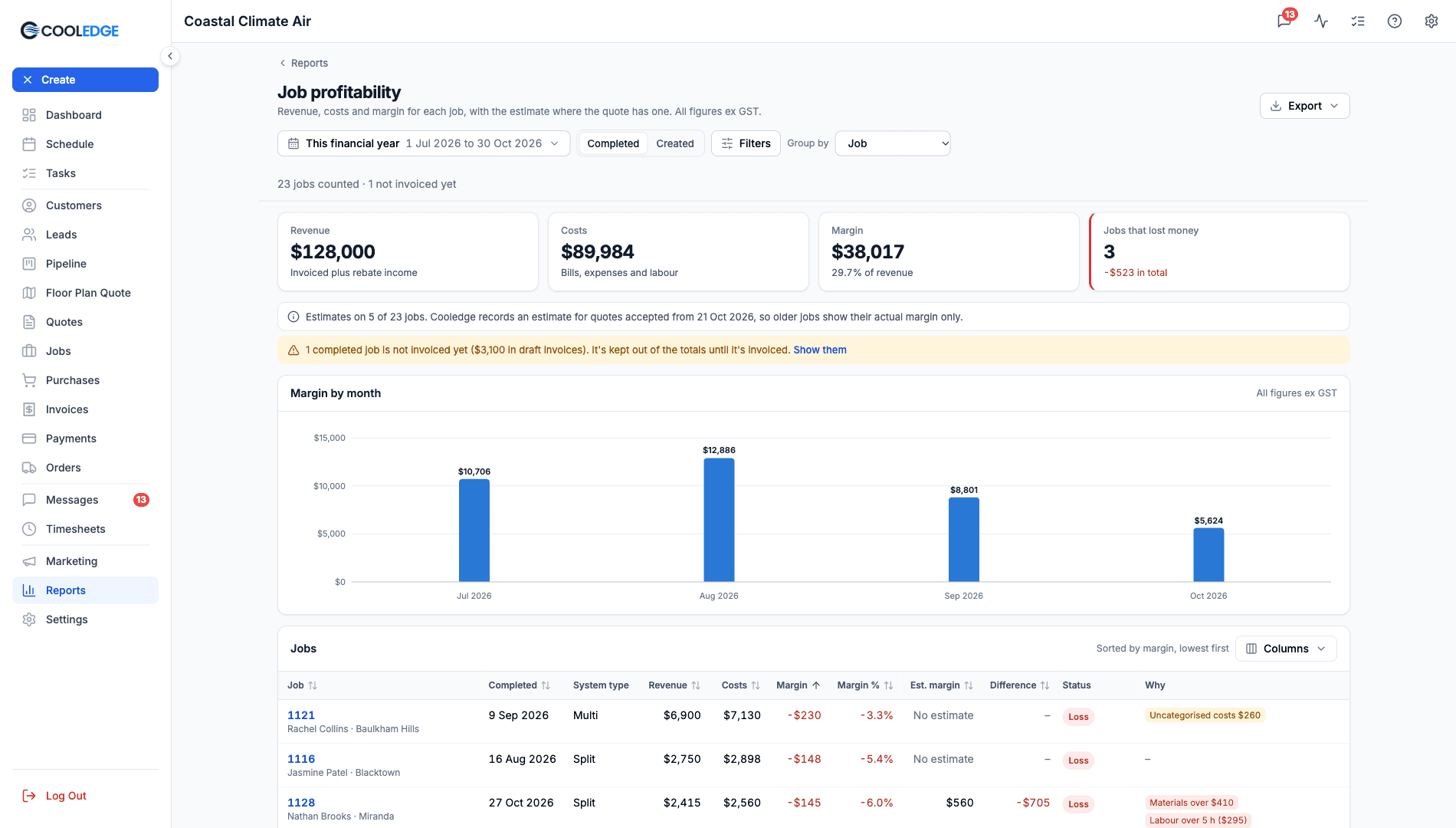
See which jobs made money, which lost it and why.
- Every job in a date range with its revenue, costs, margin and estimate
- Four headline figures and a chart of margin by month
- Reasons behind a job's margin where the figures show one, such as Labour over 5 h ($295) or Materials over $410
- Group by month, job category, system type or technician
- The owner can download it as a CSV or a PDF with your logo
- Owners and admins only. Every figure is ex GST
Each job's Profitability card shows one job. The Job profitability report shows all of them together, over any date range you pick. A job's figures in the report are the same figures as on its card, so the two always agree.
What You Need
- Owner or admin role. Members and restricted members don't see reports
- Invoices, bills, expenses and timesheets on your jobs. The report reads the same numbers as each job's Profitability card
- Accepted quotes for estimates. Cooledge records an estimate for quotes accepted from 21 October 2026. Older jobs show their actual margin only
Reports are on every plan: Starter, Growth and Scale.
Where to Find It
- Click Reports in the sidebar
- Under Money, click Job profitability
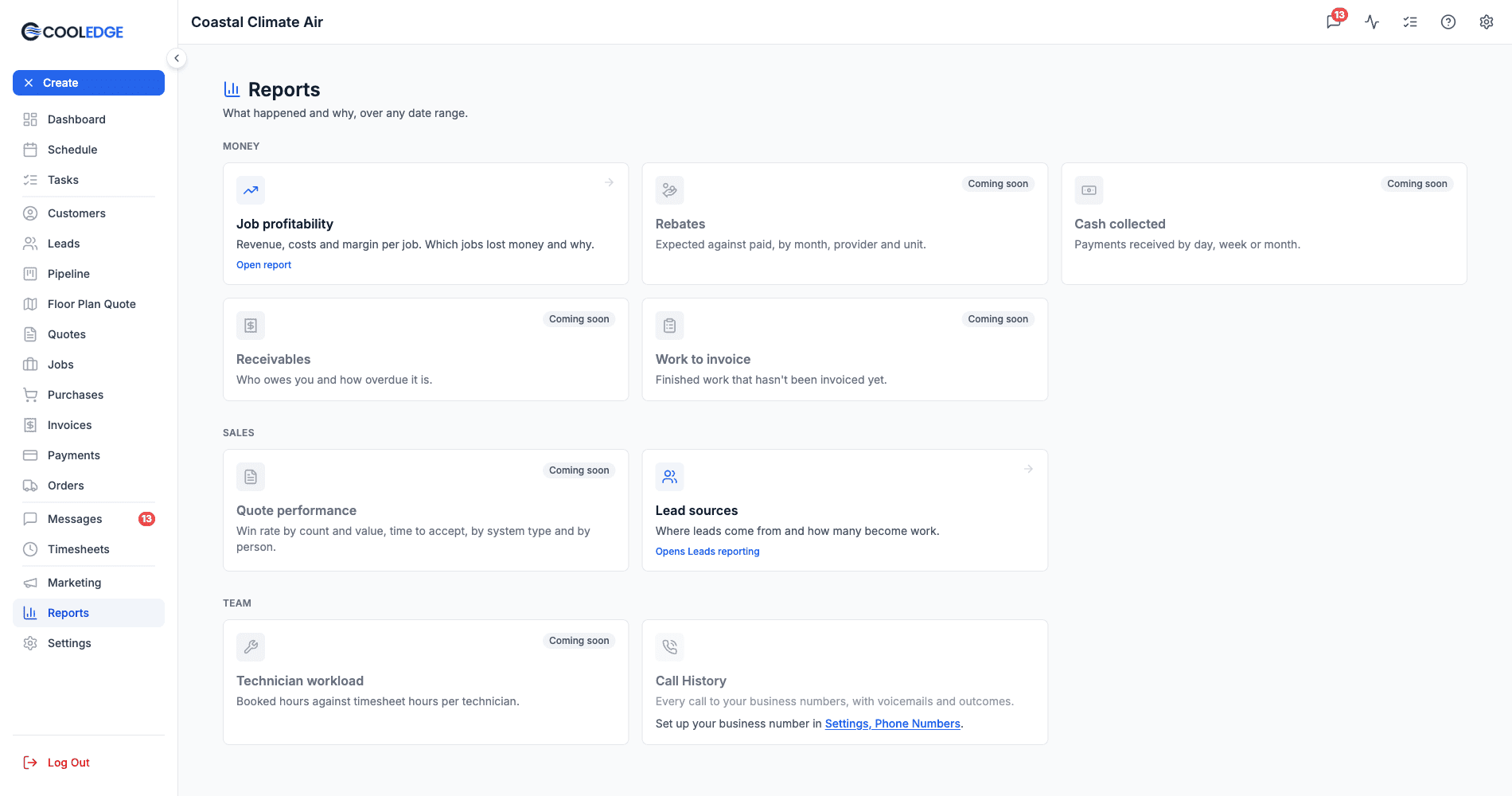
Reports is sorted into three sections:
- Money: Job profitability, then Rebates, Cash collected, Receivables and Work to invoice as they arrive
- Sales: Quote performance and Lead sources, which opens your Leads reporting
- Team: Technician workload and Call History
Cards marked Coming soon are reports that are on the way.
Choose the Date Range
Click the range button at the top left. It shows the range's name and its dates.
- Presets: This month, Last month, This quarter, Last quarter, This financial year, Last financial year, Last 30 days, Last 90 days and Last 12 months. The financial year runs 1 July to 30 June
- Custom range: pick a start and end date on the calendar, then click Apply. A range can be up to 400 days
- Dates are in your business's timezone
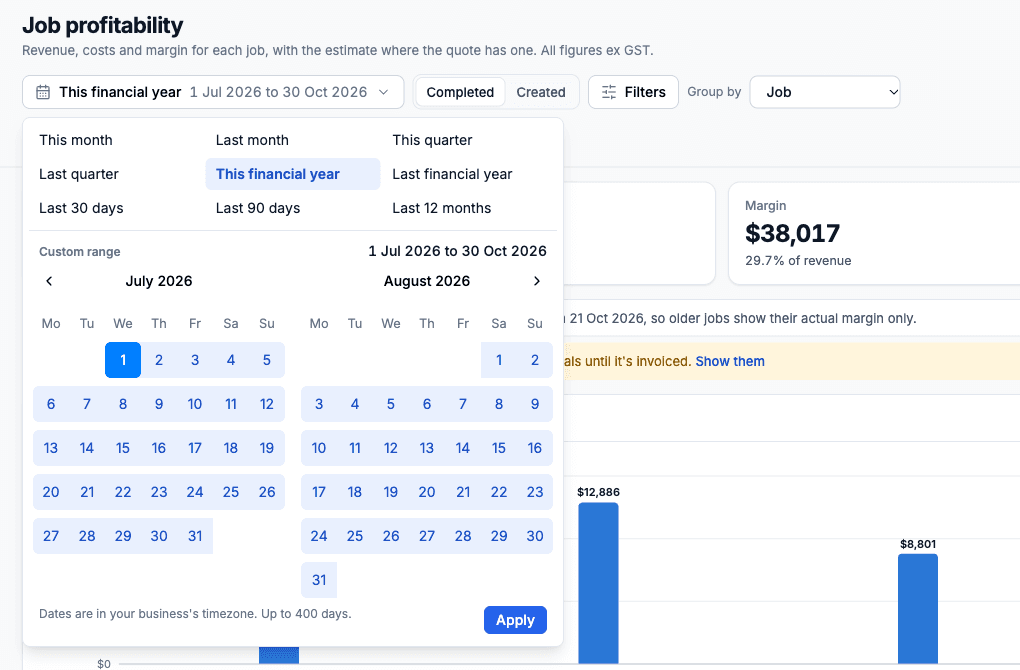
Next to the range, Completed and Created decide which date puts a job in the range. Completed (the default) counts jobs finished in the range. Created counts jobs created in the range, including ones still open.
Headline Figures
| Figure | What it shows |
|---|---|
| Revenue | What you invoiced, plus rebate income from a provider |
| Costs | Bills, expenses and labour |
| Margin | Revenue less costs, with the margin as a % of revenue |
| Jobs that lost money | How many jobs had a negative margin, with their losses in total |
Below the figures, notes explain what's left out:
- Estimates on N of M jobs. Only quotes accepted from 21 October 2026 have an estimate
- Completed jobs not invoiced yet. They're kept out of the totals until they're invoiced, so an unbilled job never reads as a loss. Click Show them to list just those jobs
- Open jobs (on Created only) are kept out of the totals too
The chart shows margin by month. Months that lost money show as red bars.
The Table
Each row is a job, with its customer and suburb under the job number. Jobs with phases appear once, with their phases rolled in.
The default columns are Completed, System type, Revenue, Costs, Margin, Margin %, Est. margin, Difference, Status and Why. The table starts sorted by margin, lowest first, so the jobs that lost the most are at the top. Click a column heading with arrows to sort by it.
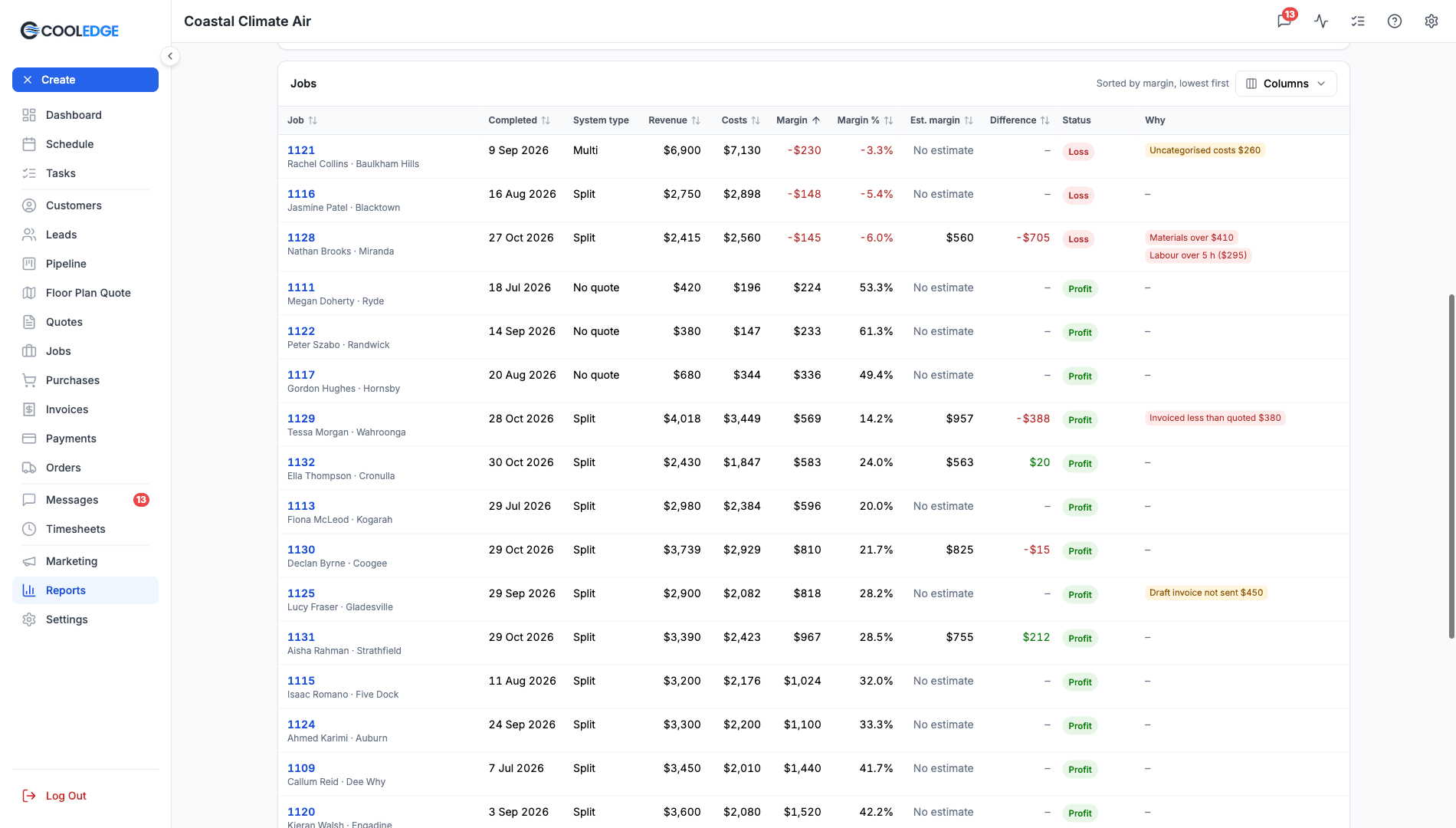
- Click a row to open that job on its Purchases tab, where the Profitability card is. Back to Job profitability brings you back to the same view
- Rows per page: 10, 20, 50 or 100. Page numbers sit between Previous and Next
Choose Your Columns
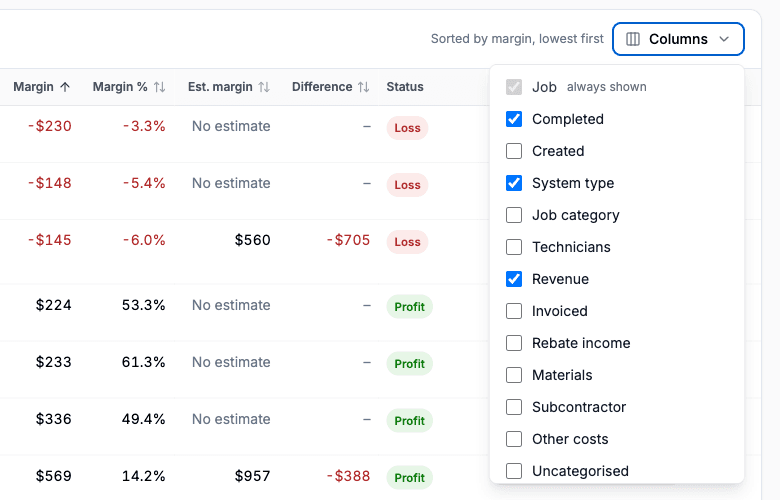
Click Columns to show or hide columns. Job is always shown. Reset to default puts the default set back. Your choice is remembered on that browser.
The other columns you can add: Created, Job category, Technicians, Invoiced, Rebate income, Materials, Subcontractor, Other costs, Uncategorised, Labour hours, Labour cost, Est. revenue, Est. costs and Est. labour hours.
Status
| Status | Meaning | In the totals? |
|---|---|---|
| Profit | The margin is zero or more | Yes |
| Loss | The margin is below zero | Yes |
| No costs recorded | Invoiced, but there are no bills, expenses or labour on the job yet | Yes |
| Not invoiced | Nothing has been invoiced yet. The row shows its draft invoice amount | No |
| Open | The job isn't completed yet (Created only) | No |
Why
The Why column explains a job's margin with short chips. Dollar chips come first, largest first. A job with nothing to flag shows a dash, even when it lost money: the figures don't always say why.
When the job has an estimate:
| Chip | Meaning |
|---|---|
| Labour over 5 h ($295) | Timesheet hours ran over the estimate by at least 1 hour or 10% of the estimate, whichever is more. The dollars are the extra labour cost |
| Materials over $410 | Materials cost more than the estimate by at least $50 or 10%, whichever is more |
| Subcontractor over $X | The subcontractor cost more than the fee on the quote by at least $50 or 10%, whichever is more |
| Priced below cost | The estimate itself had a negative margin |
| Invoiced less than quoted $X | You invoiced less than the quote's price by at least $50 or 2%, whichever is more |
On any job:
| Chip | Meaning |
|---|---|
| Uncategorised costs $X | Bills or expenses with no category. Set one on the job's Purchases tab |
| Rebate not invoiced yet $X | The quote expected a rebate from a provider that hasn't been invoiced |
| To come: $X on open POs and N timers running | Purchase orders not billed yet, or timers still running. Costs are still coming |
| Draft invoice not sent $X | A draft invoice on the job hasn't been sent |
| N draft expenses not counted | Draft expenses don't count until they're finished |
| Hours at default rate | Some hours were costed at your default rate because they were logged before labour cost rates existed |
The two "over" chips for materials and subcontractors aren't worked out while a job has uncategorised costs, because Cooledge can't tell which row those costs belong in.
Group By
Use Group by to roll the jobs up:
- Job: the default, one row per job
- Month: by the month of the job's completed (or created) date
- Job category: by the job's category, or No category
- System type: from the job's accepted quotes. Mixed means the job has accepted quotes of different types. No quote means the job was created without one
- Technician: by who logged time on the job
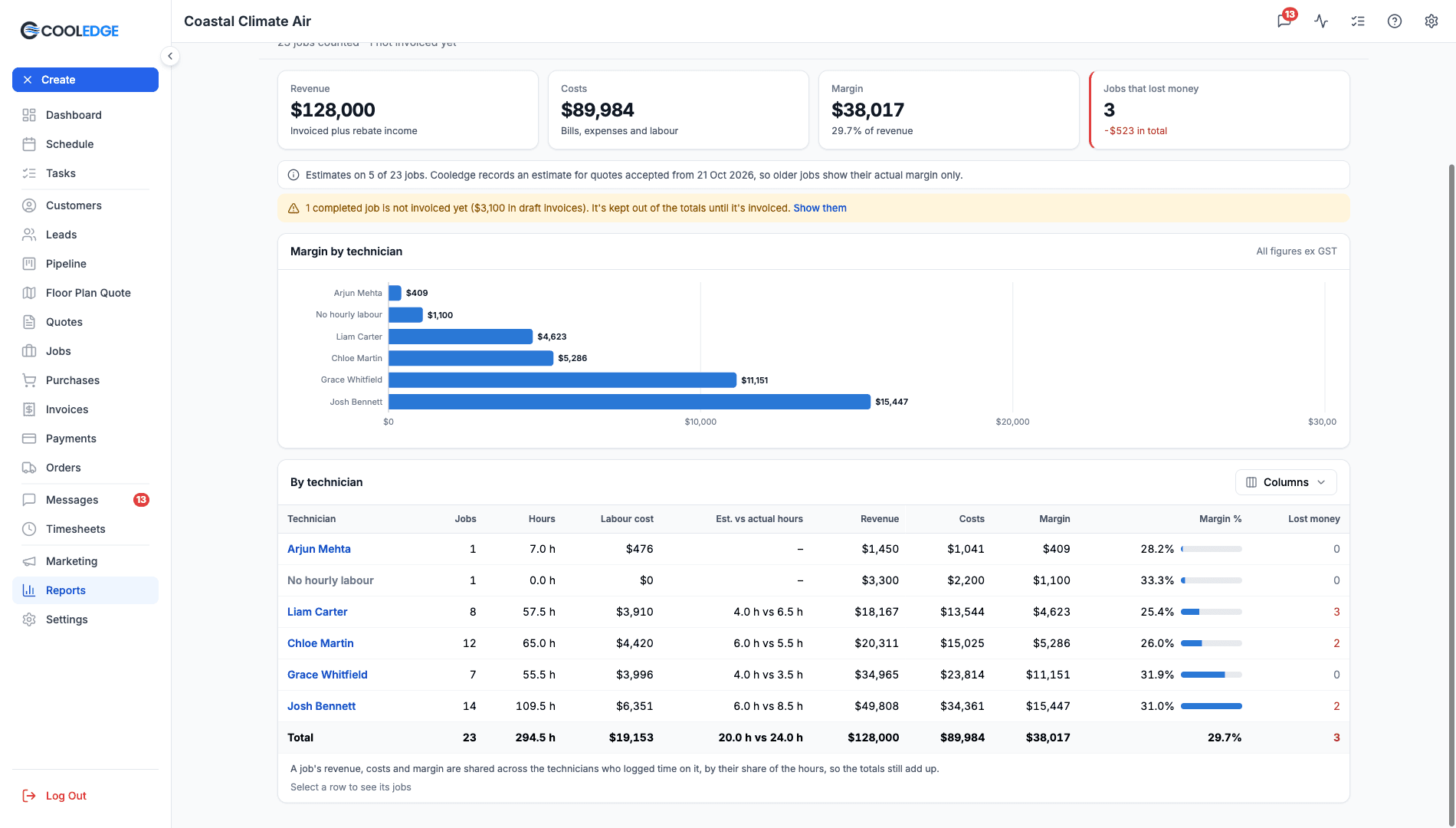
Each grouped row shows Jobs, Revenue, Costs, Margin, Margin % and Lost money (how many jobs lost money). A Total row closes the table and the chart shows margin per group. Click a group to see its jobs.
How technician figures work. A job's revenue, costs and margin are shared across the technicians who logged time on it, by their share of the hours, so the totals still add up. A job two people worked on counts in both of their job counts. The technician view adds Hours, Labour cost and Est. vs actual hours. Jobs with no costed timesheet hours sit under No hourly labour, which includes jobs worked only by staff paid by the job.
Filters
Click Filters to narrow the jobs:
- Margin: Any, Lost money, Not invoiced, No costs recorded or Open
- Margin under a percentage, from 0 to 100
- System type and Job category (pick one or more)
- Technician (one person)
- Estimate: Any, Has an estimate or No estimate
Active filters show as chips under the toolbar. Click Clear all to remove them.
Export to CSV or PDF
The account owner sees an Export button at the top right of the report.
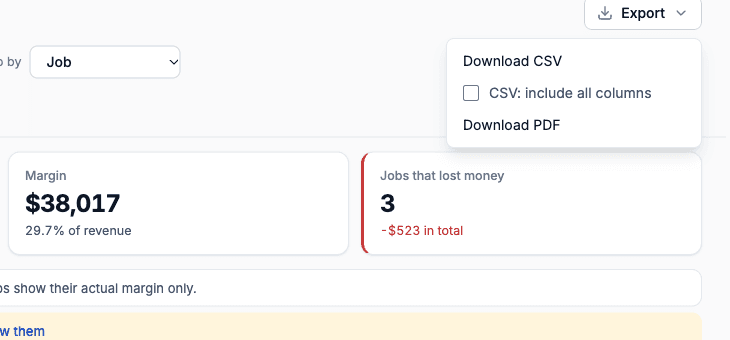
- Download CSV downloads every job in the report, in the table's sort order, with the columns you're showing. Tick CSV: include all columns to get every column. The CSV adds Customer and Suburb columns. Money columns are labelled ex GST
- Download PDF makes an A4 landscape PDF with your business logo and name, the range and filters, the headline figures, the chart and the table. It holds up to 1,000 rows. For more, download the CSV
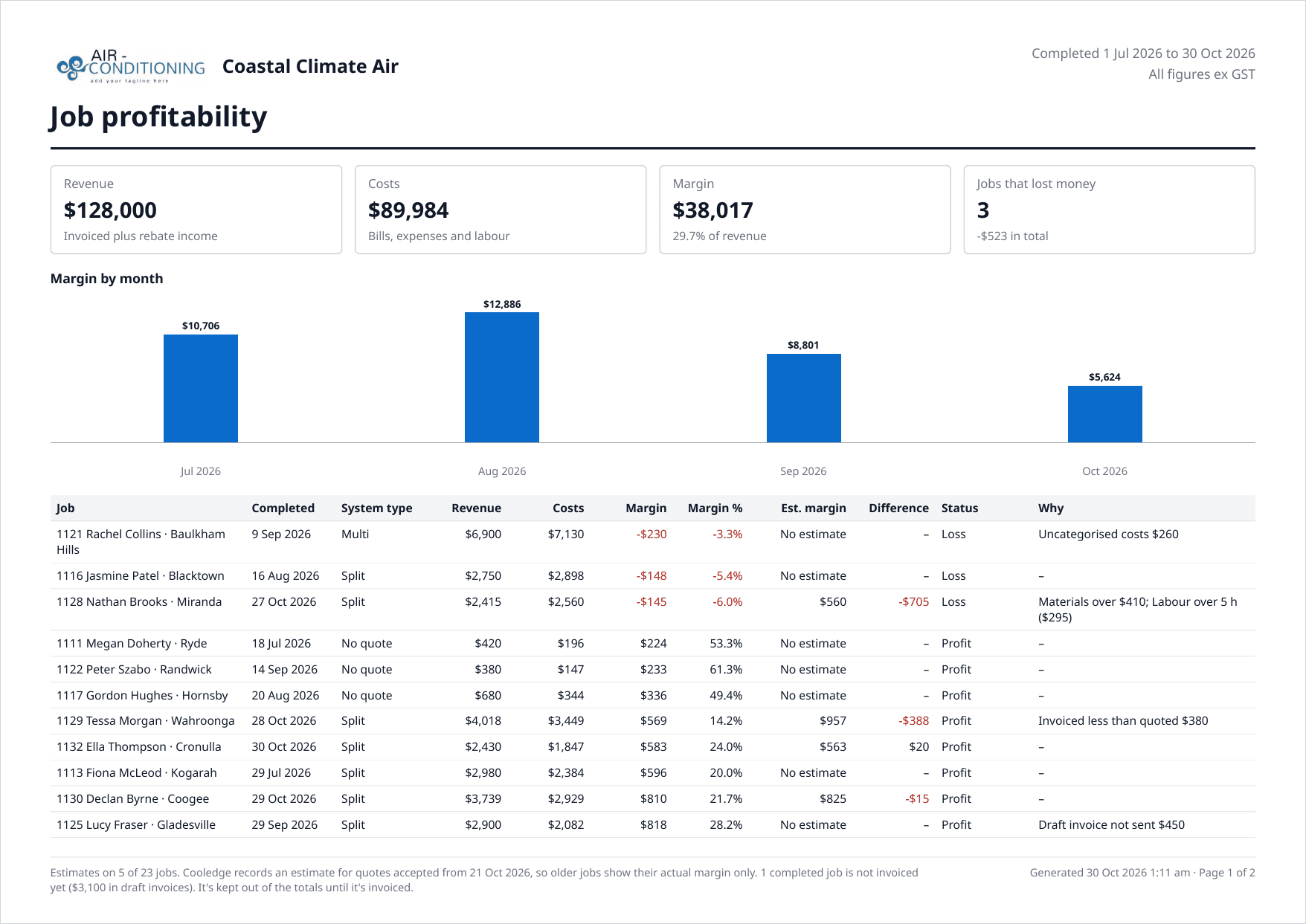
Exports follow the screen: the same range, filters and sort. Export a grouped view and you get the grouped rows. Admins can see every report but can't export them.
Contractors Paid by the Job
If a contractor clocks in on the app but bills you a fixed price, their hours would be counted twice: once as their bill and again as labour. Tick Paid by the job for them under Settings > Manage Team > Labour cost rates and their timesheet hours stop counting as labour, in the report and on every job card. See Paid by the job.
Who Can See It
- Owners see every report and can export
- Admins see every report but can't export
- Members and restricted members don't see reports
Businesses using ServiceM8 mode don't see the job profitability report, because jobs and invoices live in ServiceM8.
Common Questions
Why doesn't Revenue match my invoices total? The report is ex GST. It only counts jobs in the range that have something invoiced. Jobs not invoiced yet are listed but left out of the totals.
Does the report match the job's Profitability card? Yes. Each row uses the same figures as the card on the job's Purchases tab.
Why does a job say No estimate? Its quote was accepted before 21 October 2026, or the job was created without a quote. The job still shows its actual margin.
Why is a technician's revenue smaller than the job's? A job is shared between everyone who logged time on it, by their share of the hours.
How far back can I go? As far as you like, up to 400 days in one range.
Can my admin export the report? Not yet. Only the account owner can export.
Related
- Job Profitability: The Profitability card on each job
- Tracking Expenses: Record bills and expenses against a job
- Mobile App Timesheets: How your team logs time on jobs
Was this article helpful?
Let us know if you found this information useful.
Still need help? Contact support
In this article
Use your browser's search (Ctrl+F) to quickly find specific topics within this article.
Browse all help articles →Related Articles
Job Profitability
Compare what you expected to make on a job when you priced it with what actually happened. Income, costs by category, labour and margin, all ex GST.
Managing Suppliers
Save your supplier directory once. Cooledge uses the order email to send purchase orders. Each supplier's page holds its details, pricebook and discounts.
Purchase Orders
Send purchase orders to your suppliers from any job. Cooledge emails a clean PDF, you reconcile the bill when it arrives.