Managing Suppliers
Save your supplier directory once. Cooledge uses the order email to send purchase orders. Every PO and bill stays linked back.
Managing Suppliers
One tidy supplier list. Every PO and bill picks the right one automatically.
- Save each supplier once with the right order email
- The order email is where Cooledge sends your purchase orders
- Edit details any time. Future POs and bills get the new info
- Archive suppliers you no longer use without losing any history
- Add a supplier from anywhere a supplier picker shows up
Your supplier directory is the list of companies you buy parts from. Reece. Bunnings. Plumbtech. Anyone who sends you a bill. Saving them once means every purchase order, bill or expense you create from then on picks them up automatically.
This article shows you how to add a supplier, edit one, archive one you no longer use. It also explains why setting the order email is the most important field on the form.
What You Need
- An active Cooledge subscription (any plan)
- Portal access as an owner or admin (Settings is locked off for techs)
- Desktop or laptop (supplier settings live in the Cooledge Portal)
What's a Supplier in Cooledge?
A supplier is any company you buy parts or materials from. Wholesalers like Reece or Plumbtech. Big-box stores like Bunnings. Specialty distributors. Anyone who sends you an invoice for goods.
Saving them once in your directory means:
- Every PO you raise picks the supplier from a clean list
- Every supplier bill you log matches against the right account
- Receipts you snap on the mobile app drop against the right supplier in one tap
- Your reports group spend by supplier without you doing any extra work
If you've never logged a supplier before, this is the page you want to start on.
Where to Find It
- Open the Cooledge Portal (desktop)
- In the sidebar, click the gear icon to open Settings
- Click Suppliers (or go straight to /settings/suppliers)
You'll see a table of every supplier saved against your business.
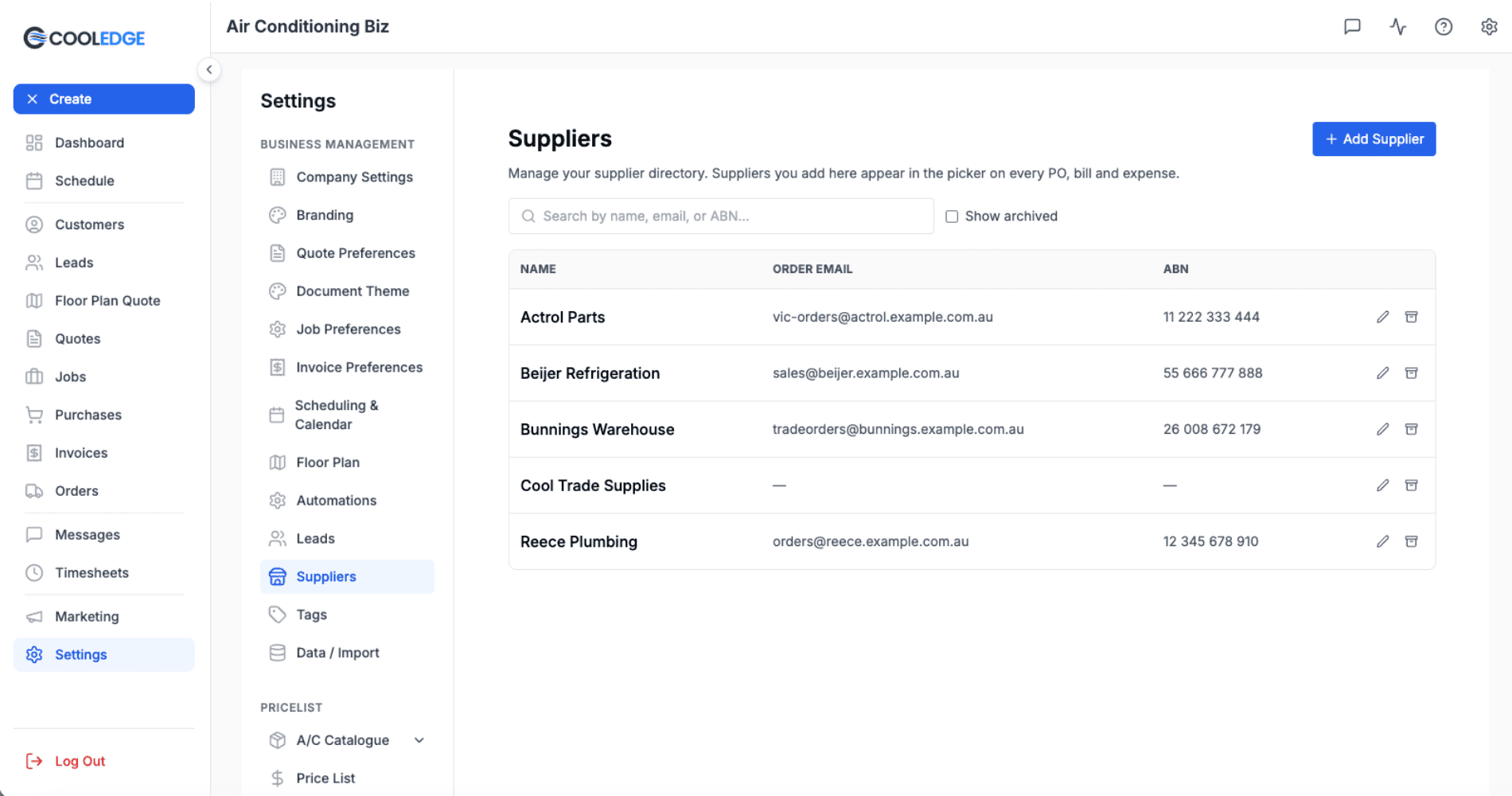
Adding a Supplier
- On the Suppliers page, click Add Supplier in the top right
- Fill in the form
- Click Save
The new supplier is now available everywhere a supplier picker shows up. POs, bills, expenses.
Fields on the form
- Name (required). The trading name you'd recognise on a receipt
- Order email. The address Cooledge sends purchase orders to. See the next section for why this one matters
- Accounts email. The address you'd use for invoices or account queries. Optional
- Phone. Optional
- ABN. Optional but handy if you reconcile against bills
- Address line 1 / 2 / Suburb / State / Postcode. The supplier's street address
- Payment terms (days). e.g. 30 if you've got a 30-day account
- Default account code. Your bookkeeping code for this supplier
- Notes. Anything else you want to keep on file
Why the Order Email Matters
The order email is the address Cooledge sends purchase orders to when you hit Send on a PO. If it's blank, the PO can't go anywhere.
Here's what happens if you save a PO against a supplier with no order email set:
- The PO saves fine. Your records stay in order
- A yellow banner appears at the top of the PO. It says "This supplier has no order email yet"
- The Send to supplier button stays greyed out. Hover over it and you'll see the reason: "Supplier has no order email"
- The banner has a link to Open supplier settings so you can fix it in one click
Once you add the order email and save, come back to the PO. The Send button lights up.
Tip: Most trade suppliers have a dedicated orders inbox (orders@, sales@, etc). Ask your rep which address they want POs sent to. Use that. Not the rep's personal email.
For everything else POs can do, read Purchase Orders.
Adding a supplier from a PO
You don't always have to start from settings. If you're raising a Purchase Order and the supplier isn't in your list yet, click the supplier picker. Scroll to the bottom of the dropdown. Click + New supplier... to open the same form. Save it. The new supplier auto-selects on your PO.
This is the fastest way to add a supplier you've just started using.
Editing a Supplier
Click any row in the Suppliers table to open the edit form. Change whatever you need. Hit Save.
Changes flow through to every new PO or bill you create from then on. Existing POs and bills keep the supplier details they were saved with at the time. So renaming "Reece" to "Reece Plumbing" won't rewrite the name on a PO you sent last month.
If you want to use one of the built-in curated suppliers (the well-known trade names Cooledge ships with) for purchase orders, save your own copy in the Suppliers table with the right order email. See the Curated Suppliers section below for the full story.
Archiving a Supplier
If a supplier closes down or you stop buying from them, archive them.
- On the Suppliers page, find the row
- Click the archive icon on the right
- Confirm
The supplier:
- Stops showing up in pickers. No more accidentally picking a supplier you don't use any more
- Disappears from the Suppliers table in settings
- Keeps every historic PO, bill or expense intact. The supplier name and details on those old records don't change
Archiving is the only "remove" option. It's deliberate. Trying to fully delete a supplier could break links to old POs or bills you still need for tax. Archiving keeps the paper trail safe while cleaning up your day-to-day pickers.
Bringing a supplier back
Tick the Show archived checkbox above the Suppliers table. Archived rows appear greyed out with an "Archived" badge next to the name. Click the Unarchive button on the row to restore it. Once restored, the supplier shows up in pickers again and on every new PO or bill you create.
Duplicate Names
Cooledge doesn't block you from creating two suppliers with the same name. Be careful. If you've already got a "Reece" in the list and you add another, both will show in the picker with no way to tell them apart visually.
Before adding a new supplier, type the name into the search box at the top of the Suppliers page. If it's already there, edit the existing row instead of creating a second one.
The search box also matches on order email or ABN. So if you can't remember the trading name but you've got the ABN handy, paste that in.
Curated Suppliers
Cooledge ships with a small list of well-known trade suppliers already populated in the background. You won't see them on the Settings → Suppliers page (that page is just for the suppliers you manage), but they do show up in the supplier picker when you're raising a PO, bill or expense, sitting underneath your own suppliers.
Curated suppliers:
- Can't be edited or archived. They're shared across all Cooledge businesses
- Are handy for logging expenses quickly (e.g. a Bunnings cash sale you just want to record against a job)
- Aren't set up to receive purchase orders by default. If you want to send POs to a curated supplier, add your own copy in Settings → Suppliers with the correct order email, then use your version on POs
If you've got a trade account with a curated supplier and want to send POs, the cleanest path is to add your own copy of the supplier with the correct order email. Use your version on POs. Keep using the curated one for ad-hoc expense receipts if you like.
Common Questions
Can techs add or edit suppliers? No. The Suppliers settings page is owner and admin only. Techs can pick a supplier from the picker when raising an expense, but they can't change the directory itself.
Can I share suppliers between branches? Each business has its own supplier directory. The curated list (the background list that powers the picker) is shared across all Cooledge businesses. Your own suppliers stay private to your business.
Can I import a CSV of suppliers? Not yet. Add suppliers one at a time through the New Supplier form. CSV import is on the wishlist. If you've got a long list to migrate, email support and we can help.
What happens to my historic POs if I rename a supplier? Existing POs and bills keep the original supplier name on the saved record. The rename only affects new POs and bills you create after the change. Same goes for any other field you edit.
Does Cooledge auto-create a supplier the first time I type a name on an expense? No. You always pick a supplier from the picker. If the supplier isn't there yet, use the + New supplier... option at the bottom of the picker. That opens the same form you'd use from settings, then auto-selects the new supplier on your expense.
I picked a curated supplier on a PO but it has no order email. What do I do? Curated suppliers are read-only because they're shared across all Cooledge businesses. The fix is to add your own version of that supplier in Settings → Suppliers (e.g. "Reece (my account)") with the correct order email, then pick your version on the PO.
What's the difference between order email and accounts email? Order email is for purchase orders going out. Accounts email is the address you'd use for invoice queries or account statements. Cooledge only emails POs to the order email.
Do I need to fill in every field? No. Only the supplier name is required. Everything else is optional. That said, order email is the one to prioritise if you ever want to send a PO through Cooledge to that supplier.
Can I attach my account number with the supplier? Use the Default account code field for your internal bookkeeping reference. ABN sits in its own field too. Trade-account numbers issued by the supplier can go in Notes if you want them handy on the supplier record.
Related Articles
- Purchase Orders: Create, send or receive a PO
- Supplier Bills & Credit Notes: Match bills to POs and reconcile credits
- Tracking Expenses: Log receipts on the go from the mobile app
Need help with suppliers? Email us at support@cooledge.com.au
Was this article helpful?
Let us know if you found this information useful.
Still need help? Contact support
In this article
Use your browser's search (Ctrl+F) to quickly find specific topics within this article.
Browse all help articles →Related Articles
Job Profitability
See revenue, costs and margin live on every job. As you add expenses and supplier bills, the numbers update automatically.
Purchase Orders
Send purchase orders to your suppliers from any job. Cooledge emails a clean PDF, you reconcile the bill when it arrives.
Supplier Bills and Credit Notes
Record supplier bills when they arrive, log credit notes for returns and refunds. Everything ties back to the job.