Supplier Bills and Credit Notes
Record supplier bills when they arrive, log credit notes for returns and refunds. Everything ties back to the job.
Supplier Bills and Credit Notes
Every cost from your suppliers, on the right job, with nothing missed.
- Convert a sent PO to a bill in one click. Line items, totals and supplier carry across
- Record a bill straight onto a job from the Purchases tab. Or keep it general for overheads
- Log credit notes when you return parts or get a refund. They net off what you spent
- Attach the supplier's invoice (PDF or photo) so the paperwork lives with the bill
- All bills and credit notes feed Job Profitability automatically
A supplier bill is the invoice your supplier sends you after they deliver the parts. Recording it in Cooledge means the cost shows up on Job Profitability and nothing falls through the cracks. A credit note is the other side of the coin. When you send parts back or your supplier credits you for damaged stock, log the credit note and it reduces what you owe them (or what they owe you).
This guide covers both, end to end. Bills and credit notes are managed from the Cooledge Portal (desktop).
What's a Supplier Bill
When your supplier sends you their invoice for parts they delivered, that's a bill. You record it in Cooledge so:
- The cost lands on the right job and shows up on Job Profitability
- You have a single place to see what you owe each supplier
- The paperwork (their PDF or a photo of the docket) stays attached to the record
A bill always belongs to a supplier. You can attach it to a job (so the cost lands on that job's profitability) or leave it general for overheads like workshop consumables.
What's a Credit Note
When you return something or your supplier credits you for damaged parts, that's a credit note. Logged against the supplier, it reduces the net spent with them. If you tie the credit note to a specific bill, you've got a clean paper trail showing exactly what got reversed.
Use a credit note for:
- Returned parts
- Refunds for damaged or wrong stock
- Partial credits (e.g. the supplier knocks 10 percent off because the order arrived late)
Three Ways to Record a Bill
Option 1: Convert a PO to a Bill
If you already raised a Purchase Order with this supplier, converting it to a bill is the fastest path.
- From the Purchases hub (or the job's Purchases tab) click + New Bill
- The new bill form opens with a Convert from PO list at the top: every PO sitting in draft, sent or partial status for that job (or supplier)
- Click the PO that matches the supplier's invoice
- The supplier, line items and totals all carry across to a new draft bill. The PO status flips to Received at the same time
- Adjust anything that's different on the actual invoice (sometimes prices shift between order and delivery)
- Enter the supplier's invoice number and bill date
- Save
Cooledge only offers Convert from PO for POs that are still active (draft, sent or partial). POs already converted (Received) or pulled (Cancelled) won't appear in the list.
If you click Convert from PO twice on the same PO, Cooledge returns the existing bill rather than creating a duplicate. Safe to retry on a flaky network.
Option 2: From a Job
If there's no PO and you want the bill to land on a specific job:
- Open the job
- Click the Purchases tab
- Find the Bills section and click + New Bill
- Fill in the bill (see the next section)
- Save
The bill is attached to that job automatically, so it shows up on Job Profitability.
Option 3: From the Purchases Hub
For bills that aren't tied to a job (overheads), or when you just want a single place to enter a batch of bills at end of week:
- Go to Purchases in the sidebar
- Click + New then Supplier Bill
- Cooledge asks whether to attach to a job or leave it general
- Fill in the bill and save
Filling in a Bill
Every bill has the same fields no matter where you create it from.
Supplier (required) Pick the supplier from your supplier list. The bill won't save without one.
Status Draft, Approved, Paid or Void. See the next section.
Supplier invoice # The number on the supplier's invoice. Free-text. Useful when you're chasing a query later.
Bill date Defaults to today. Set it to the date on the supplier's invoice.
Due date Optional. When the bill is payable by.
Description A short line to help you find the bill later (e.g. "March stock run") .
Notes Anything extra you want to keep with the bill.
Lines One line per item or charge. Each line has:
- Description
- Quantity
- Unit price
- Tax rate
Cooledge totals everything for you.
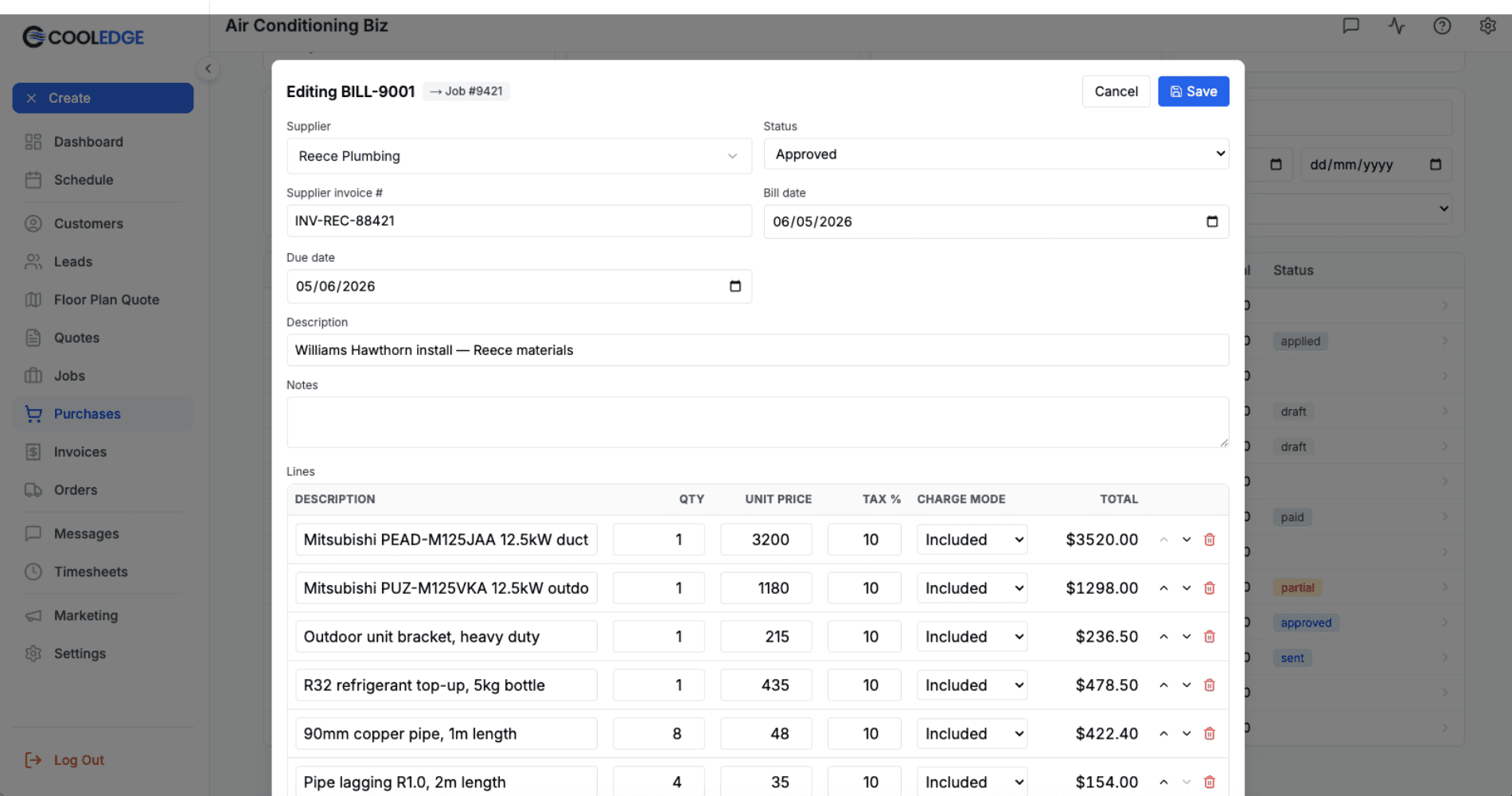
Tip: If you converted from a PO and the supplier's invoice total doesn't match, just edit the lines. The bill is what counts for job costing once it's saved.
Status of a Bill
Four statuses cover the life of a bill in Cooledge:
Draft Work in progress. Doesn't count towards Job Profitability yet. Use this when you're typing the bill in but haven't checked it against the supplier's invoice.
Approved You've checked the bill. It's correct. The cost now counts on Job Profitability.
Paid You've paid it. Still counts on Job Profitability (the cost happened either way).
Void Cancelled. Doesn't count anywhere. Use this for bills entered in error.
Only Approved and Paid bills feed into the job's recorded cost. Draft and Void are excluded.
Recording a Credit Note
Credit notes work almost identically to bills. The big difference is they reduce what you spent rather than add to it.
From the Purchases Hub
- Go to Purchases in the sidebar
- Click + New then Credit Note
- Choose whether to attach to a job or leave it general
- Fill in the credit note
- Save
From a Job
- Open the job and click the Purchases tab
- Find the Credit Notes section and click + New Credit Note
- Fill it in and save
Fields on a Credit Note
Supplier (required) The supplier who issued the credit.
Against bill Optional. Pick a specific bill this credit relates to. The dropdown filters to bills from the chosen supplier so you don't link the wrong one.
Supplier reference The reference number from the supplier's credit note.
Credit date Defaults to today. Set it to the date on the supplier's credit note.
Description and Notes Same as on a bill.
Lines One line per item credited. Description, qty, unit price, tax rate. Cooledge totals it up.
How Credit Notes Net Off
The total on a credit note is treated as money coming back to you. It reduces the net amount spent with that supplier. If you've attached the credit note to a job, the credit also reduces that job's recorded cost on Job Profitability.
A credit note has three statuses:
Draft Typed in but not yet final. Doesn't count.
Applied The credit is in force. It nets off the bills with that supplier and reduces the cost on the linked job (if there is one). Only Applied credit notes count against Job Profitability.
Void Cancelled. Doesn't count.
Example. You buy $1,000 of stock on a bill (Approved). Two items come back damaged and the supplier issues a $150 credit note (Applied, linked to that bill). The job sees $850 of cost from this supplier, not $1,000.
Attaching to a Job vs General
Every bill and credit note has the same choice:
- Attached to a job. The cost (or credit) lands on that job's Job Profitability. Use this any time the spend relates to a specific job.
- General. No job. Use this for overheads. Workshop consumables, office supplies, generic stock you'll allocate later.
You make the choice when you create the record. From a job, it's automatic. From the hub, Cooledge asks.
Attaching the Supplier's Paperwork
Once a bill is saved (it has to exist before you can attach anything to it), an upload area appears at the bottom of the editor.
- Drop in the supplier's PDF invoice or a photo of the docket
- Accepted formats: images (JPG, PNG, HEIC, etc.) and PDF
- The file stays with the bill for as long as the bill exists
This is how you keep the actual paperwork tied to the record. Great for tax time and great for when a customer queries a cost six months later.
Currency
All bills and credit notes are in AUD. Multi-currency is on the roadmap.
Where Bills and Credit Notes Live
Two places, depending on what you're looking at:
The Purchases hub (Purchases in the sidebar) Every bill, every credit note, every PO and every expense across the business. Filter by type, supplier, date, status or job. This is the place for week-end reviews and supplier reconciliation.
The Purchases tab on a job Just the records for that one job. Bills, credit notes, POs and expenses in one place, plus the Job Profitability widget at the top showing how it all adds up. Open it from the job page.
Common Questions
Do I have to convert from a PO or can I just type in a bill? Either works. If you raised a PO, converting saves you re-typing the lines. If you didn't (some small jobs don't need one), just hit + New Bill and fill it in fresh.
What if the bill total doesn't match the PO? Edit the lines on the bill. The bill is what counts once it's saved. Prices shifting between order and delivery is normal. The bill is the source of truth, not the PO.
Can I attach the supplier's invoice PDF? Yes. Once you've saved the bill, an upload area appears at the bottom. Drop in the PDF or a photo of the docket.
Can I split one bill across multiple jobs? Not in this release. Today a bill attaches to one job (or none). Splitting a single bill across multiple jobs is coming in a future release. For now, either record one bill per job or attach it to the main job and split costs manually on Job Profitability.
Does Cooledge push bills to Xero or QuickBooks? Yes. If you have Xero or QuickBooks Online connected, a bill syncs automatically as soon as you move it from draft to approved, and a credit note syncs when you apply it. There is no button to press. Both are coded to the account you choose in Settings → Integrations. Once a bill has synced its amounts, supplier and dates are locked in Cooledge, so edit it in your accounting software or add a credit note. See Accounting Sync for the full picture.
Can I delete a bill I entered by mistake? Yes. Open the bill and change its status to Void. That removes it from Job Profitability without losing the record.
What about a credit note that ended up tied to the wrong bill? Open the credit note and change the Against bill dropdown. Save. Job Profitability updates next time you open the job.
Who can record bills and credit notes? Owners, admins and standard members. Restricted members (the role used for sub-contractors who shouldn't see costs) get a read-only view. They can see that bills exist but can't add or edit them.
Related Articles:
- Purchase Orders: Raise POs and send them to suppliers
- Tracking Expenses: Quick receipts, fuel, parking and small spend
- Job Profitability: See what you really made on every job
- Managing Suppliers: Set up and maintain your supplier list
Need help with bills or credit notes? Email us at support@cooledge.com.au
Was this article helpful?
Let us know if you found this information useful.
Still need help? Contact support
In this article
Use your browser's search (Ctrl+F) to quickly find specific topics within this article.
Browse all help articles →Related Articles
Job Profitability
See revenue, costs and margin live on every job. As you add expenses and supplier bills, the numbers update automatically.
Managing Suppliers
Save your supplier directory once. Cooledge uses the order email to send purchase orders. Every PO and bill stays linked back.
Purchase Orders
Send purchase orders to your suppliers from any job. Cooledge emails a clean PDF, you reconcile the bill when it arrives.