Send Later and Undo Send
Schedule an email or text to go at a time you pick, take a message back within 6 seconds and choose what the send button in Messages does
Send Later and Undo Send
Send it now, send it later or take it back.
- The send button in Messages is a split button with four options
- Send and archive files the conversation as you reply. It reopens when they reply
- Send later… sends an email or text at a time you pick, up to a year ahead
- Undo send holds a message for 6 seconds after you press send, so you can catch a mistake
- Send later and undo send are on every plan, on the portal and in the app
Write a reply at 9:00 pm and have it land at 8:00 am. Notice the wrong price a second after you press send and pull it back. Both live on the send button in Messages.
The Send Button
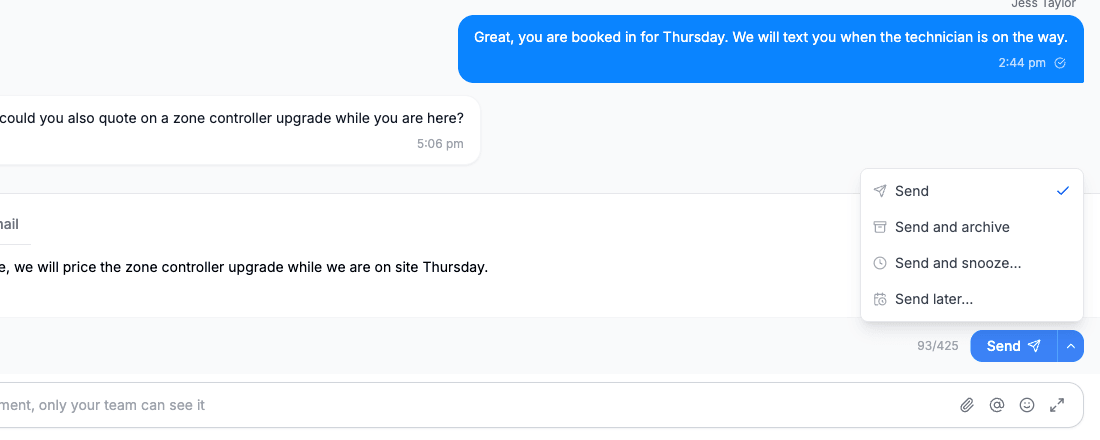
The send button in Messages has two parts. The main part sends using your default. The small arrow beside it opens the other options.
| Option | What it does | Plans |
|---|---|---|
| Send | Sends the message without moving the conversation. A reply sent from Archived, Snoozed or Trash leaves it there | Every plan |
| Send and archive | Sends, then archives the conversation. It reopens when they reply | Every plan |
| Send and snooze… | Sends, then snoozes the conversation until a time you pick, so you can follow up if there is no reply | Growth and Scale |
| Send later… | Sends at the time you pick | Every plan |
Your default
Everyone starts with Send and archive as the default. The first time it archives a conversation for you, a note explains: Sent and archived. This conversation will reopen when they reply.
The button remembers your choice. Pick Send or Send and archive from the menu and that becomes what the main button does next time. Send and snooze… and Send later… are one-off choices and never become the default.
You can also set it directly:
- On the portal: Settings → My Profile, then the Messages tab, under Send button
- In the app: More, then Messages under App Settings (the row that reads Your send button and archive settings)
The default is yours alone. It does not change what your teammates' send buttons do.
Send and Snooze
Send and snooze… is for a message you expect an answer to. Pick a time from the same list Snooze uses: Later today, Tomorrow, Monday, In 3 hours or Custom…. The message goes now and the conversation leaves Open.
- If the customer replies, the conversation reopens straight away
- If they do not, it comes back at about the time you picked so you can chase it
See Snooze, Archive and Trash for how snooze times work.
Send Later
Send later works for both email and SMS, in the Messages composer on the portal and in the app.
Scheduling a message
- Write your email or text in Messages as normal, with any attachments
- Open the menu on the send button and choose Send later…
- Under Send at, pick Later today, Tomorrow, Monday or In 3 hours. Picking one schedules the message at once and you see a confirmation such as Scheduled for Tomorrow 8:00 am
- Or pick Custom…, choose a date and time, then confirm with Schedule
The time can be anything from now up to one year ahead. Go further and you are told Pick a time within the next year. Times are in your device's local time.
The Send later card
A scheduled message shows as a Send later card at the end of the conversation.
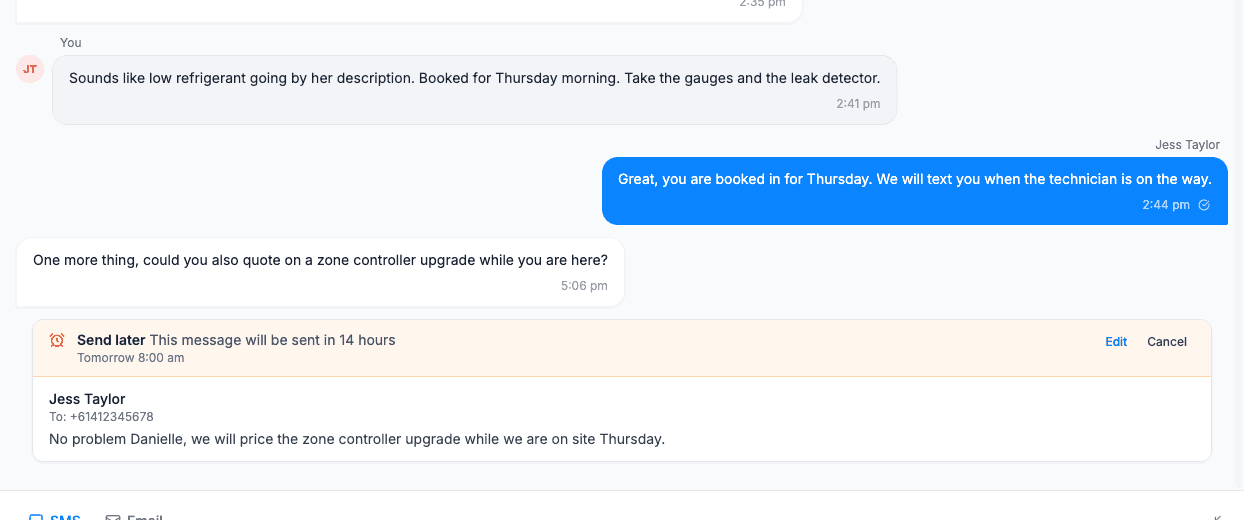
The card shows:
- How long until it goes, for example This message will be sent in 4 hours
- The exact time
- Who scheduled it
- Who it is going to
- A preview of the message and a count of any files
Everyone who can see the conversation can see the card, so your teammates know a reply is already on its way.
There is no separate list of scheduled messages. Each one lives in its own conversation. To find a scheduled message, open that customer's conversation and scroll to the end.
Editing and cancelling
| Action | Who can do it |
|---|---|
| Edit | Only the person who scheduled it |
| Cancel | The person who scheduled it, an owner or an admin |
Edit opens the message back in the composer, under a strip that reads Editing a message scheduled for and the time. Change the wording and click Save. The menu on the button also offers Change time… and Send now. You cannot change who the message is going to. To send it to someone else, cancel it and write a new one.
Cancel asks Cancel this scheduled message? with the note It will not be sent. Choose Cancel message to go ahead or Keep it to leave it scheduled.
What to know before you rely on it
A scheduled message is not cancelled when the customer replies first. If you schedule "Just checking you got the quote" for Friday and the customer accepts on Thursday, the Friday message still goes. Cancel it yourself from the card.
- Messages only. Send later is in the Messages composer. It is not on the send screens for quotes, invoices, purchase orders or job forms
- Allow about a minute. Scheduled messages are checked every minute, so one set for 8:00 am goes at 8:00 am or shortly after
- Up to a year ahead. No further
- Nothing repeats. Each scheduled message sends once
- Internal comments cannot be scheduled. Send later is for messages to the customer
- No archive or snooze afterwards. A scheduled message simply sends. The conversation stays where it was
- It sends as you. The message goes under the name of the person who scheduled it
- The normal sending rules apply at the time it goes, not at the time you scheduled it. That covers your subscription, your SMS credits and whether the customer has opted out of SMS
If a scheduled message does not send
If Cooledge cannot complete the send at the scheduled time, the person who scheduled it is sent a push notification on their phone titled Scheduled message not sent. What you see in the conversation depends on how it failed.
A red Not sent card. Some failures turn the card red. It reads Not sent with the reason beside it. The card stays in the conversation for 7 days.
- If the reason says the send was interrupted, check the conversation before you try again. The message may already have gone
- Otherwise the person who scheduled it can Edit it to fix the problem and try again
- That person, an owner or an admin can Remove the card, which deletes its words and files
It was sent and then rejected, for example by the phone network. There is no card. It shows in the conversation as an ordinary message with a Failed or Bounced status. Open Delivery details for the reason, when one was recorded. If the failure is only reported later, after the message had been accepted for delivery, no push notification is sent.
Common reasons a scheduled message does not send:
- There are no SMS credits left when it was due and SMS overage is switched off
- The customer opted out of SMS after you scheduled it
- The person who scheduled it has left the team or lost access. The message fails. It is not sent under someone else's name
Undo Send
When you press the send button in Messages, undo send holds your email or text for 6 seconds before it really goes. It is on by default for everyone, on every plan.
After you send, a dark pill appears at the bottom left of the portal reading Sending… with an Undo button. In the app the same thing appears as an Undo bar.
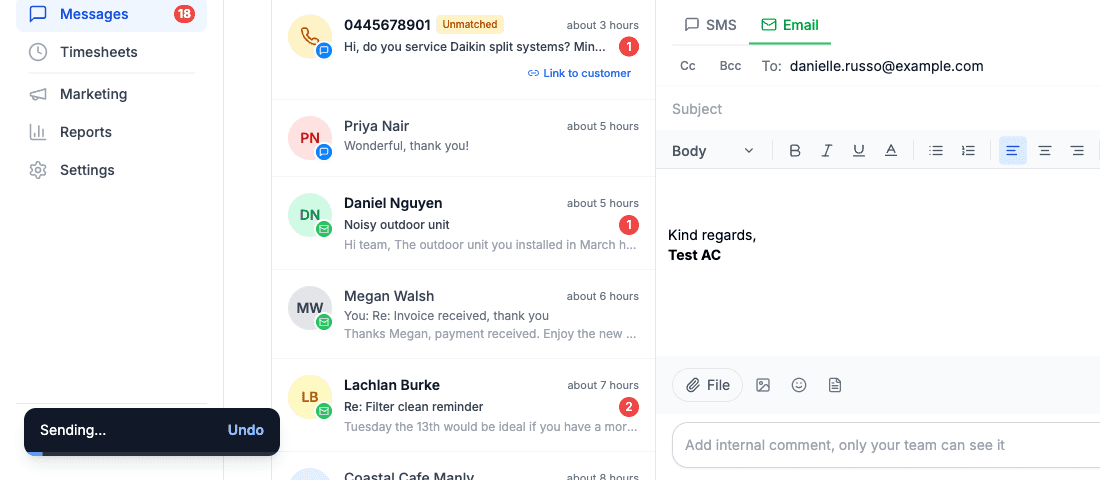
- Click Undo within 6 seconds, with the composer empty, and the send is stopped. You see Send undone. Your message is back in the composer. and can fix it and send again
- Started typing something else? Clear it first. Otherwise you see Clear the composer to take the message back. and the original message still sends
- Leave it and the message is sent after 6 seconds
- Too slow? You see Too late to undo. It has been sent.
Undo send covers Send, Send and archive and Send and snooze…. The archive or snooze only happens once the message has really gone, so undoing leaves the conversation where it was. Send later… is not held, because you can cancel a scheduled message from its card at any time before it goes.
Two sends go immediately with no Undo: Resend on an email and Send now on a scheduled message.
Undo only works before the message leaves. Once the 6 seconds are up, the email or text is on its way and cannot be recalled from the customer's inbox or phone.
When the 6 seconds are cut short
On both the portal and the app, starting another send or leaving the conversation sends a held message immediately. Stay in the conversation if you might want to undo.
Turning undo send off
If you would rather messages went the instant you press send:
- On the portal: open Settings → My Profile, then the Messages tab. In the app: open More, then Messages under App Settings (the row that reads Your send button and archive settings)
- Find the Undo send card
- Switch off Give me 6 seconds to undo a send
It only affects you. Your teammates keep their own setting.
FAQ
My message says Sending… and has not gone. That is undo send holding it for 6 seconds. It goes by itself. If you never want the wait, turn undo send off.
Can I see everything I have scheduled in one place? No. Each scheduled message sits in its own conversation as a Send later card.
The customer replied before my scheduled message went. Was it cancelled? No. Open the conversation and Cancel it yourself if it no longer makes sense.
Can I schedule a quote or an invoice to send later? No. Send later is in Messages only. Quotes, invoices, purchase orders and job forms send straight away from their send screen.
Can I schedule a message to repeat every week? No. A scheduled message sends once.
I can see a teammate's scheduled message but there is no Edit button. Only the person who scheduled it can edit it. Owners and admins can cancel it.
My scheduled text went a little after the time I set. Scheduled messages are checked every minute. Allow about a minute.
Does Send later use an SMS credit when I schedule it? Credits are checked when the message sends. If you have none left and SMS overage is off, the card shows Not sent. With overage on, it sends and the extra credits are billed.
I can't see Send and snooze…. It is on Growth and Scale plans. Send, Send and archive and Send later… are on every plan.
Can I use a template in a scheduled message? Yes. Write the message as you normally would, with a template if you like, then choose Send later….
Related: Team Inbox · Snooze, Archive and Trash · Unified Inbox · Two-Way Text Messaging
Need a hand? Email us at support@cooledge.com.au
Was this article helpful?
Let us know if you found this information useful.
Still need help? Contact support
In this article
Use your browser's search (Ctrl+F) to quickly find specific topics within this article.
Browse all help articles →Related Articles
Booking Reminders
Automated SMS and email reminders that fire before every scheduled visit. Filter by staff, category, or visit type, with quiet hours and custom templates.
Call Forwarding and Voicemail
Forward calls from your business number to a mobile or landline, set business hours and record your voicemail greeting
Call History
See every call to your business number, who called, what happened and any voicemail they left