Quote Photos and Plans
Where photos live on each quote type, how to draw a plan from a blank canvas or over a photo, and how both print on the quote PDF
Quote Photos and Plans
A plan is a photo you have flagged to print big.
- Start one from a blank canvas, or switch Plan on over a photo already in the Other / Plan category
- Plans print full width on the quote PDF, under their own Plan heading
- Ordinary photos print two to a row, with the disclaimer once under the pair rather than under every image
- Both the portal and the mobile app can do all of it, with one exception noted below
Where Photos Live
Every quote type stores photos in categories. The portal and the mobile app name them slightly differently, which is worth knowing before you go looking for a button that is not there. The portal label comes first, the app's is in brackets.
| Quote type | Categories |
|---|---|
| Split | Indoor (Indoor Pictures), Outdoor (Outdoor Pictures), Other / Plan (Other Pictures / Plans) |
| Ducted | Outdoor (Outdoor Pictures), Other / Plan (Other Pictures / Plans) |
| Multi | Outdoor (Outdoor Pictures), Other / Plan (Other Pictures / Plans), plus per-area indoor photos |
| Install only | Indoor (Indoor Pictures), Outdoor (Outdoor Pictures), Other / Plan (Other Pictures / Plans) |
| VRV | Report - Internal use only |
| Kits & Items, plumbing, electrical | One list, headed Images on the portal and Pictures / Plans in the app. Ten per option |
| Repair (leak and parts) | Quote - Photo or diagram and Report - Internal use, in the mobile app only |
Two things that catch people out:
- A multi system has no indoor category on the option itself. Indoor photos belong to an area. Open the indoor unit areas modal and use Add Photo on the area you are documenting.
- A repair quote has no photo section in the portal at all. Add repair photos on the phone.
Drawing a Plan
A plan is the same photo editor you already use for unit overlays, saved with one extra flag. There are two ways in.
Start from a blank canvas
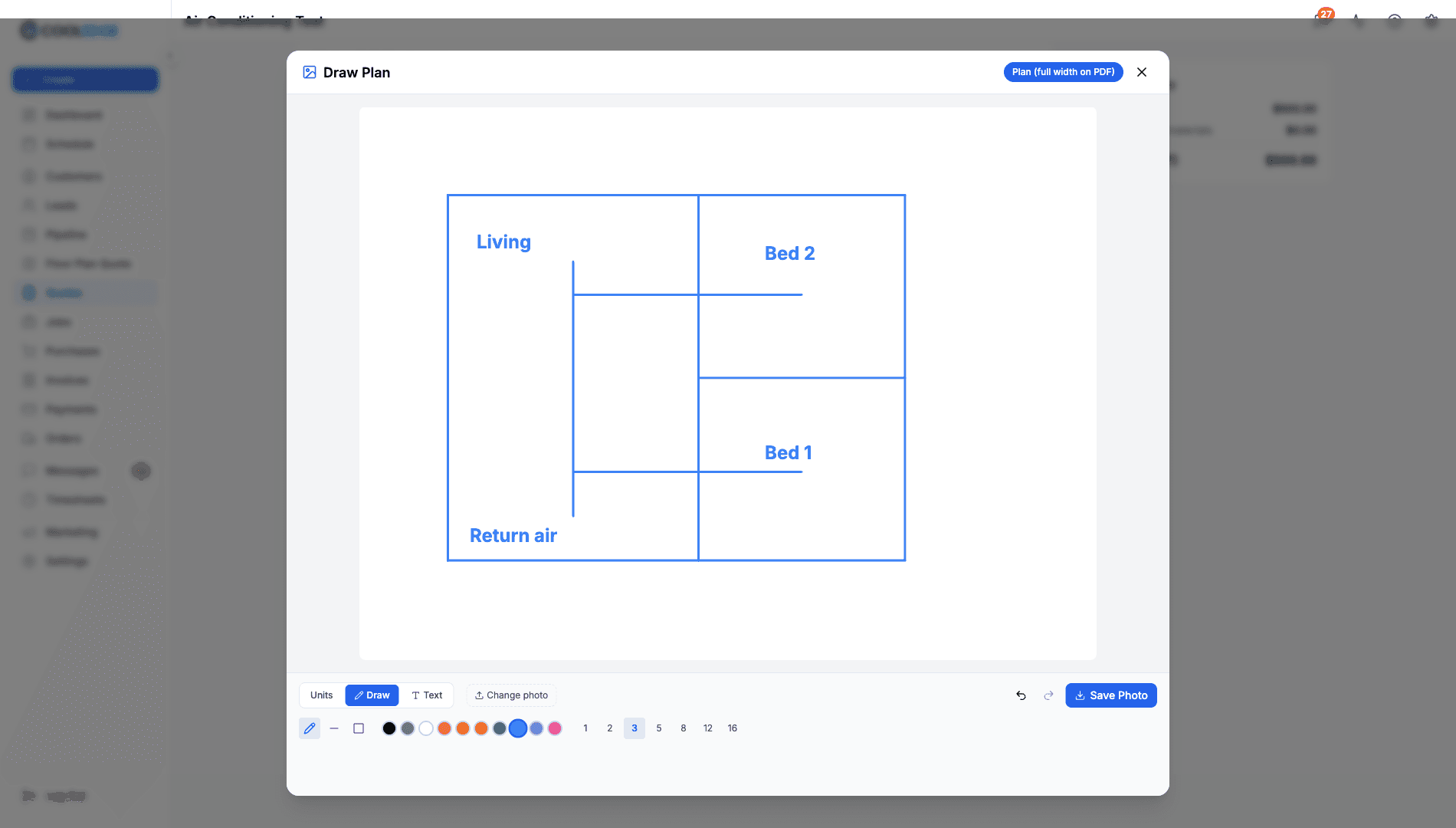
On the portal, click Draw plan next to the Add Photo buttons. The editor opens on a white page titled Draw Plan, with the Plan (full width on PDF) chip already switched on.
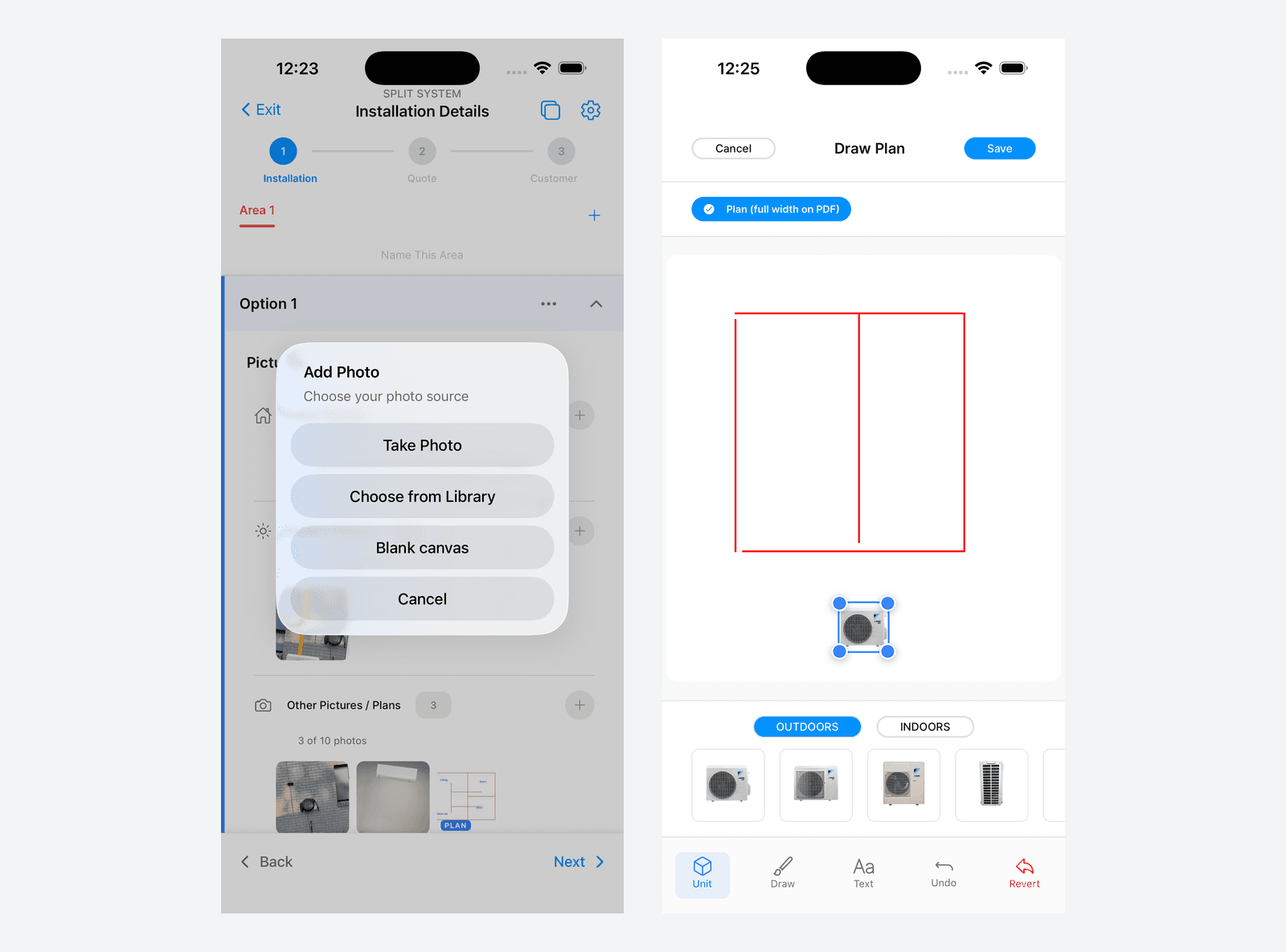
In the mobile app, tap to add a photo and choose Blank canvas from the source list, alongside Take Photo and Choose from Library. The editor opens the same way, titled Draw Plan with the chip on.
Draw over a photo you already have
Open the photo, draw on it, and switch the Plan (full width on PDF) chip on before you save.
The chip only appears on the Other / Plan category. An indoor or outdoor photo cannot be flagged as a plan, and there is no way to move a photo between categories after the fact, so take the shot into Other / Plan to begin with. If one is already in the wrong place, delete it and add it again under Other / Plan.
One difference on Kits & Items, plumbing and electrical quotes. In the portal, clicking an ordinary image there opens it full size rather than in the editor, so an image you have already uploaded cannot be flipped to a plan. Use Draw plan, or do it on the phone, where tapping any picture opens the editor.
What you can draw with
The editor has the same three modes in both apps:
- Units: drag indoor and outdoor unit images onto the picture and position them. Offered only where the quote type has unit artwork, so a Kits & Items or repair quote opens straight on Draw
- Draw: free draw, straight lines and rectangles, in a choice of colours and line widths
- Text: type labels onto the image
A plan starts blank, so all three still apply. Sketch the run, drop the units where they are going and label the rooms.
Spotting a Plan Afterwards
A photo saved as a plan carries a blue PLAN badge in the corner of its thumbnail, in both apps. Everything else in the category looks unchanged.
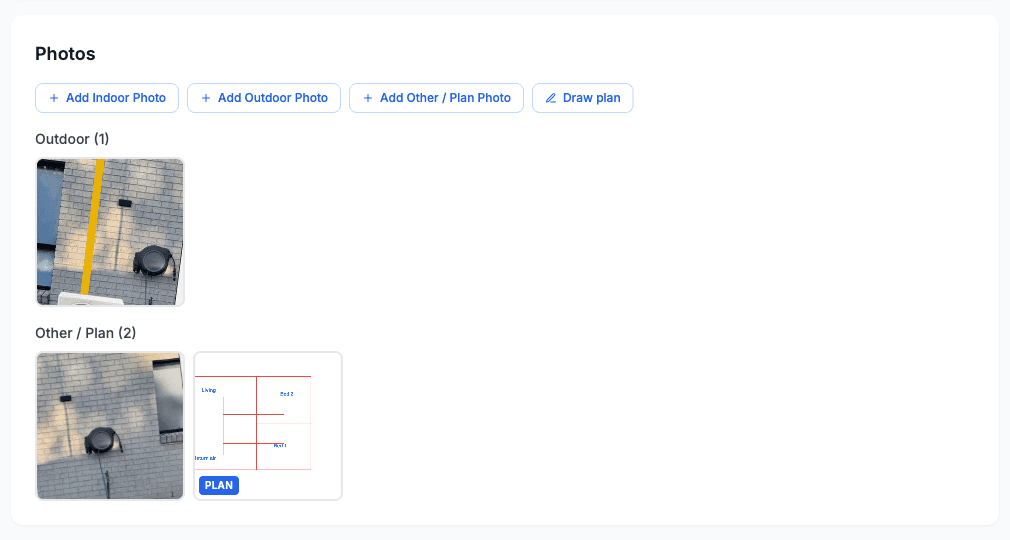
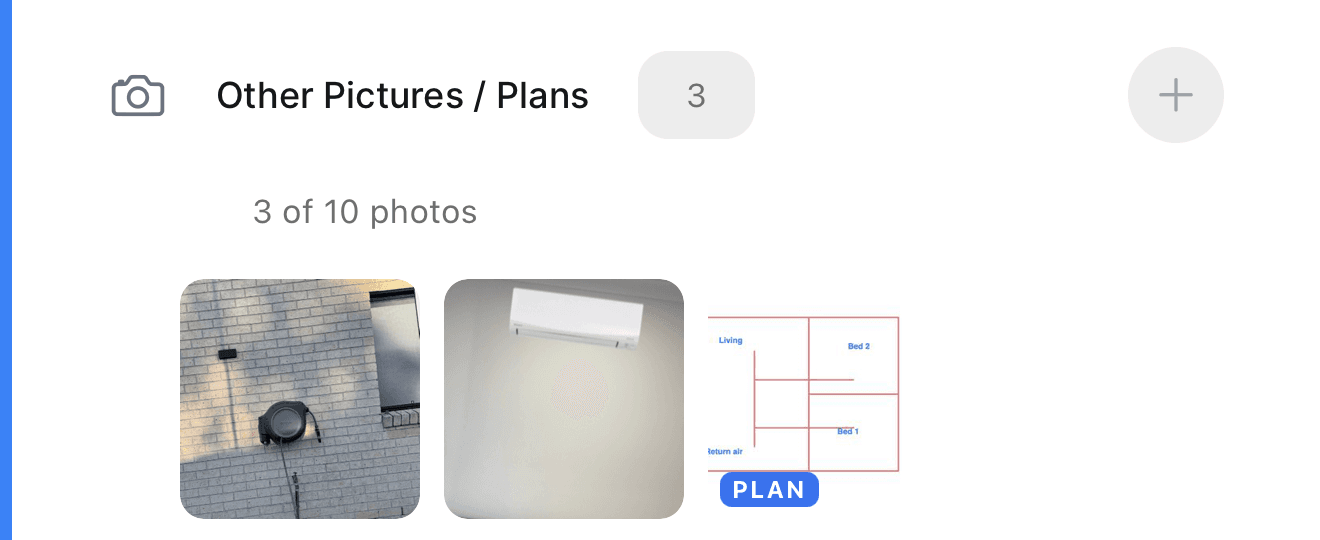
Switching the chip back off removes the badge, and the photo goes back to printing in the ordinary two-up block. Nothing is lost either way, the drawing you did is baked into the image itself.
How They Print
Ordinary photos print two to a row. Under each block sits the line "Drawings are indicative only. Your business name reserves the right to optimise equipment positioning upon installation." once, rather than repeated under every image.
Plans print full width, one per row, under a heading that reads Plan, with the same disclaimer once at the end.
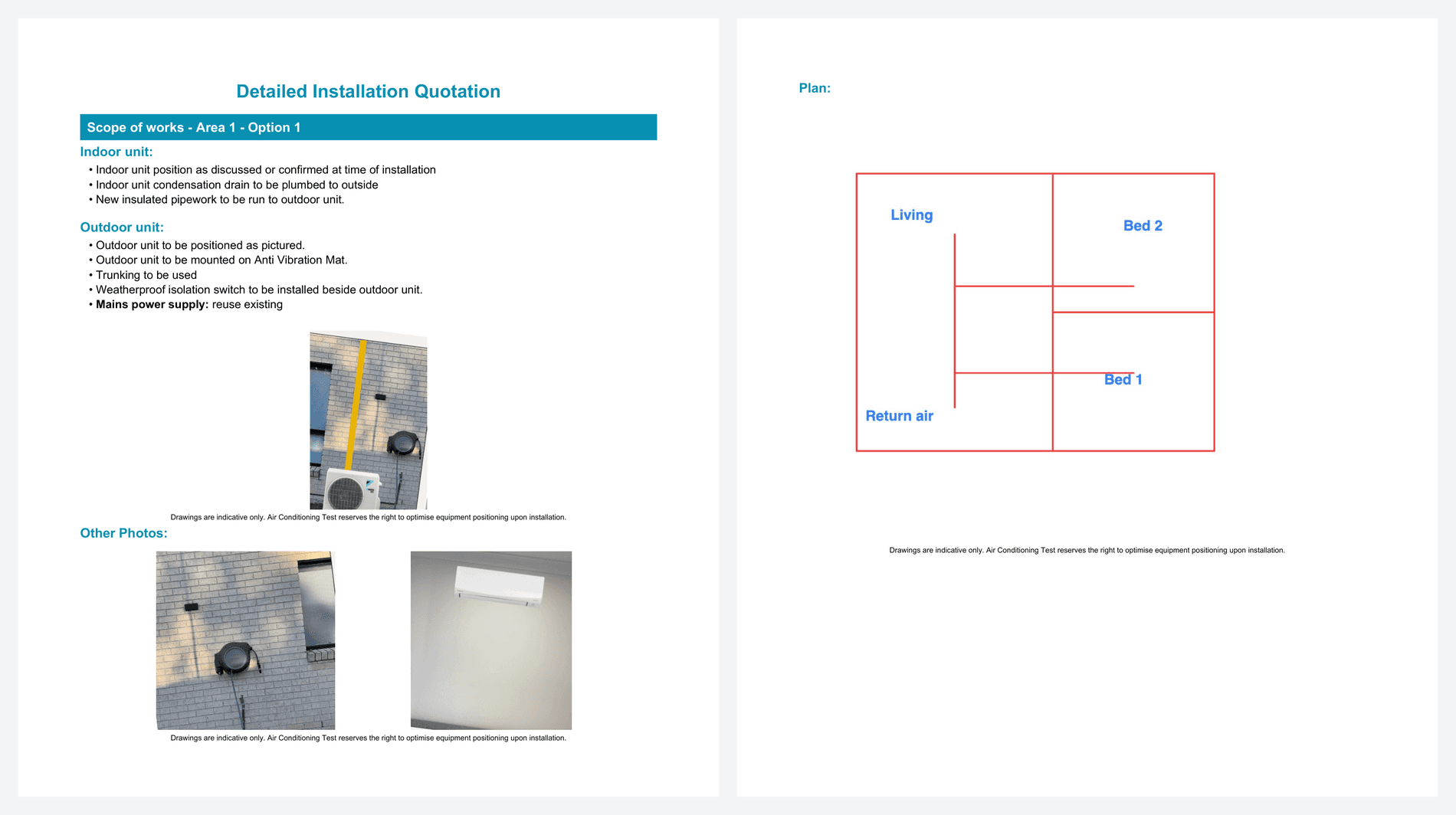
A plan is capped at about two thirds of the page height, so a tall portrait drawing is scaled to fit rather than running onto a second page. A landscape plan fills the full width of the content area. If you are drawing on the phone and want the widest possible result, turn it sideways before you start.
VRV is the exception worth knowing
VRV photos live in Report - Internal use and stay on the internal report. A plan does not. Switch the chip on and the drawing prints on both the customer's quote and the internal report, while the rest of the category stays internal. That is the point of the flag on a VRV quote: it is how you show the customer one drawing without exposing your access notes and site conditions.
Repair quotes
Repair quotes have no plans. Their two categories split by destination instead: Quote - Photo or diagram prints on the customer's quote, Report - Internal use on the internal report. Both print two to a row.
Ducted floor plans are separate
The Floor Plan wizard's snapshot is its own thing and prints in its own section. A plan you draw in the photo editor sits alongside it under the Plan heading. You can use both on the same quote.
Common Questions
Can I have more than one plan on a quote? Yes. Each prints full width, one after the other, under the same Plan heading.
Does the customer see the Plan heading? Yes, on the quote PDF. It is the only signal that this image is a drawing rather than a site photo.
Do plans show on the online quote page? Not yet. The web quote page shows them as ordinary thumbnails alongside the other pictures. The full width treatment is on the PDF.
Will my existing photos change how they print? Yes, and for the better. Every photo block now lays out two to a row with one disclaimer, so six photos take three rows instead of six, and the disclaimer appears once instead of six times. Quotes with a lot of site photos come out noticeably shorter.
Can I draw a plan without a photo to start from? That is exactly what Draw plan and Blank canvas are for.
Related Articles
- Quoting Basics - Creating and sending quotes
- Quote Templates and Duplicate Quote - Reuse a quote, plans included
- Job Notes and Attachments - Photos and files on the job rather than the quote
Was this article helpful?
Let us know if you found this information useful.
Still need help? Contact support
In this article
Use your browser's search (Ctrl+F) to quickly find specific topics within this article.
Browse all help articles →Related Articles
Auto Duct Layout
Visual duct designer on the ducted floor plan wizard. Auto-route or draw by hand. Includes outdoor unit and refrigerant pipework. Drives the take-off.
Business Callouts (Why Choose Us)
Display trust-building callout points on your public quote pages to increase acceptance rates
Custom PDF Pages
Add professional cover pages, warranty info, maintenance plans and more to your quote and invoice PDFs