Custom PDF Pages
Add professional cover pages, warranty info, maintenance plans and more to your quote and invoice PDFs
Custom PDF Pages
Add extra pages to your quote PDFs to make a stronger impression. Cover pages, warranty information, maintenance plans, About Us pages and more. You control what goes in, where it appears and which quote types include it.
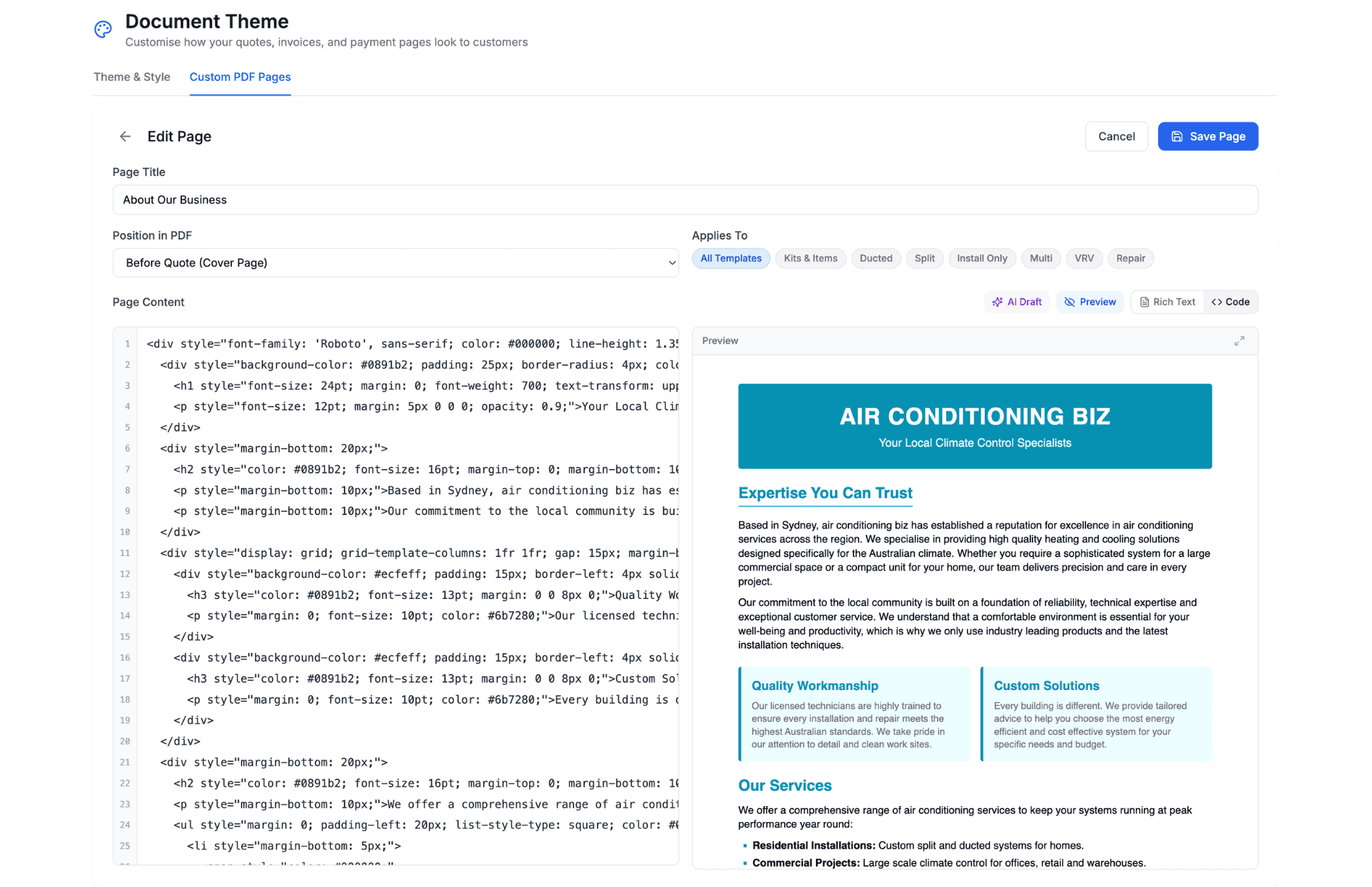
Getting Started
- Go to Settings > Document Theme
- Scroll down to the Custom Pages section
- Click Add Page to create your first custom page
Creating a Page
Each custom page has the following settings:
Title
A name for the page. This is for your reference only and does not appear on the PDF.
Position
- Cover Page (before quote) . Appears before the quote content. Great for branded cover pages, About Us pages, or introductory material
- End Page (after quote) . Appears after the quote content. Good for warranty information, maintenance plans, terms and conditions, or upsell pages
Applies To
Choose which quote types include this page:
- All Templates . Every quote gets this page
- Kits & Items . Only itemised/kits and items quotes
- Ducted . Only ducted system quotes
- Split . Only split system quotes
- Install Only . Only install-only quotes
- Multi . Only multi system quotes
- VRV . Only VRV system quotes
- Repair . Only repair quotes (parts and leak)
You can select multiple types. For example, a maintenance plan page might apply to Ducted, Split and Multi quotes but not Repair.
Writing Content
You can create page content in two ways:
Rich Text Editor
A simple editor for basic content. Type your text, add headings, bold, bullet points and links. Best for straightforward text pages.
Code Editor
Switch to code mode for full control over the HTML and inline styles. This gives you complete design freedom for branded layouts, coloured sections, styled boxes and more.
Tip: If you start with the AI draft, it generates styled HTML. Switch to code mode to see and edit the full HTML.
AI Draft Generation
Click Generate with AI to create a professional page draft in seconds:
- Choose a page type (About Us, Services, Warranty, Maintenance Plan, Rebates, Smart Controller Guide, or Custom)
- Optionally add specific details or instructions
- Optionally upload a reference image for layout inspiration
- Click Generate Draft (1 credit)
The AI generates a complete page styled to match your current document theme colours. You can edit the result in either the rich text or code editor.
AI drafts use 1 AI credit per generation.
Page Preview
The editor shows a live preview of your page on the right side. This preview simulates the actual PDF page dimensions so you can see if your content fits on a single page.
- A red dashed line appears if your content would overflow to a second page
- Click the expand icon to see a full-screen preview
- The simulated footer at the bottom shows where the auto-generated footer will appear
Reordering Pages
If you have multiple pages in the same position (e.g. two cover pages), drag and drop them to set the order they appear in the PDF.
Enabling and Disabling
Each page has a toggle to enable or disable it. Disabled pages are saved but not included in any PDFs. This is useful for seasonal content or pages you want to keep but not always include.
Pro Design Service
Want a custom-designed page but don't have the time? Click Request Pro Design to have the CoolEdge team create a professionally designed page for your business.
How Pages Appear in PDFs
- Cover pages appear before the quote header on their own page with a page break after
- End pages appear after the last page of quote content
- Each custom page gets its own page in the PDF
- The standard footer (business name and page numbers) appears on every page including custom pages
- Custom pages work on both the web dashboard and the mobile app
Tips
- Keep content to a single A4 page for the best result. The preview will show you if you're going over
- Use your theme colours in the HTML for a consistent branded look. The AI draft does this automatically
- Cover pages make a great first impression. An About Us or branded welcome page sets the tone
- Warranty and maintenance plan pages can reduce follow-up questions from customers
Related Articles
Was this article helpful?
Let us know if you found this information useful.
Still need help? Contact support
In this article
Use your browser's search (Ctrl+F) to quickly find specific topics within this article.
Browse all help articles →Related Articles
Auto Duct Layout
Visual duct designer on the ducted floor plan wizard. Auto-route or draw by hand. Includes outdoor unit and refrigerant pipework. Drives the take-off.
Business Callouts (Why Choose Us)
Display trust-building callout points on your public quote pages to increase acceptance rates
Document Theme Customisation
Customise the look and feel of your quotes, invoices and PDF documents with branded themes, colours and fonts