Trade Catalogue (Plumbing & Electrical)
Set up the pre-seeded plumbing and electrical catalogues that drive trade quotes: labour rate, markups, task pricing, parts and custom categories
Trade Catalogue (Plumbing & Electrical)
A ready-made task and parts catalogue for plumbing and electrical quoting.
- 84 plumbing tasks and 70 electrical tasks come pre-seeded, plus 15 hot water units and 20 starter parts
- Nothing to import and no setup step: the catalogue is there the moment the industry is switched on
- One formula drives every task price: parts cost × markup + labour hours × labour rate
- Everything is yours to override. Rename a task, reprice it, set a flat price, turn it off or star it as a favourite
- Costs are entered inc GST with markup added on top, the same as the rest of your catalogue
The trade catalogue is the pricing engine behind Plumbing and Electrical quotes. Cooledge seeds it with common flat rate tasks so you can quote from day one, then you layer your own pricing over the top as you go. Your overrides live with your business while the seeded catalogue stays underneath as the fallback.
What You Need
- An active Cooledge subscription (any plan)
- The Plumbing or Electrical industry enabled under Settings → Company Settings. An AC-only business won't see the trade catalogues (or the trade quote types) until an industry is added
- The business owner for pricing controls. Only the owner can change markups and labour rates
Where to Find It
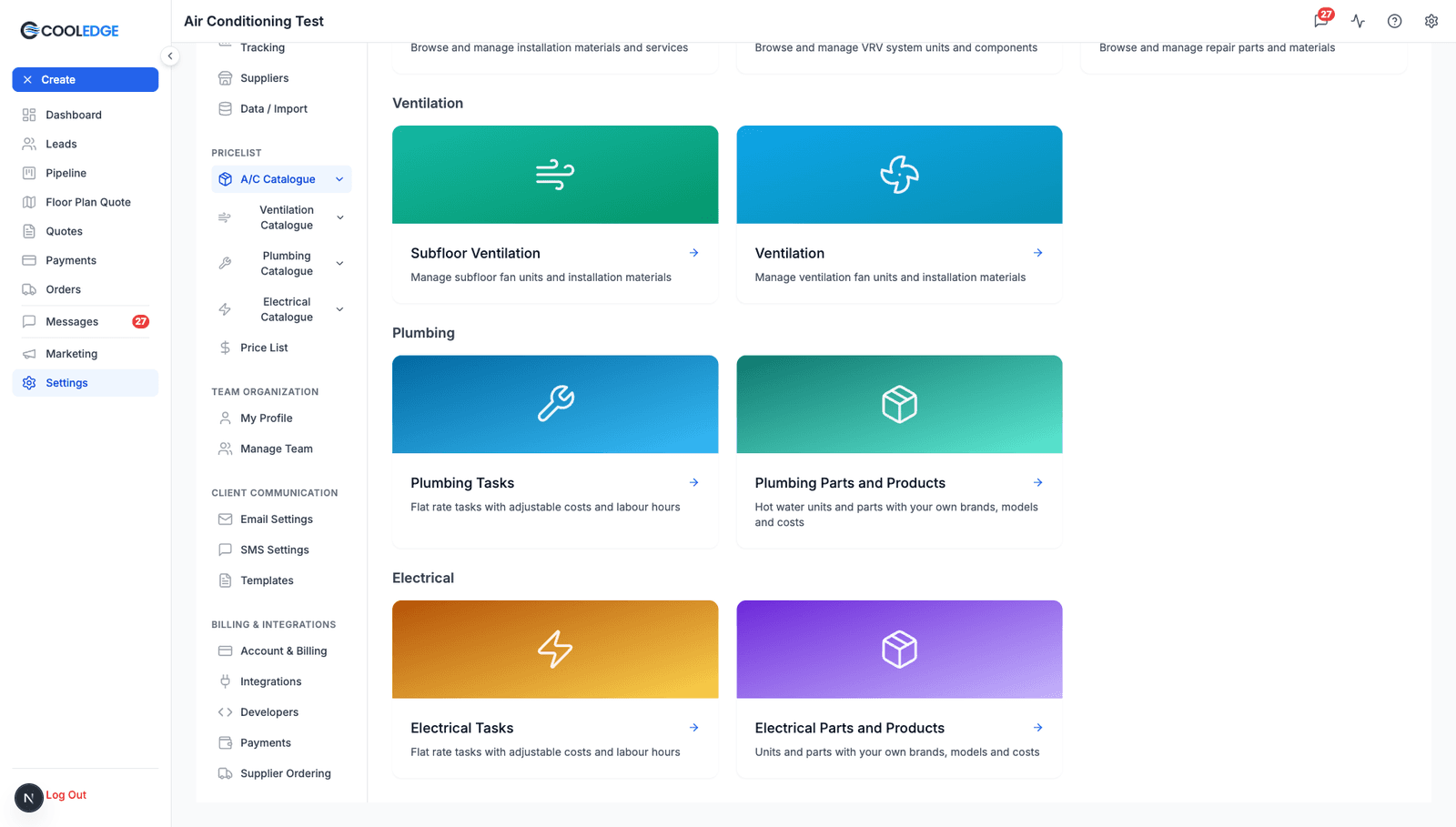
Once the industry is on, the Settings sidebar gains a Plumbing Catalogue group (or Electrical Catalogue, or both) with two pages: Tasks and Parts and Products. The catalogue landing page shows the trade cards alongside your A/C system types.
The Tasks Page
Settings → Plumbing Catalogue → Tasks lists every task grouped by category:
- Plumbing (84 tasks): Service, Tapware, Toilets, Hot Water, Drains, Gas, Pipework, Roof and Tanks, Bathroomware
- Electrical (70 tasks): Service and Compliance, Power Points, Switches, Lighting, Fans, Switchboards, Safety and Alarms, TV and Data, EV Charging, Hot Water Electrics
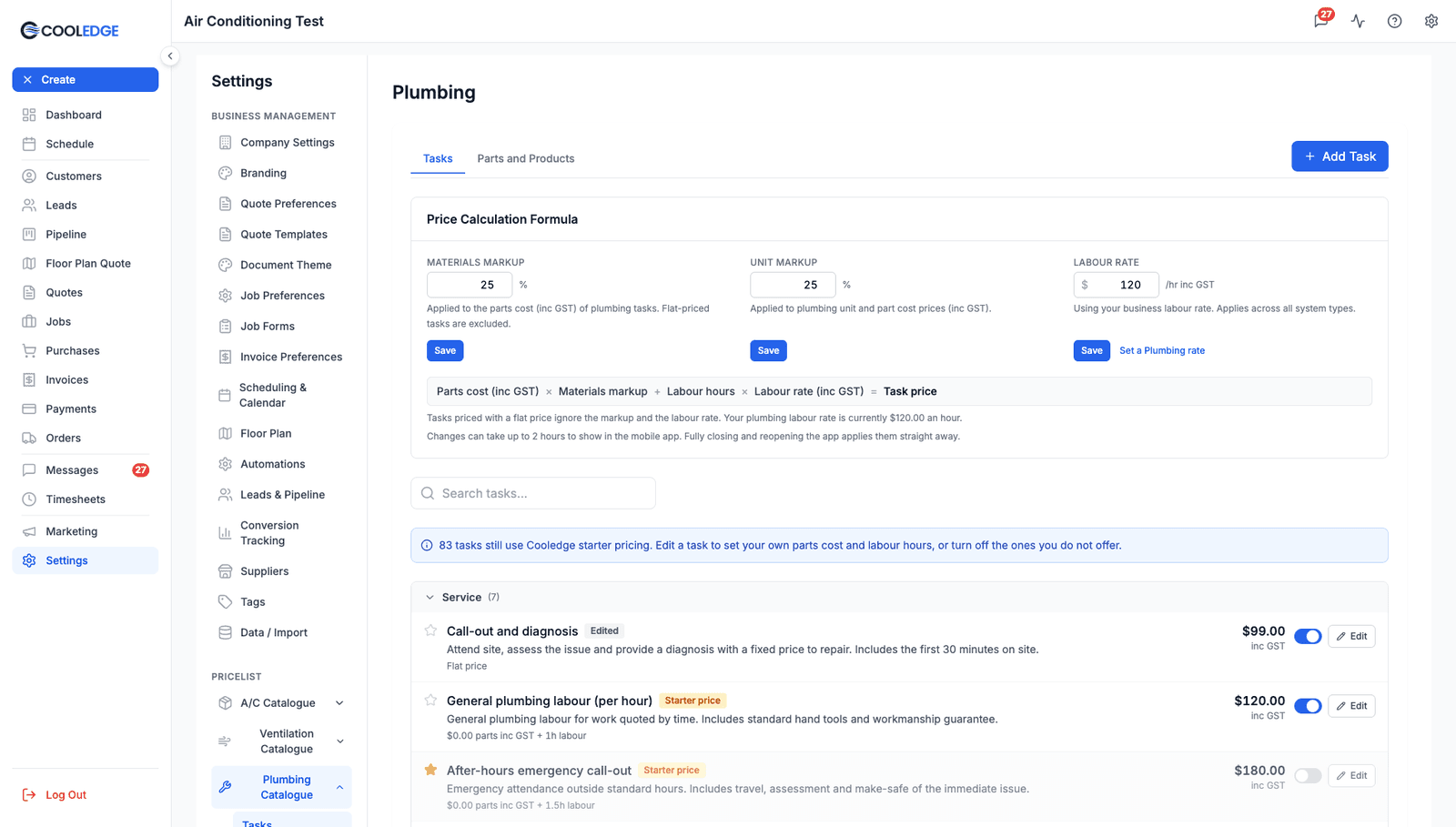
Each task row shows:
- A star to mark it as a favourite. Favourites get their own filter in the quote picker, on desktop and on the mobile app
- The customer-facing description that prints on the quote
- A badge: Starter price means the row still carries Cooledge's placeholder pricing, Edited means you have changed the pricing yourself while Yours marks a task you created
- The price inc GST with its parts and labour breakdown underneath
- A Supplier or Copied badge when the parts cost is linked to a supplier item (see Supplier Costs below)
- An on/off toggle. Switch a task off to stop it appearing in the quote picker without deleting it
- An Edit button
The blue banner counts how many tasks still use Cooledge starter pricing. Starter prices are sensible placeholders, not your prices, so work through the tasks you actually offer: reprice the ones you do, switch off the ones you don't.
How Task Prices Are Calculated
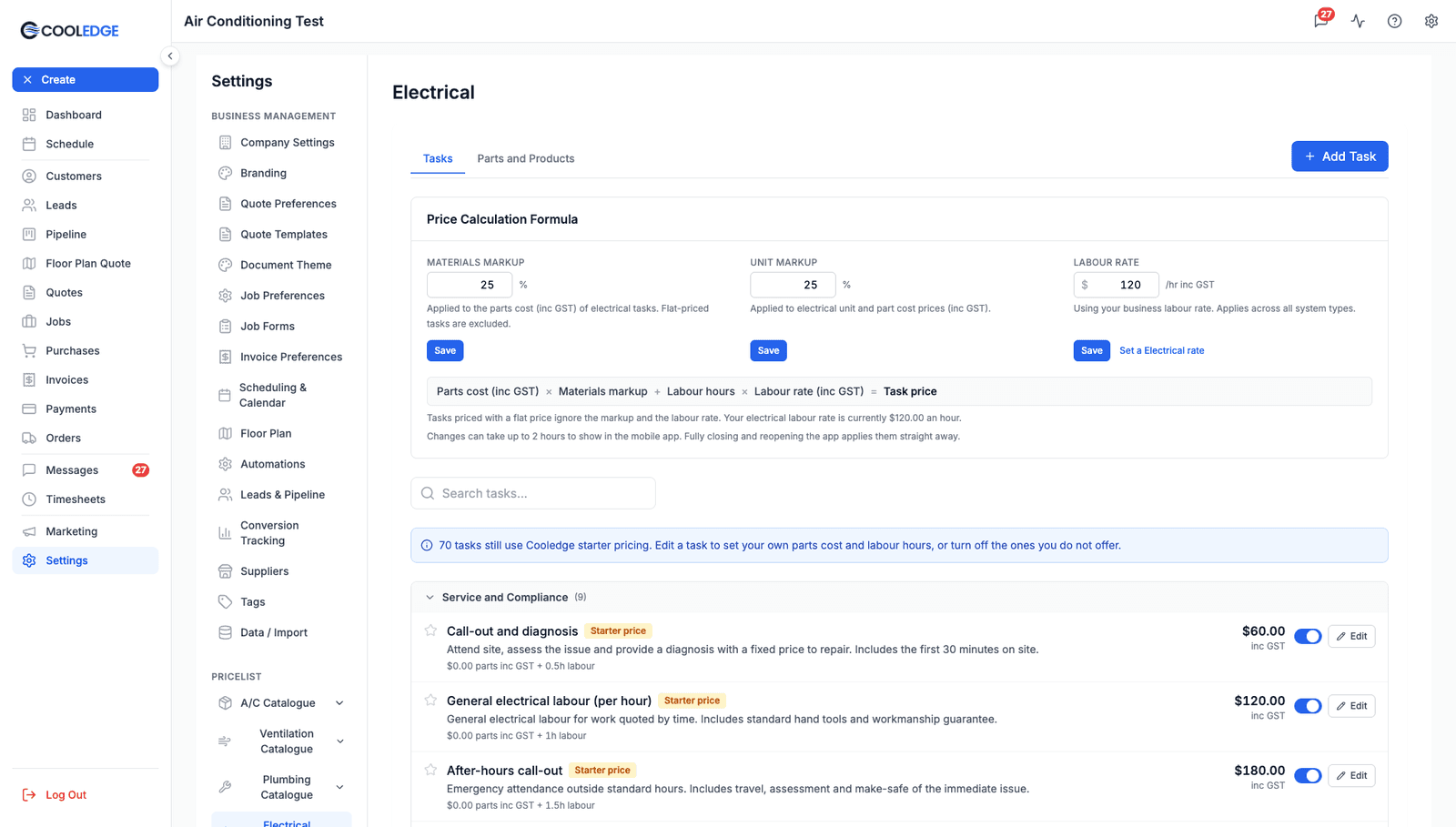
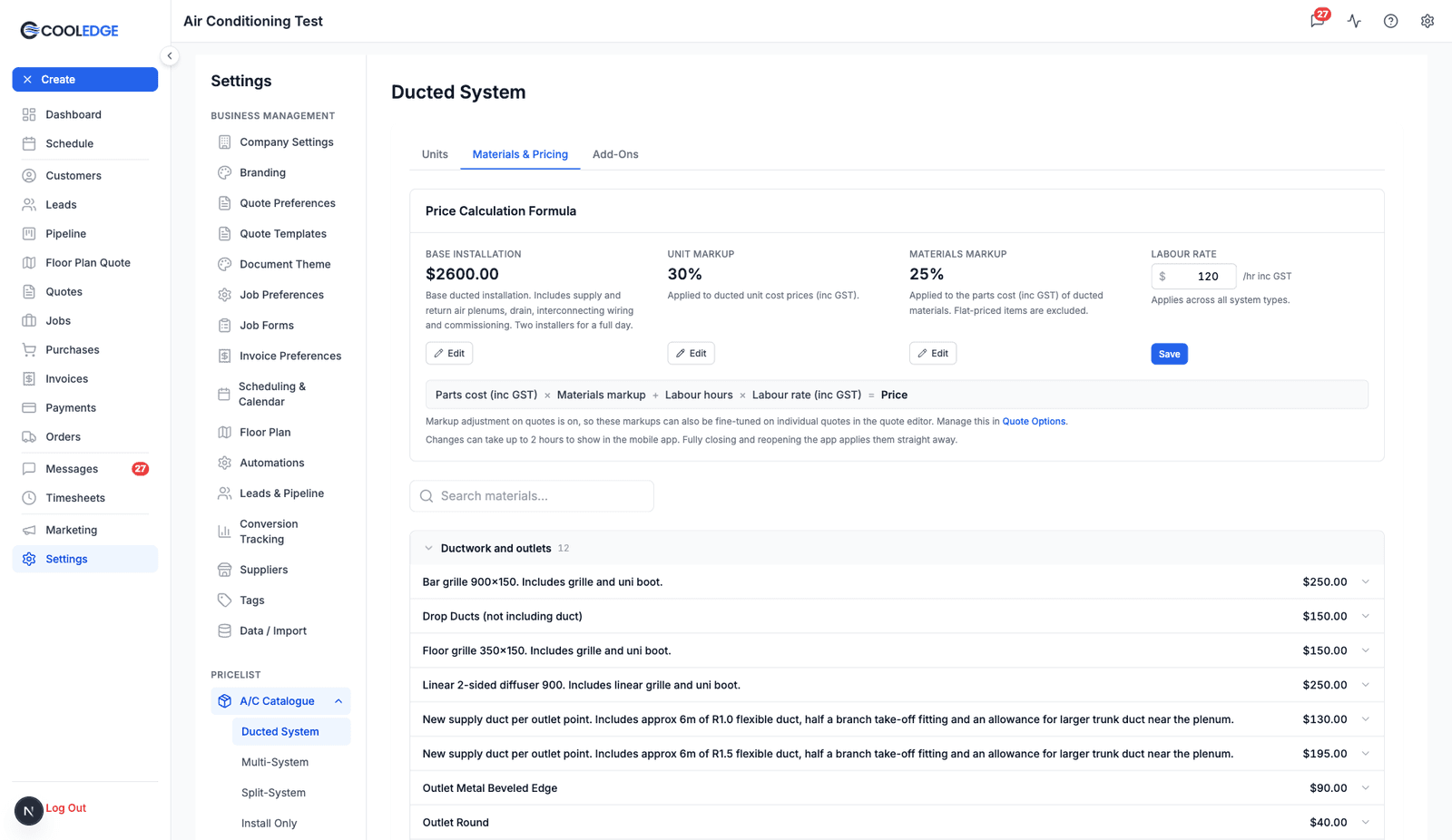
The Price Calculation Formula card at the top of the Tasks page holds the numbers that drive pricing:
Parts cost (inc GST) × Materials markup + Labour hours × Labour rate (inc GST) = Task price
- Materials markup (default 25%) is applied to each task's parts cost. Flat-priced tasks are excluded from the markup
- Unit markup (default 25%) is applied to unit and part cost prices, for example the hot water units on Parts and Products
- Labour rate uses your business labour rate by default. It applies across all system types
A task with a flat price ignores the formula entirely: the flat price wins over the parts cost and labour hours calculation.
Only the business owner can change markups and labour rates.
Setting a Per-Trade Labour Rate
If your plumbing work bills at a different rate from the rest of the business, click Set a Plumbing rate on the labour rate tile. The Electrical catalogue carries the same link for its own rate. The override applies to that trade only. Every other system type keeps the business rate.
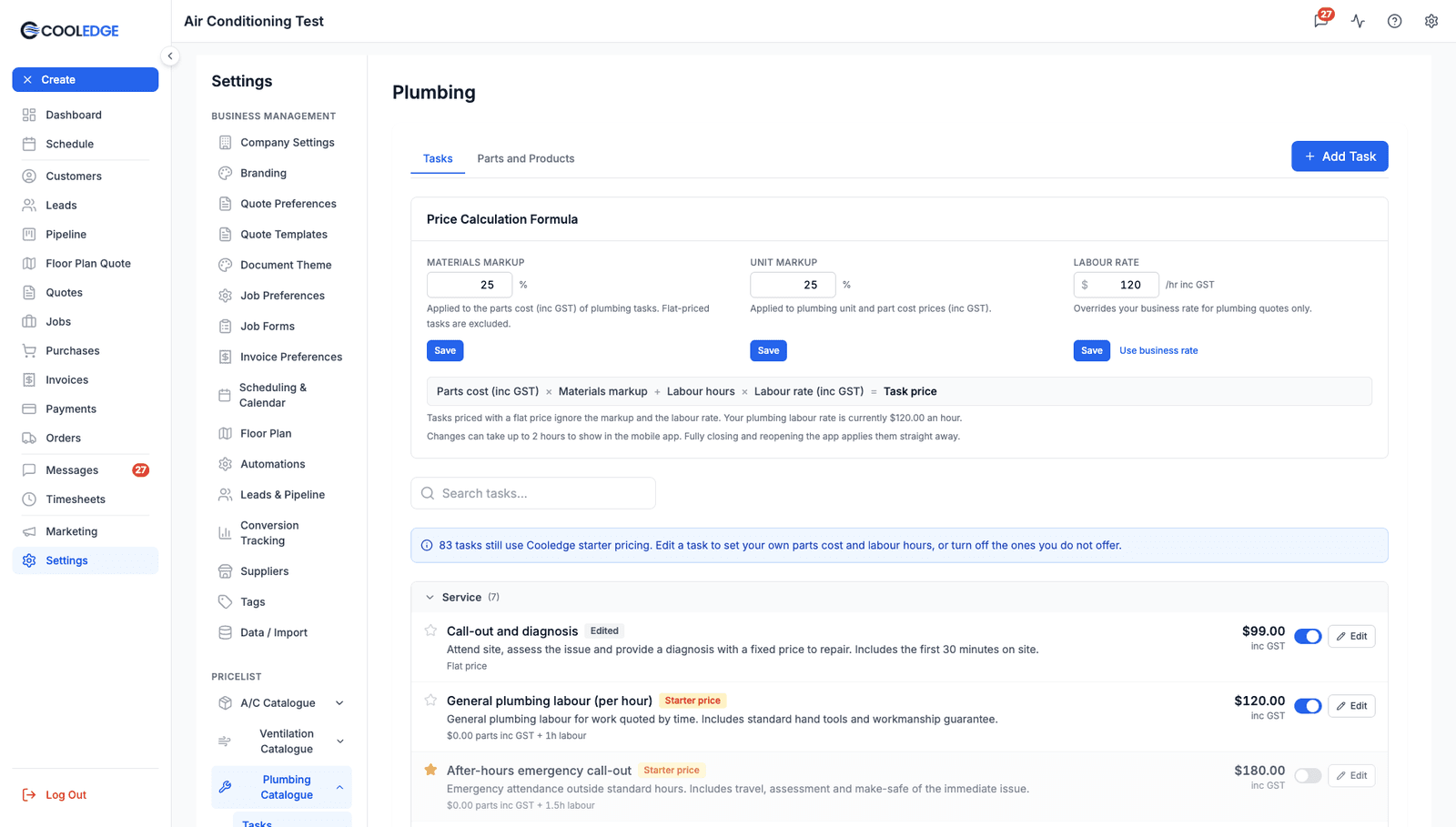
To remove the override, click Use business rate. That clears the per-trade rate and returns the trade to your business rate, not to whatever you typed earlier.
Editing a Task
Click Edit on any task to override it for your business:
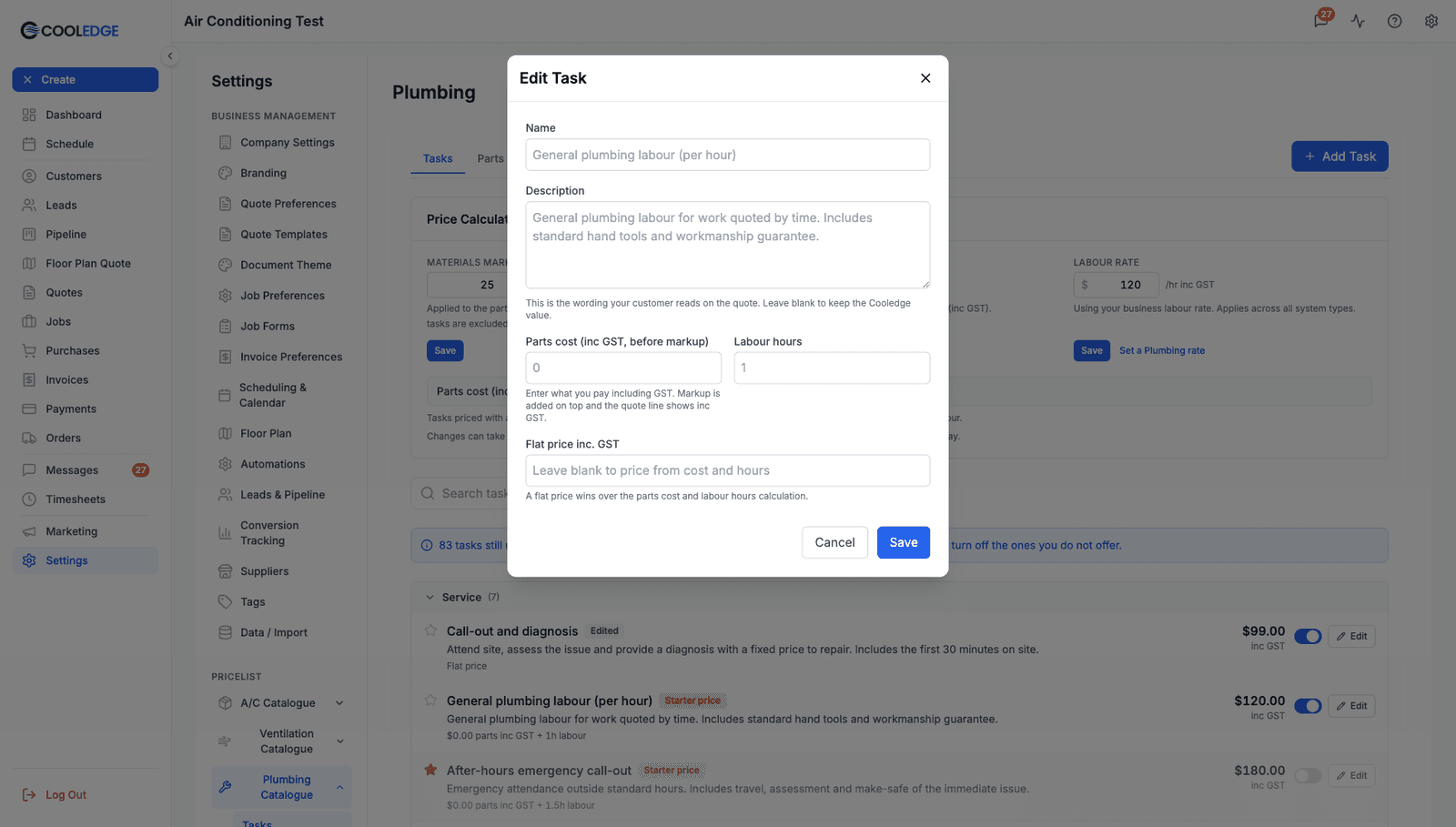
- Name and Description. The description is the wording your customer reads on the quote. Leave a field blank to keep the Cooledge value
- Parts cost (inc GST, before markup). Enter what you pay including GST. Markup is added on top and the quote line shows inc GST
- Labour hours. How long the task takes at your labour rate
- Flat price inc. GST. Set this and the calculation is ignored: a flat price wins over the parts cost and labour hours calculation
- Supplier cost. Link the parts cost to an item in a supplier's pricebook. See Supplier Costs below
Two things worth knowing:
- Editing a task's pricing clears the Starter price badge for that row. Merely renaming it does not; the badge tracks pricing, not wording
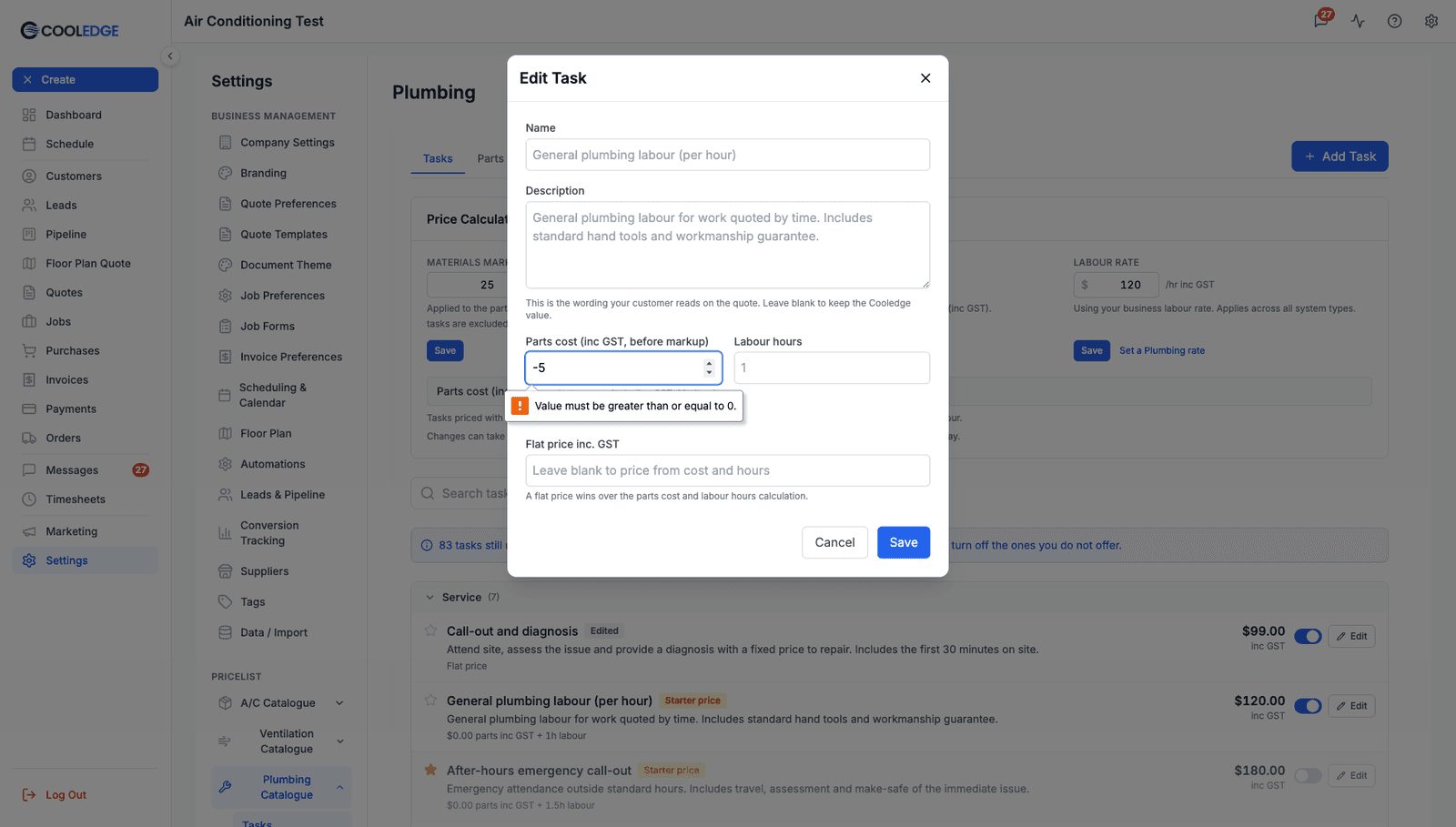
- Zero is allowed, negatives are not. A $0 parts cost or 0 labour hours is legitimate (a labour-only or parts-only task). A negative value is refused
Parts and Products
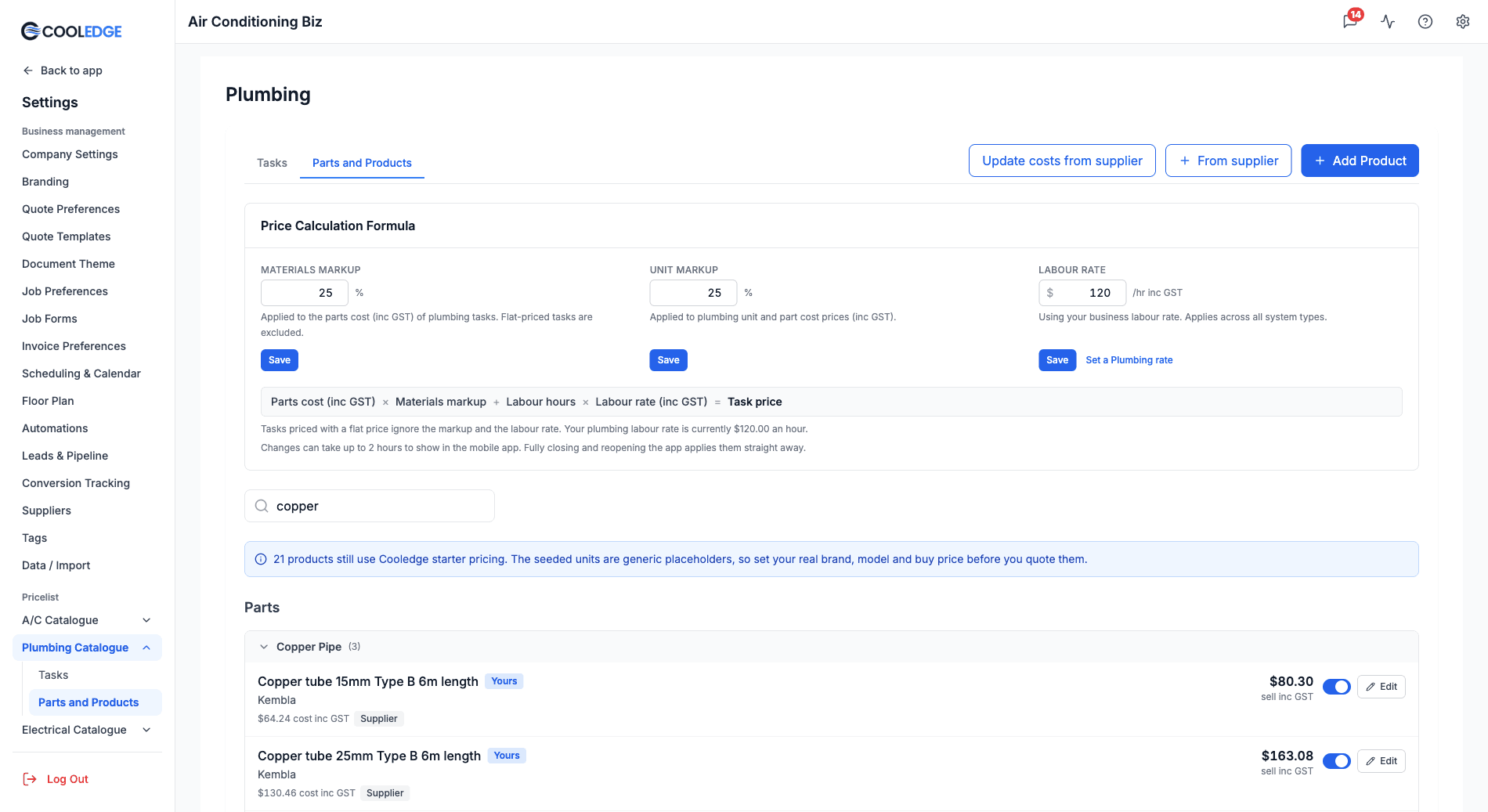
The Parts and Products page holds the physical goods behind your quotes: 15 hot water units and 20 starter parts come pre-seeded. The seeded units are generic placeholders, so set your real brand, model and buy price before you quote them. The banner at the top counts how many products still carry starter pricing.
Each row shows your cost alongside the sell price inc GST (your cost plus the unit markup). A Supplier or Copied badge marks a cost linked to a supplier item.
Adding Your Own Tasks, Parts and Categories
Click Add Task on the Tasks page or Add Product on Parts and Products to create your own rows. They wear the Yours badge. On either modal you can file the new row under an existing category, or pick New category... and type your own.
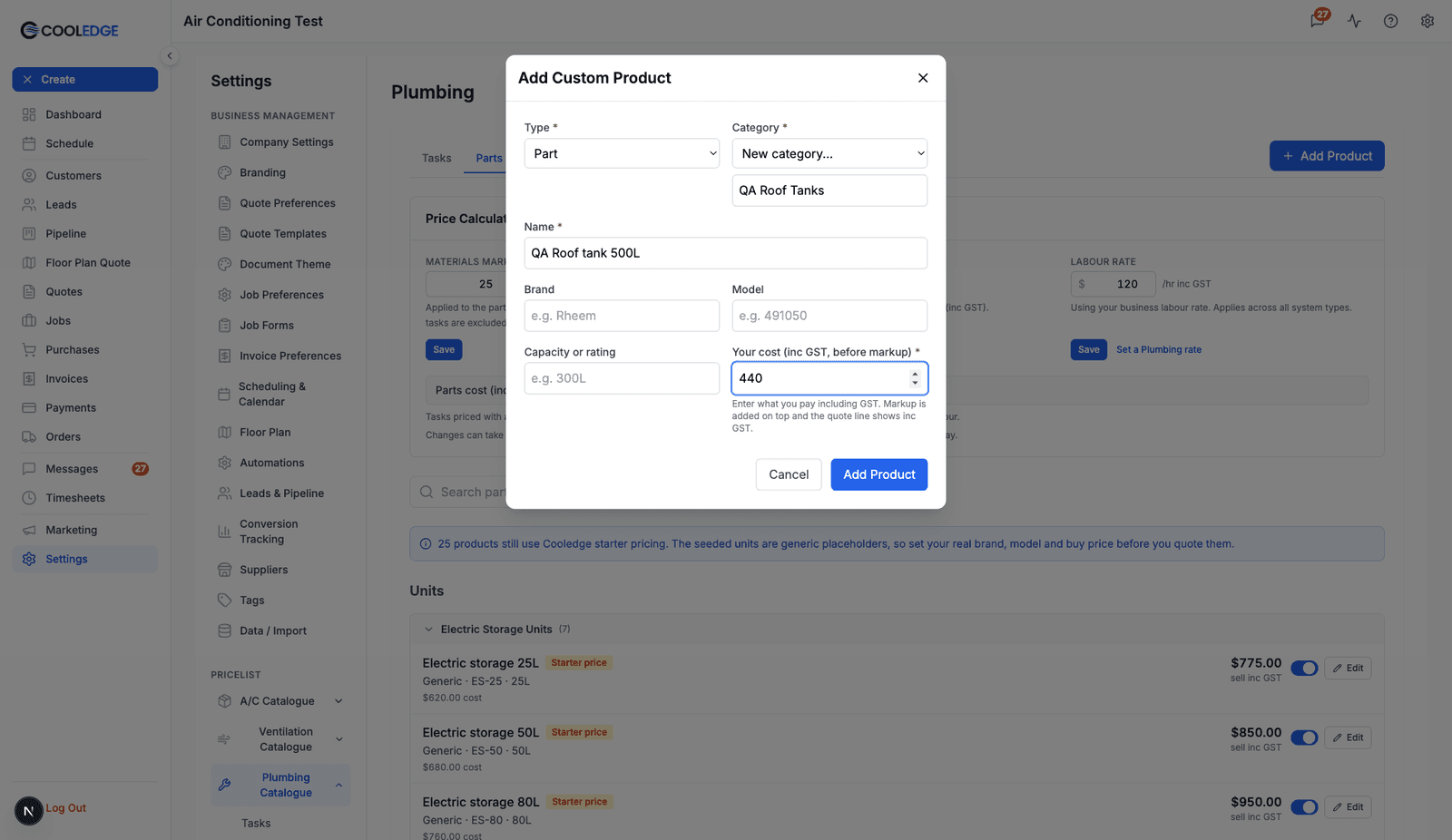
Typing a category name that already exists (matched case-insensitively) files the row into that existing group rather than creating a near-duplicate. One thing to plan for: a row's category is fixed when it is added and can't be changed afterwards, so pick the right one before you save.
Adding Parts From a Supplier
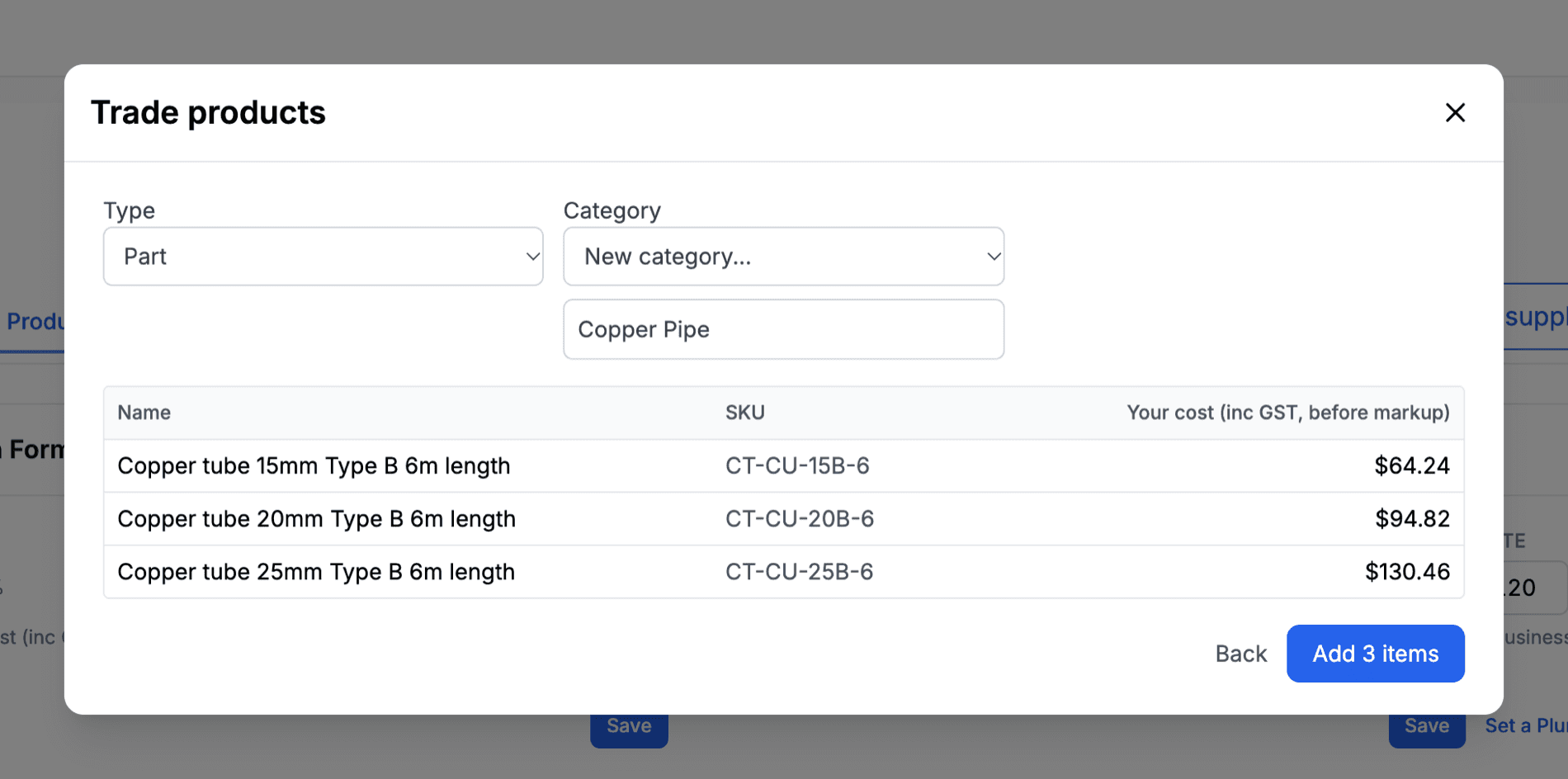
If your supplier's price list is uploaded as a pricebook, click From supplier on Parts and Products to add their products in one go. Pick the supplier, tick the products, then choose the Type (Part or Unit) and the Category for the batch and click Add N items. Each new row's cost follows the supplier's price. See Adding Items From a Supplier.
Supplier Costs
A task's parts cost or a part's cost can follow an item in your supplier's pricebook (Growth and Scale plans).
- To link one row, click Edit and use the Supplier cost section under the cost. Click Link to supplier item, pick the supplier and the item and choose Follow supplier price or Copy price once
- To refresh costs, click Update costs from supplier at the top of the Tasks or Parts and Products page. It lists every followed cost and ticks the ones that changed, and nothing is saved until you click Update N costs
Because task and part prices are built from the cost plus your markup, a new cost flows into new quotes. A task with a flat price keeps its flat price. See Adding Items From a Supplier.
Inc GST Across the Whole Catalogue
Costs across the whole catalogue are entered and stored GST inclusive, with markup applied on top. This isn't just a trade catalogue thing. The same inc GST cost labelling now runs consistently across the A/C catalogue too.
Syncing to the Mobile App
The mobile app reads the same catalogue, the same pricing and the same favourites as the portal. Changes can take up to 2 hours to show in the mobile app. Fully closing and reopening the app applies them straight away.
Tips & Troubleshooting
- The Plumbing (or Electrical) Catalogue isn't in Settings. Add the industry under Settings → Company Settings. The catalogue and the matching quote type appear together
- A task is pricing wrong on quotes. Check its row here first. If it still wears a Starter price badge, it's Cooledge's placeholder. Edit the parts cost and labour hours, or set a flat price
- Markup or labour rate fields won't save. Only the business owner can change them
- A task you never offer keeps appearing in the picker. Switch its toggle off. It stays in the catalogue but leaves the picker
- Changes aren't showing on a phone. Catalogue changes can take up to 2 hours to reach the mobile app. Fully closing and reopening the app applies them straight away
Related Articles:
- Plumbing & Electrical Quoting →: build flat rate quotes from this catalogue
- Product & Catalog Management →: the A/C catalogue
- Managing Price List →: your general price list for itemised quoting
- Adding Items From a Supplier →: add parts from a supplier's pricebook and keep costs in step
Need help with the trade catalogue? Email us at support@cooledge.com.au
Was this article helpful?
Let us know if you found this information useful.
Still need help? Contact support
In this article
Use your browser's search (Ctrl+F) to quickly find specific topics within this article.
Browse all help articles →Related Articles
Adding Items From a Supplier
Turn your supplier's pricebook into price list items, trade parts and AC units in a few clicks, each one following the supplier's price
CSV Import and Export for Price Lists
Bulk import products and pricing or export your entire price list to a CSV file
Managing Your Price List
Create and manage materials, labour rates, fees and discounts for faster invoicing