CSV Import and Export for Price Lists
Bulk import products and pricing or export your entire price list to a CSV file
CSV Import and Export for Price Lists
What is CSV Import/Export?
CSV (Comma-Separated Values) files let you work with your price list in spreadsheet programs like Excel or Google Sheets. You can:
Export = Download your entire price list as a CSV file
Import = Upload a CSV file to add or update hundreds of items at once
This is much faster than adding items one-by-one through the portal.
When to Use CSV Import/Export
Export Your Price List When:
- Backing up your pricing data
- Sharing your price list with bookkeeper/accountant
- Working on pricing offline in Excel
- Moving data to another system
- Creating a price list template for similar items
Import Your Price List When:
- Setting up Cooledge for the first time (bulk import from old system)
- Updating prices on multiple items at once
- Restoring from a backup
- Adding seasonal products in bulk
Adding a supplier's products? Upload their price list as a supplier pricebook instead, then add the products you sell with From supplier. Their costs stay linked to the supplier's prices. See Adding Items From a Supplier.
Exporting Your Price List
How to Export
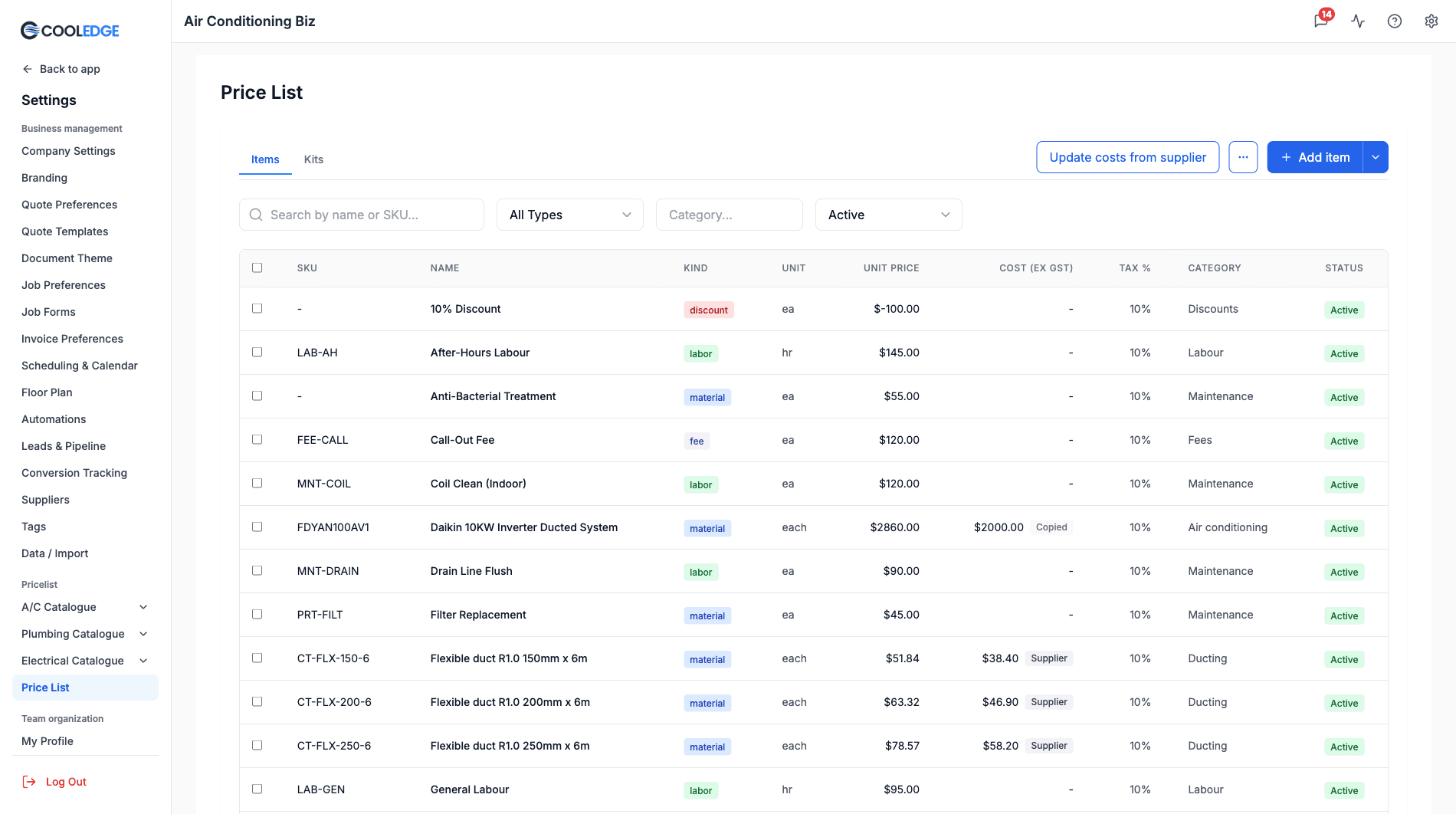
- Go to Settings > Price List
- Click the ⋯ (More actions) button (top right), then "Export CSV"
- A CSV file downloads to your device:
price-list.csv - Open in Excel, Google Sheets or any spreadsheet program
What Gets Exported
The CSV has ten columns, in this order:
| Column | What it holds |
|---|---|
sku | Your product code (blank if you don't use one) |
name | Item name |
description | The longer description, if you set one |
unit | Unit of measure (ea, hr, sqm) |
default_qty | Default quantity |
unit_price | Price per unit |
default_tax_rate | Tax percentage, e.g. 10 |
category | Category name |
item_kind | material, labor, fee or discount |
is_active | true or false |
There's no cost column. An item's Cost (ex GST) and any supplier link are set in the portal, so they're neither exported nor changed by an import.
The export follows the Status filter on the page. Leave it on Active (the default) and you get your active items. Switch it to Inactive and the export currently returns every item, active and inactive, rather than only the inactive ones.
Working with the Export
In Excel:
- Edit prices in bulk (e.g., increase all items by 5%)
- Add new rows for new products
- Sort and filter by category
- Calculate totals and margins
- Save and re-import when done
Keep the format! Don't change column headings or the import won't work.
Importing Your Price List
Download the Template First
Before importing, get the template to see the correct format:
- Go to Settings > Price List
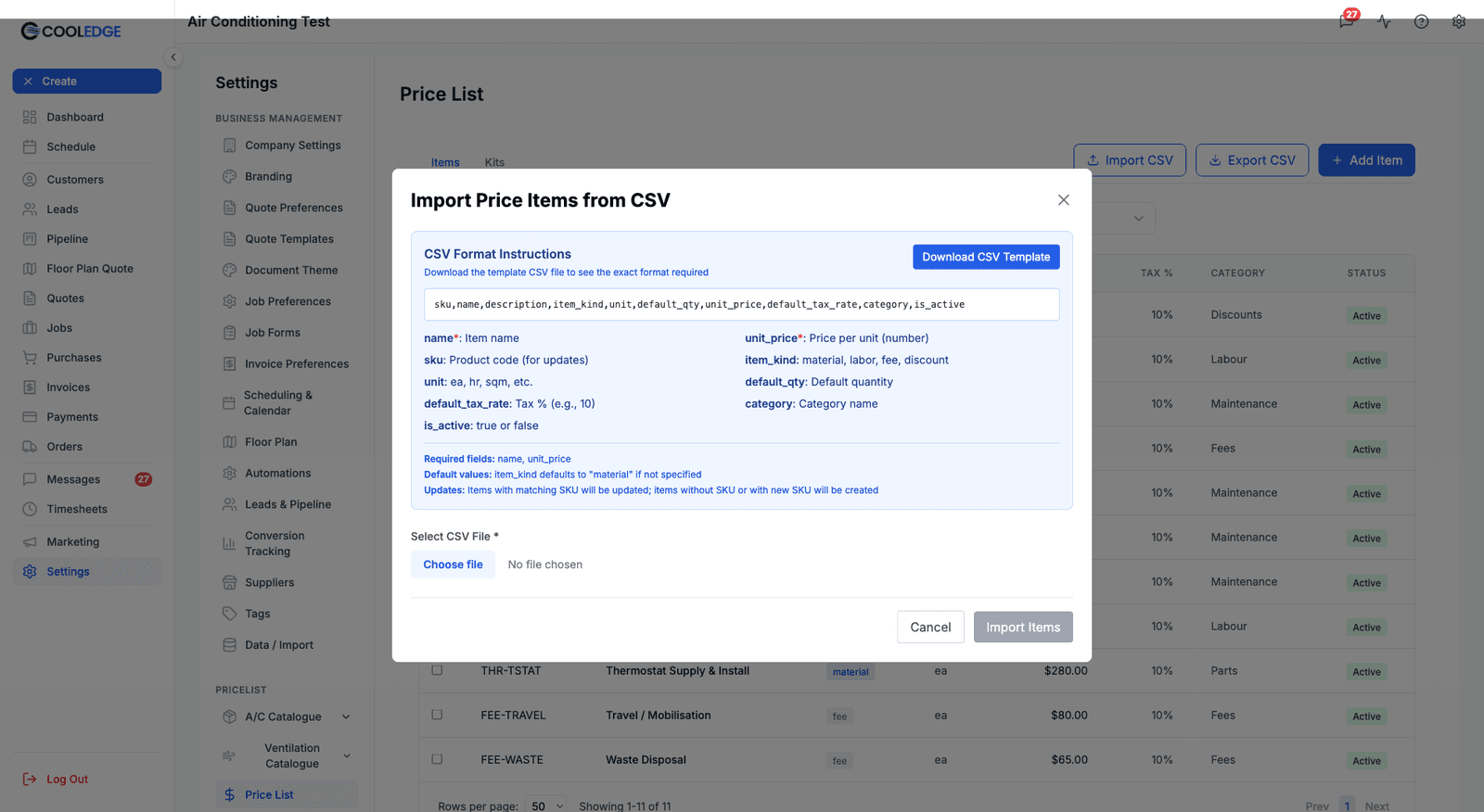
- Click the ⋯ (More actions) button (top right), then "Import CSV"
- In the modal, click "Download CSV Template"
- Open the template in your spreadsheet program
The modal also prints the expected header row and explains every field, so you can check your file against it without leaving the page.
Prepare Your CSV File
Use the same header row the template and the modal show:
sku,name,description,item_kind,unit,default_qty,unit_price,default_tax_rate,category,is_active
| Column | Notes |
|---|---|
sku | Optional product code. This is what decides update vs create |
name | Required |
description | Optional longer description |
item_kind | material, labor, fee or discount. Note the name: item_kind, not kind |
unit | ea, hr, sqm and so on |
default_qty | Defaults to 1 if you leave it out |
unit_price | Required, a number |
default_tax_rate | Tax percentage, e.g. 10 |
category | Optional but worth using |
is_active | true or false. Defaults to true |
Example rows:
sku,name,description,item_kind,unit,default_qty,unit_price,default_tax_rate,category,is_active
AC001,Split System 7kW,Back-to-back install,material,ea,1,2500.00,10,Air Conditioning,true
LAB-GEN,General Labour,,labor,hr,1,120.00,10,Labour,true
FEE-CALL,Call-Out Fee,,fee,ea,1,85.00,10,Fees,true
There is no price_includes_tax column. Tax-inclusive pricing is set per item in the portal, not through the CSV.
Rules and Validation
Only two fields are required: name (can't be blank) and unit_price (must be a number). Everything else, item_kind included, is optional and falls back to a default.
SKU matching is how the system knows whether to update or create. If the SKU matches an existing item, it updates that item. If the SKU is new or blank, it creates a new item. This means you can use CSV to update prices across hundreds of items without creating duplicates.
Price format matters - use numbers only like 150.00. Don't include currency symbols like $150 or commas like 1,500. For boolean values, use TRUE or FALSE (case doesn't matter), not Yes/No or 1/0.
How to Import
- Go to Settings > Price List
- Click the ⋯ (More actions) button (top right), then "Import CSV"
- In the modal, use Select CSV File to pick your file
- Check the Preview (first 5 rows) the modal shows, so you can catch a mis-aligned header before you commit
- Click "Import Items"
- Cooledge reports how many items were created, how many were updated and any rows it could not read
Handling Errors
If rows fail to import, you'll see:
- Row number where error occurred
- Reason (e.g., "Missing name", "Invalid kind", "Price must be number")
- Errors are also in browser console (F12) for details
Fix errors:
- Note which rows failed
- Fix those rows in your CSV
- Import again (only fixed rows need reimporting)
- Successfully imported rows won't duplicate
Update vs Create
The SKU determines what happens:
Update Existing Items
If your CSV has a SKU that matches an existing item:
- That item's details are updated with the CSV values
- No duplicate is created
- Useful for price updates across many items
Example:
Existing: SKU "AC001" - Split System 7kW - $2,500
CSV row: AC001,Split System 7kW Inverter,material,ea,2800.00,FALSE,AC,TRUE
Result: Item AC001 updated to new name and new price
Create New Items
If your CSV has:
- A SKU that doesn't exist yet
- OR a blank SKU
A new item is created.
Tip: Leave SKU blank when adding new items if you don't use SKU codes.
Best Practices
Before Importing
- Always export first as a backup
- Download the template to see correct format
- Test with 5-10 items before importing hundreds
- Check for duplicates - same item with different SKUs creates duplicates
Formatting Tips
- Keep it simple - don't use special characters in names
- Be consistent with units (don't mix "ea", "each", "unit")
- Use categories to keep things organized
- Set clear SKU patterns (AC001, AC002, LAB001, etc.)
After Importing
- Review the imported items in the price list
- Check a few prices to confirm they're correct
- Test creating a quote with imported items
- Fix any issues and re-import if needed
Common Questions
Can I import items into kits? No, CSV import is for individual price items only. Kits must be created through the portal.
What happens if I import the same file twice? If items have SKUs, they'll be updated (not duplicated). If no SKUs, you'll get duplicates.
Can I delete items via CSV? No. CSV can only create or update. Delete items manually through the portal.
Why didn't some rows import? Check the error messages. Common issues: misspelled "kind", price with $ symbol, missing required fields.
Can I change an item's kind (material to labor)?
Yes. The import updates item_kind if the SKU matches.
Next Steps
- Managing Your Price List - Creating and organizing price items
- Price Kits - Bundle items into packages
- Adding Items From a Supplier - Add pricebook products with linked costs
- Staff Labor Rate Defaults - Assign rates to team members
Was this article helpful?
Let us know if you found this information useful.
Still need help? Contact support
In this article
Use your browser's search (Ctrl+F) to quickly find specific topics within this article.
Browse all help articles →Related Articles
Adding Items From a Supplier
Turn your supplier's pricebook into price list items, trade parts and AC units in a few clicks, each one following the supplier's price
Managing Your Price List
Create and manage materials, labour rates, fees and discounts for faster invoicing
Price Kits (Bundled Pricing)
Create flat-rate bundles of products and labor for faster quoting and invoicing