Managing Your Price List
Create and manage materials, labour rates, fees and discounts for faster invoicing
Managing Your Price List
What is the Price List?
The Price List is your catalog of items you bill customers for. Instead of typing "Ducted AC unit - 14kW" and "$8,500" every time, you create it once in the Price List and add it to invoices with one click.
What goes in your Price List:
- Materials (equipment, parts, supplies)
- Labor (hourly rates for different staff/skill levels)
- Fees (service call, disposal, permit)
- Discounts (loyalty, bulk, seasonal)
Where to find it: Settings > Price List
Item Types
Every item in your Price List has a type. Material covers physical products you supply and install - things like ducted AC units, refrigerant or copper pipe. Labor is for time-based charges, usually hourly, with different rates for different skill levels like senior techs or apprentices.
Fee covers fixed service charges like service call fees, disposal fees or after-hours fees. Discount is for price reductions like loyalty discounts or pensioner discounts.
Every item has an Item Kind, and the four kinds are Material, Labor, Fee and Discount. The kind matters because the Add Items picker on an invoice groups items into category chips, and the price list itself filters by kind, so a well-kinded list is a much faster list to work from.
Creating Price List Items
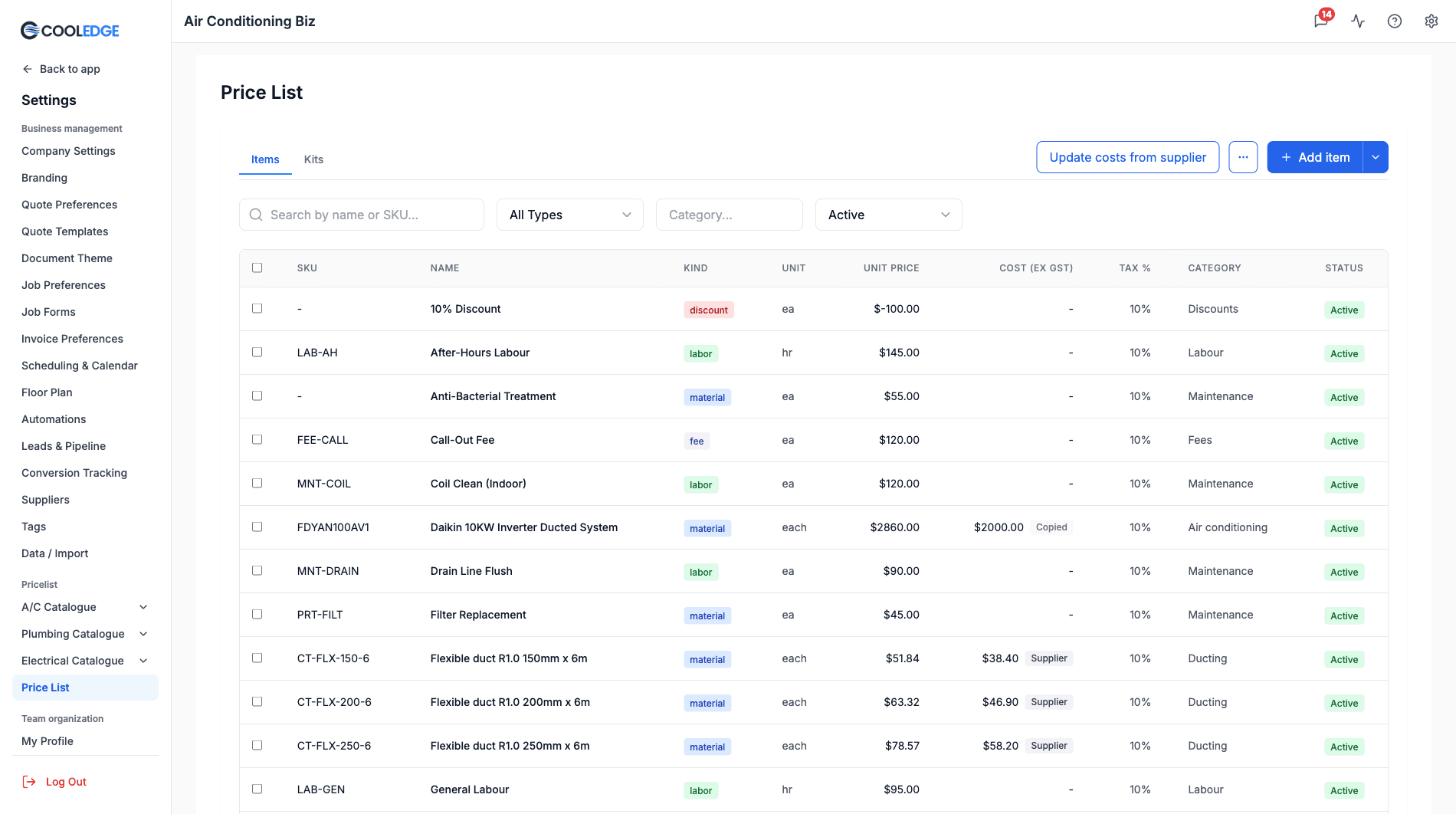
Step 1: Open Price List
- Go to Settings (gear icon)
- Click Price List in the settings sidebar, under Pricelist
- Click the Add item button (top right). Its arrow opens a menu with New item, From my catalogues (for businesses with unit catalogues, such as air conditioning) and From supplier. New item opens the same blank form.
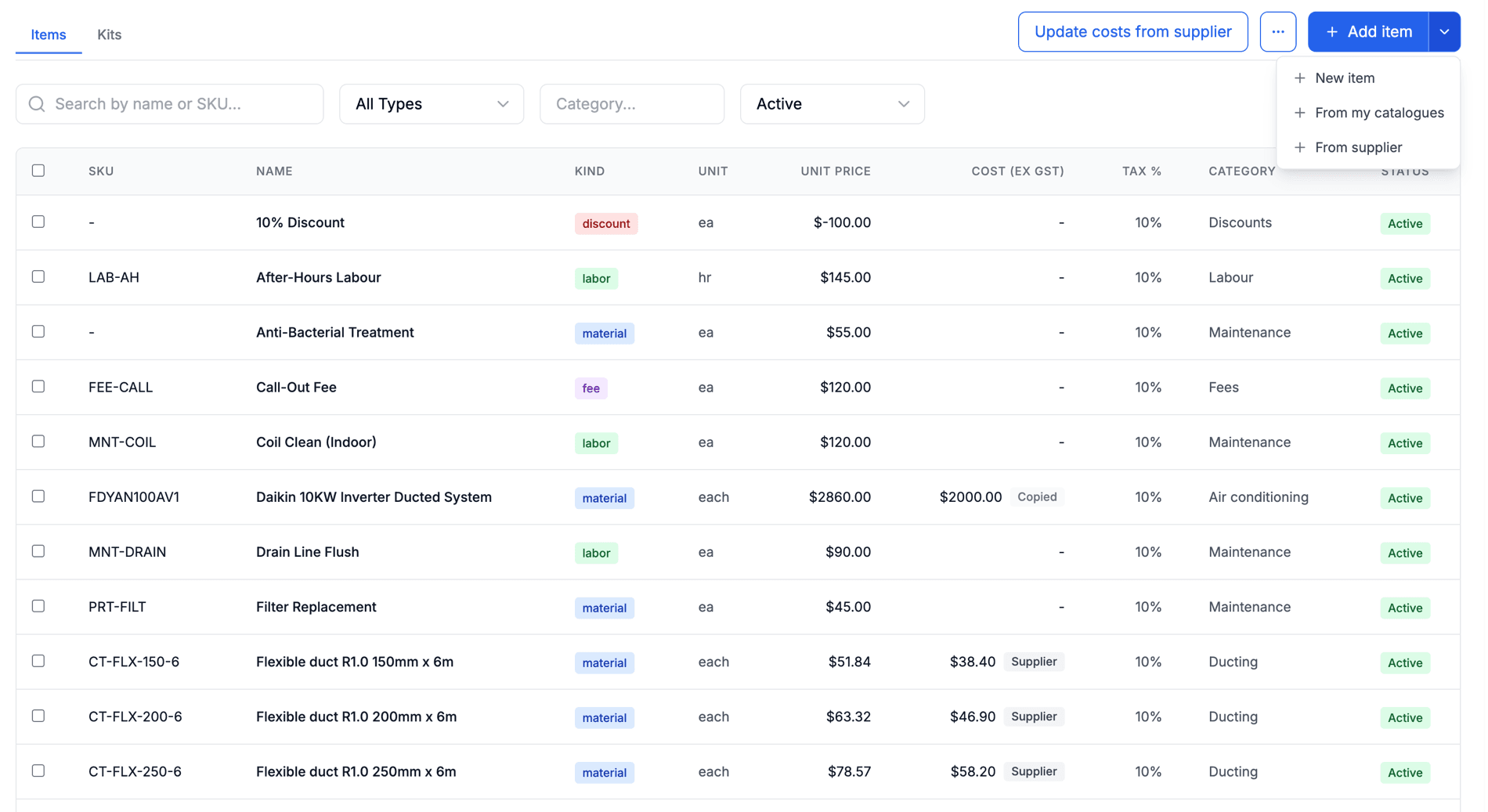
From supplier adds products straight from a supplier's pricebook, with their costs filled in and linked. See Adding Items From a Supplier.
From my catalogues turns one of your A/C or ventilation units into a price list item:
- Choose From my catalogues and pick the unit. Units already in your price list say Already in your price list
- Check the name, SKU and Sell price (inc GST). The sell price is suggested from your unit margin, and the line below it shows Your cost from your catalogue
- Click Add to price list
Step 2: Fill in Item Details
Required fields:
Name - What you call this item
- Be specific: "Ducted AC 14kW Fujitsu" not just "AC Unit"
- Easy to search: include brand, model or key specs
- Examples: "Service call fee", "Senior tech hourly rate"
Unit Price ($) - What you charge
- Enter the amount without a $ sign
- This is per unit (per item, per hour, per metre)
- Examples: 8500 for equipment, 95 for an hourly rate
- Negative numbers are allowed, which is how discount items work
Default Qty - How many you usually use. Normally 1
Tax Rate (%) - GST percentage. Enter 10, not 0.10. Use 0 for non-taxable items
Item Kind - Material, Labor, Fee or Discount
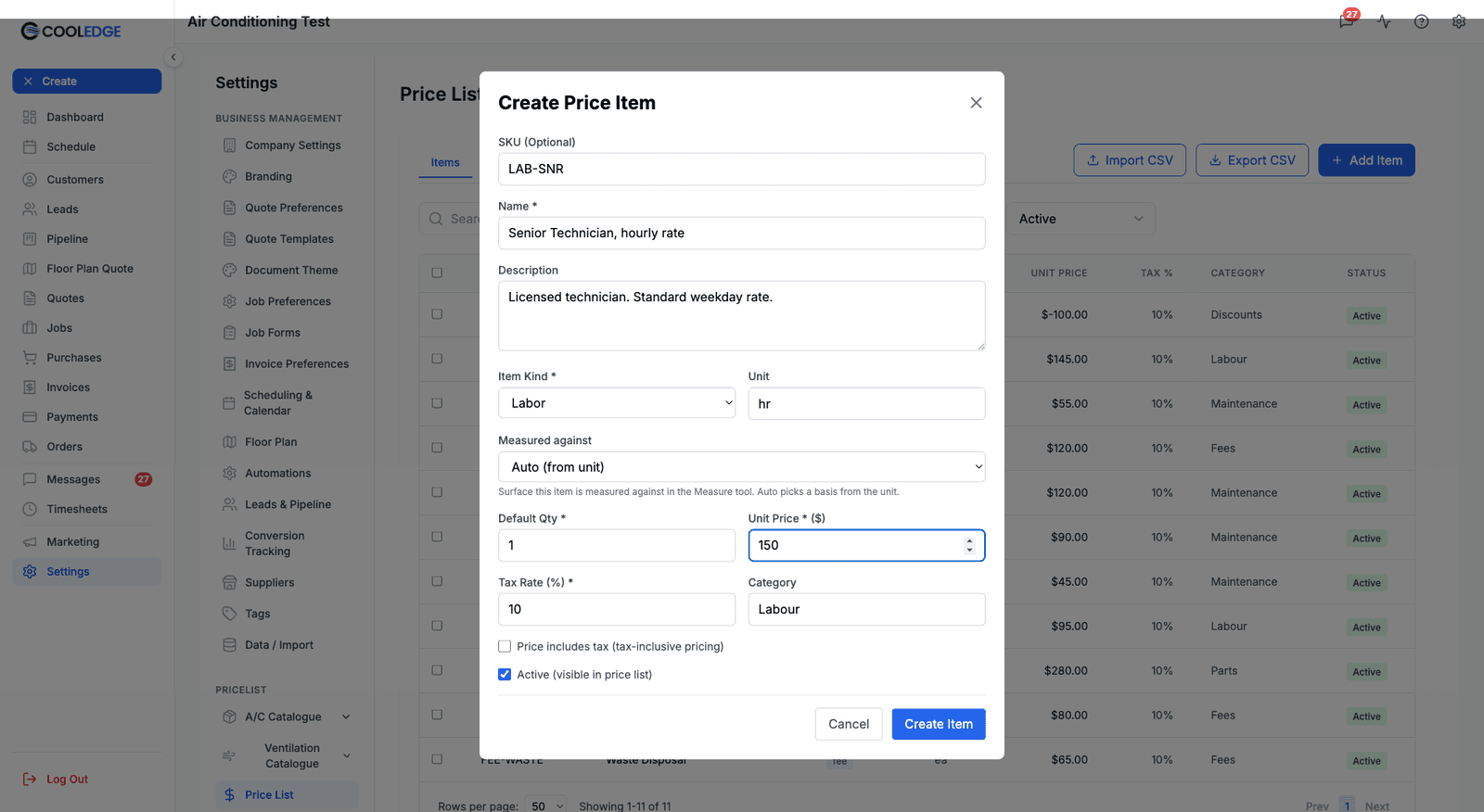
Optional fields:
SKU - Stock keeping unit (product code)
- Use it if you track inventory or order from suppliers by code
- It is also what CSV import matches on to decide update vs create
- Examples: "FJTS-14KW", "LAB-SNR", "FEE-CALL"
Unit - What you're charging per
- Examples: "ea" (each), "hr" (hour), "m" (metre), "day"
Measured against - Only matters if you use the Measure tool for quoting. It tells Cooledge which surface this item is measured against: floor area, wall area, ceiling area, perimeter or each. Leave it on Auto (from unit) and Cooledge picks a basis from the unit
Category - Group similar items
- Examples: "Equipment", "Parts", "Labour", "Fees"
- Categories become the filter chips in the invoice item picker
- Completely optional
Description - Extra notes: technical specs, installation requirements, anything the person invoicing should see
Price includes tax (tax-inclusive pricing) - Tick this if the Unit Price you entered already has GST in it
Active (visible in price list) - Ticked by default. Untick to hide the item without deleting it
Cost (ex GST) - What you pay for the item. It shows as Cost (inc GST) if your business enters purchase prices including GST. The cost is for your own records. Customers never see it and it doesn't change the Unit Price
Supplier cost
Once an item is saved, its edit form has a Supplier cost section under the cost. Click Link to supplier item to make the cost follow an item in a supplier's pricebook, or copy its price once. Linked items wear a Supplier or Copied badge in the table.
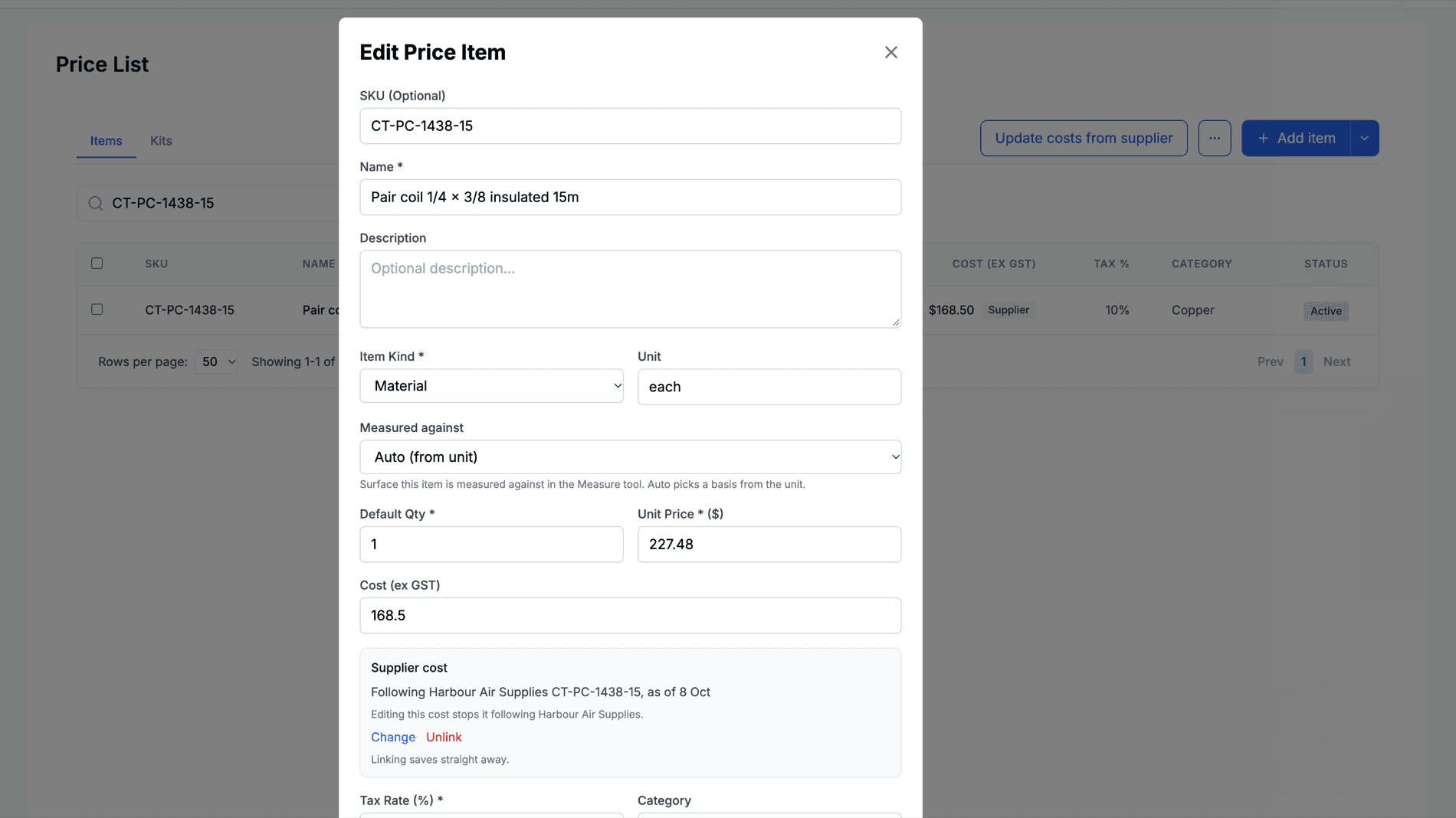
When your supplier's prices change, click Update costs from supplier at the top of the price list to review and update every linked cost at once. Only the cost changes. Your Unit Price stays as you set it. See Adding Items From a Supplier.
Step 3: Save
Click Create Item and it is added to your Price List immediately.
Editing Price List Items
To change an item:
- Find it in the Price List table
- Click anywhere on the row. There is no separate pencil button
- The Edit Price Item modal opens with the current values
- Change what you need and click Update Item
Every field is editable, including the SKU and the Item Kind. Changing an item's kind from Material to Labor is fine and does not require deleting and recreating it.
Updating Prices
When you change a price:
- Only affects new invoices
- Old invoices don't change (they used the old price)
- This is good! Historical pricing stays accurate
Example:
- Today: Item costs $100
- You create invoice: Uses $100
- Tomorrow: You update item to $120
- Old invoice still shows $100
- New invoices use $120
Activating and Deactivating Items
Why Deactivate Instead of Delete?
Don't delete items you've used on invoices!
If you delete an item:
- Old invoices lose the reference
- Can't see what item was used
- Reports break
Instead, deactivate:
- Item hidden from search when creating invoices
- Old invoices still show it
- Can reactivate anytime
- History preserved
How to Deactivate
The Status column shows Active or Inactive as a badge. It is a label, not a switch, so you change it in the edit modal:
- Click the item's row to open it
- Untick Active (visible in price list)
- Click Update Item
Inactive items:
- Don't appear when adding items to an invoice
- Still show on old invoices where they were used
- Are hidden from the list until you change the Status filter
How to Reactivate
- Set the Status filter at the top of the Price List to Inactive, or clear it to All Status
- Click the item's row
- Tick Active and click Update Item
Archiving or Deleting in Bulk
Tick the checkboxes at the left of several rows and two buttons appear above the table: Archive Selected, which deactivates them all at once, and Delete Permanently, which does what it says. Archive is almost always the one you want, for the reasons above.
Using Price List Items on Invoices
Adding from Price List
When creating or editing an invoice:
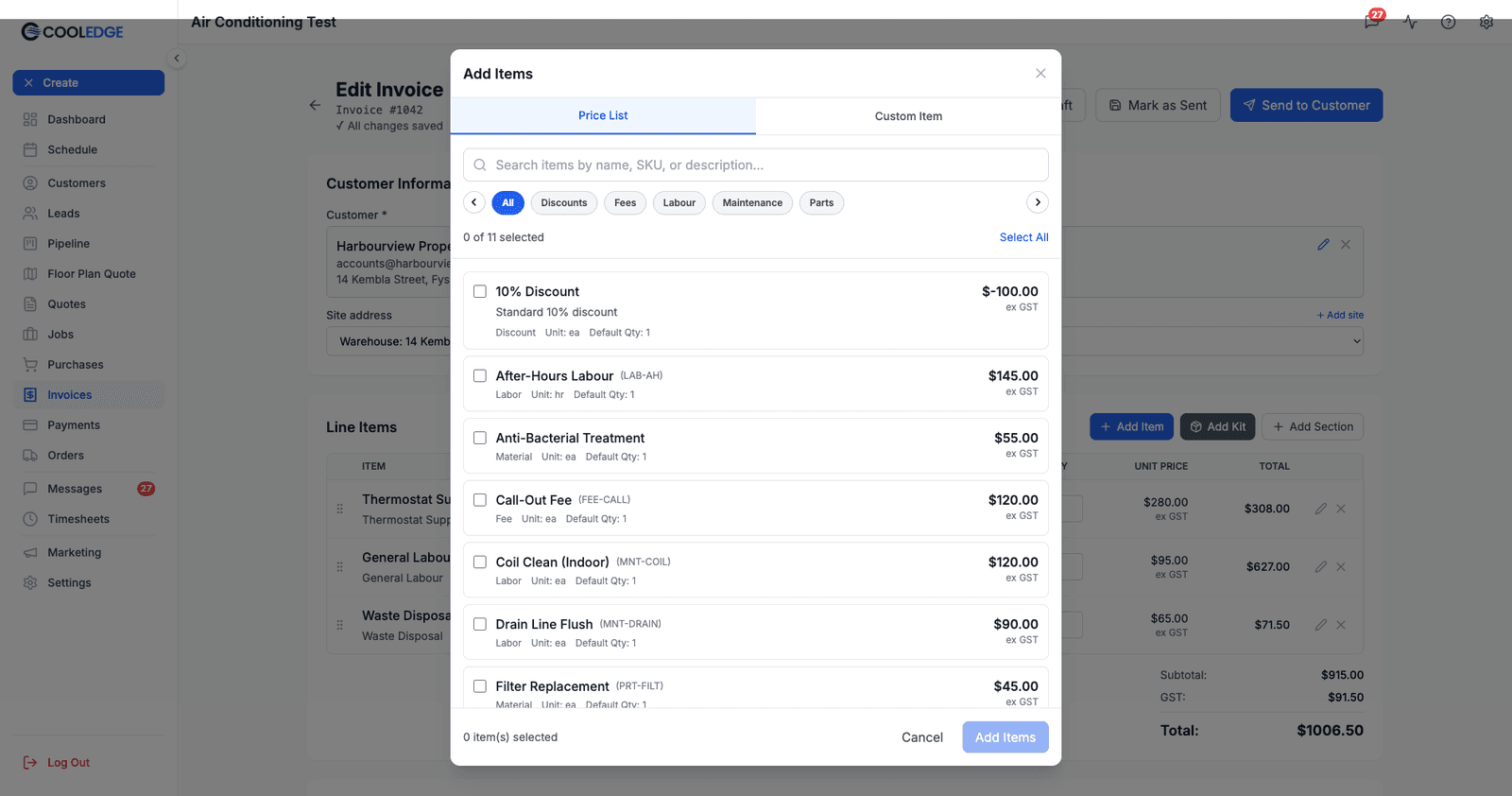
- Click Add Item on the invoice
- Stay on the Price List tab
- Search, or filter with the category chips along the top
- Tick every item you want, then click Add Items. It is a multi-select, so you can add a whole job's worth in one pass
- Adjust quantities on the invoice afterwards
What gets copied:
- Name/description
- Default quantity
- Unit price
- Tax rate
What you can change on the invoice:
- Quantity (e.g., change from 1 to 3)
- Price (for special discounts)
- Description (add job-specific notes)
Original Price List item doesn't change - you're just using it as a template.
Saving Invoice Lines Back to Price List
If you create a custom line on an invoice that you'll use again:
- On the invoice, click Add Item and switch to the Custom Item tab
- Fill in the name, price and tax rate
- Tick Save to price list for future use before you add it
- The item is added to the invoice and saved to your price list at the same time
It lands in your price list as a Material. If it is really labour or a fee, open it in Settings > Price List afterwards and change the Item Kind.
Organizing Your Price List
Categories
Use categories to group related items:
Equipment - AC units, heaters, major items
Parts - Small components, consumables
Labor - Different hourly rates
Fees - Service charges, disposal, admin
Discounts - Various discount types
To filter by category: The Category box at the top of the Price List is a free-text filter, not a dropdown. Type any part of a category name and the list narrows as you type, so consistent spelling matters more than it looks.
Naming Conventions
Good naming:
- "Ducted AC 14kW Fujitsu ASTG14KMCA" - Specific
- "Senior Technician - Hourly" - Clear role
- "After hours service fee" - Explains when it applies
Bad naming:
- "AC Unit" - Too vague (which one?)
- "John" - Is this a person? A rate? Unclear
- "Fee" - What kind of fee?
Include key details in the name so you can find items quickly when searching.
SKU Strategy
Use SKUs if:
- You track inventory
- You order from suppliers (match their codes)
- You have lots of similar items
- You want barcode scanning (future)
Skip SKUs if:
- Small business with few items
- Don't track inventory
- Names are good enough
SKU tips:
- Keep them short and meaningful
- "FJ-14K" not "FUJITSU-ASTG14KMCA-14KILOWATT"
- Use consistent format across all items
Labor Items and Staff Defaults
Setting Up Labor Rates
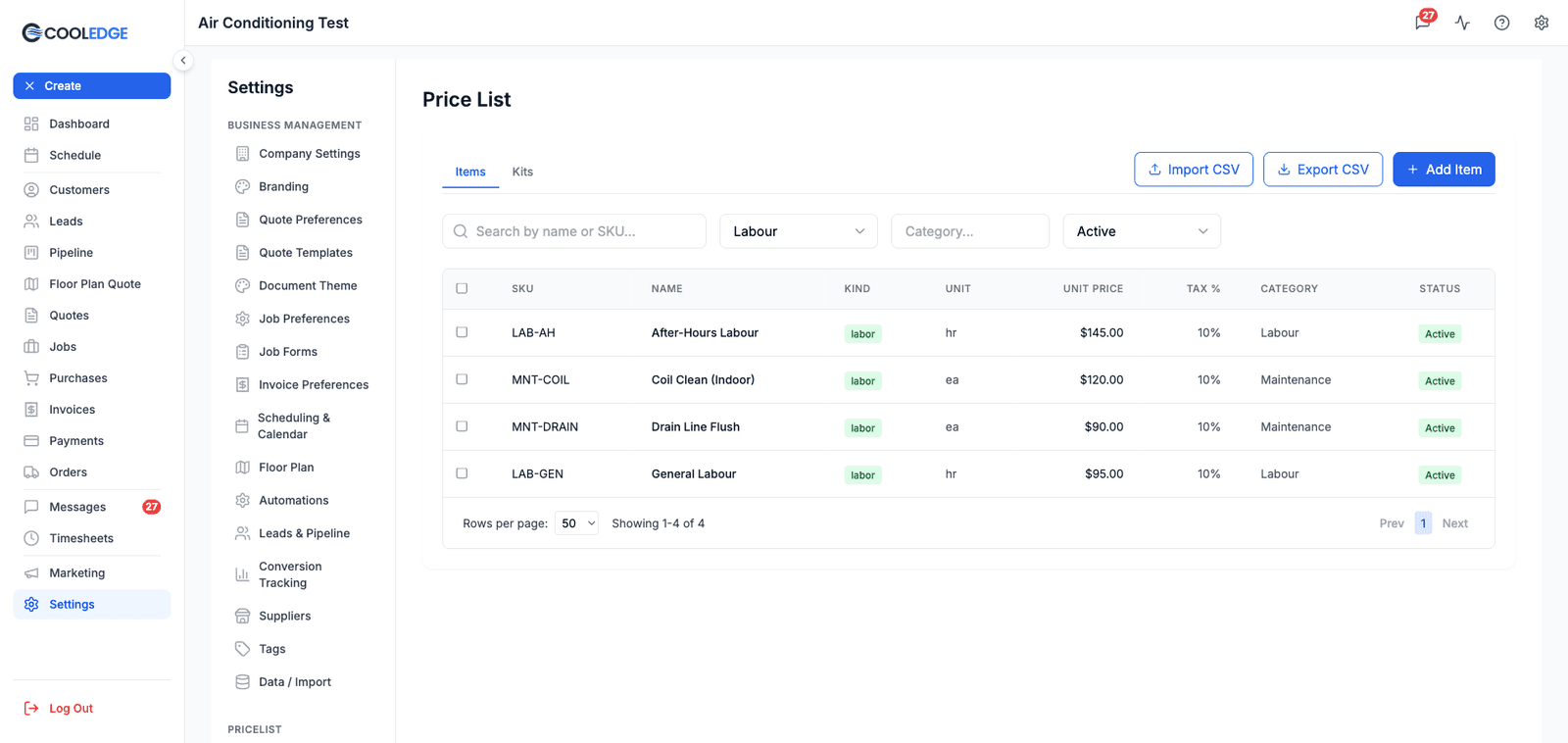
Labor items are hourly rates for your staff:
Create a labor item for each rate:
- "Senior Tech - $95/hr"
- "Junior Tech - $75/hr"
- "Apprentice - $50/hr"
- "After Hours - $150/hr"
Fields:
- Item Kind: Labor
- Unit: hr
- Unit Price ($): the hourly rate
- Default Qty: 1
Assigning Defaults to Staff
In Settings > Team, every team member has a Default Labour Item dropdown. Setting it records which price list item represents that person's time, so the whole team can see one agreed rate per person.
Be aware that this is a record, not yet a shortcut: nothing on the invoice reads it back, and there is no "add my labour" button. You still add the labour item from the price list the normal way. See Staff Labour Rate Defaults for the detail.
Common Questions
How many items should I have in my Price List? As many as you use regularly. Start with your top 20 most common items. Add more as you find yourself typing the same things repeatedly.
Can I have two items with the same name? Yes, but don't! It's confusing. Use names like "Ducted AC 14kW" and "Ducted AC 18kW" (different).
What if I change a price and need to honor old quotes? Quotes lock their prices when accepted. Changing Price List items doesn't affect existing quotes or invoices. Only new invoices use new prices.
Can I delete items I don't use anymore? Better to deactivate them. Deleting breaks references on old invoices. Deactivating hides them but preserves history.
Can my staff see the Price List? Yes. All team members can view and use Price List items on invoices. Only managers can edit, add or delete items, depending on permissions.
What's the difference between the Price List and the Catalogue? The A/C and Ventilation catalogues hold the equipment you quote from (units, systems, add-ons) and drive the quoting engine. The Price List holds the items you bill from (materials, labour, fees, discounts) and feeds invoices, quotes and kits. Different jobs, both worth keeping tidy.
Tips for Maintaining Your Price List
Start simple:
- Add your top 10-20 items first
- Add more as you need them
- Don't try to add everything day one
Update prices regularly:
- Link your costs to a supplier and click Update costs from supplier when a new pricebook comes in
- Check your Unit Prices against the new costs, since your sell prices don't move by themselves
- Old invoices stay at old prices (automatic)
Use descriptive names:
- Future you will thank present you
- "Senior tech" vs "Tech rate" - which is clearer?
- Include what makes it special
Deactivate, don't delete:
- Product discontinued? Deactivate it
- Old pricing? Deactivate and create new item
- Seasonal items? Deactivate off-season
Keep labor rates up to date:
- Review annually at minimum
- Update for award changes
- Different rates for different situations
Clean up once a year:
- Review inactive items (can any be deleted?)
- Merge very similar items (do you really need both?)
- Update categories if they're messy
Related Articles
- Price Kits - Create bundled pricing packages
- Importing and Exporting Price Lists - Bulk updates with CSV
- Adding Items From a Supplier - Add pricebook products and keep costs in step
- Staff Labour Rate Defaults - Recording a rate against each team member
- Editing Invoice Line Items - Using price list items on invoices
Need more help? Use the help cart (? icon in the header) or email support@cooledge.com.au
Was this article helpful?
Let us know if you found this information useful.
Still need help? Contact support
In this article
Use your browser's search (Ctrl+F) to quickly find specific topics within this article.
Browse all help articles →Related Articles
Adding Items From a Supplier
Turn your supplier's pricebook into price list items, trade parts and AC units in a few clicks, each one following the supplier's price
CSV Import and Export for Price Lists
Bulk import products and pricing or export your entire price list to a CSV file
Price Kits (Bundled Pricing)
Create flat-rate bundles of products and labor for faster quoting and invoicing