Editing Invoice Line Items
Add, edit and remove line items on invoices including quantities, prices and tax calculations
Editing Invoice Line Items
What are Line Items?
Line items are the individual rows on an invoice - each product, service or charge you're billing for. Together, all the line items add up to the invoice total.
Example line items:
- Ducted AC Unit - Model ABC123 | Qty: 1 | $8,500
- Installation Labor (8 hours) | Qty: 8 | $120/hr
- Disposal Fee | Qty: 1 | $150
Each line has its own price, quantity and tax handling.
Where to Edit Line Items
- Open the invoice detail page
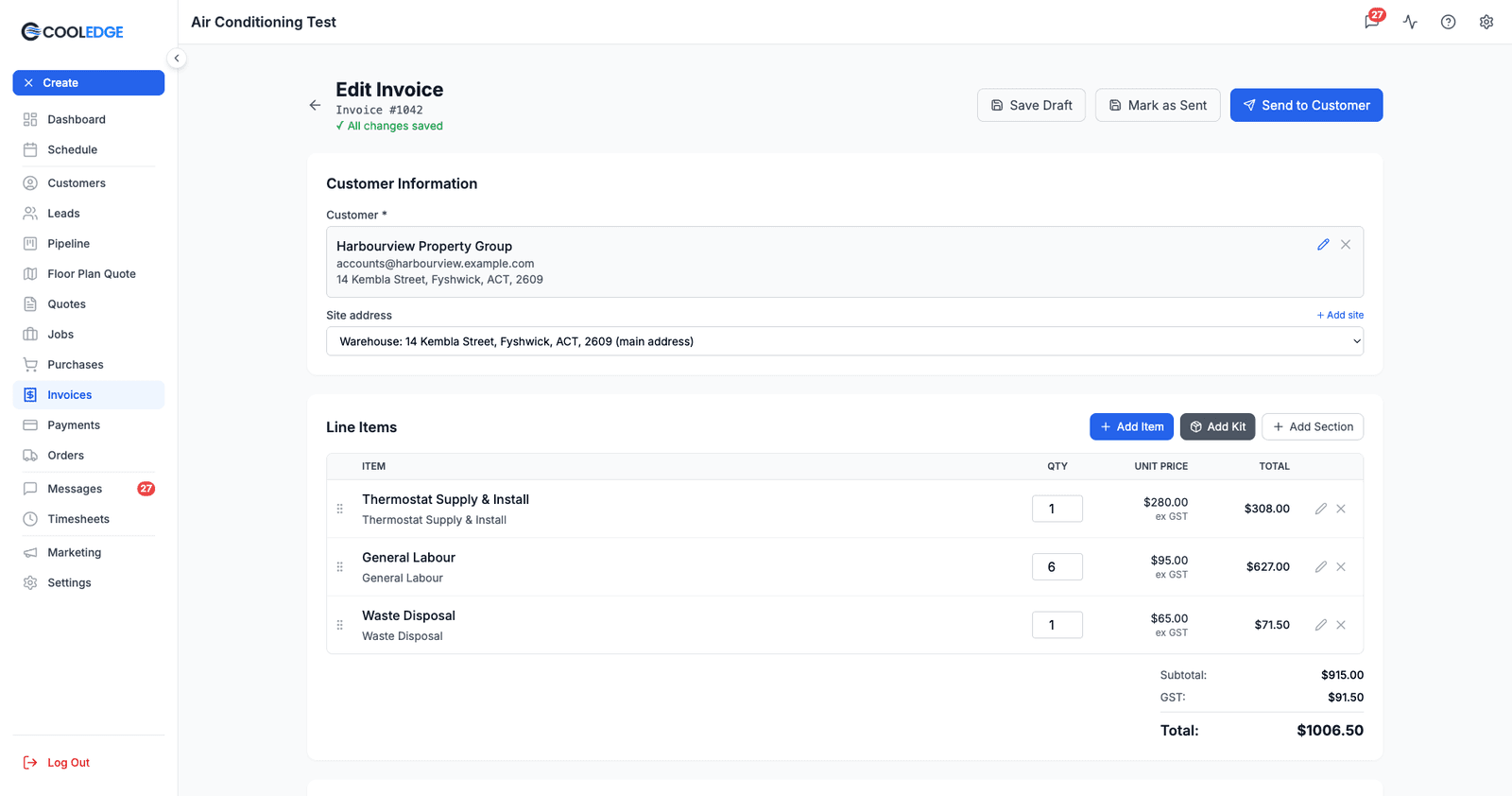
- You'll see the Line Items table in the middle, read-only
- Click Edit (top right)
- The full invoice editor opens, where the lines are editable
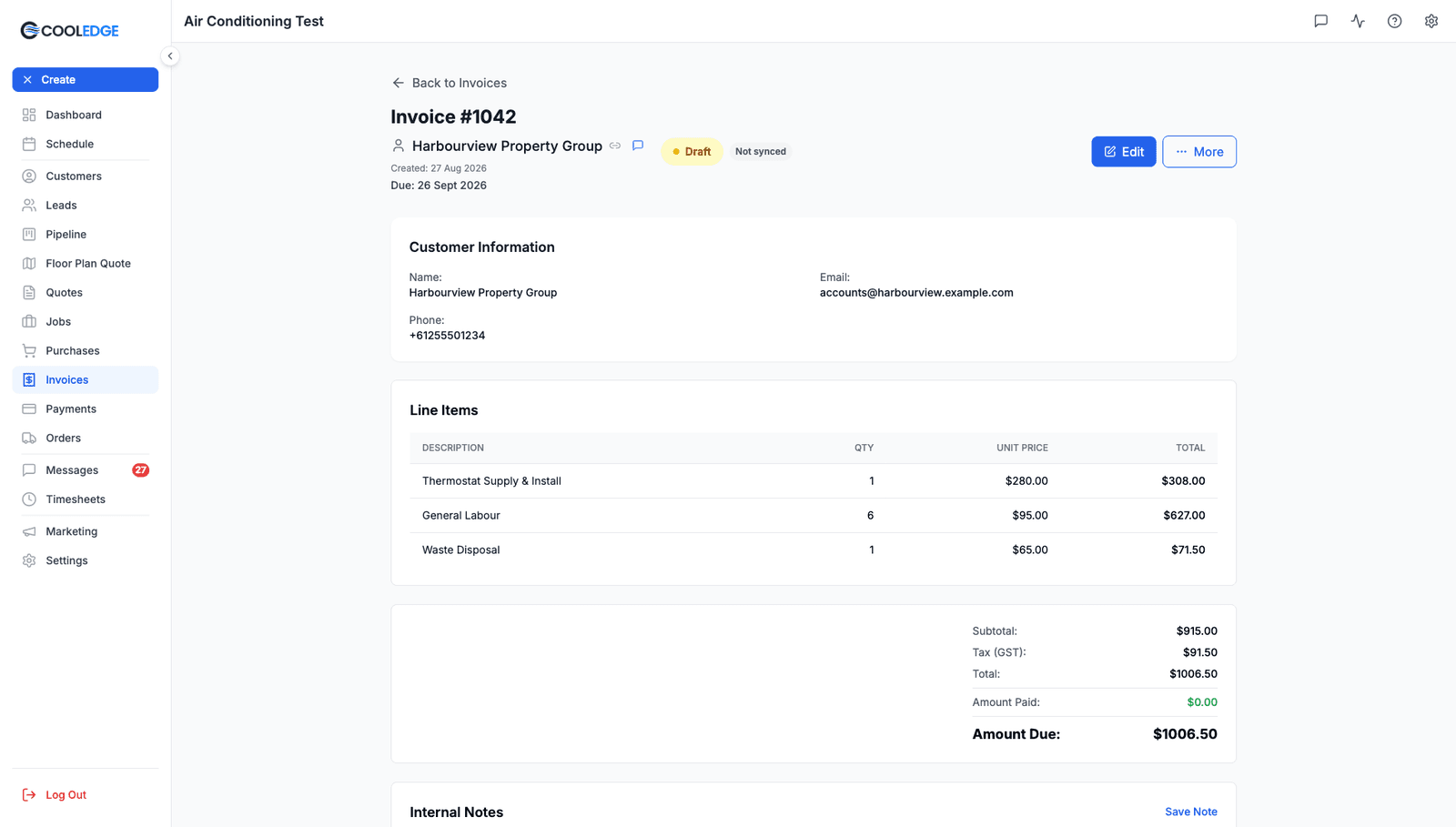
A note on which invoices you can edit. Draft, Sent and Part-Paid invoices all open the full editor, though the server will refuse a Part-Paid edit that drops the total below what has already been paid. A Paid invoice shows Edit Details instead: the lines are frozen, but the details around them are not.
For an invoice attached to a job, there is a second way in. The job's Billing tab holds the job invoice inline, with the same Add Item, Add Kit and Add Section buttons and a Save & Send at the end, so you can bill a job without leaving it.
Adding a New Line Item
The editor gives you three buttons above the line items table: Add Item, Add Kit and Add Section.
- Add Item opens the item picker, covered below
- Add Kit adds a price kit as a single flat-rate line
- Add Section inserts a section heading, so you can group lines under headings like "Supply" and "Install" on a long invoice
Method 1: Add from Price List (Fastest)
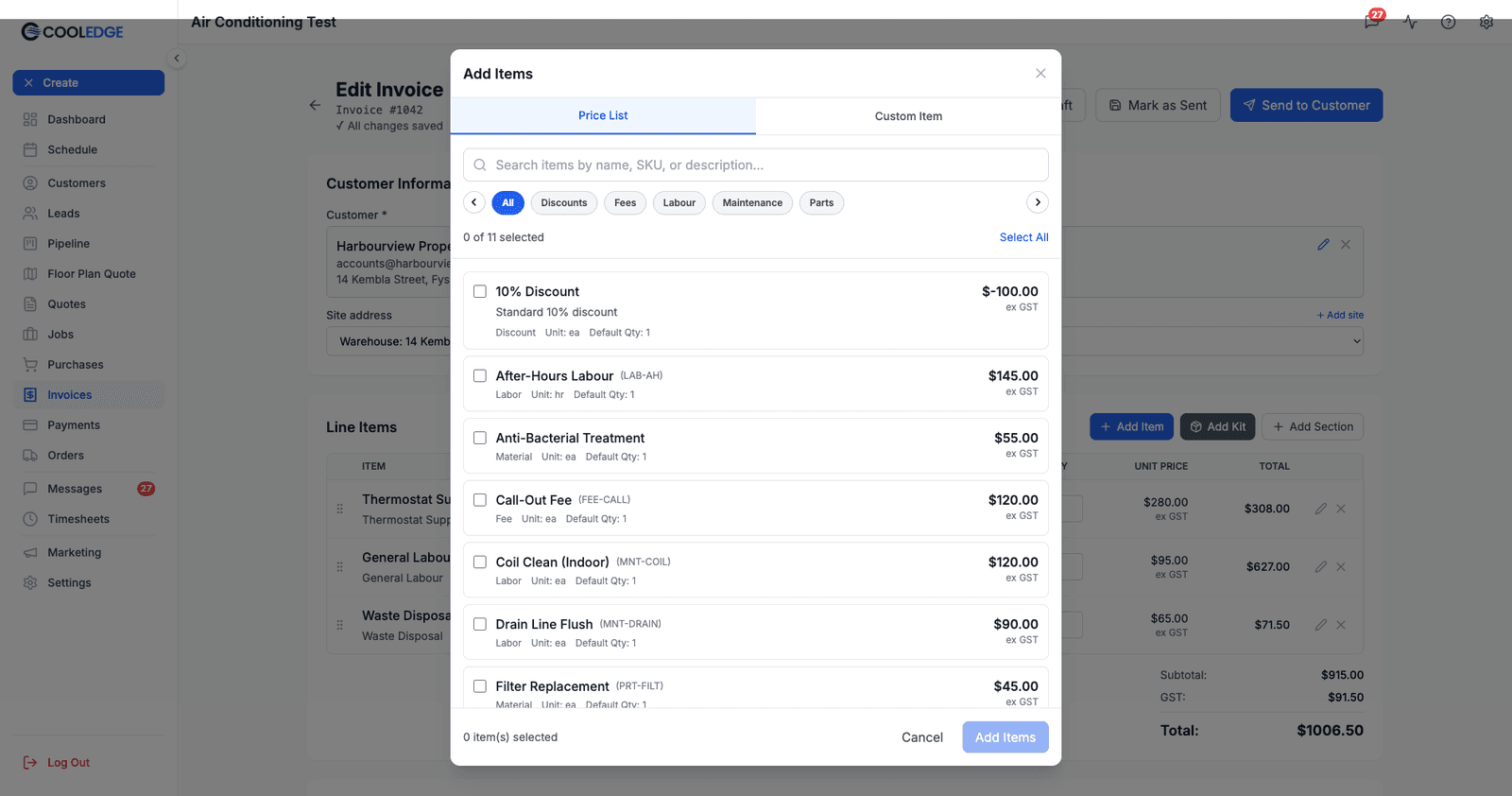
- Click Add Item
- The Add Items modal opens on the Price List tab
- Type to search by name, SKU or description, or narrow the list with the category chips
- Tick every item you want. This is a multi-select, and the footer keeps a running "0 of 11 selected" count. Select All is there too
- Click Add Items
- Each item arrives with its default quantity, price and tax rate. Adjust the quantity on the invoice
Method 2: Add Custom/Manual Item
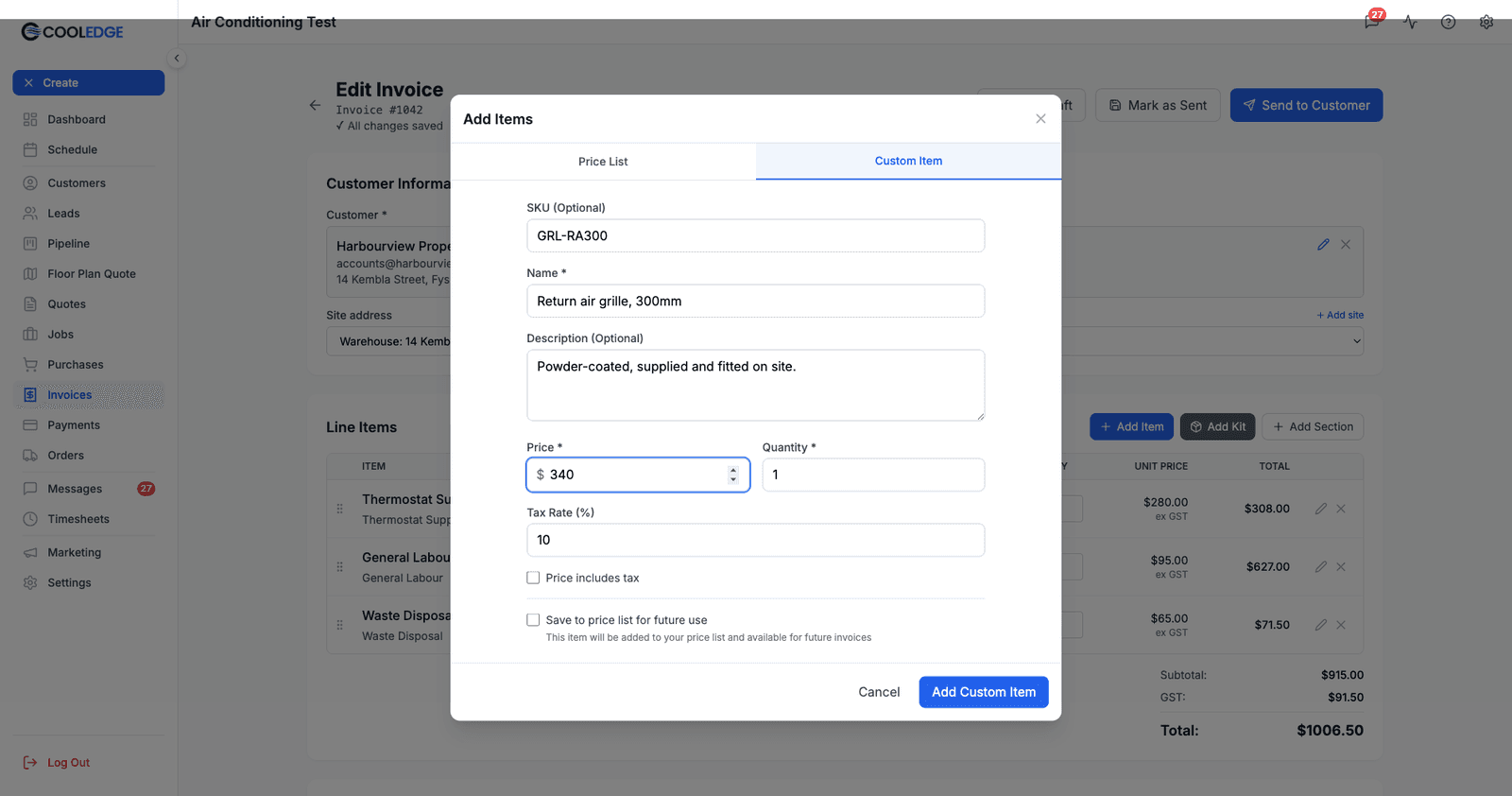
- Click Add Item, then switch to the Custom Item tab
- Fill in:
- SKU (Optional) - Part number or code
- Name - required. This is what the customer sees as the line
- Description (Optional) - Extra detail under the name
- Price - required
- Quantity - required
- Tax Rate (%) - 10 for GST
- Price includes tax - tick if the price you typed already has GST in it
- Save to price list for future use - tick to add it to your price list at the same time
- Click Add Items
Use custom items when:
- Billing for something not in your price list
- One-off charges
- Special circumstances or custom pricing
Editing an Existing Line Item
To change a line item that's already on the invoice:
- Find the line in the table
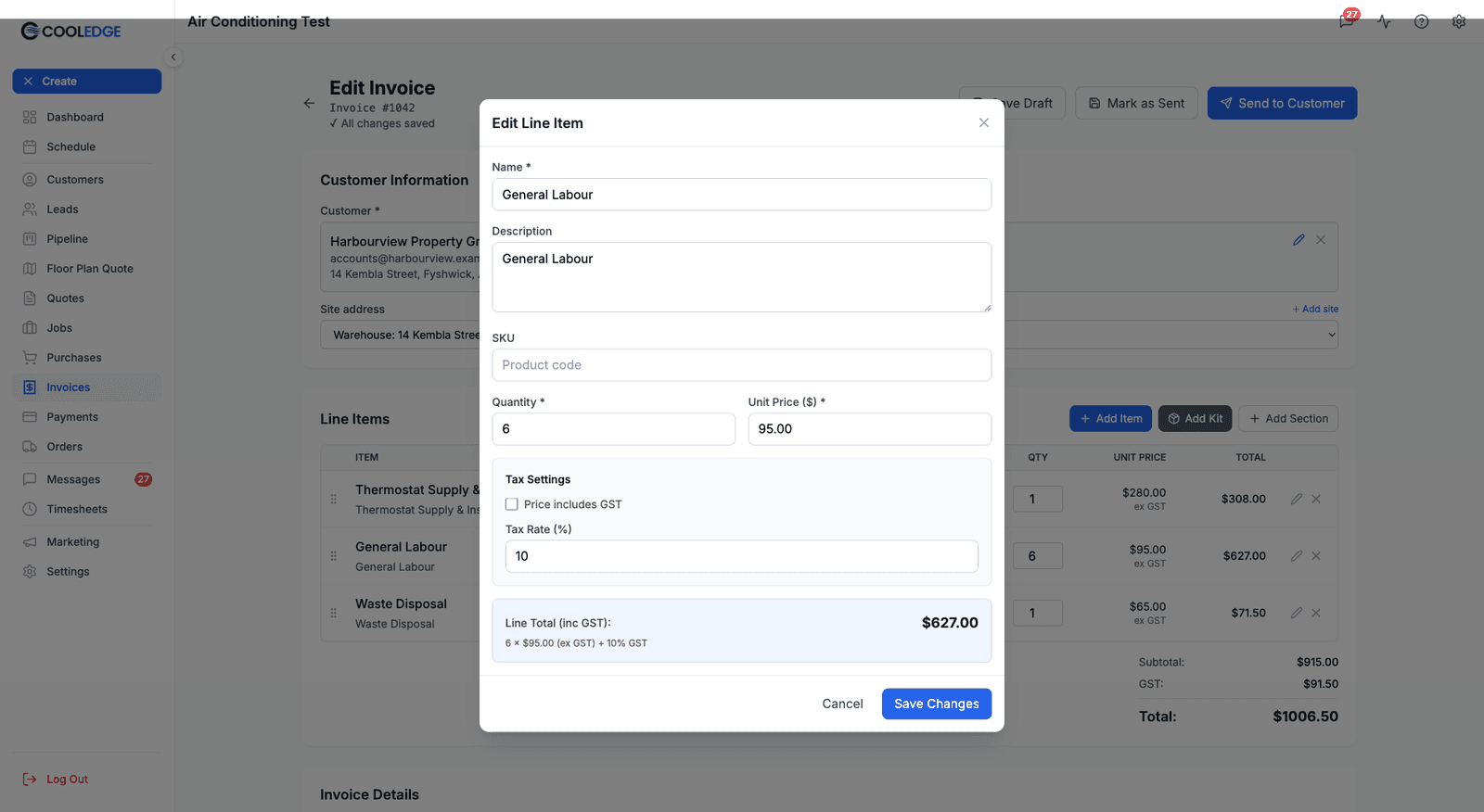
- Click the pencil icon at the right of the row. The Edit Line Item modal opens
- Update any field: Name, Description, SKU, Quantity, Unit Price ($), and under Tax Settings, "Price includes GST" and Tax Rate (%)
- Click Save
- The invoice total recalculates automatically
Quantity is quicker than that. You don't need the modal to change how many: click the quantity box directly in the table and type over it.
What You Can Edit
Every field on a line is editable: name, description, SKU, quantity, unit price and tax rate. Changing them affects this invoice only, never the price list item they came from.
The modal shows a live Line Total (inc GST) as you type, with the working underneath ("6 × $95 (ex GST) + 10% GST"), so you can see the effect before saving.
One limit worth knowing: the quantity field in this modal has a minimum of 1. If you want a line to total nothing, set the price to $0.00 rather than the quantity to zero.
Removing a Line Item
To delete a line from the invoice:
- Find the line you want to remove
- Click the X at the right of the row
- The line is removed straight away, with no confirmation prompt
- The invoice total recalculates
Be careful: there is no confirmation and no undo on that X. The line is gone as soon as you click it. If you are unsure, set the unit price to $0.00 instead, which keeps the line visible but adds nothing to the total. Nothing is written to the invoice until you Save, though, so if you delete the wrong line you can leave the editor without saving and start again.
How Pricing and Tax Work
Unit Price
This is the price for ONE of the item:
- If installing 3 units at $2,000 each → Unit Price = $2,000
- If billing 8 hours at $120/hr → Unit Price = $120
Quantity × Unit Price = Line Subtotal
Tax Rate (GST)
In Australia, most work includes 10% GST. The tax rate field lets you set this per line:
Tax Rate (%) is a number you type, not a dropdown. There is no preset list to choose from, so any rate is available:
- 10 for most Australian services and products. GST is added on top of the price
- 0 for tax-exempt lines, such as some overseas or charity work
- Anything else if a line genuinely carries a different rate
The default for new items comes from Settings > Invoice Preferences > Default Tax Rate, so if you almost never charge 10% it is worth changing there rather than on every line.
The tax rate box is on the portal only, and it is worth being precise about which box that is. The mobile app does have the Price includes tax tick, covered in the next section, which says whether GST is already inside the price you typed. What it does not have is a field for the rate itself. There is nowhere on the phone to change 10% to 0%, on a new line or an existing one. A custom item added on mobile is always 10%, whatever your Default Tax Rate is set to, and an item added from the price list keeps the rate stored on that item. If a line needs a rate other than the one it arrived with, set it in the portal.
Tax-Inclusive vs Tax-Exclusive
Tax-Exclusive (Default - B2B)
- Price shown DOES NOT include tax
- Tax added on top
- Example: $100 + 10% tax = $110 total
- Most invoices use this
Tax-Inclusive (Retail)
- Price shown INCLUDES tax
- Tax is extracted from the total
- Example: $110 (includes $10 tax) = $100 + $10 tax
- Used when customer sees "final price" first
You can toggle this in Settings, but most tradies use Tax-Exclusive.
Understanding the Invoice Totals
At the bottom of the invoice, you'll see:
Subtotal
Sum of all line items (before tax)
- Line 1: $8,500
- Line 2: $960
- Line 3: $150
- Subtotal: $9,610
Tax Total
Sum of all tax from each line
- Line 1: $850 (10% of $8,500)
- Line 2: $96 (10% of $960)
- Line 3: $15 (10% of $150)
- Tax Total: $961
Total
Subtotal + Tax
- $9,610 + $961 = $10,571
Quote Deposits (Job Invoices Only)
A quote deposit is not a total on this invoice. It becomes its own invoice, numbered with a -2 suffix, and the base invoice carries a matching negative line item for it:
Partial Invoice #1050-2 (Quote Q-AB-12345/1 Deposit) -2,000.00
That line sits with the others, so the Subtotal, Tax and Total above are already net of the deposit. You cannot edit or delete it by hand, and you should not try: it is what stops the customer being billed for the same money twice.
See Understanding Deposits for more details.
Reordering Line Items
To change the order lines appear on the invoice:
- Click and hold the drag handle (the dotted grip at the left of a line)
- Drag up or down
- Release to drop it in the new position
On the portal that is the only way to reorder. There are no position numbers to edit. On the mobile app there are no drag handles at all: each line carries up and down arrow buttons on its right instead, and you move a line one position per tap.
Why reorder?
- Put high-value items first
- Group similar items together
- Make the invoice easier to read
On the Mobile App
Everything above is the portal. The mobile app can do the same work on a job's invoice, with different labels and two real limits.
Getting to the lines. Open the invoice and you get the same read-only Line Items list the portal shows, with Edit Invoice and a ••• button above it. Tap Edit Invoice and the mobile invoice editor opens.
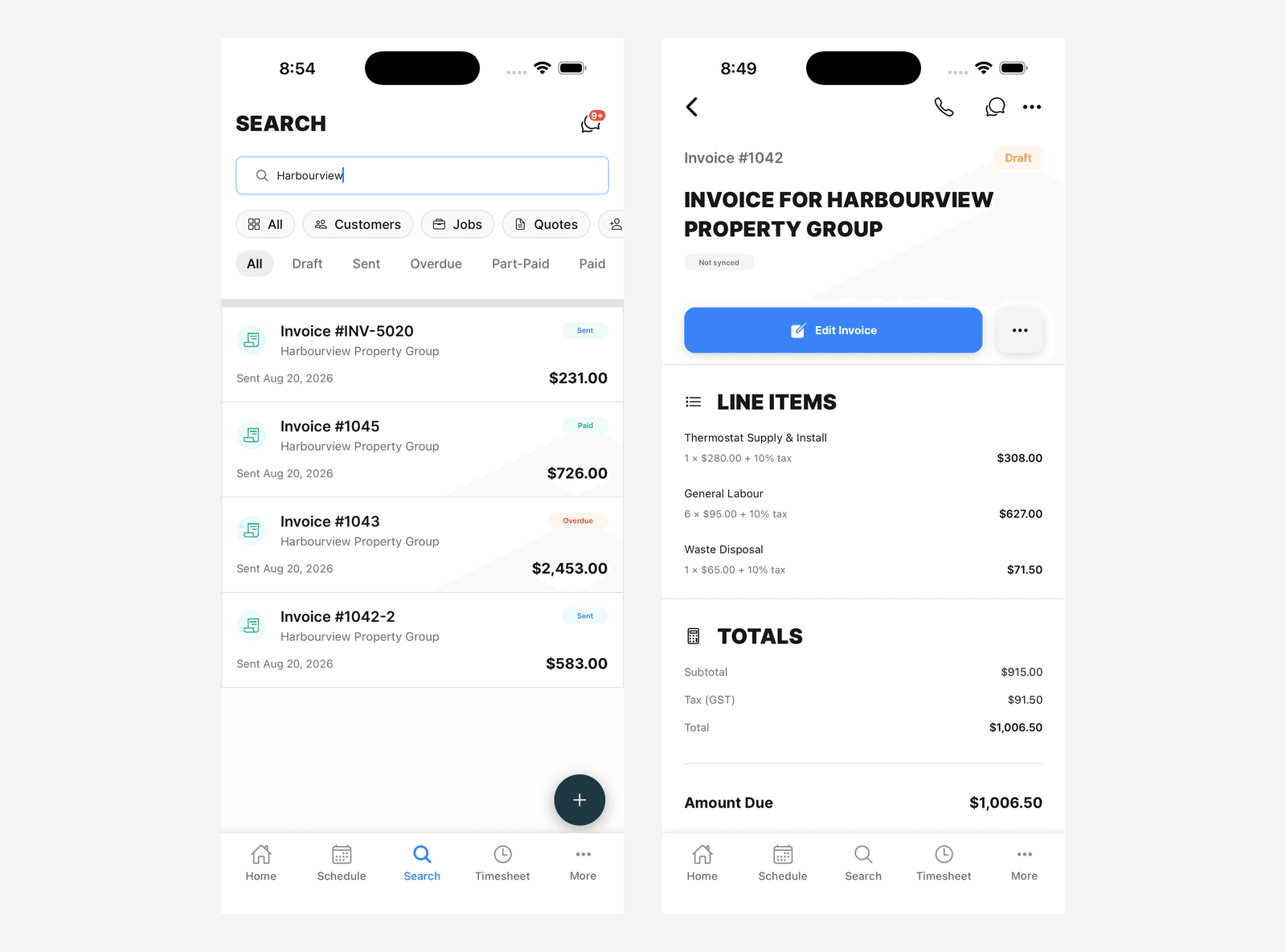
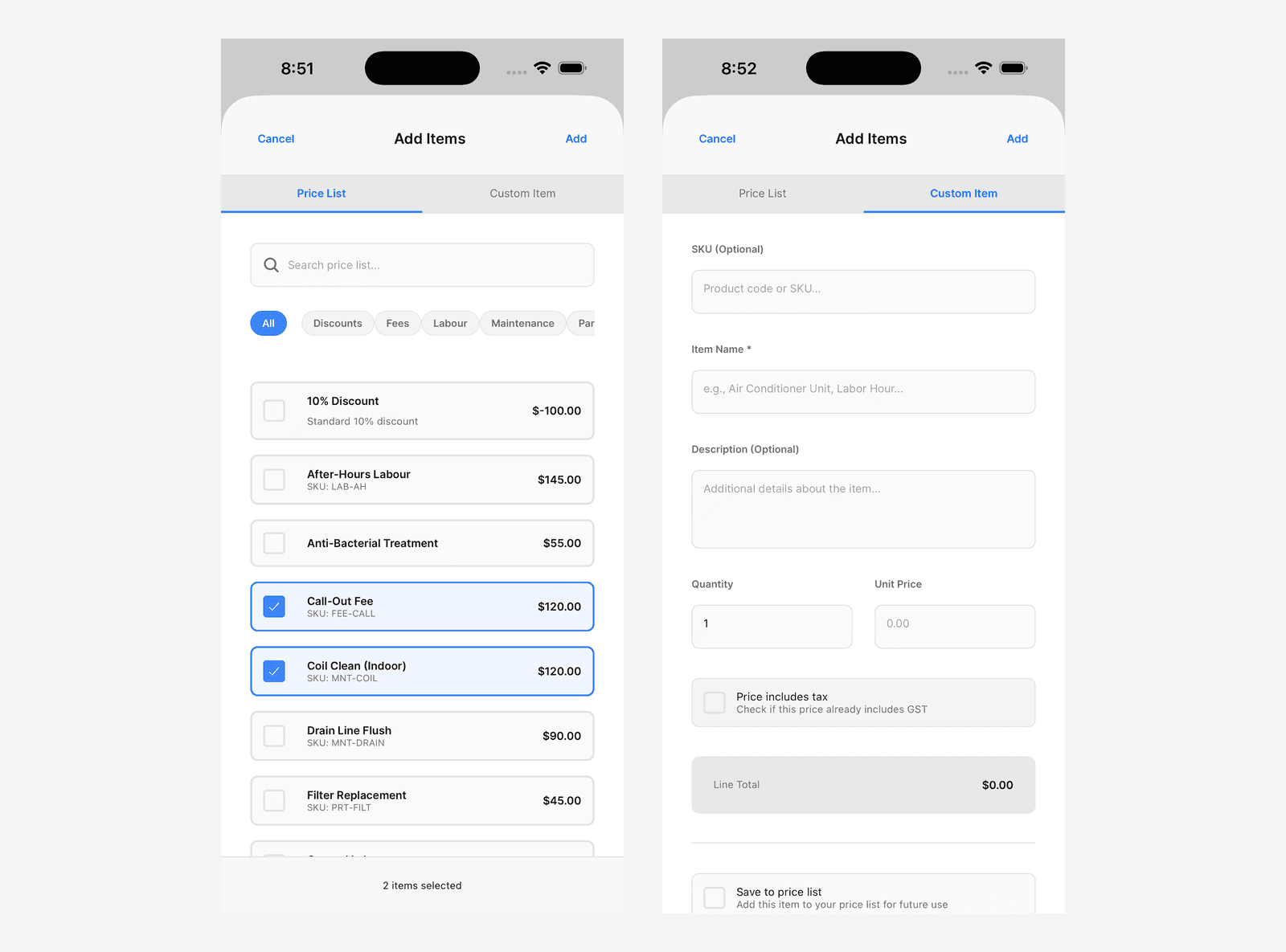
Adding a line. The editor has the same three buttons, named a little shorter: Item, Kit and Section. Item opens the Add Items sheet on its Price List tab, which works the way the portal's does: search, category chips, tick as many rows as you want and a bar along the bottom keeps count ("2 items selected"). Two differences worth knowing:
- There is no Select All on mobile. Tick the rows one at a time
- The rows show the name, description, SKU and price, but not the item kind, unit or default quantity
The Custom Item tab takes a SKU, an Item Name, a description, a quantity, a unit price and a Price includes tax tick. It shows a live Line Total as you type and can Save to price list at the same time. The tick defaults to whatever your business is set to, so if you price tax-inclusive it arrives already ticked.
The one field it does not have is the tax rate. Those two are easy to confuse: Price includes tax says whether GST is already inside the number you typed, while the rate says how much GST there is. Mobile lets you set the first and not the second, so a custom line added there is always 10%.
Editing a line. Tap the line in the editor and the Edit Line Item sheet opens with Cancel and Save in its header. You can change the SKU, Item Name, Description, Quantity and Unit Price, then tick Price includes GST if the price you typed already has GST in it. Underneath, a panel does the arithmetic as you type: unit price, subtotal ex GST, the GST amount and the total inc GST. The GST line is a readout, not a field.
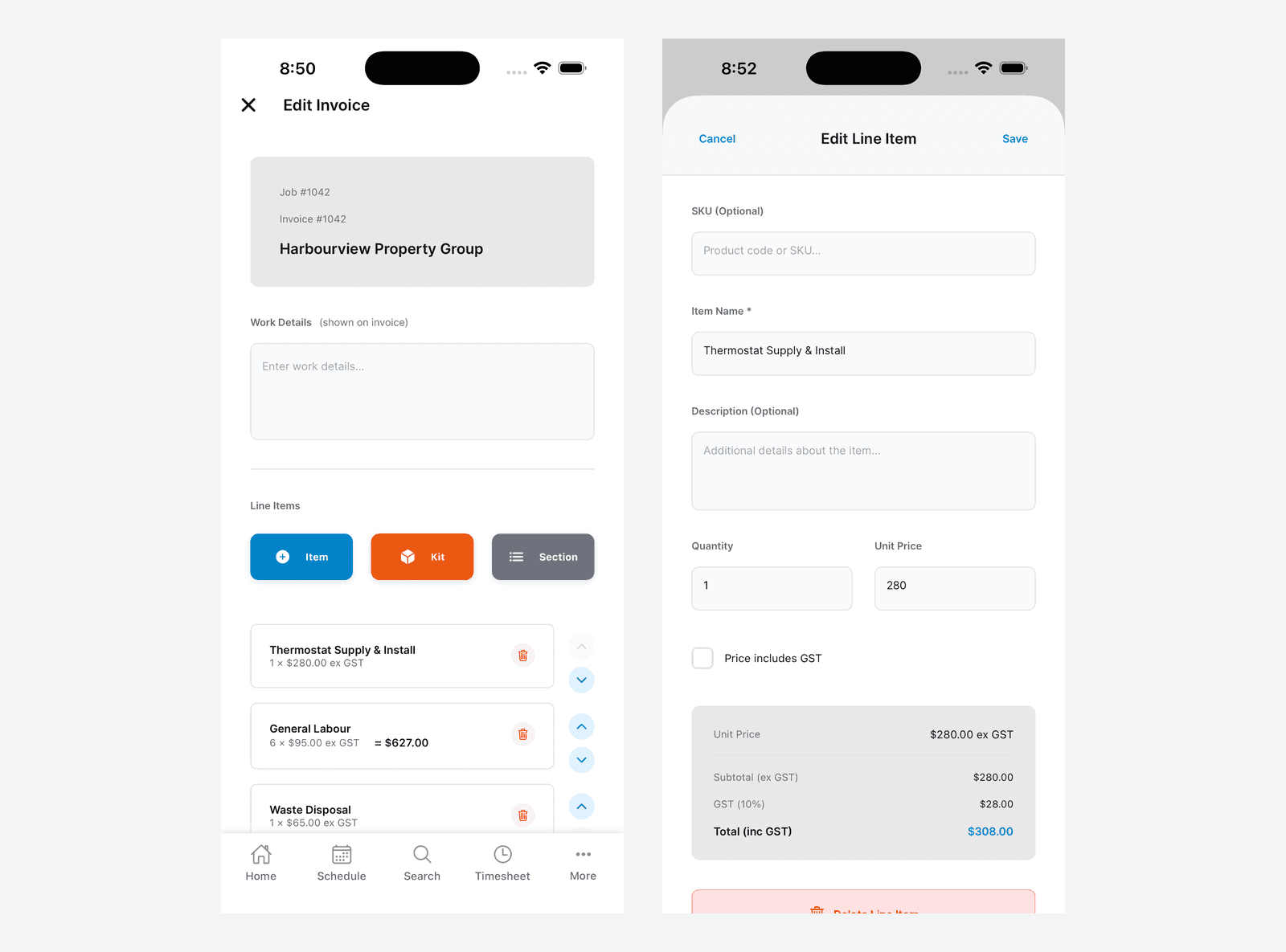
Removing a line. Each row in the editor carries a red bin icon on its right, and the Edit Line Item sheet has Delete Line Item at the bottom. Unlike the portal's X, the bin in the sheet asks you to confirm first.
What you cannot do on mobile: set a line's tax rate. Tax-inclusive pricing is fine there; a rate other than your standard one is not. Everything else on this page has a mobile equivalent.
Using Items from Your Price List
When you add items from your price list:
Advantages:
- Faster - pre-filled prices
- Consistent - same pricing every time
- Accurate - no typos
- Easy - searchable, one-click add
What gets copied:
- Name and description
- SKU
- Unit price
- Tax rate
- Default quantity
What you can change:
- Quantity - Adjust for this job
- Unit Price - Override for special pricing
- Name and description - Add job-specific detail
Changing any of these on the invoice never writes back to the price list.
Common Edits
Scenario 1: Changing Quantity
Customer ordered 3 units but changed to 2:
- Find the line item
- Edit Quantity field: 3 → 2
- Save
- Total recalculates automatically
Scenario 2: Adding a Discount
Add a discount as a negative line:
- Click Add Item and switch to the Custom Item tab
- Name: "Loyalty discount"
- Quantity: 1
- Price: -500
- Tax Rate: 0
- Click Add Items
The discount subtracts from the total. If you offer the same discount often, make it a price list item with a negative unit price and a Discount item kind instead, so it is one tick away next time.
Scenario 3: Splitting Billing
Invoice for partial work:
- Add only the items you want to bill for now
- Don't add items for work not yet done
- Create another invoice later for remaining work
Scenario 4: Zero-Dollar Line
Sometimes you want to show something on the invoice but not charge for it:
- Add the item
- Set the unit price to $0.00
- It appears on the invoice but doesn't affect the total
- Good for "included" or "complimentary" work
Best Practices
Be specific in descriptions Write "Ducted AC Unit - Daikin 14kW Model XYZ" not just "Equipment". Clear descriptions avoid customer questions.
Use your price list Build a complete price list and add from it. Saves time and keeps pricing consistent.
Check quantities carefully Most errors are wrong quantities. Double-check before saving.
Tax rate defaults to 10% Don't forget to set 0% for tax-exempt customers or items.
Round unit prices sensibly $120.00/hr looks professional. $119.87/hr looks odd. Round to nice numbers unless there's a reason not to.
Show your work For complex jobs, break down into detailed line items so customers see what they're paying for.
Common Questions
Can I add line items after sending the invoice? Yes. A Sent invoice still opens the full editor, and re-sending it reissues it. For a Part-Paid invoice the server will block any edit that drops the total below what has already been paid. For work added after the fact on a job, raising a partial invoice from the job's Billing tab is usually tidier than reopening one the customer already has.
Do line item changes update the price list? No. Changing a line item on an invoice only affects that invoice. Your price list stays the same.
What if I delete a line by mistake? Nothing is committed until you save, so leave the editor without saving and reopen it. If you have already saved, re-add the item.
How do I handle multiple tax rates on one invoice? Just set different tax rates for different lines. The system calculates correctly per line.
Can I add notes or extra details to a line item? Yes, in the description field. Add details like "(installed upstairs)" or "(3-year warranty)" to the description.
Related Articles
- Creating Invoices - How to create invoices
- Understanding Deposits - How deposits affect invoices
- Managing Your Price List - Set up items for easy invoicing
- Sending Invoices - Email and collect payment
Was this article helpful?
Let us know if you found this information useful.
Still need help? Contact support
In this article
Use your browser's search (Ctrl+F) to quickly find specific topics within this article.
Browse all help articles →Related Articles
Creating Invoices
Learn how to create job-linked and standalone invoices, with automatic deposit deductions
Managing Payments
Find every payment in one place, reverse a payment that was recorded wrongly and link a payment to one already entered in your accounting software
Sending Invoices and Getting Paid
Email invoices to customers, receive online payments and record cash/bank transfer payments