Managing Payments
Find every payment in one place, reverse a payment that was recorded wrongly and link a payment to one already entered in your accounting software
Managing Payments
Every payment your business has taken, on one page, with a way to correct the ones that are wrong.
- Payments in the main menu lists invoice payments and quote deposits together
- Search by invoice, quote or customer, then filter by method, accounting status or date
- Print a receipt for any payment, or open Stripe's own receipt for a card charge
- Reverse a payment that was recorded by mistake, refunded or settled somewhere else
- Link a payment to one already sitting in Xero or QuickBooks, which clears the sync flag that used to be stuck
- Nothing is deleted. A reversed payment keeps who reversed it, when and why
The Payments page is the money-records view. It shows what you have actually received, so it includes quote deposits as well as invoice payments. If your business works from quotes rather than invoices, this is where your deposit money lives.
The Payments Page
Open Payments from the main menu. It sits under Invoices, or under Quotes if your business does not use the Invoices section.
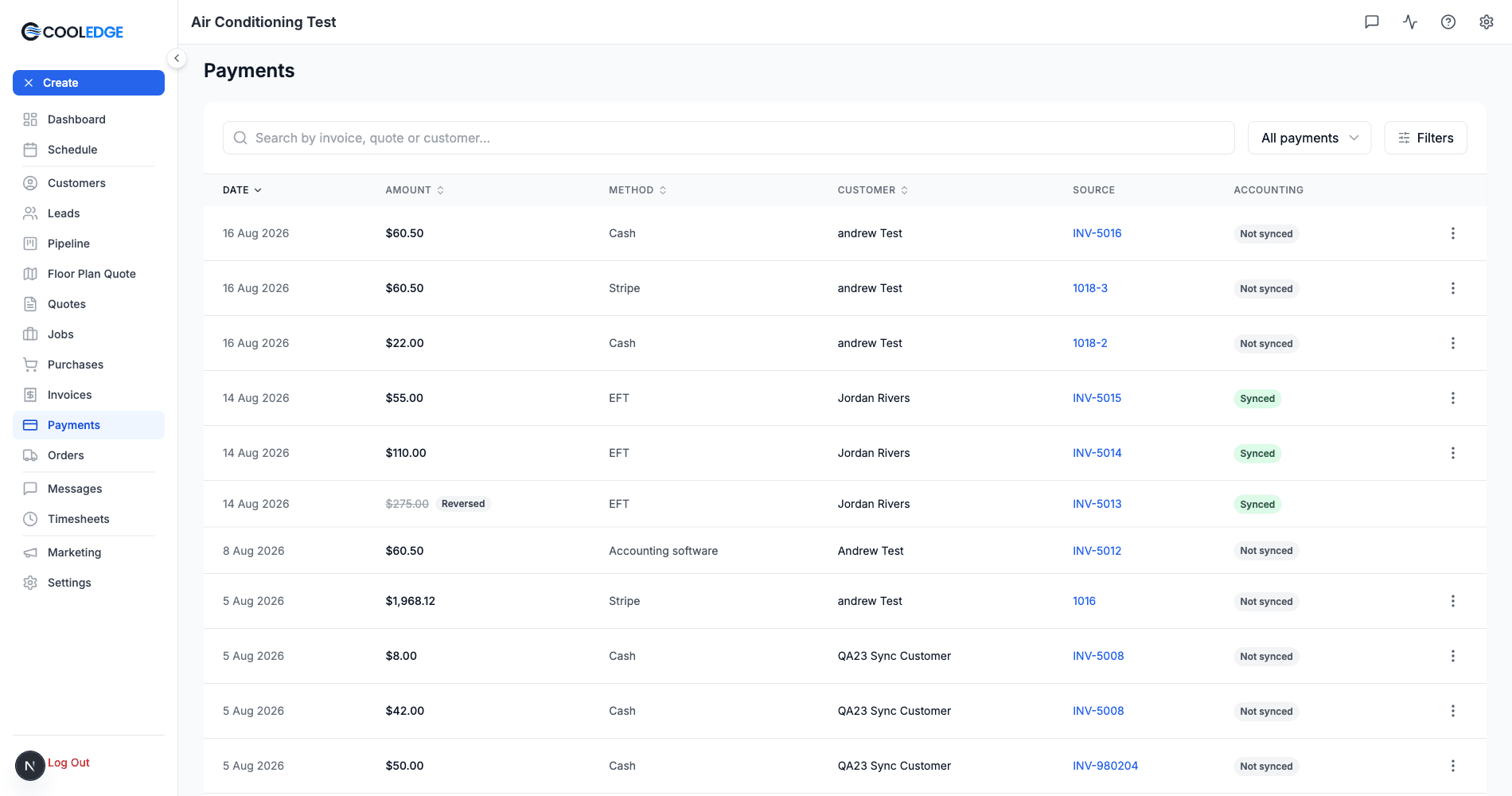
What Each Column Shows
| Column | What it holds |
|---|---|
| Date | When the money was received |
| Amount | The amount. A reversed payment shows struck through with a Reversed chip |
| Method | Cash, EFT, Card, Stripe, Accounting software or Other |
| Customer | The customer the payment belongs to |
| Source | The invoice or quote it was paid against. Click through to open it |
| Accounting | The sync badge for that payment, when you have an accounting connection |
Finding a Payment
- Search matches the invoice number, the quote reference and the customer name
- All payments narrows to Succeeded or Reversed
- Filters adds method, accounting sync state and a paid-from / paid-to date range
- Date, Amount, Method and Customer column headers sort the list
- The footer shows the real total and lets you pick 10, 20, 50 or 100 rows per page
Receipts
Every payment that succeeded and has not been reversed can produce a receipt. Open the row menu on the Payments page, on an invoice's Payment History or on a customer's Payments tab.
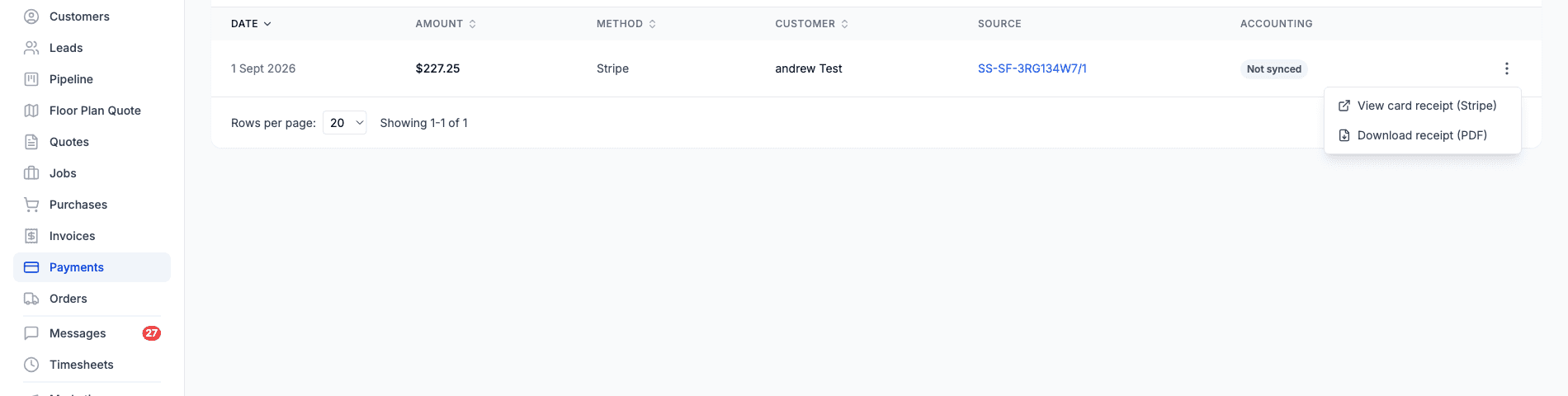
- Download receipt (PDF) builds a one-page receipt in your Document Theme, carrying your business name and ABN, the customer, the invoice or quote it applies to, the amount, the method, the date received and the reference
- View card receipt (Stripe) opens Stripe's own hosted receipt for the charge, showing the card brand and the last four digits
A card payment offers both, because they are different documents. A payment you recorded by hand offers only the PDF. A reversed payment offers neither.
The PDF says what it is, in as many words: "This is a receipt, not a tax invoice." It confirms the money arrived. The tax invoice is the invoice itself.
Stripe links only exist going forward. The link is captured when the card payment is recorded, so card payments taken before this feature shipped have no View card receipt (Stripe) action.
On the mobile app you get View receipt on a card payment in an invoice's payments list, which opens the Stripe receipt. There is no PDF download on mobile.
Reversing a Payment
Reversing corrects your records. It says this money should not be sitting against this invoice, and it recalculates the invoice to match.
When to Reverse
- Recorded by mistake. The payment was never received, or it went on the wrong invoice
- Refunded outside CoolEdge. You gave the money back through your bank or your card terminal
- Settled in my accounting software. The money is real, but it was matched in Xero or QuickBooks instead
How to Reverse
Open the row menu on the Payments page, or the same menu on the payment in an invoice's Payment History, then choose Reverse payment.
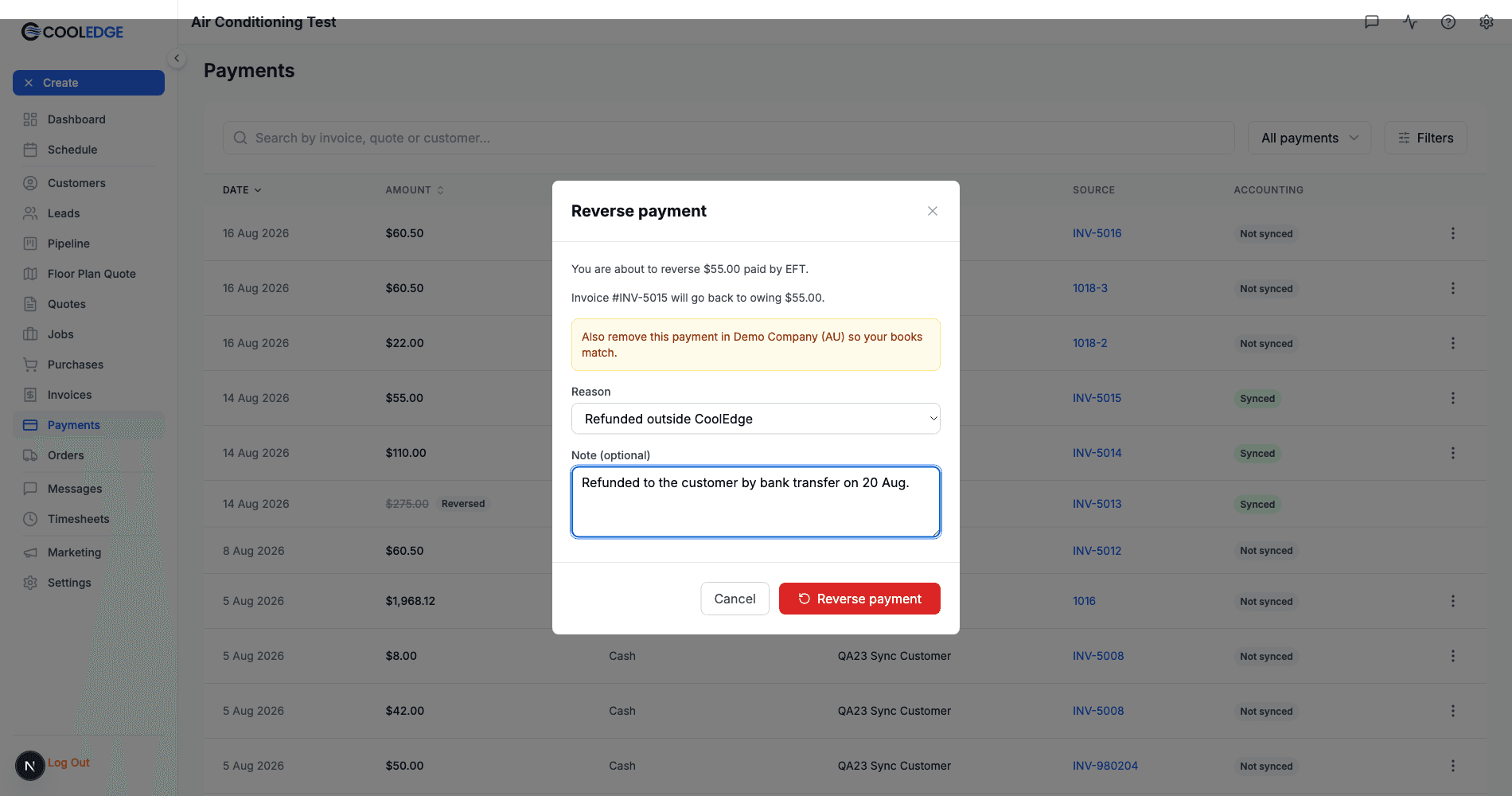
The dialog tells you what will happen before you commit to it:
- The amount and the method you are reversing
- What the invoice will be left at, for example "Invoice #INV-5013 will go back to owing $275.00"
- A warning naming any accounting organisation that still holds this payment, so you know there is a second job to do
- For a card payment: "This only corrects the record. To return money to the card, refund it in your Stripe dashboard."
Pick a reason, add a note if it helps whoever reads this later, then confirm.
There is no undo. Once a payment is reversed it stays reversed, so read the dialog before you confirm. If the money is genuinely still owed you can record a fresh payment afterwards.
What Happens to the Invoice
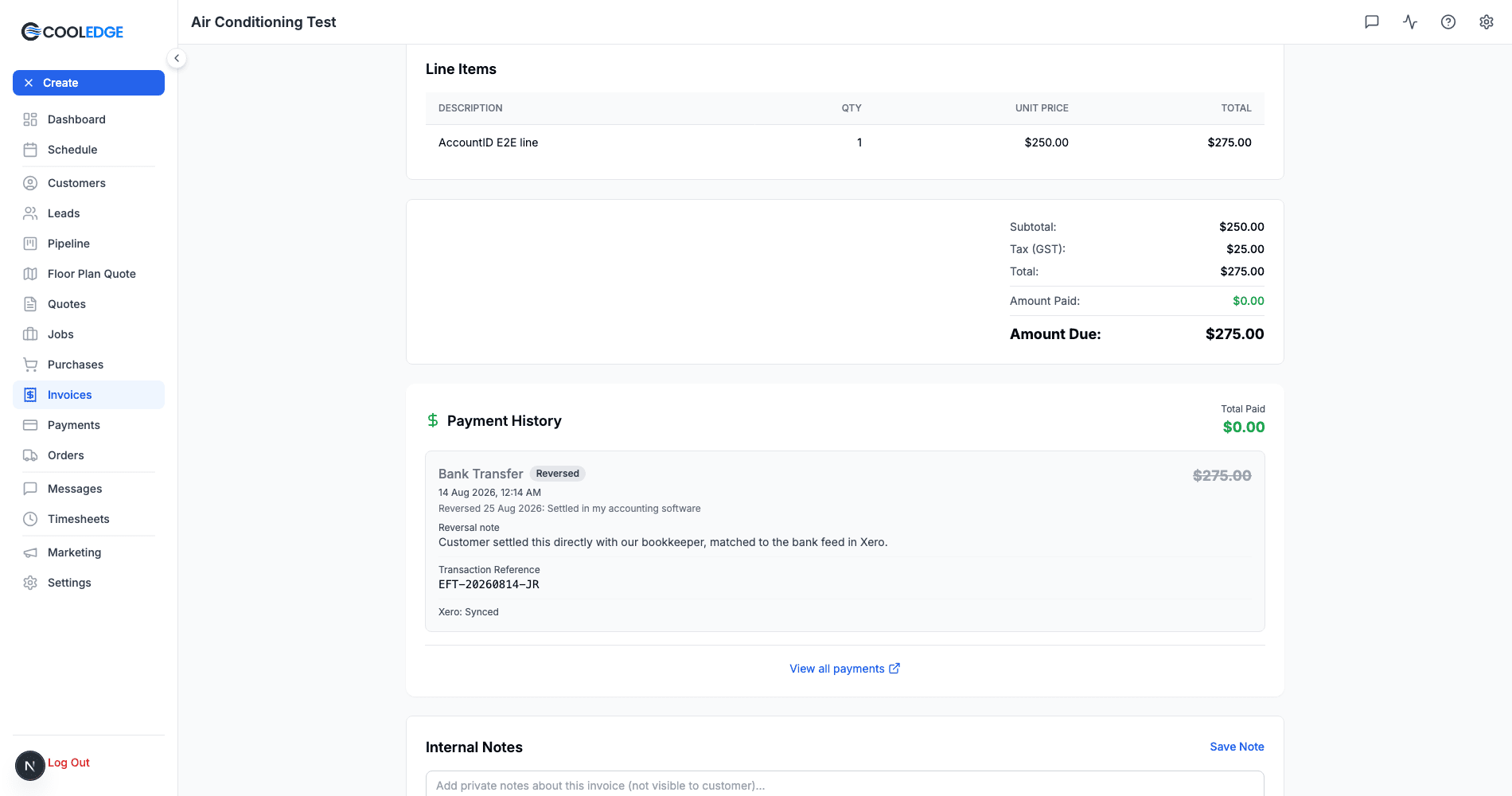
The invoice recalculates from the payments that are left. A fully paid invoice drops back to Part-Paid or Sent, and the reversed amount stops counting toward Amount Paid.
Two things do not move:
- A Void invoice stays Void. Reversing a payment on it never brings it back to life
- An invoice that is still covered by its other payments stays Paid
The reversed payment stays in Payment History with the reason, the note and who recorded it, so the audit trail survives.
Removing the Payment at Your Provider
Cooledge never deletes rows from your accountant's ledger. If the payment had already been pushed to Xero or QuickBooks, the invoice is flagged Needs attention with:
A reversed payment is still applied in your accounting software. Remove it there to match.
Remove the payment at your provider, then press Retry on the badge or wait for the next sync. The flag clears on its own once the two sides agree. See Accounting Sync for how the badges behave.
What Cannot Be Reversed
- A deposit that has no invoice behind it. Once a job exists, deposit money sits on the job's deposit invoice and reverses like any other invoice payment. A deposit recorded against a quote you have not turned into a job yet has no invoice to return the balance to, so it offers no Reverse action. Reversing a deposit also never moves the quote back off Paid, so correct the quote by hand if the money really went away
- Payments imported from your accounting software. Your provider owns those. Remove or void them there and the change comes back on the next sync. If one was deleted at your provider and the invoice is flagged Needs attention for it, an owner or admin can Remove it from the invoice's Payment History
- Part of a payment. Reversal is all or nothing. To correct an amount, reverse it and record the right one
Reversing is limited to owners and admins.
Linking a Payment to Your Accounting Software
This solves one specific problem. You hand-match a bank payment in Xero, then Cooledge tries to push its own record of the same money. Usually Cooledge spots that the two are the same money and links them for you. When it cannot tell which payment is which, your provider refuses the push because the invoice has no balance left. The payment then gets stuck reading The payment is larger than the balance owing at your provider and no amount of retrying helps, because retrying just repeats the push that failed.
Linking tells Cooledge that the payment already in your accounting software is this payment.
How to Link
The row menu offers Link to accounting on any payment carrying that flag, on both the Payments page and invoice detail. You need a live accounting connection.
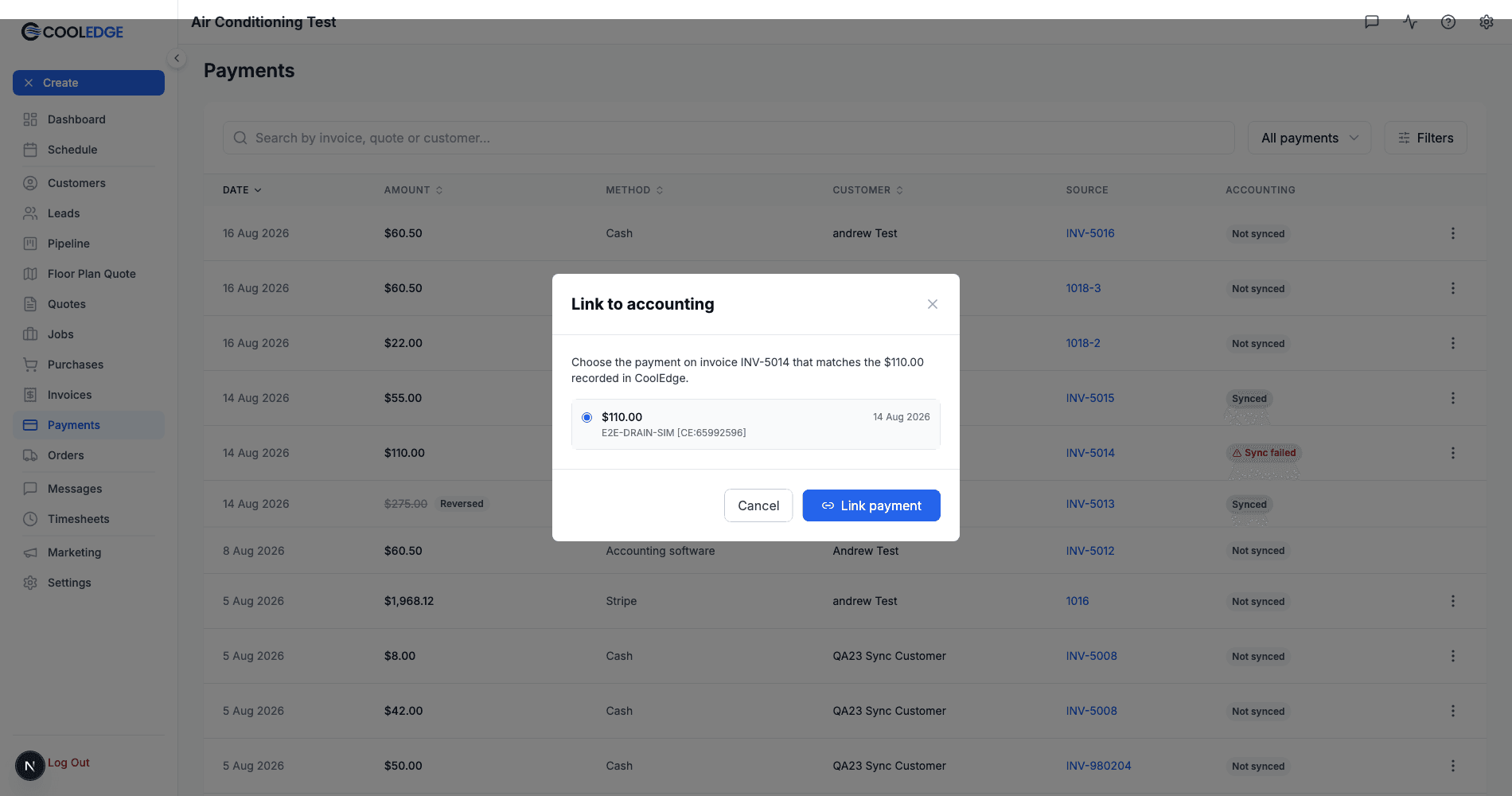
Cooledge reads the invoice at your provider and lists the payments on it that it does not already know about, with the amount, the date and the reference. Choose the one that matches and confirm.
The payment is recorded against the provider's copy and the stuck flag clears, in one step. If the invoice had more than one flagged payment, the flag stays up until the last one is resolved, which is correct: there is still something unmatched on that invoice.
Linking works for quote deposits too, which matters if you take deposit money against quotes rather than invoices.
When the Amounts Do Not Match
Linking requires an exact match to the cent. If the amount in Cooledge and the amount at your provider differ, Cooledge will not join them, because that would leave the two ledgers quietly disagreeing.
Reverse the Cooledge payment instead, using Settled in my accounting software. The next sync imports the provider's payment at the provider's amount, which returns the invoice to Paid with one correct record on both sides.
Linking is limited to owners and admins.
Common Questions
Does reversing a payment refund the customer? No. Reversal only corrects your records. To return card money, refund it in your Stripe dashboard. To return money you took by bank transfer or cash, send it back the way it came.
Can I undo a reversal? No. Record a new payment if the money is genuinely still there.
Why can I not see the Reverse or Link action? Both are limited to owners and admins. Link to accounting also needs a live accounting connection and only appears on a payment carrying the exceeds-balance flag.
Does a reversed payment still count in my reporting? No. It is excluded from the invoice's Amount Paid and from every money total. It stays visible as a record.
Where did the old payments table in Settings go? It moved to the Payments page, which is faster and can search, filter and sort. Stripe Connect is still in Settings → Payments.
Related Articles
- Sending Invoices and Getting Paid - Recording payments and how invoice status changes
- Accounting Sync - What the sync badges mean and how to clear the ones that stall
- Understanding Deposits & Amount Due - How deposits are deducted from invoices
Was this article helpful?
Let us know if you found this information useful.
Still need help? Contact support
In this article
Use your browser's search (Ctrl+F) to quickly find specific topics within this article.
Browse all help articles →Related Articles
Creating Invoices
Learn how to create job-linked and standalone invoices, with automatic deposit deductions
Editing Invoice Line Items
Add, edit and remove line items on invoices including quantities, prices and tax calculations
Sending Invoices and Getting Paid
Email invoices to customers, receive online payments and record cash/bank transfer payments