Staff Labor Rate Defaults
Assign default hourly rates to staff members for faster invoice creation
Staff Labor Rate Defaults
What are Staff Labor Rate Defaults?
A staff labour rate default records which price list item represents each team member's time. You set it once per person in Settings > Team, and it becomes the answer to "what do we charge for Sam's hours?" without anyone having to remember.
Worth knowing before you set these up. The default is recorded against the staff member, but nothing in the invoice editor reads it back yet. There is no "add my labour" shortcut, and typing a person's name into the item picker will not surface their rate. Today this is a place to record rates consistently, not a shortcut on the invoice. See What this does and does not do.
Why Record Labour Defaults?
Different staff bill at different rates: a senior technician at $150/hr, a mid-level tech at $120/hr, an apprentice at $80/hr. Recording the rate against the person keeps one agreed answer in the system, so whoever raises the invoice picks the same item every time instead of guessing or re-typing a number.
Setting Up Labor Items First
Before assigning defaults, create labor items in your price list:
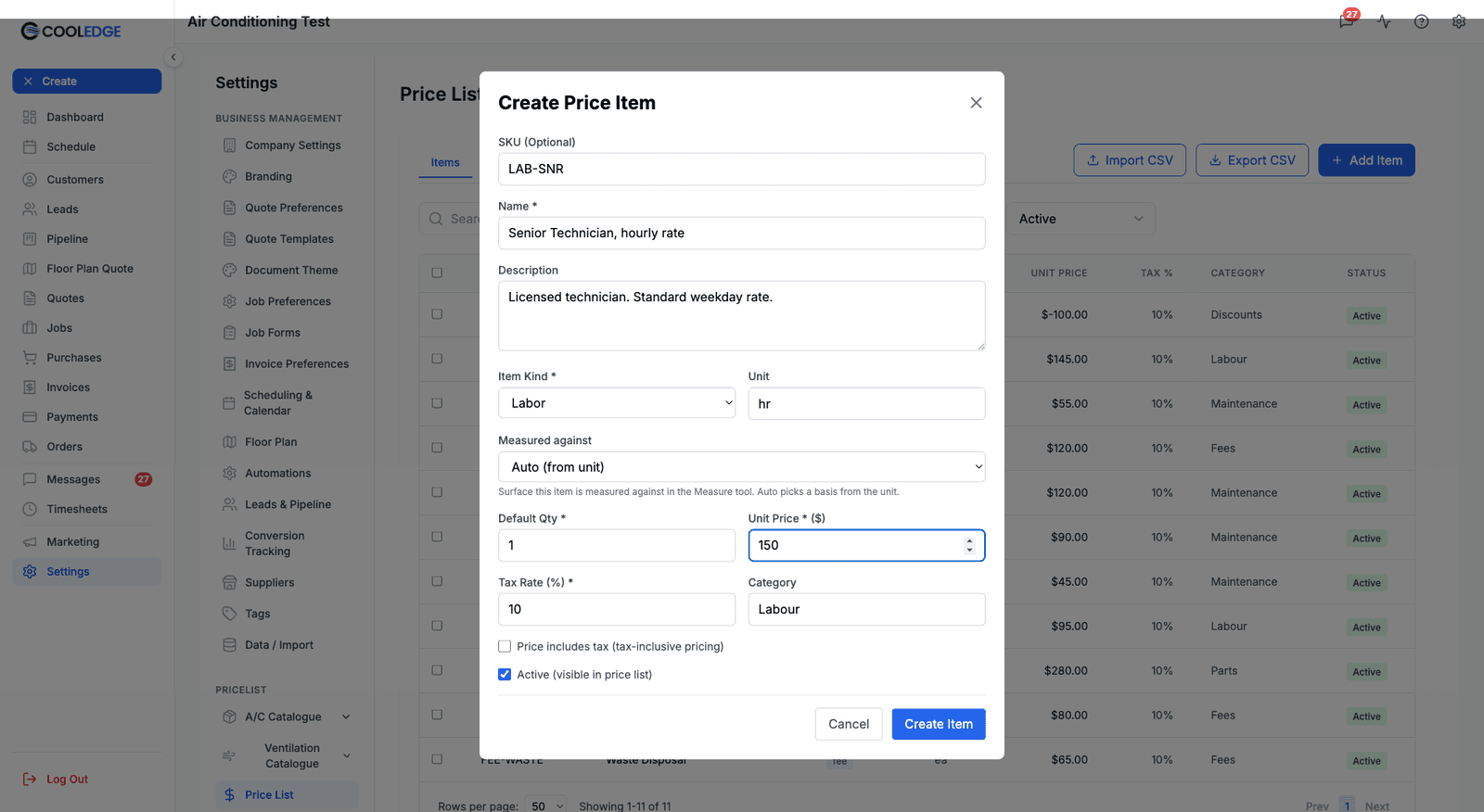
- Go to Settings > Price List
- Click the "Add item" button (top right). Its main part opens the blank item form
- Set Item Kind to Labor
- Name it clearly, for example "Senior Technician, hourly rate"
- Set Unit Price ($) to 150
- Set Unit to
hr - Click Create Item
Create one labour item per rate level you offer.
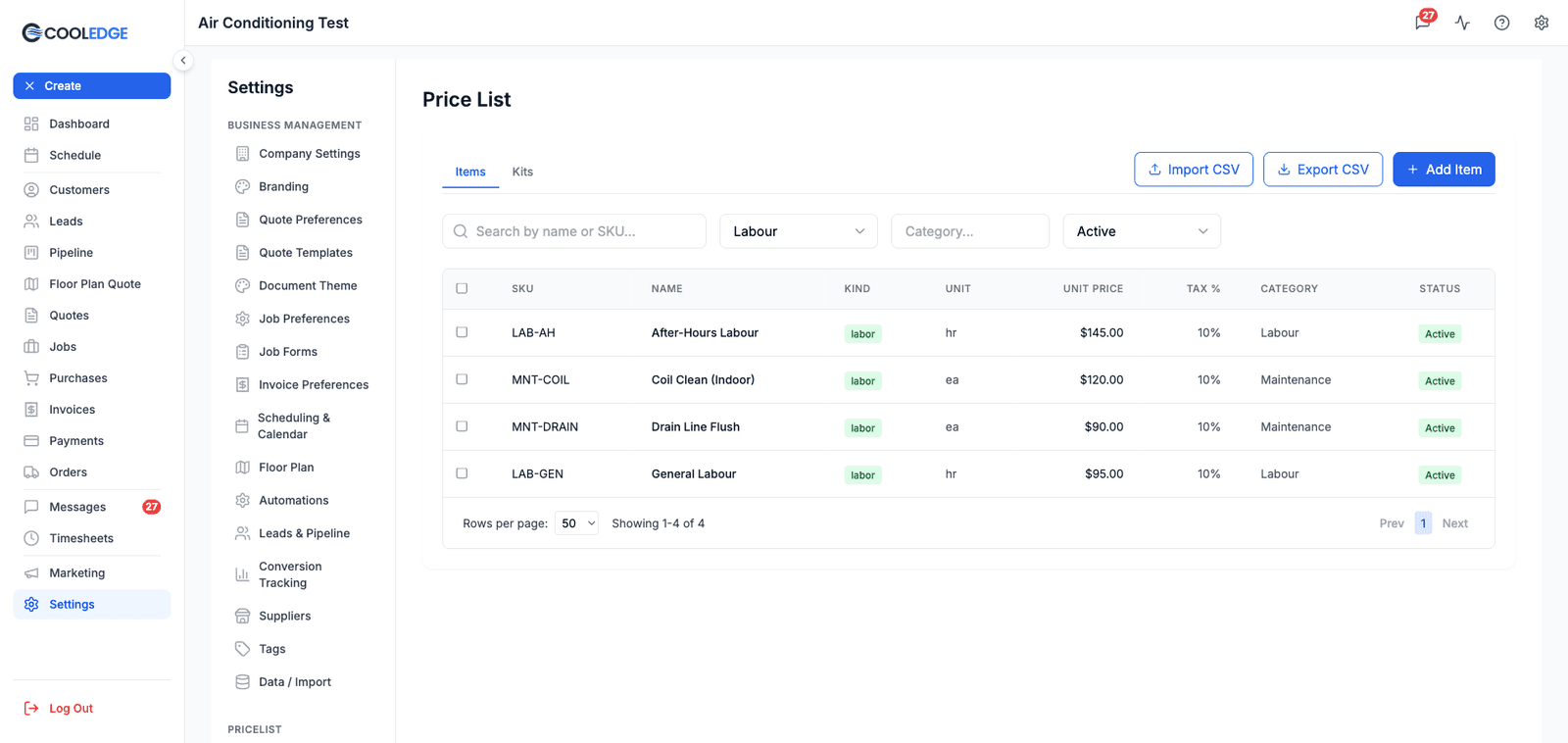
Filtering the price list by Labour shows the rates you have set up so far.
Assigning Defaults to Staff
Once labor items exist:
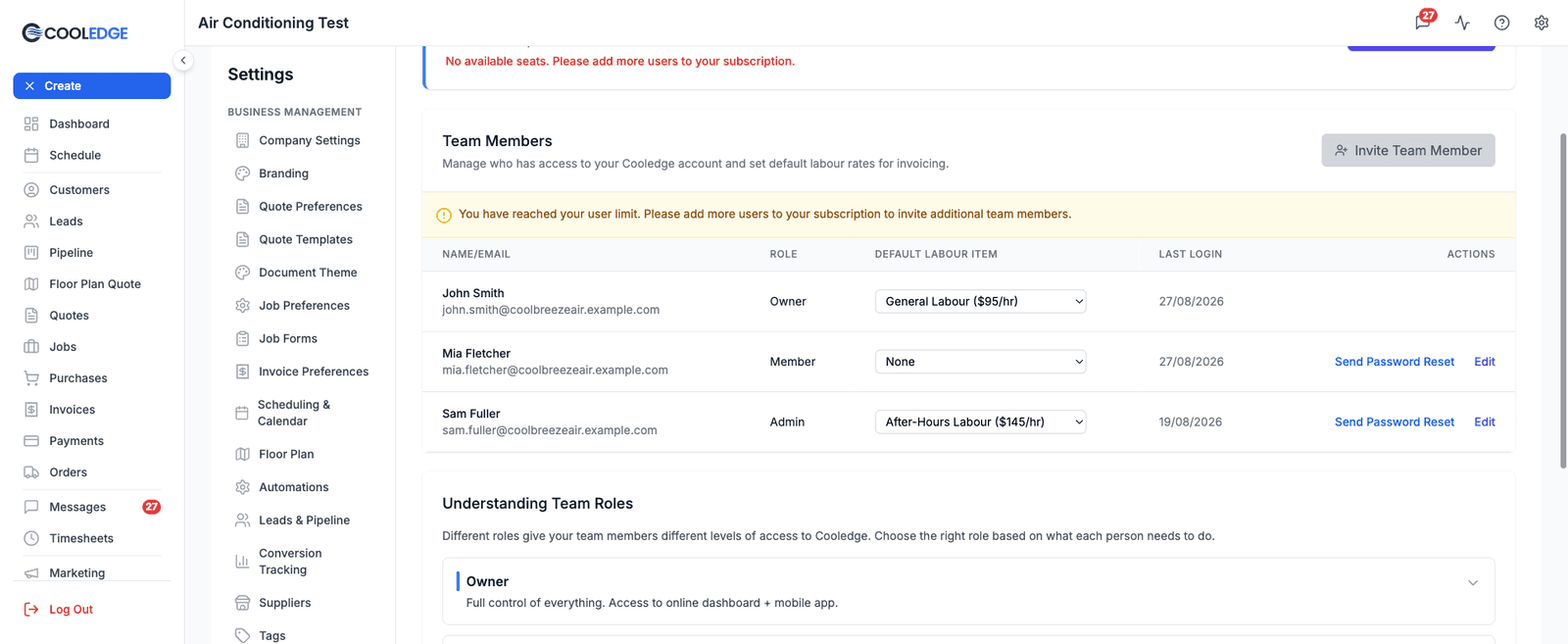
- Go to Settings > Team
- Find the team member in the Team Members table
- Use the Default Labour Item dropdown in their row
- Pick their labour item. The list shows each item's hourly rate alongside the name
- It saves as soon as you choose. There is no separate Save button
Repeat for each staff member. Choose None for anyone who does not perform billable labour.
What This Does and Does Not Do
What it does: it stores a link between the staff member and one price list item, and shows that link in Settings > Team so the whole team can see the agreed rate for each person.
What it does not do yet: nothing on the invoice reads it. In particular:
- There is no "add my labour" button on an invoice.
- Searching the item picker for a person's name does not find their labour item. The picker searches item names, SKUs and descriptions only, and a staff member's name is not one of those unless you happened to put it in the item name.
- Nothing is pre-filled when that staff member raises an invoice.
So on the invoice you still add the labour item the normal way: Add Item, then pick the rate from the Price List tab and set the hours.
If having the rate apply itself on the invoice matters to you, tell us. The link is already stored, so it is the invoice side that would need building.
Changing a Default
To update a staff member's default rate:
- Go to Settings > Team
- Find the team member
- Change the Default Labour Item dropdown
- Pick the new labour item. It saves straight away
Effect on existing invoices: none. Invoices keep the prices they were raised with.
Removing a Default
To remove a labor default:
- Go to Settings > Team
- Find the team member
- Set Default Labour Item to None
The link is cleared. Nothing else changes.
Multiple Rates per Person
Sometimes one person has multiple roles:
Example: John does both installs ($150/hr) and service calls ($120/hr)
Solution: Create two labor items:
- "John - Installation Rate" ($150/hr)
- "John - Service Rate" ($120/hr)
Set one as their default. Add the other from the price list when the job calls for it.
You can only record one default per staff member, but a person can be named in as many labour items as you like.
Best Practices
Name labor items clearly "Senior Tech - Hourly" is better than "Labor 1". Include skill level or role.
Update rates centrally When rates change, update the price list item. All future invoices use the new rate automatically.
Standardize rates Don't create separate items for each person unless rates genuinely differ. Group by skill level instead.
Use consistent units Stick with "Hour" for all labor items. Avoids confusion.
Common Questions
Can I have different rates for different job types? Yes. Create multiple labour items ("After-Hours Labour", "General Labour") and pick the right one per invoice.
What if someone's rate changes? Update their price list labor item. Future invoices use the new rate. Past invoices stay at old rate.
Can apprentices/helpers have rates? Absolutely. Create lower-rate labor items for junior staff and assign as defaults.
Do I need defaults for everyone? No. Only record defaults for staff who perform billable labour. Admin and office staff don't need them.
Related Articles
- Managing Your Price List - Create labor items first
- Editing Invoice Line Items - Add labor to invoices
- Creating Invoices - Invoice customers for work
Was this article helpful?
Let us know if you found this information useful.
Still need help? Contact support
In this article
Use your browser's search (Ctrl+F) to quickly find specific topics within this article.
Browse all help articles →Related Articles
Adding Items From a Supplier
Turn your supplier's pricebook into price list items, trade parts and AC units in a few clicks, each one following the supplier's price
CSV Import and Export for Price Lists
Bulk import products and pricing or export your entire price list to a CSV file
Managing Your Price List
Create and manage materials, labour rates, fees and discounts for faster invoicing