Product & Catalog Management
Manage your product catalogue, pricing and custom units in Cooledge
Product & Catalog Management
Learn how to manage your product catalog, customize pricing, and create custom units to ensure accurate quoting for your business.
Video Tutorial
Video Tutorial coming soon..
1. Understanding the Catalog System
Product Catalog Overview
Your Cooledge catalog contains all the air conditioning units and materials available for quoting:
- Pre-loaded Products: Hundreds of units from major manufacturers
- Custom Products: Units you create for specific needs
- Pricing Control: Override prices for your business needs
- System Types: Organized by Split, Ducted, Multi, VRV, Install Only, and Repairs
How Catalog Affects Quoting
- Mobile App: Displays your enabled products for selection
- Pricing: Uses your custom prices or default catalog prices
- Availability: Only enabled products appear in quote creation
- Branding: Products maintain manufacturer information and specifications
Price Calculation Formulas
Units and materials are priced with two formulas:
Units: Unit cost (inc GST) × Unit markup (%) + Base installation cost + Extras = Total installation cost
Materials: Parts cost (inc GST) × Materials markup + Labour hours × Labour rate (inc GST) = Price
Every value in these formulas is yours to change. See Materials Pricing Breakdown below for how material prices are built and edited.
2. Accessing Your Catalog
Navigation
- Settings: Open Settings
- A/C Catalogue: Under Pricelist in the settings sidebar, click A/C Catalogue
- System Type: Select the system type you want to manage:
- Ducted System
- Multi-System
- Split-System
- Install Only
- VRV System
- Repairs
Catalog Sections
Each system type has organized tabs:
- Units: Air conditioning equipment
- Materials & Pricing: Installation materials, components and your pricing controls (markups and labour rate)
- Add-ons: Optional equipment and accessories
3. Managing Units and Products
Product Information
Each product in your catalog includes:
Basic Information:
- Name: Product name and model
- Brand: Manufacturer (Daikin, Mitsubishi, etc.)
- Capacity: Cooling/heating capacity (kW)
- Model Numbers: Indoor and outdoor unit models
- Price: Current pricing
Technical Specifications:
- Cooling Capacity: Rated cooling output
- Heating Capacity: Rated heating output
- Type: Indoor or outdoor unit (for Multi/VRV systems)
- Series: Product series information
- Category: Indoor unit category (for VRV systems)
Viewing and Filtering Products
Filter Options:
- Brand Filter: View products from specific manufacturers
- Status Filter: Active, inactive or all products
- Type Filter: Indoor vs outdoor units (Multi/VRV systems)
- Search: Type in Search units... to find a unit by its name, brand, model or outdoor model
Product Status:
- Active: Product appears in mobile app for quoting
- Inactive: Product hidden from quoting but retained in catalog
- Modified: Product with custom pricing or details
4. Customizing Product Pricing
Price Override System
You can customize pricing for any product in your catalog:
Default vs Custom Pricing:
- Default Price: Standard catalog price
- Custom Price: Your business-specific pricing
- Override Indicator: Modified products are clearly marked
- Bulk Updates: Apply pricing changes to multiple products
How to Update Pricing
Individual Product Updates:
- Find Product: Use search or filters to locate the unit
- Edit Product: Click the edit button for the product
- Update Price: Enter your custom price
- Save Changes: Product now uses your custom pricing
Bulk Actions
On the Split-System, Multi-System, Ducted System and VRV System Units tabs, Bulk actions changes many units at once.
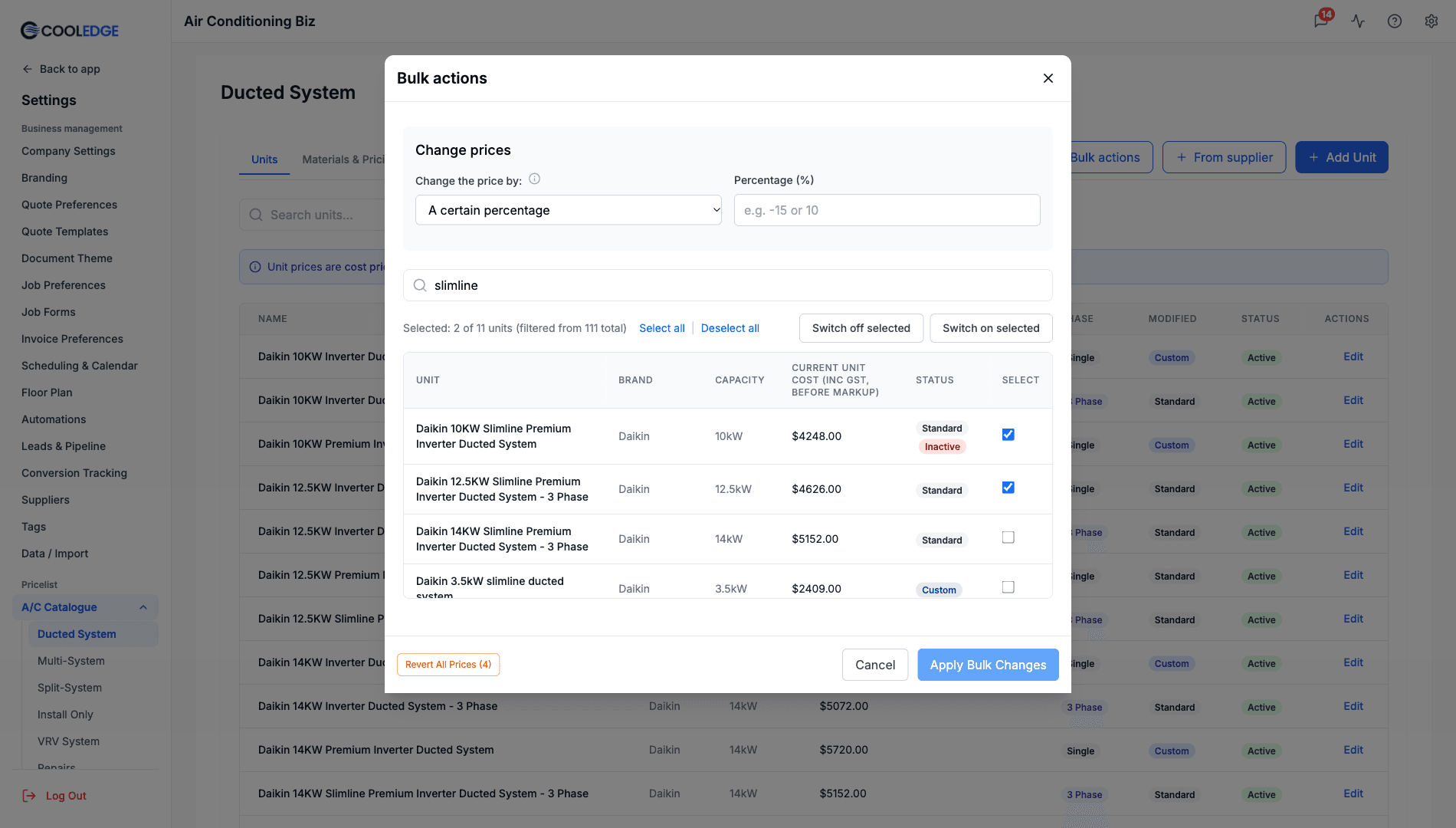
- Click Bulk actions at the top of the Units tab
- Find units with Search units..., then tick them. The bar shows Selected: N of M units, with Select all | Deselect all
- To take units out of quoting, click Switch off selected. They're listed as Inactive. Switch on selected brings them back. Switching saves straight away
- To change prices, under Change prices choose A certain percentage or A certain amount and enter the change (use a minus for a decrease, such as -15), then click Apply Bulk Changes
Each unit is badged Custom if you've changed it or Standard if it's still on Cooledge's catalogue values.
Revert All Prices (N) puts Cooledge's catalogue prices back on the units you've repriced. It only counts and reverts Cooledge's own units. Units you created yourself are left alone. You'll be asked to confirm first.
If any of the units follow a supplier price, the dialog tells you how many before you change or revert their prices, because doing so removes those supplier links.
Pricing Best Practices
- Regular Reviews: Update pricing quarterly or as costs change
- Competitive Analysis: Ensure pricing remains competitive
- Documentation: Keep records of pricing changes and rationale
Supplier Costs
A unit's or material's cost can follow your supplier's pricebook, so your quotes keep up when their prices change. Each Units tab has four buttons along the top: Update costs from supplier, Bulk actions (split, multi, ducted and VRV), From supplier and Add Unit.
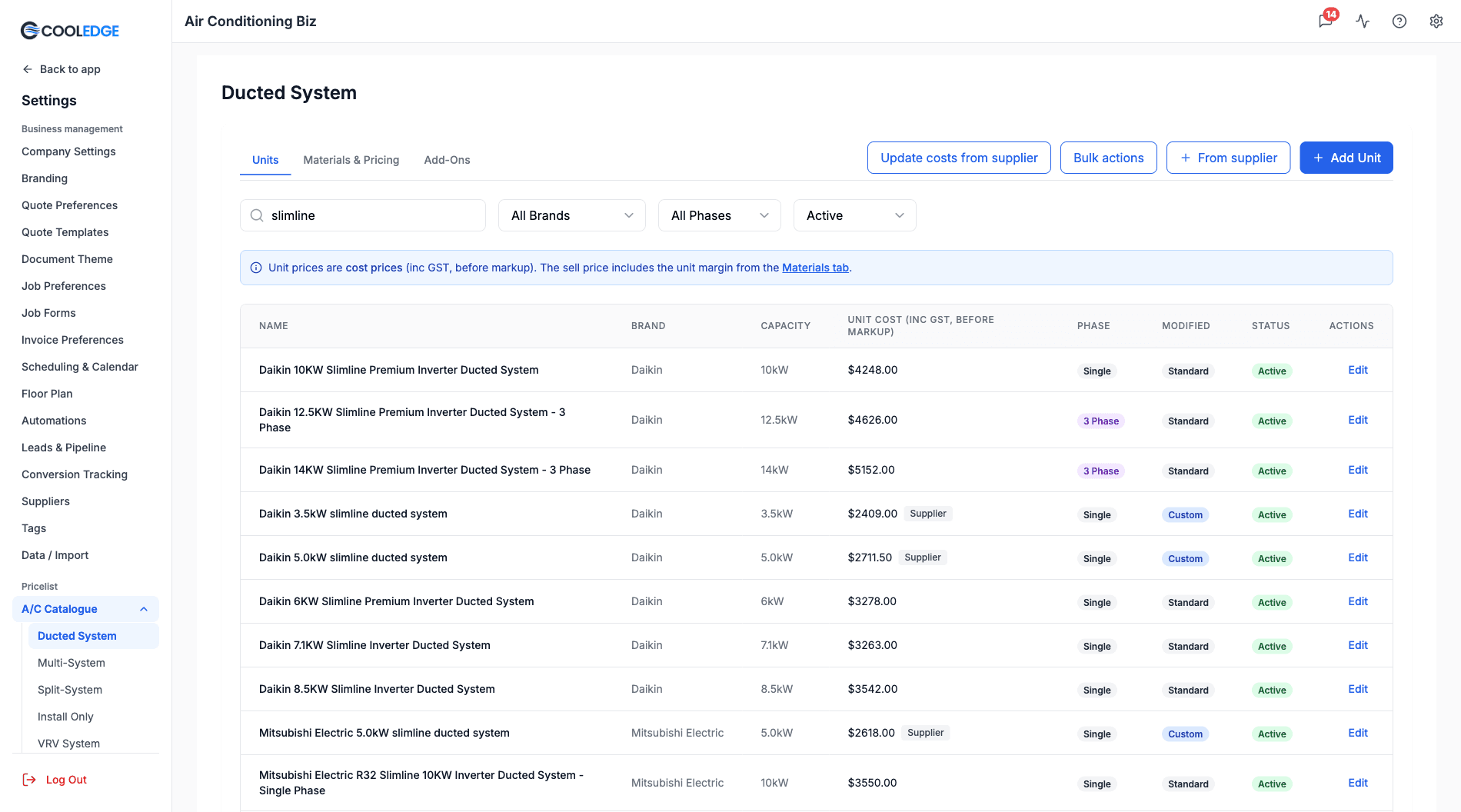
- From supplier adds units from a supplier's pricebook, each with its cost following the supplier's item
- Link to supplier item, in the Supplier cost section of a unit or material's edit form, links one you already have. On split and ducted units you can add the indoor and outdoor units as two items
- Update costs from supplier, on the Units and Materials & Pricing tabs, lists every followed cost and ticks the ones that changed. Nothing is saved until you confirm. A new unit cost flows into your quotes through your unit markup
- A Supplier badge marks a followed cost and Copied marks one copied once
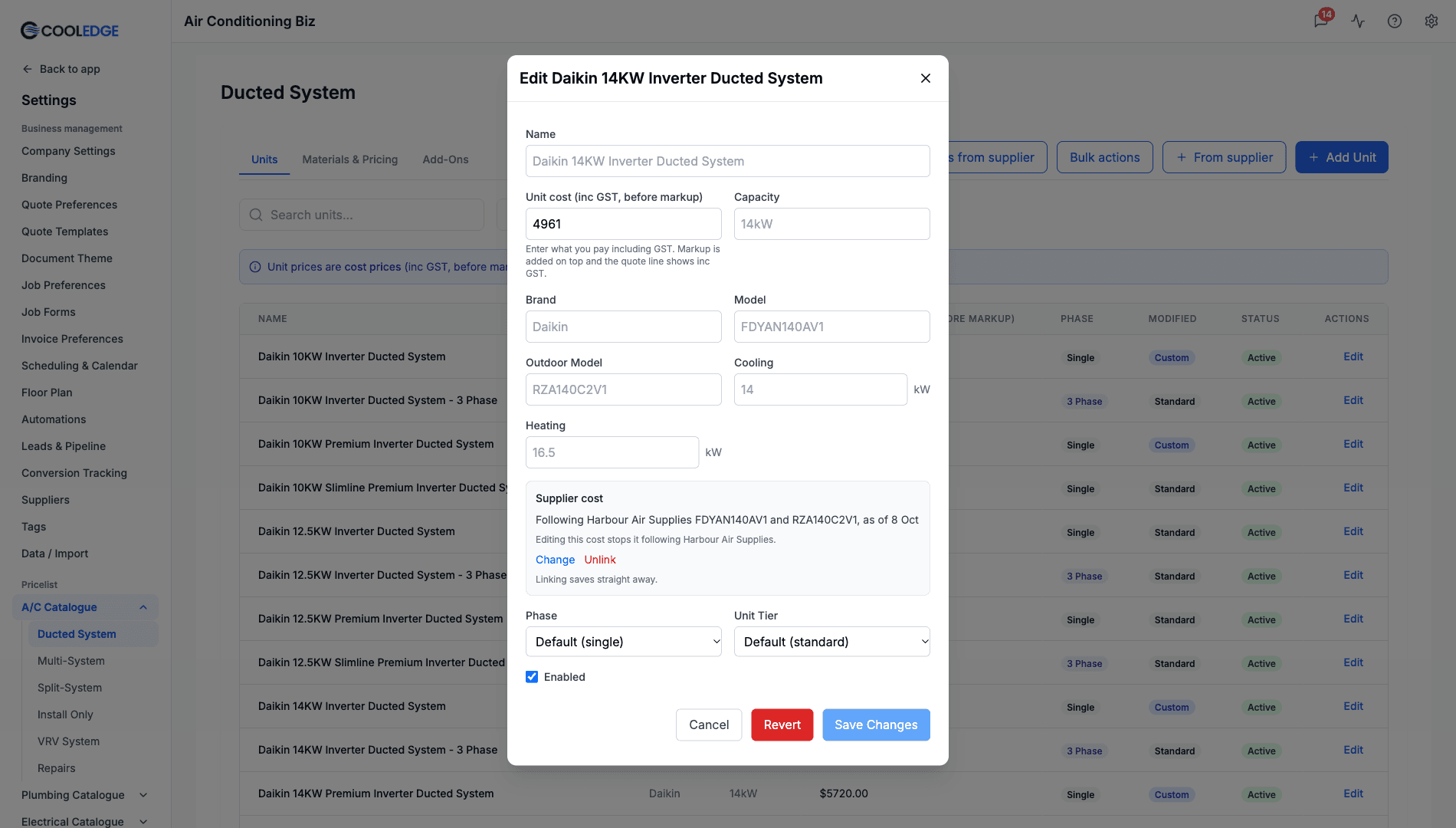
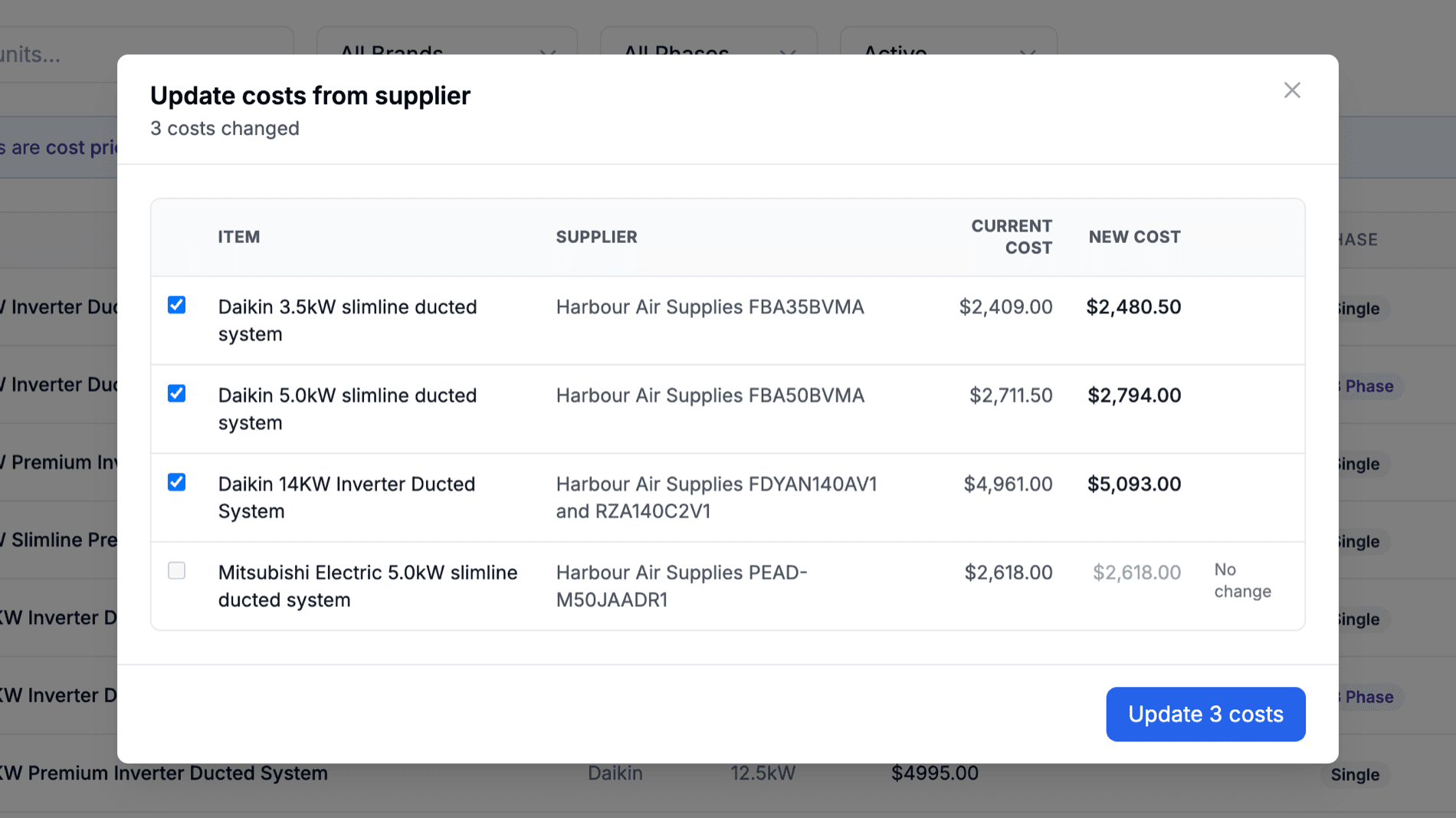
See Adding Items From a Supplier for the full guide.
5. Creating Custom Products
When to Create Custom Products
- Unique Equipment: Units not in the standard catalog
- Special Pricing: Products with unique pricing arrangements
- Custom Configurations: Modified or custom-built units
Creating a Custom Product
Required Information:
- Product Name: Descriptive name for the unit
- Brand: Manufacturer name
- Capacity: Cooling and heating capacity
- Models: Indoor and outdoor model numbers
- Price: Your selling price
System-Specific Fields:
For Split/Ducted Systems:
- Both indoor and outdoor model numbers required
- Full capacity and pricing information
For Multi/VRV Systems:
- Type: Indoor or outdoor unit
- Series: Product series (required for VRV)
- Indoor Category: Wall-mounted, ducted, etc. (VRV only)
Managing Custom Products
- Edit Anytime: Modify custom products as needed
- Enable/Disable: Control availability in quoting
- Track Usage: See which custom products are being quoted
- Delete Safely: Remove unused custom products
6. Materials and Add-ons Management
Materials Catalog
The materials section includes installation components:
Common Materials:
- Pipe Length: Refrigerant piping (per meter pricing)
- Trunking: Decorative pipe covering
- Electrical Components: Circuit breakers, wiring
- Mounting Hardware: Brackets, anti-vibration mounts
- Drainage: Condensate pumps and pipes
Add-ons Management
Add-ons are optional equipment that can be included in quotes:
Typical Add-ons:
- Controllers: Advanced control systems
- Sensors: Temperature and humidity sensors
- Filters: Upgraded filtration systems
- Installation Options: Special mounting or electrical work
Materials Pricing Breakdown
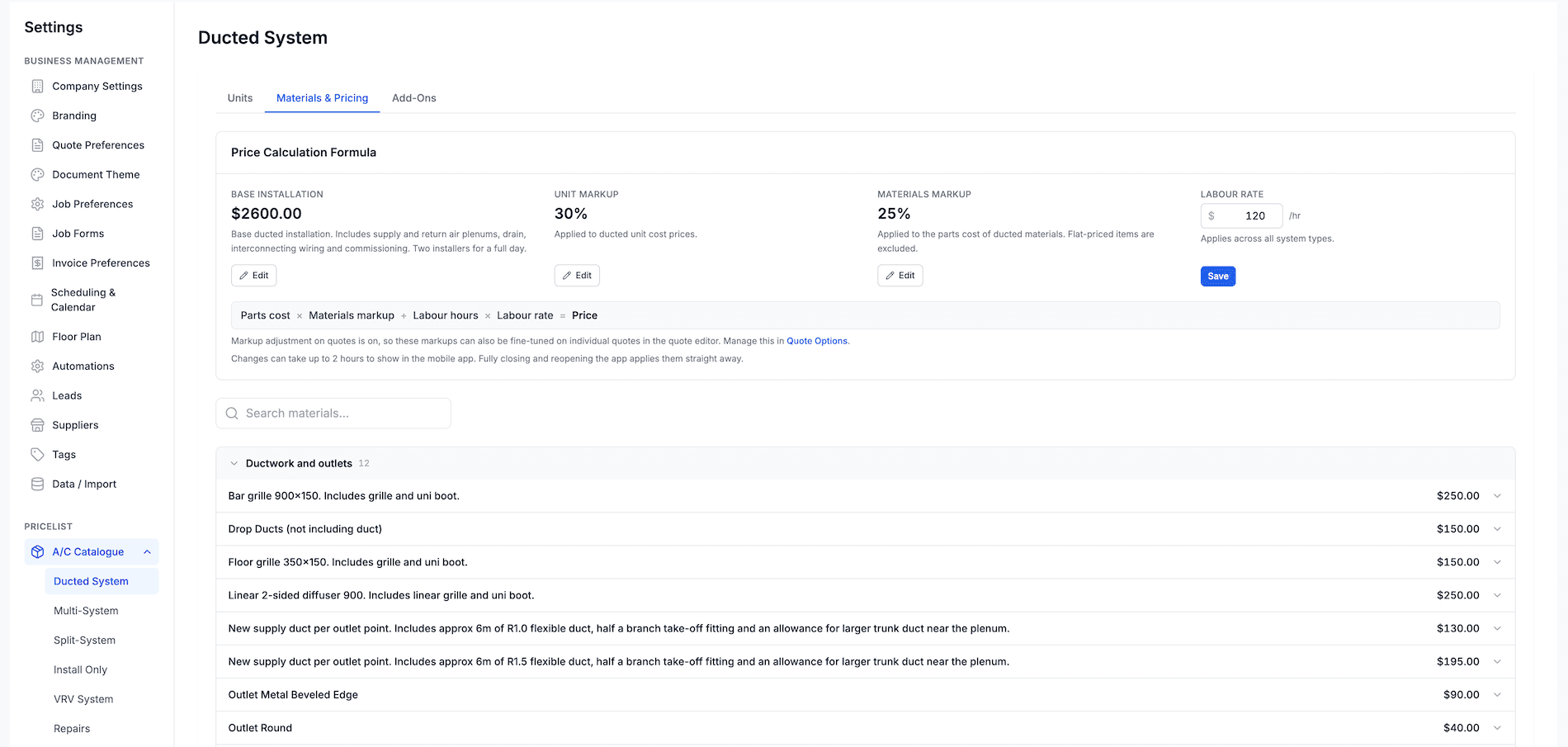
Every Materials & Pricing page opens with a Price Calculation Formula card holding the numbers that drive material pricing for that system type:
- Base installation: The flat base installation price for the system type
- Unit markup (%): Applied to unit cost prices (inc GST) for that system type
- Materials markup (%): Applied to the parts cost (inc GST) of that system type's materials (flat-priced items are excluded)
- Labour rate ($/hr inc GST): Applies across all system types. Only the business owner can change it. An empty field resets it to the default ($120/hr)
Below the card, materials are grouped by category and each one shows its full breakdown, for example:
$172.00 parts × 1.25 + 0.5h × $120 = $275.00
Editing a Material's Breakdown
- Click Edit on any material
- Adjust Parts cost (inc GST, before markup) or Labour hours and the price recalculates from the formula
- Or enter a Price (inc GST) directly to set a flat price (a flat price wins over the breakdown)
- Leave a field empty to fall back to the default (the placeholder shows the default value)
- Click Save
Notes on editing:
- Zero is allowed, negatives are not: Enter 0 to make a component free; negative values are rejected
- Revert: Materials you have modified show a Revert action that removes your override and returns the material to Cooledge's catalogue values (you'll be asked to confirm). If its cost follows a supplier, you'll also see "Reverting also removes the supplier link."
- Custom materials: Materials you created yourself show Delete instead of Revert
- Enable/Disable: Control which materials appear in quotes
Per-Quote Markup Sliders
Your unit and materials markups normally apply to every quote. The business owner can turn on Allow markup adjustment on quotes in Quote Preferences → Quote Options to let the team fine-tune both markups on individual quotes with sliders, without changing catalogue defaults.
7. Advanced Catalog Features
Team Permissions
Control who can modify your catalog:
Role-Based Access:
- Owners: Full catalog management access
- Admins: Can modify products and pricing
Permission Controls:
- Edit Products: Modify existing product details
- Create Products: Add new custom products
- Pricing Updates: Change product pricing
- Bulk Operations: Perform mass updates
Catalog Backup and Sync
- Automatic Sync: Changes sync to mobile app automatically
- Version Control: Track changes and revert if needed
- Backup Protection: Your customizations are safely stored
- Multi-Device Access: Catalog available across all devices
Integration Features
- Quote Integration: Catalog directly feeds quote creation
- Mobile Sync: Real-time sync with iOS app
- Reporting: Track product usage and performance
8. Best Practices for Catalog Management
Organization Strategy
- Regular Maintenance: Review and update catalog monthly
- Clear Naming: Use consistent, descriptive product names
- Category Management: Properly organize products by type
- Status Management: Keep only relevant products active
Pricing Strategy
- Seasonal Adjustments: Update pricing for seasonal demand
Quality Control
- Data Accuracy: Verify all product specifications
- Model Numbers: Ensure correct indoor/outdoor model pairing
- Pricing Validation: Double-check pricing calculations
9. Troubleshooting Catalog Issues
Common Problems and Solutions
Product Not Appearing in Mobile App
- Check Status: Ensure product is enabled/active
- Sync Issue: Force sync in mobile app settings
- Filter Settings: Verify mobile app filters aren't hiding product
Pricing Discrepancies
- Custom vs Default: Check if custom pricing is applied
- Calculation Errors: Verify pricing formula and margins
- Sync Delays: Close the app completely on your device and reopen to force a sync of the product catalog
Custom Product Issues
- Required Fields: Ensure all mandatory fields are completed
- Model Conflicts: Check for duplicate model numbers
- Validation Errors: Address any validation messages you recieve when saving
Getting Help with Catalog Issues
- Support Documentation: Reference this help guide
- Email Support: Contact support@cooledge.com.au
- Live Chat: Use in-app help for immediate assistance
Next Steps: Learn about subscription billing → or explore leads marketplace →
Need help with catalog management? Email us at support@cooledge.com.au
Was this article helpful?
Let us know if you found this information useful.
Still need help? Contact support
In this article
Use your browser's search (Ctrl+F) to quickly find specific topics within this article.
Browse all help articles →Related Articles
Auto Duct Layout
Visual duct designer on the ducted floor plan wizard. Auto-route or draw by hand. Includes outdoor unit and refrigerant pipework. Drives the take-off.
Business Callouts (Why Choose Us)
Display trust-building callout points on your public quote pages to increase acceptance rates
Custom PDF Pages
Add professional cover pages, warranty info, maintenance plans and more to your quote and invoice PDFs