Scheduling & Calendar Settings
Configure business hours, default booking duration and conflict handling for your calendar
Scheduling & Calendar Settings
What Are Scheduling Settings?
Scheduling settings control how your calendar behaves and what options are available when creating bookings. These settings affect the entire business and apply to all staff members.
Where to find it: Settings > Scheduling & Calendar
The Settings on This Page
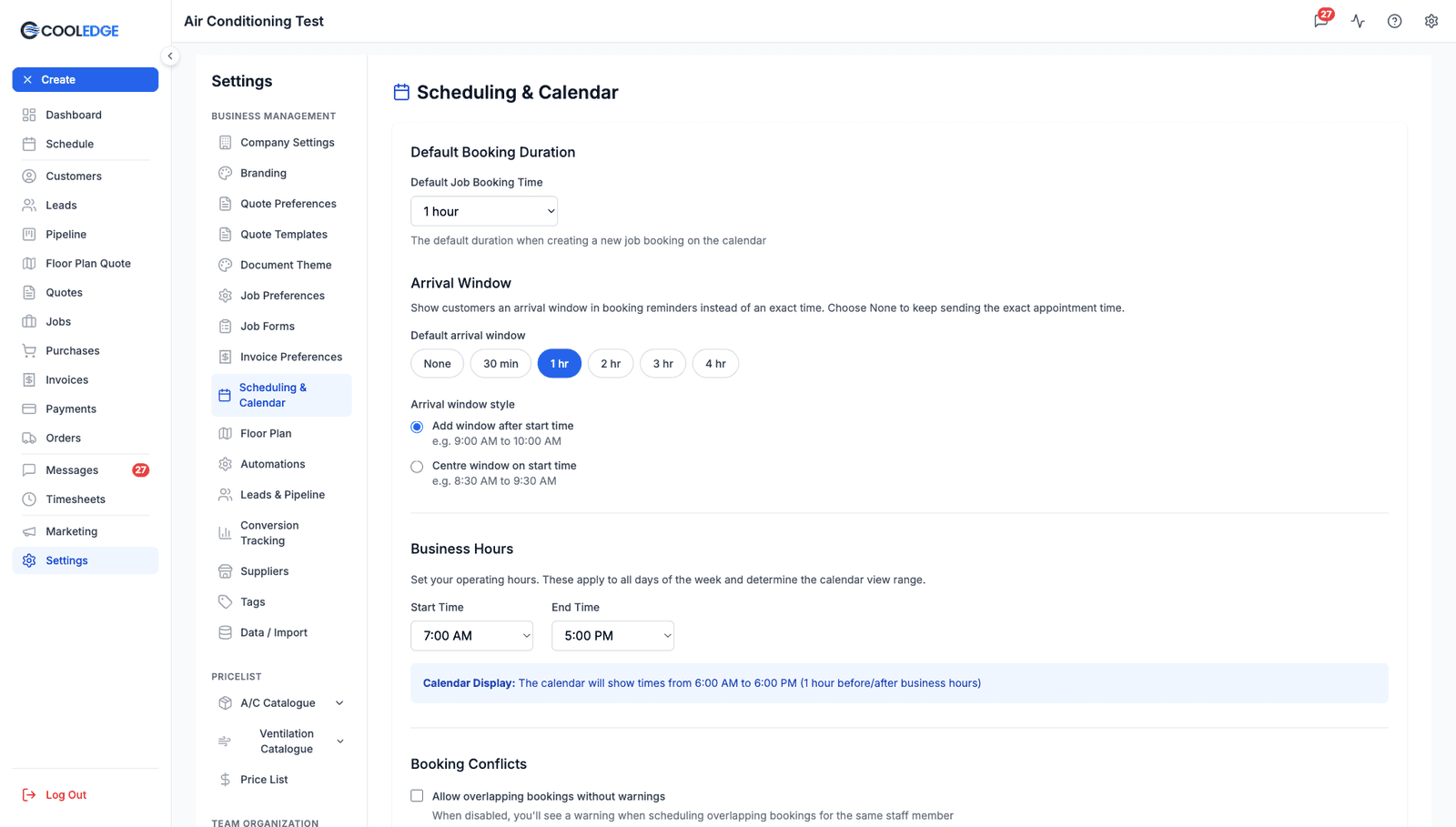
There are five sections: Default Booking Duration, Arrival Window, Business Hours, Booking Conflicts and Calendar Staff.
1. Default Booking Duration
What it does: Sets the default length for new job bookings. The field is labelled Default Job Booking Time.
How it works:
- Drag out a slot on the calendar and the end time is filled in from this setting
- Create a booking from a job and the Duration field starts here
- You can always change the duration on an individual booking
Recommended values:
- 1 hour - Quick service calls, quote visits, small repairs
- 2 hours - Standard residential installs, medium jobs
- 3-4 hours - Large commercial work, complex installs
- 8 hours - All-day jobs
Tip: set this to your most common job length. Too short and you'll always be extending; too long and you'll always be trimming.
2. Arrival Window
What it does: Shows customers a window rather than an exact time in booking reminders. Turning it on means a 9:00 AM booking is communicated as "between 9:00 AM and 10:00 AM" instead of a precise time you then have to hit.
Default arrival window: choose None, 30 min, 1 hr, 2 hr, 3 hr or 4 hr. Choose None to keep sending the exact appointment time.
Arrival window style: once you pick a window, you also choose how it sits around the booking:
| Style | A 9:00 AM booking with a 1 hr window becomes |
|---|---|
| Add window after start time | 9:00 AM to 10:00 AM |
| Centre window on start time | 8:30 AM to 9:30 AM |
This only changes what the customer is told in reminders. It doesn't move the booking on your calendar, and your team still sees the exact time.
3. Business Hours (Start & End)
What it does: Defines your operating hours - when your business is open and available for bookings.
How it affects the calendar: These hours set the visible time range on the calendar. Cooledge pads them by an hour at each end, and tells you so directly under the fields: set 7:00 AM to 5:00 PM and the note reads "The calendar will show times from 6:00 AM to 6:00 PM (1 hour before/after business hours)".
Setting business hours:
- Start Time: when your business opens, e.g. 7:00 AM
- End Time: when your business closes, e.g. 5:00 PM
- There must be at least 4 hours between start and end
- They can't span midnight
Common setups:
- Typical tradie hours: 7:00 AM - 5:00 PM
- Extended hours: 6:00 AM - 8:00 PM
- Standard business: 8:00 AM - 6:00 PM
- Early start: 6:00 AM - 4:00 PM
Important notes:
- Business hours shape the calendar view. They don't restrict anything
- Nothing stops you booking outside them, and no warning appears if you do
- They apply to every day of the week alike
4. Booking Conflicts
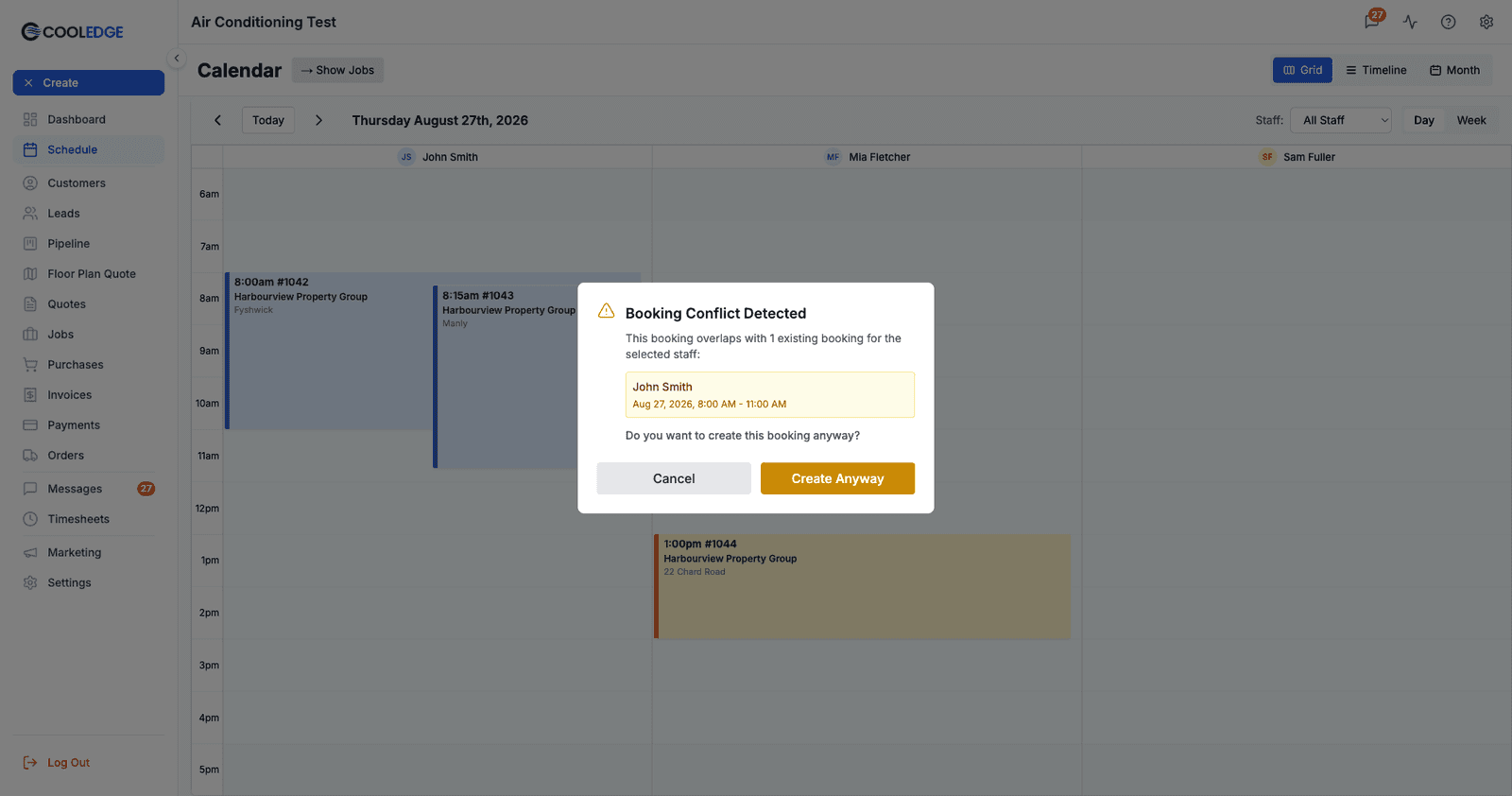
What it does: One tick box, labelled Allow overlapping bookings without warnings, controls whether staff can be double-booked without being asked.
Two modes:
Unticked (Recommended, and the default)
Cooledge checks every booking against that staff member's existing work. If it overlaps, you get the Booking Conflict Detected modal and choose Cancel or Create Anyway. You can still double-book deliberately; you just have to say so.
This is right for most businesses, especially those with field staff who can only be in one place at a time.
Ticked
- No conflict checks and no warnings at all
- Staff can be assigned to overlapping bookings freely
Best for:
- Office staff handling several things at once
- Supervisors overseeing multiple sites
- Businesses that manage clashes their own way
Warning: only turn this on if you understand what you're giving up. Most businesses should leave it unticked. See Handling Booking Conflicts.
5. Calendar Staff
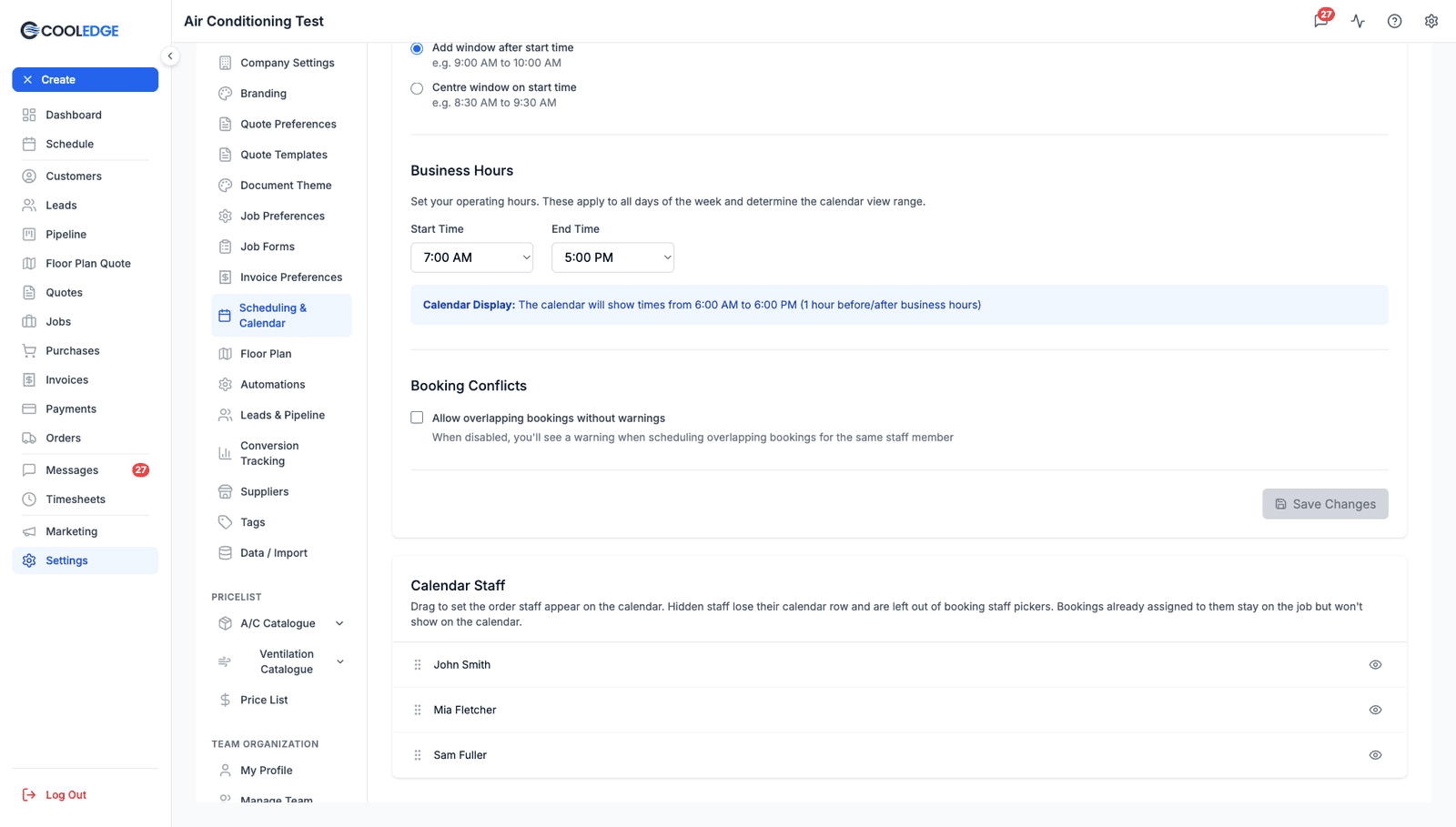
What it does: Chooses who appears as a column (Grid view) or a row (Timeline view) on the calendar, and in what order.
Hidden staff are marked Hidden in this list. Hiding someone is a display choice only: they keep their bookings, and if they're assigned to a booking they still show up on it when you open it. It's for keeping office staff and other non-field roles out of a crowded calendar.
How to Change Settings
Step-by-Step
- Go to Settings in the left sidebar
- Click Scheduling & Calendar
- Make your changes:
- Pick the Default Job Booking Time
- Choose an arrival window and its style, or leave it on None
- Set the business hours Start Time and End Time
- Tick or untick Allow overlapping bookings without warnings
- Click Save Changes at the bottom
- Changes apply immediately
Calendar Staff saves on its own. It sits below the Save Changes button and updates as you change it, so it isn't part of the same save.
Saving Changes
Save Changes is only enabled once you've actually changed something, and it stays disabled while there's a validation error on the page. If it's greyed out, either nothing has changed or your business hours don't pass validation.
After saving:
- A success message appears
- The changes apply to the calendar immediately
- Everyone in the business sees the new settings
- Existing bookings are untouched. Change the default duration and yesterday's two-hour booking is still two hours
Validation Rules
The system won't let you:
- Set the business end time before the start time, or have the hours span midnight. Both produce: "End time must be after start time. Business hours cannot span across midnight."
- Set business hours shorter than four hours: "Business hours must be at least 4 hours long."
While either error is showing, Save Changes stays disabled.
Effect on Calendar Views
Portal Calendar
- Grid and Timeline views show your business hours, padded by an hour either side
- Bookings outside that range still exist and still count; the view just starts and ends where you told it to
- Month view ignores business hours entirely, since it has no time axis
Mobile App
These settings live in the portal only. There is no scheduling settings screen in the mobile app, but three of them reach it.
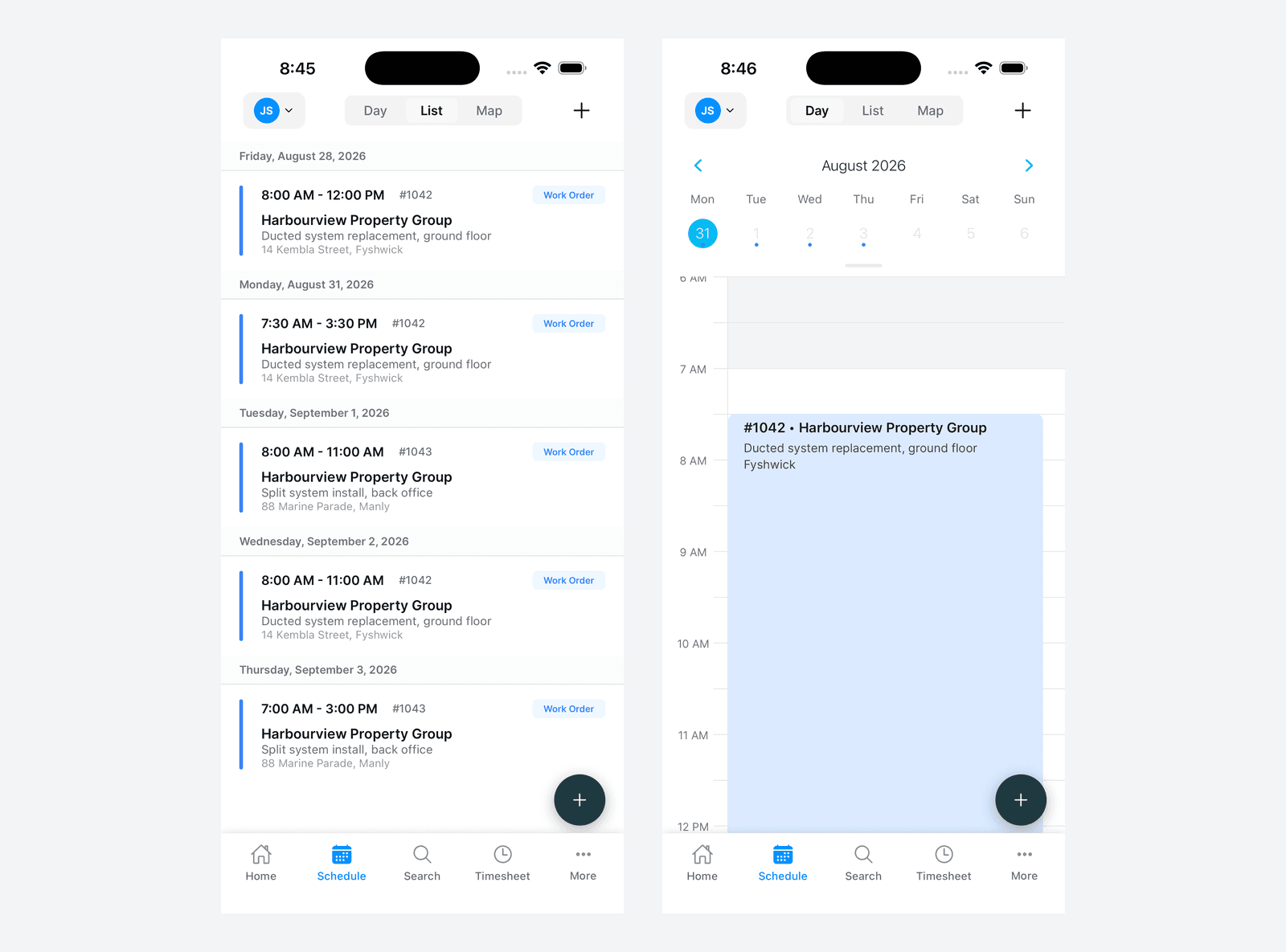
Business hours shape the mobile Day view exactly as they shape the portal calendar. The app reads your start and end times, pads them by an hour at each end and greys out the time outside your hours, so a 7:00 AM start shows a shaded band above it. Change the hours here and both apps follow.
Default Job Booking Time fills the duration when you create a booking on the phone, the same as it does on the portal. The mobile stepper then moves in half hours from there.
Calendar Staff decides who the mobile app offers you. The staff picker on the Schedule tab and the Assigned Staff list inside a booking are both built from this section, in the order set here, and anyone marked Hidden is left out of both.
What the mobile schedule has that the portal doesn't, and doesn't have that the portal does:
- It offers Day, List and Map instead of Grid, Timeline and Month. List is what it opens on, not Day
- List is a plain agenda running from today forwards, grouped by date. The portal has no equivalent
- Map is not built yet. Tapping it shows a "Map View Coming Soon" placeholder, with no bookings on it
- It shows one staff member at a time, starting on you, chosen from the avatar at the top left. There is no all-staff view, so it will not replace the portal calendar for seeing the whole team's day
- Arrival Window has no effect in the app. It only changes what customers are told in booking reminders
Creating Bookings
- The duration is pre-filled from your default
- The start time can be anything, business hours or not
- Whether you're warned about a clash depends on the Booking Conflicts tick box
Best Practices
Setting Default Duration
- Use your most common job length
- Round to whole hours for simplicity
- Review every few months - adjust if your work changes
- Too short: you'll always extend it (annoying)
- Too long: you'll always shorten it (also annoying)
Business Hours
- Match your actual operating hours, not aspirational ones
- Include travel time at start/end of day
- If you regularly work early/late, adjust accordingly
- Don't set ultra-wide hours "just in case" - it makes the calendar harder to read
Overlap Setting
- Default: OFF for almost all businesses
- Only turn ON if you have a specific need
- You can always override conflict warnings when OFF
- If you're unsure, leave it OFF
Common Questions
Do business hours restrict when I can create bookings? No. They control what the calendar displays, nothing more. You can book any time, including outside business hours, with no warning.
What happens to bookings I already created if I change business hours? Nothing. Existing bookings stay exactly as they are. Business hours only affect the calendar display and new booking suggestions.
Can I have different business hours for different days? No. One pair of hours applies to every day of the week. If you don't work weekends, just don't book anything on them.
If I allow overlaps, will I get warnings at all? No. The conflict check is skipped entirely, so nothing will tell you someone is double-booked.
Can I change the default booking duration for just one staff member? No, it's business-wide. Adjust the duration on the individual booking instead.
Troubleshooting
"Business hours must be at least 4 hours long"
The gap between start and end is too small. Set a range of at least 4 hours.
"End time must be after start time. Business hours cannot span across midnight."
Your end time is before or equal to your start time. That covers both the plain mistake and the overnight case (9 PM to 2 AM), which isn't supported. For late-night businesses, use something like 6 AM to 11 PM.
Changes don't seem to apply
- Make sure you clicked Save Changes. Calendar Staff is the only part of this page that saves by itself
- Check there's no validation error above the button, which keeps it disabled
- Refresh the browser page
- On the mobile app, business hours come from a cached copy of your business settings. Closing and reopening the app picks up the change. The same is true of the Calendar Staff list behind the app's staff picker
Next Steps
- Creating Bookings - Schedule work using your settings
- Handling Booking Conflicts - Manage double-booking situations
- Moving and Editing Bookings - Drag, resize and edit bookings
- Using the Calendar - Master the calendar views
Was this article helpful?
Let us know if you found this information useful.
Still need help? Contact support
In this article
Use your browser's search (Ctrl+F) to quickly find specific topics within this article.
Browse all help articles →