Job Templates
Save reusable job setups with line items, attachments and notes, then create new jobs pre-filled in one click.
Job Templates
Save your common job setups once. Create new jobs with everything pre-filled.
- Pre-fill job category, description, work details, line items, attachments and notes
- Line item prices stay current, pulled from your live price list every time you use the template
- Attachments (images and PDFs) are copied to each new job so the original template stays untouched
- Notes are added to the new job the moment it's created
- Anything you've already typed into the New Job form is kept, the template only fills the empty fields
- Available on every plan
Job Templates are reusable job blueprints for the work you do over and over again, like annual services, common repairs or recurring install types. Set a template up once in Settings, then pick it from the "Start from template" dropdown when you create a new job and Cooledge fills in the rest for you.
This feature lives in the Cooledge Portal under Settings → Job Preferences → Templates and works whenever you create a new job from the portal.
What You Need
Before setting up Job Templates, make sure you have:
- An active Cooledge subscription (Job Templates are available on every plan)
- Owner or admin role to create, edit or archive templates
- A price list set up so you can pick line items, see Managing Your Price List
Creating Your First Template
To create your first template:
- Go to Settings → Job Preferences in the portal
- Open the Templates tab and click New template
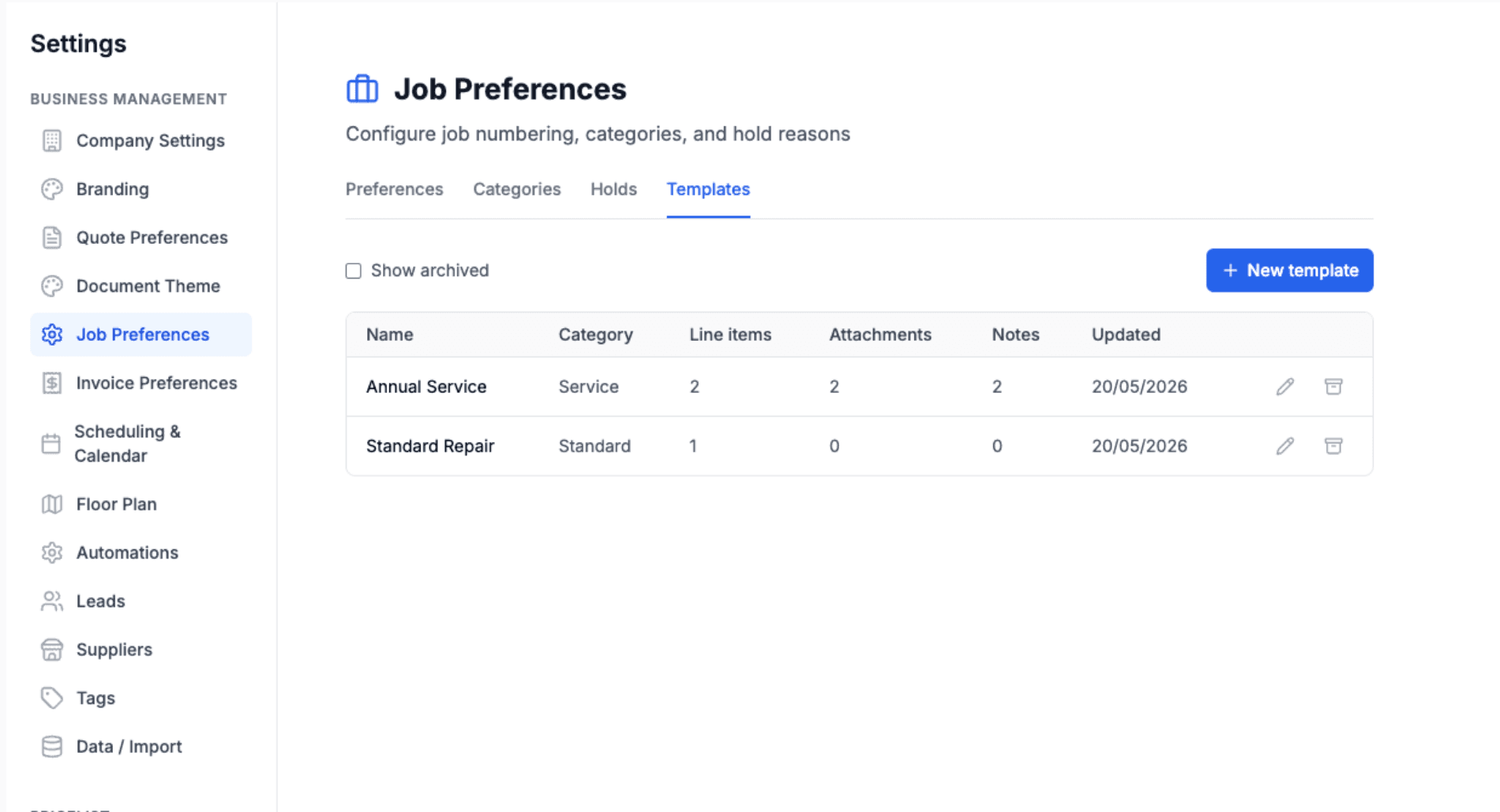
- Fill in the fields below, then save
Name. The internal label for the template (e.g. "Annual aircon service" or "Standard hot water replacement"). This is what appears in the "Start from template" dropdown when you create a new job.
Default category. The job category the new job should land in. Optional but recommended so jobs flow into the right reports and filters automatically.
Description. The short job description that fills the job's main description field.
Work details. The longer description field for scope notes, checklist items or anything else your team needs to see on the job.
Line items. The parts and labour that should pre-fill the job's first invoice. You can add:
- Price-list items. Pick any product or service from your price list. The price and tax are pulled from your live price list every time you use the template, so old templates never lock in stale prices.
- Price kits. Pick a price kit and it expands into its individual line items when you create the job, again at current prices.
- Free-text custom items. Type a one-off line that isn't on your price list. Free-text lines remember the price and tax you saved on the template, so set those yourself in the editor.
Note: changing the price or tax on a price-list or kit line in the template editor isn't saved. Those values always come from your live price list when you create a job from the template. Free-text lines are the only place a custom price and tax sticks.
Attachments. Upload images and PDFs (service checklists, safety docs, wiring diagrams, anything the crew needs on every job of this type). The originals stay attached to the template and a fresh copy is created against each new job.
Notes. Write any notes that should be inserted onto the new job as job notes (e.g. "Remember to check filter date" or "Confirm meter location before drilling").
Using a Template on a New Job
To use a template when creating a job:
- Click Create Job on the Jobs page in the portal
- In the Start from template dropdown at the top of the New Job form, pick the template you want
- Watch the form pre-fill with the template's category, description and work details
- Adjust anything you want, fill in customer and site, then click Create Job
Once the job is created, Cooledge also creates a draft invoice with all the template's line items at current prices, copies each attachment over to the new job and adds the template's notes as job notes.
Your typing is always kept. If you've already typed something into the description or work details before picking a template, Cooledge leaves what you typed alone and only fills the empty fields. The template never overwrites your work.
Changed your mind? Pick Blank job at the top of the dropdown and Cooledge clears all the template-filled fields so you can start fresh.
What Gets Copied
When you create a job from a template, three things flow onto the new job:
- Line items are added to a fresh draft invoice on the job. Prices and tax come from your live price list at the moment the job is created, so the invoice reflects today's prices not the prices from when the template was built. Price kits expand into their component lines. Free-text lines use the price and tax you saved on the template.
- Attachments are copied to the new job. The job gets its own copies, the originals stay with the template and edits or deletions on one side don't affect the other.
- Notes are added to the new job as job notes, exactly as you wrote them on the template.
Editing and Archiving Templates
To edit a template, go to Settings → Job Preferences → Templates, find the template in the list and click the pencil icon. Make your changes and save. Edits only affect new jobs you create from the template later, jobs already created from it are not changed.
To archive a template you no longer use, click the archive icon on its row. Archived templates disappear from the Start from template dropdown on the New Job form, so your team isn't shown options you've retired.
To bring an archived template back, toggle Show archived at the top of the Templates tab and click the restore icon on the archived row.
Archiving also frees up the template's name, so you can create a brand-new template with the same name without having to rename the old one first.
Common Questions
Can I use a template on an existing job? Not yet. Templates only work when you create a new job. If you want template line items on a job that already exists, copy them across manually for now.
What happens if I delete a line item from the price list later? Any template lines that pointed at the deleted price-list item are skipped when you create the new job and Cooledge shows you a quick message on the new job listing what was skipped. The rest of the template fills in normally.
Do attachments get copied or linked? Copied. Each job gets its own copy of every template attachment, so changes or deletions on the template don't affect jobs you've already created and vice versa.
Can I have a default template per category? Not yet. You pick the template manually from the dropdown on every new job.
Is this available on mobile? Templates are created and used from the Cooledge portal on your computer. A template picker for the mobile app is on the way.
Do template line item prices get locked in when I create the template? No. Price-list and kit lines always pull from your current price list when you create a job from the template, so your invoices reflect today's prices. Only free-text custom lines carry the price and tax you saved on the template.
Related Articles
- Creating and Managing Jobs - Create, edit and manage jobs end to end
- Understanding Jobs - How jobs work overall
- Managing Your Price List - Set up the products and services templates draw from
- Price Kits - Bundle items together for one-click pricing
- Creating Invoices - Bill customers for completed work
Need help with Job Templates? Email us at support@cooledge.com.au
Was this article helpful?
Let us know if you found this information useful.
Still need help? Contact support
In this article
Use your browser's search (Ctrl+F) to quickly find specific topics within this article.
Browse all help articles →