Dashboard Overview
Navigate your Cooledge dashboard with confidence and understand all the key features available to you
Dashboard Overview
Welcome to your Cooledge dashboard! This guide will help you understand all the key features and navigate your dashboard with confidence. The dashboard is your central hub for managing quotes, leads, customers, and business settings.
Dashboard Layout
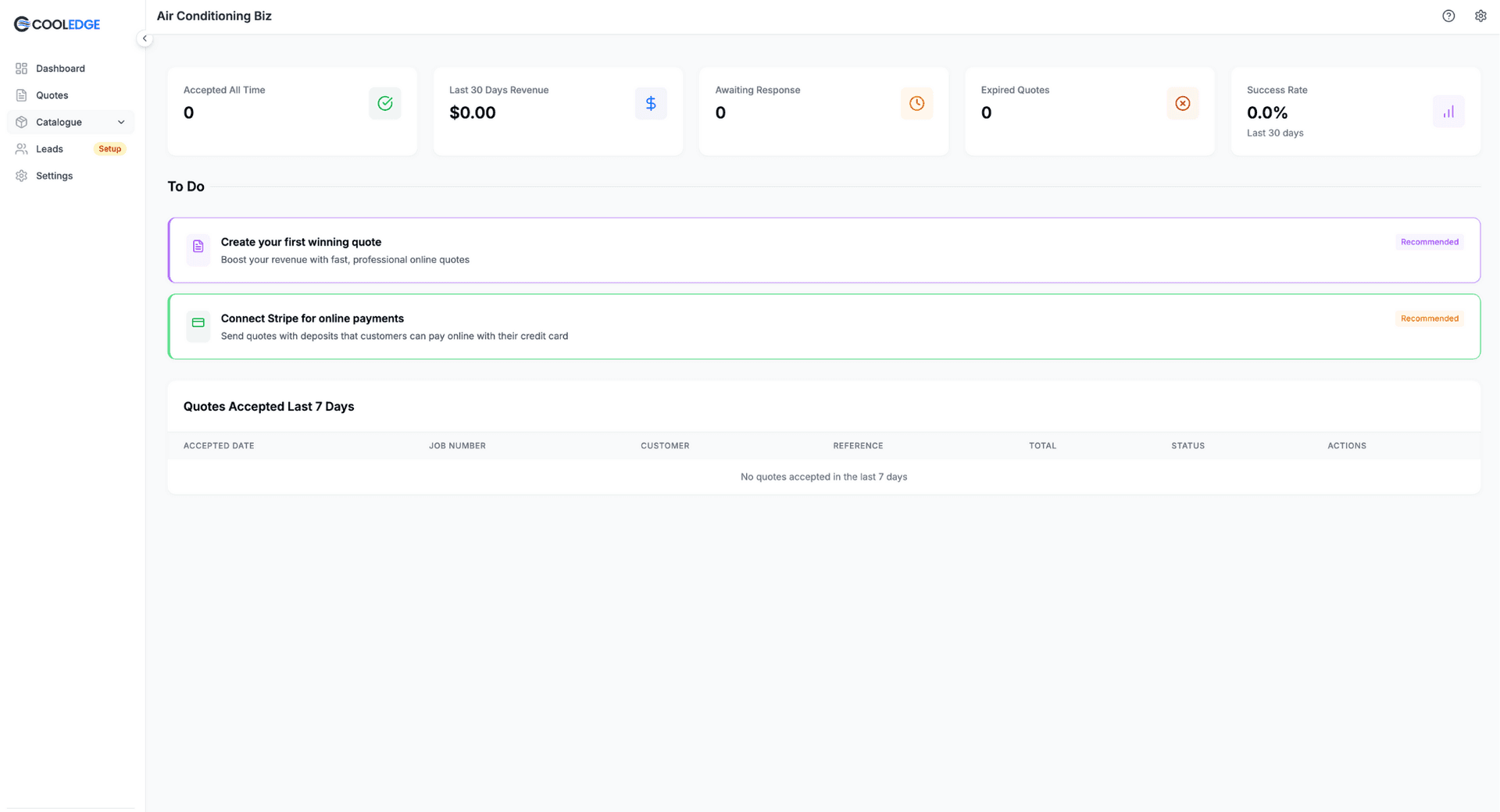
Your dashboard is organized into several key sections:
Side Navigation
- Dashboard: Main overview with statistics, action items, and quick actions
- Calendar: View and manage your schedule, bookings, and team availability
- Jobs: Track all customer jobs from quote to completion
- Quotes: View and manage all your quotes
- Customers: Search and manage your customer database
- Invoices: Create, send, and track customer invoices
- Messages: Unified inbox for email and SMS communication
- Timesheets: Manage staff hours, review timesheets, and track time entries
- Marketing: Access marketing tools and view campaign performance.
- Settings: Configure your business profile, preferences, and integrations
Main Dashboard Cards
Quote Statistics
Track your quoting performance with real-time metrics:
- Total Quotes: Overall number of quotes created
- Pending Quotes: Quotes awaiting customer response
- Accepted Quotes: Successfully converted quotes
- Revenue: Total value of accepted quotes
Action Items (Todos)
Your dashboard also shows action item cards that highlight things needing your attention — overdue invoices, jobs that need quoting, unsent quotes, expired quotes needing follow-up, and more. Each card shows a count and links to a filtered list so you can take action quickly.
For full details on each action item and what to do about them, see Dashboard Action Items.
Key Features
1. Quote Management
- Purpose: Track and manage all your customer quotes
- Location: Main dashboard cards and Quotes section
What you can do:
- View quote status (Pending, Accepted, Declined)
- Track conversion rates
- Monitor quote values and revenue
- Quick access to recent quotes
2. Business Statistics
- Purpose: Monitor your business performance
- Location: Dashboard overview cards
3. Lead Notifications
- Purpose: Stay informed about new business opportunities
- Location: Top notification area
Features:
- New lead alerts for your service area
- Lead marketplace updates
- Qualification status updates
- Revenue opportunity notifications
4. Mobile App Integration
Purpose: Seamless connection with your mobile app Location: Throughout dashboard
Capabilities:
- Real-time sync with mobile quotes
- Photo and data synchronization
- Customer information updates
- Quote status changes
Getting Started Checklist
When you first access your dashboard, here's what to set up:
✅ Essential Setup
- Complete Business Profile: Add your business information, logo, and contact details
- Configure Pricing: Set up your catalog with units, pricing, and markups
- Connect Stripe: Enable payment processing for quote deposits
- Download Mobile App: Install the app for on-site quoting (iOS or Android)
✅ Optional Enhancements
- Enable Lead Marketplace: Access qualified leads in your area
- Set Quote Preferences: Customize quote templates and branding
- Configure Follow-ups: Set up automated customer follow-up sequences
- Add Team Members: Invite team members if you have multiple staff
Navigation Tips
Quick Access Shortcuts
- Dashboard Home: Click the Cooledge logo anytime
- Mobile Menu: Tap hamburger menu on mobile devices
Mobile Responsiveness
The dashboard is fully responsive and works on:
- Desktop computers (optimized experience)
- Tablet devices (adapted layout)
- Mobile phones (simplified navigation)
Troubleshooting Common Issues
Dashboard Not Loading
- Check your internet connection
- Refresh the browser page
- Clear browser cache and cookies
- Try a different browser
Data Not Syncing
- Ensure mobile app is connected to internet
- Check for app updates
- Log out and back in to both platforms
- Contact support if issues persist
Missing Features
Some features may not be available depending on your subscription plan, please check you plan inclusions
Getting Help
In-Dashboard Support
- Help Button: Access help articles from any page
- Live Chat: Available during business hours (if enabled)
- Feature Tours: Guided walkthroughs for new features
Additional Resources
- Video Tutorials: Step-by-step video guides on our Youtube Channel
- Email Support: Contact support@cooledge.com.au
- Knowledge Base: Comprehensive articles in the help center →
Next Steps
Once you're comfortable with the dashboard:
- Explore the Mobile App: Download and set up the Cooledge app (iOS or Android)
- Create Your First Quote: Practice with the quote creation process
- Set Up Lead Marketplace: Access qualified leads in your service area
- Customize Settings: Tailor the platform to your business needs
Advanced Features
Integration Capabilities
- Stripe Payments: Process customer deposits and payments
- Email Systems: Automated quote delivery and follow-ups
- Calendar & Scheduling: Schedule installations, quote visits, and manage team availability
- Accounting Software: Push invoices to Xero or QuickBooks
Your dashboard is designed to grow with your business. Start with the basics and gradually explore advanced features as your needs evolve.
Need help with anything specific? Check out our other help articles or contact our support team for personalized assistance.
Related Articles
- Dashboard Action Items - What each todo card means and what to do
- Getting Started - Initial setup and onboarding
- Understanding Jobs - How jobs work and their lifecycle
- Using the Calendar - Schedule management
Was this article helpful?
Let us know if you found this information useful.
Still need help? Contact support
In this article
Use your browser's search (Ctrl+F) to quickly find specific topics within this article.
Browse all help articles →