Supplier Ordering
Generate take-offs and send supplier orders directly from accepted quotes
Supplier Ordering
Currently Available: Supplier ordering is currently integrated with AAD (Australian Airconditioning Distributors) in NSW, VIC and SA. More suppliers and states coming soon!
Generate complete take-offs and send orders to your suppliers in one click. No more manual calculations, phone calls or ordering mistakes.
Ordering from someone else? You don't need an AAD account to work out a quote's parts list, export it or create purchase orders. The Materials card on every quote does that for any supplier. See Purchase Orders →. To get each supplier's prices on your POs, see Supplier Pricebooks →.
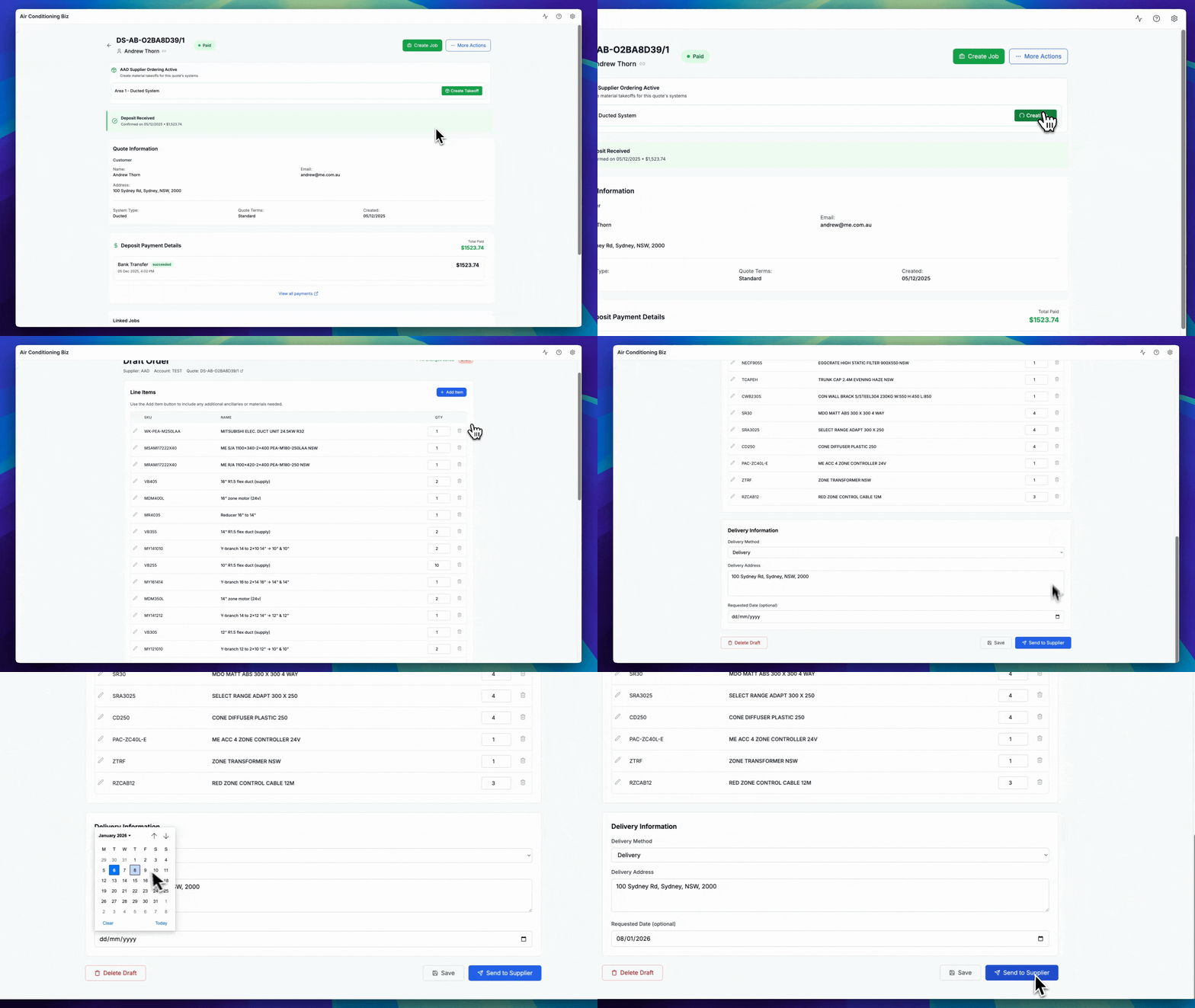
What is Supplier Ordering?
Supplier Ordering connects your Cooledge quotes directly to your AAD account. When a customer accepts a quote, you can generate a complete material list and send it straight to AAD. No phone calls, no spreadsheets.
The system works out everything you need based on the quote details. For ducted jobs, it calculates the full duct layout including plenums, flex runs, zone motors and fittings. For splits and multi systems, it pulls through the units, pipe and any add-ons you've quoted.
VRV takeoffs through AAD aren't available yet. VRV systems on a quote are listed as unavailable.
Setting Up Your AAD Account
Before you can start ordering, you'll need to connect your AAD account.
How to Add an Account
- Go to Settings
- Under Billing & Integrations, click Supplier Ordering (the Orders link in the main sidebar opens the same page)
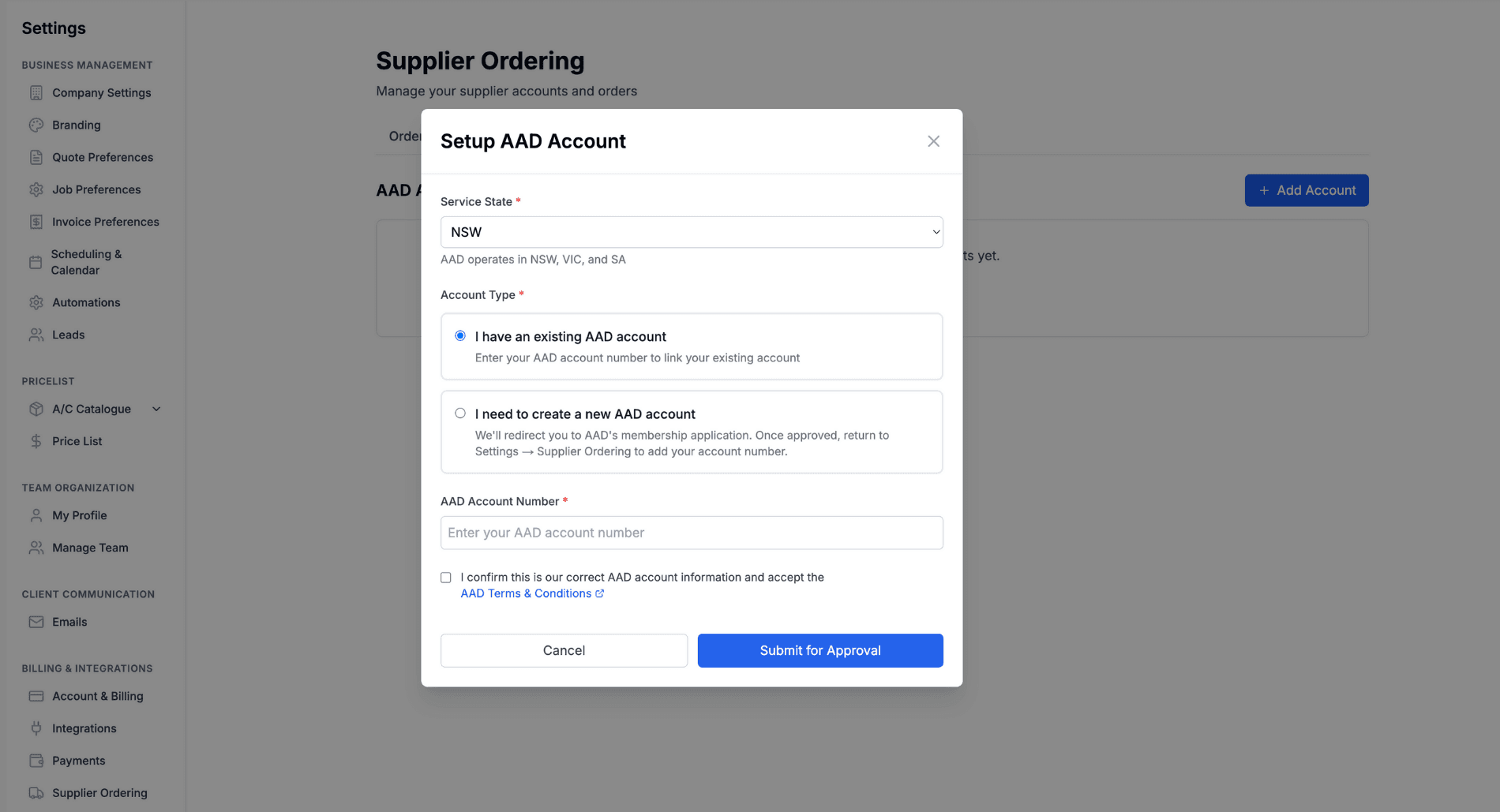
- On the Accounts tab, click Add Account
- Pick your Service State (NSW, VIC or SA)
Then choose the Account Type:
I have an existing AAD account:
- Enter your AAD account number (see where to find your AAD/SAL account number)
- Tick the box to confirm your details and accept the AAD Terms & Conditions
- Click Submit for Approval. Your account shows as Pending until it's approved
I need to create a new AAD account:
- Click Continue to Membership Application and complete AAD's membership application
- Your account shows as Pending in the meantime
- Once AAD approves you, come back to Settings → Supplier Ordering and click + Add Account Number on the Accounts tab to enter your new number
Account Status
Your account will show one of these statuses:
- Approved (green): Ready to place orders
- Pending (yellow): Waiting for approval
- Rejected (red): Contact the supplier directly
Only an approved account shows the Order through AAD block on your quotes. While your account is pending, nothing extra appears on the quote.
Creating a Supplier Order
Once your account is approved, ordering is straightforward.
From an Accepted Quote
- Go to Quotes and open a quote that's Accepted or Paid
- In the Materials card, find the Order through AAD block
- Click Create Takeoff for the system you want to order
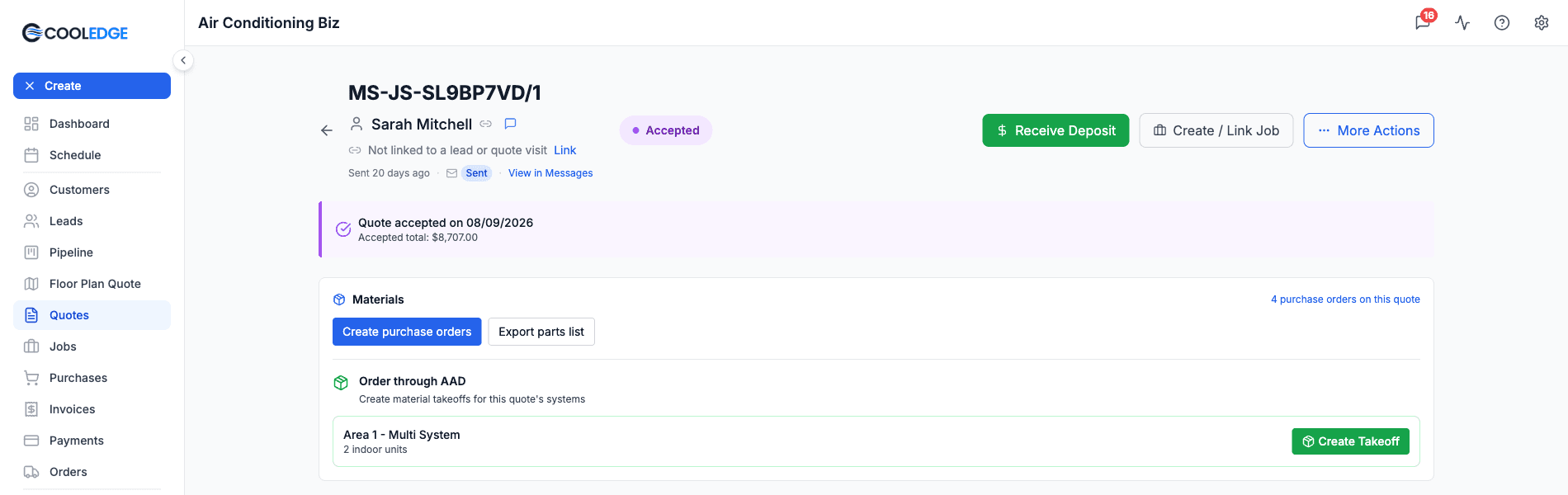
The system generates everything automatically based on your quote details.
For Ducted Systems, you'll get:
- Indoor and outdoor units
- Supply plenums
- Flex duct runs (calculated based on zones)
- Zone motors and fittings
- Return air ducts and grilles
- Pipe (for new installations)
- Controllers (standard or zone)
- Add-ons like WiFi or iZone (smart controllers)
For Split and Multi Systems:
- Indoor and outdoor units
- Pipe based on pipe length
- Installation materials
- Any add-ons that were accepted
Reviewing the Order
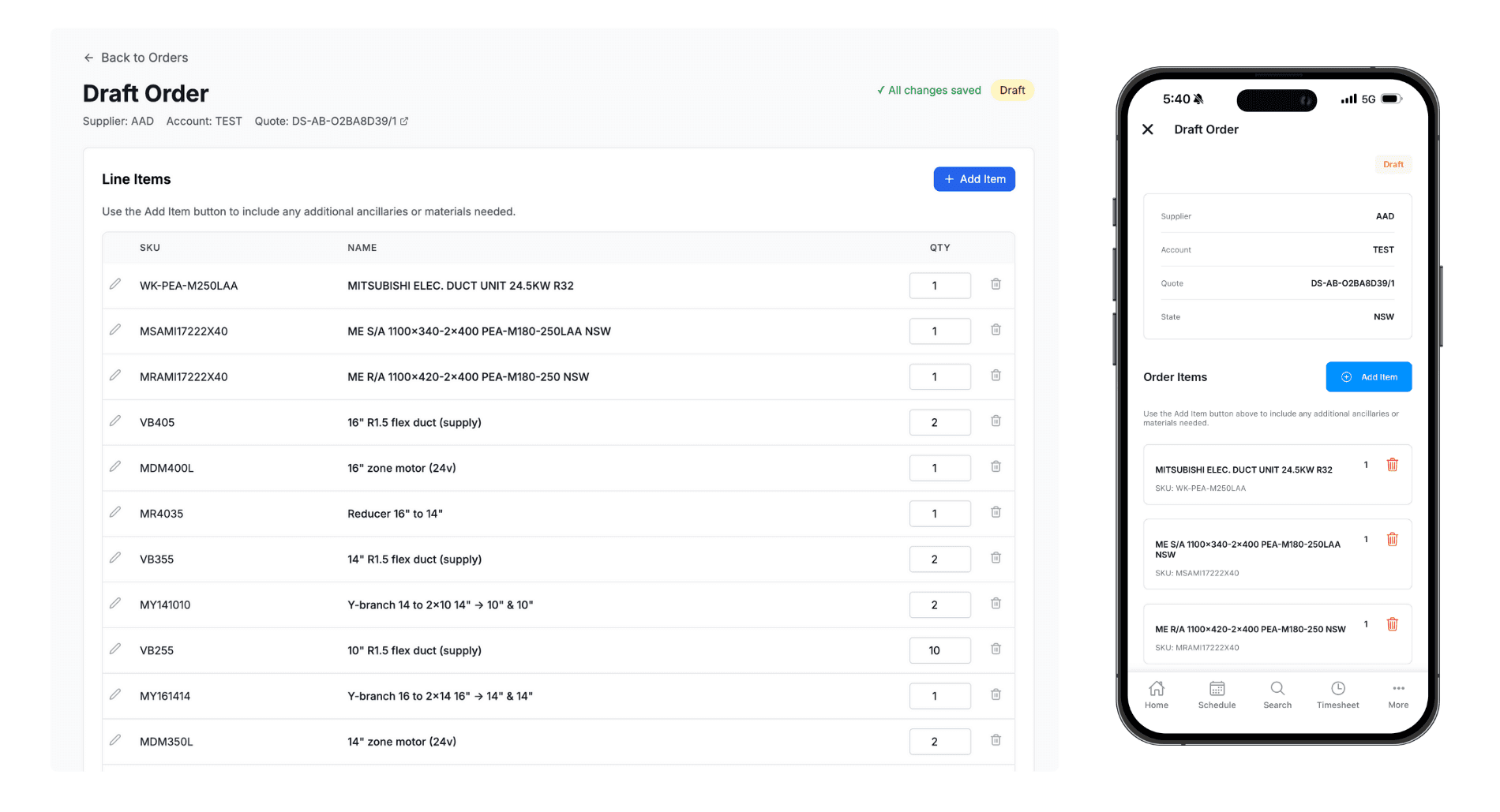
After creating the takeoff, the draft order opens with every item listed under Line Items. Have a quick look through to make sure it's all correct.
In the editor you can:
- Adjust quantities if needed
- Add extra items with Add Item
- Remove items you don't need
Choosing Delivery
Under Delivery Information, set the Delivery Method:
Pickup: Choose a Pickup Branch. Each branch shows its address in the list so you know where to go.
Delivery: Enter the Delivery Address.
Either way you can add a Requested Date if you need it by a certain day.
Sending the Order
Once you're happy with everything, click Send to Supplier and confirm. The order goes straight to AAD by email, and the status changes from "Draft" to "Sent".
The button stays greyed out until every item is matched to a supplier product, every item has a quantity and the delivery details are filled in. Hover over it to see what's missing.
Using AAD? Your order will appear in your SAL account for approval. See AAD & SAL Connection for more details.
Note: Once an order is sent, you can't edit it in Cooledge. Give your supplier a call if you need to make changes. A draft you don't need can be removed with Delete Draft.
Managing Your Orders
All your supplier orders appear in Settings → Supplier Ordering, on the Orders tab. You'll see the status of each order:
- Draft: Not sent yet, so you can still edit these
- Sent: Order submitted to supplier
- Cancelled: Order was cancelled
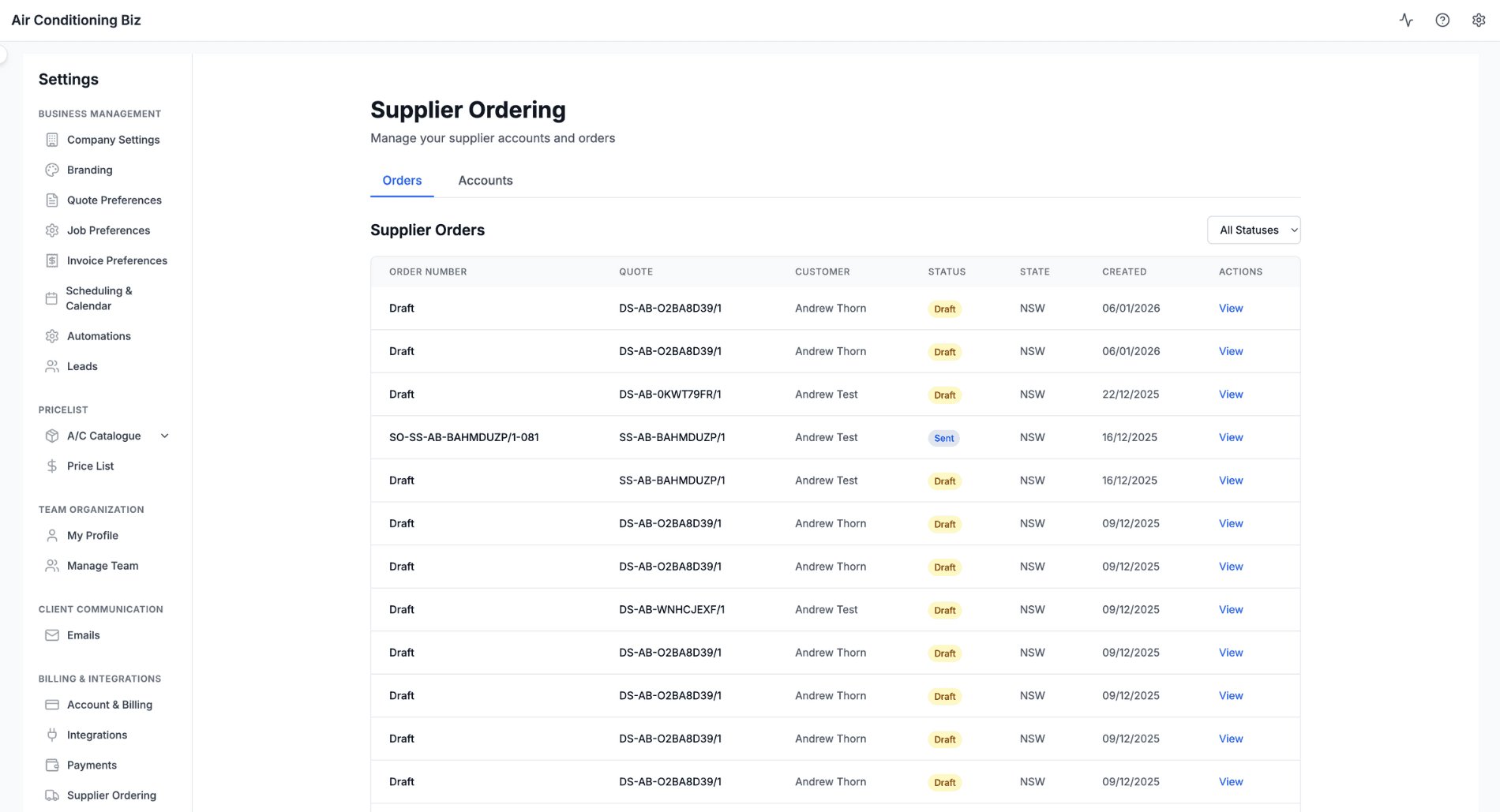
Click View on any order to see its items, delivery details and the quote it came from.
Quotes with More Than One System
Got a quote with a ducted AND a split, or several areas? No worries. Each system gets its own Create Takeoff button, and each click creates a separate order for that system. That's handy if you want to order one area at a time or send different systems to different branches.
When the quote has more than one system, Create Combined Takeoff appears as well. It puts every system into a single order. This is usually what you want: one order with everything for the whole job.
On the Mobile App
Once your AAD account is approved, owners and admins see a Supplier Ordering section on Accepted or Paid quotes in the mobile app, with the same Create Takeoff buttons and Create Combined Takeoff (All Systems) when there's more than one system. Your AAD accounts and orders live under More → Supplier Orders.
In the mobile order editor, Add Item opens a product picker. Search by name or SKU, and scroll for more (products load 50 at a time).
How the Take-off Works
For ducted systems, the take-off is calculated based on the number of zones, duct sizing and R-value from your quote. The system works out trunk sizes, flex lengths, zone motors, plenums, fittings and return air automatically.
For split and multi systems, the take-off pulls through the units you selected plus pipe based on the pipe lengths in your quote.
Most common items (units, standard duct sizes, pipe) are already matched to supplier products. If something can't be matched automatically, it still appears in your order. You'll just need to pick the matching product for it before you can send.
Common Questions
Can I add extra items? Yes. In the takeoff editor you can add items with Add Item before sending.
Do prices show on the order? No. AAD prices the order at your account rates. If you want AAD prices on your purchase orders, add AAD as one of your suppliers and upload its price list. See Supplier Pricebooks →.
What if my account isn't approved yet? You can still quote, export parts lists and create purchase orders as normal. The Order through AAD block only appears on your quotes once the account is approved.
Do I need an AAD account to order parts? Only to order through AAD. Purchase orders work with any supplier. See Purchase Orders →.
Can my staff use this? Supplier ordering is for owners and admins, on the portal and in the mobile app. Other team members don't see it.
Having Issues?
Can't send order? Check your account is approved (not pending), every item is matched to a product and all delivery details are filled in.
Supplier didn't receive it? Check the order status shows "Sent" in Cooledge, then give them a call to confirm.
Items missing? Make sure your quote has all the details filled in (zones, pipe options, ductwork type). You can always add items manually in the takeoff editor.
Need help? Email us at support@cooledge.com.au
Was this article helpful?
Let us know if you found this information useful.
Still need help? Contact support
In this article
Use your browser's search (Ctrl+F) to quickly find specific topics within this article.
Browse all help articles →